
Introduction
Amazon EC2 (Elastic Compute Cloud) allows you to run virtual machines in the cloud. In this article, we will launch an EC2 instance and set it up as a web server using Apache or Nginx. By the end, you will have a running web server that can serve web pages.
Step 1. Launch an EC2 Instance.
- Log in to the AWS Console
- Go to AWS Management Console and navigate to EC2.
- Click on "Launch Instance".
- Choose an Amazon Machine Image (AMI)
- Select Amazon Linux or Ubuntu. These are commonly used for web servers.
- Choose an Instance Type
- For free-tier users, select t2.micro (1 vCPU, 1 GB RAM).
- Configure Security Group
- Allow SSH (port 22): To connect via the terminal.
- Allow HTTP (port 80): To access the web server.
- Launch the Instance
- Click "Launch", create or select an existing key pair, and download it.
Step 2. Connect to the EC2 Instance.
- Open a terminal (Linux/Mac) or PuTTY (Windows).
- Run the SSH command.
Bash
ssh -i "C:\Users\ATUL GUPTA\Downloads\rocky-999.pem" [email protected]
Step 3. Install a Web Server Apache2.
- Update package lists.
Bash
sudo apt update -y - Install Apache2.
Bash
sudo apt install -y apache2
- Start Apache service.
Bash
sudo systemctl start apache2 - Enable Apache to start on boot.
Bash
sudo systemctl enable apache2 - Check the service status.
Bash
sudo systemctl status apache2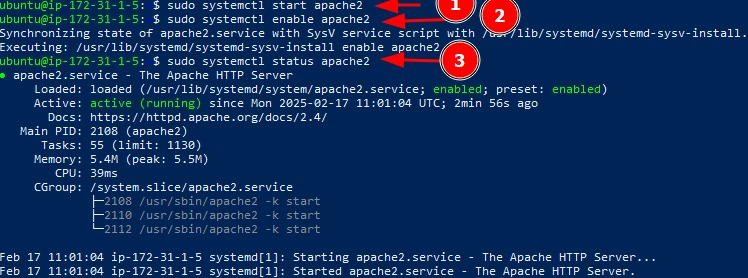
- If Apache is running, you should see "active (running)" in green.
Step 4. Test Your Web Server.
- Copy the Public IP of your EC2 instance from the AWS EC2 dashboard.
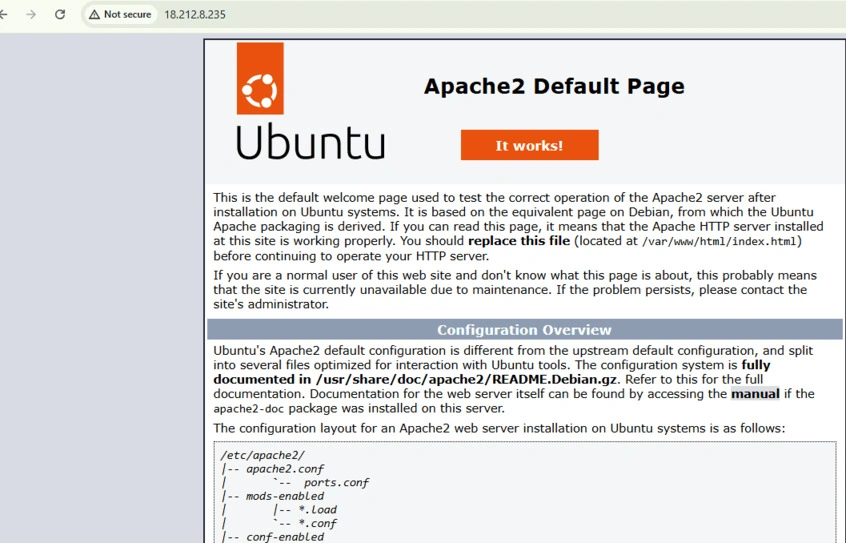
- Open a web browser and visit.
Bash
http://your-ec2-public-ip - You should see the Apache/Nginx default page.
Step 5. Customize Your Web Page.
Since you are seeing the default Apache2 page, you can now replace it with your own custom webpage.
Navigate to the Web Root Directory
Run the following command in your terminal.
cd /var/www/htmlCreate a Simple HTML Page
Run this command to replace the default page with a new one.
echo '<h1>Welcome to My EC2 Web Server!</h1>' | sudo tee index.html
Refresh the Browser
Go back to http://your-ec2-public-ip in your web browser.
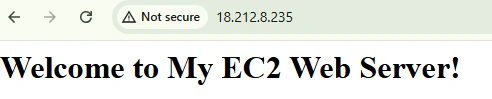
You should now see
"Welcome to My EC2 Web Server!" instead of the default Apache page.
Conclusion
In this article, we successfully set up an Amazon EC2 instance as a web server using Apache2. By launching the EC2 instance, configuring the necessary security groups, installing Apache, and customizing the default web page, you now have a fully functional web server. You can use this setup to host static websites or further configure it for dynamic web applications.

Join the conversation! Your thoughts help the community grow.