
I will show you the following two ways of taking a backup of an existing database:
- Using a SQL Query
- Using the Object Explorer
Taking Backup Using Object Explorer
Let us try the first technique now. Open SQL Server and login using valid credentials.
Step 1
Right-click on the database. Go to Tasks -> Back Up.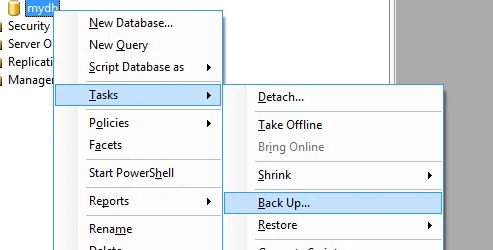
Step 2
Click on Add.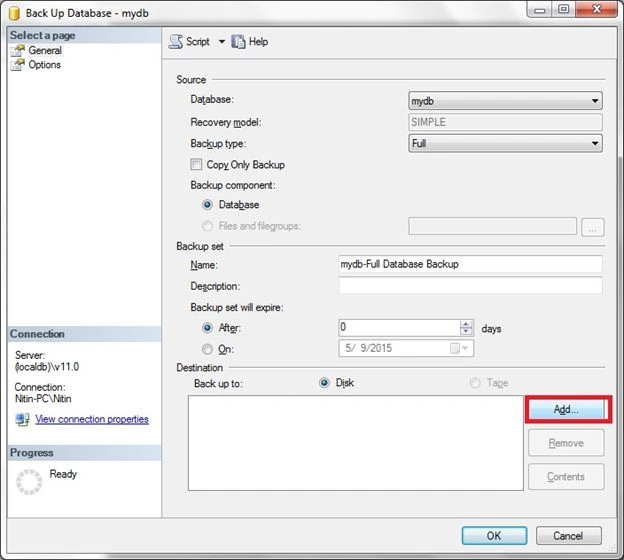
Step 3
Provide a valid path and name to the database. Append “.bkp” to the file name. Click OK.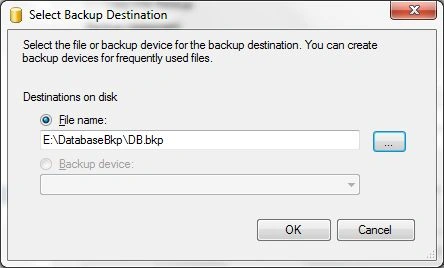
Step 4
Click OK.
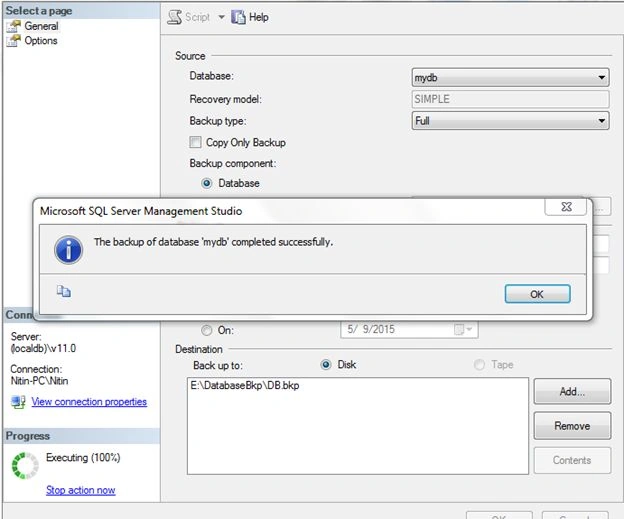
We get the backup of the database in the desired location.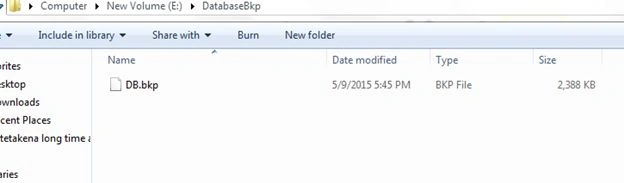
Taking Backup Using SQL Query
Execute the following SQL query:
BACKUP DATABASE mydb TO DISK = 'E:\DatabaseBkp\DB2.bak'
Execute the query.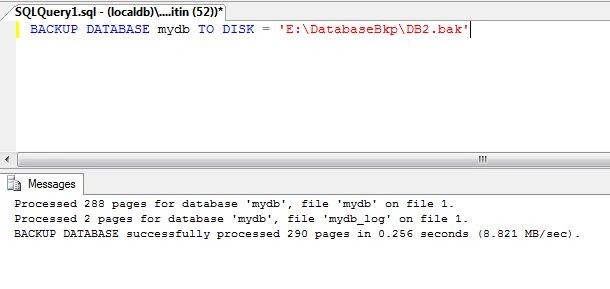
We will get the following message. Let us now check the folder.
As we can see, we have a new database in the folder. This is how we take a backup of a SQL Server database.


Sibeesh VenuTOP 100Posted May 30, 2015, 9:14 AM EDT
Good one.
Santhakumar MunuswamyPosted May 30, 2015, 8:33 AM EDT
Thanks for nice article..
Rahul PrajapatPosted May 30, 2015, 5:52 AM EDT
Thanks
Shailesh UkePosted May 30, 2015, 5:21 AM EDT
Nice ...
NitinPosted May 29, 2015, 7:51 AM EDT
Thanks Dominique Ceja
Dominique CejaPosted May 29, 2015, 6:51 AM EDT
Thanks
Gopi ChandPosted May 29, 2015, 4:22 AM EDT
Visual explanation :)
Sibeesh VenuTOP 100Posted May 29, 2015, 3:28 AM EDT
Nice one.