
You can use the SharePoint client object model to retrieve, update and manage data in SharePoint 2013. SharePoint makes the object model available in several forms.
- .NET Framework redistributable assemblies
- JavaScript library
- REST/OData endpoints
- Windows Phone assemblies
- Silverlight redistributable assemblies
This article shows how to do basic operations using the JavaScript object model. You can add a reference to the object model using HTML <script> tags.
The following sections describe tasks that you can complete programmatically and they include JavaScript code examples that show the operations.
To update the file's contents you can use a FileCreationInformation object and set the overwrite attribute to true by using the set_overwrite() method, as shown in this example.
Procedure
Open your SP Site in SharePoint 2013 Designer, then select the Site Assets icon in the designer ribbon and add a JavaScript file.
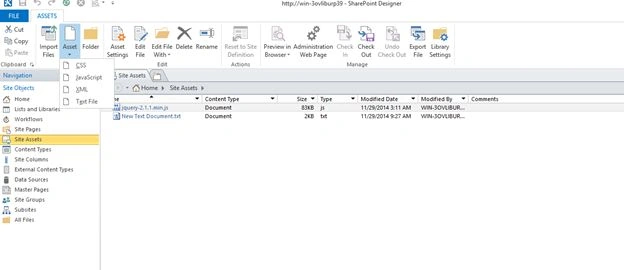
Figure 1: Open SP Site
After adding the JavaScript file, this file is available in the SharePoint Site Assets Folder.
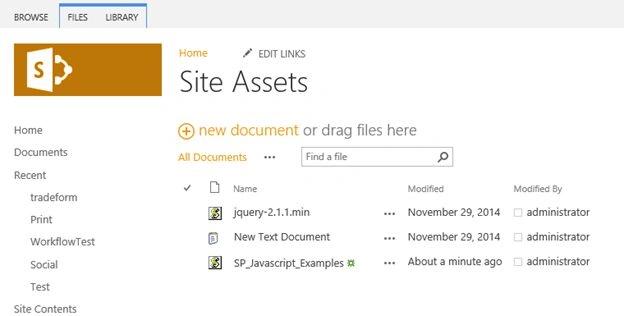
Figure 2: Site Assets
Go to the SP site page and add a new page to the SharePoint site.
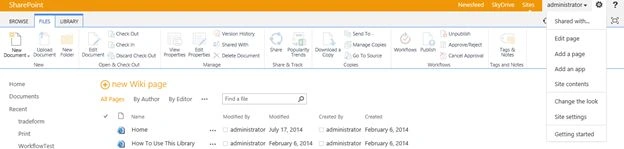
Figure 3: Add a new Page
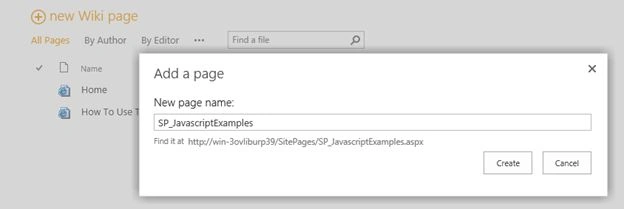
Figure 4: New Wiki page
After adding a page, select an Insert button in the Ribbon Menu.

Figure 5: Ribbon Menu
Then add a Content Editor Web part into the page.

Figure 6 :Content Editor
Edit the WebPart and add a JavaScript file link to the content link.
Figure 7: Content link
Save the web part and save the page in the site. Click the button!
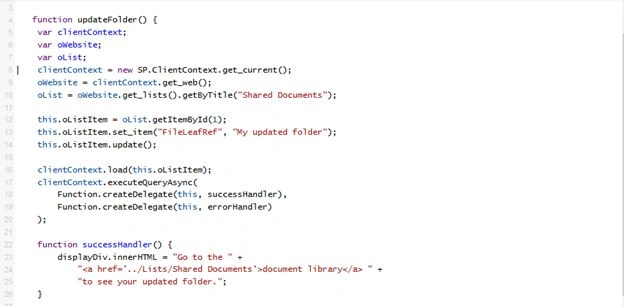
Figure 8: Save the Web Part

Figure 9: Update Succesfully
List updated successfully.
Source Code
Figure 1: Open SP Site
After adding the JavaScript file, this file is available in the SharePoint Site Assets Folder.
Figure 2: Site Assets
Go to the SP site page and add a new page to the SharePoint site.
Figure 3: Add a new Page
Figure 4: New Wiki page
After adding a page, select an Insert button in the Ribbon Menu.
Figure 5: Ribbon Menu
Then add a Content Editor Web part into the page.
Figure 6 :Content Editor
Edit the WebPart and add a JavaScript file link to the content link.
Figure 7: Content link
Save the web part and save the page in the site. Click the button!
Figure 8: Save the Web Part
Figure 9: Update Succesfully
List updated successfully.
Source Code
- <div>
- <button onclick=" updateFile ()">Click here to updateFile </button>
- </div>
- <div id=" displaydiv "></div>
- <script type="text/javascript">
- function updateFile()
- {
- var clientContext;
- var oWebsite;
- var oList;
- var fileCreateInfo;
- var fileContent;
- clientContext = new SP.ClientContext.get_current();
- oWebsite = clientContext.get_web();
- oList = oWebsite.get_lists().getByTitle("Shared Documents");
- fileCreateInfo = new SP.FileCreationInformation();
- fileCreateInfo.set_url("TextFile1.txt");
- fileCreateInfo.set_content(new SP.Base64EncodedByteArray());
- fileCreateInfo.set_overwrite(true);
- fileContent = "The updated content of my file";
- for (var i = 0; i < fileContent.length; i++)
- {
- fileCreateInfo.get_content().append(fileContent.charCodeAt(i));
- }
- this.existingFile = oList.get_rootFolder().get_files().add(fileCreateInfo);
- clientContext.load(this.existingFile);
- clientContext.executeQueryAsync(
- Function.createDelegate(this, successHandler),
- Function.createDelegate(this, errorHandler)
- );
- function successHandler()
- {
- displaydiv.innerHTML =
- "Go to the " +
- "
- <a href='../Lists/Shared Documents'>document library</a> " +
- "to see the updated \"TextFile1.txt\" file.";
- }
- function errorHandler()
- {
- displaydiv.innerHTML =
- "Request failed: " + arguments[1].get_message();
- }
- }
- </script>
Thanks for reading my article.


Gowtham RajamanickamTOP 100Posted Apr 13, 2016, 7:02 PM EDT
Hope you all liked this
Gowtham RajamanickamTOP 100Posted Apr 13, 2016, 7:02 PM EDT
Thanks
Santhakumar MunuswamyPosted Jul 10, 2015, 11:00 PM EDT
Nice article! Thanks for sharing
Gowtham RajamanickamTOP 100Posted Jul 10, 2015, 10:02 PM EDT
Thanks
Gowtham RajamanickamTOP 100Posted Jul 10, 2015, 1:01 AM EDT
Thank u all.
Neeraj KumarPosted Jul 9, 2015, 1:21 PM EDT
Nice Article
Sibeesh VenuTOP 100Posted Jul 9, 2015, 2:41 AM EDT
Good One! Thanks for sharing