
Introduction
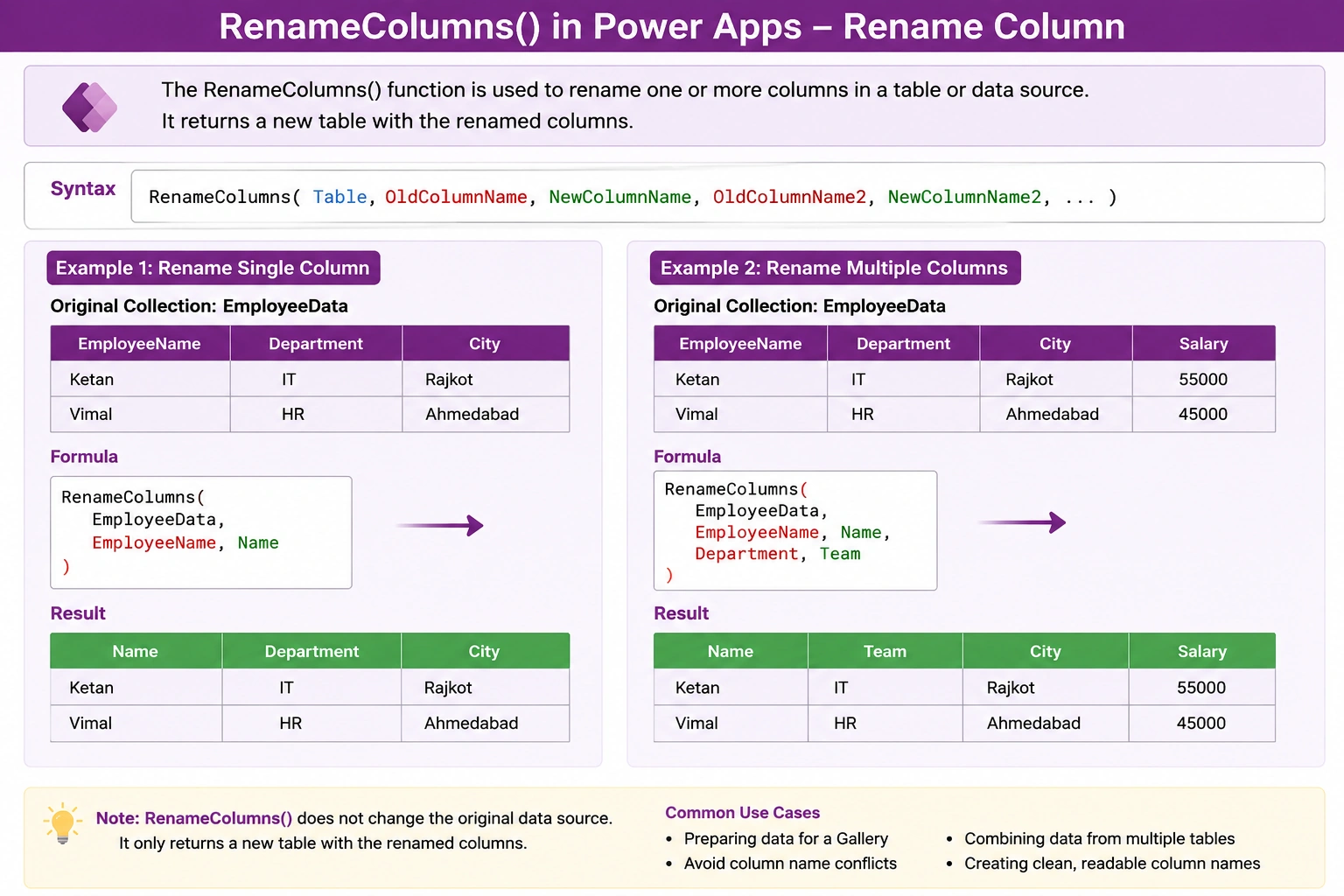
The RenameColumns() function in Power Apps is used to rename one or more columns in a table or data source. It is useful when you want to change column names temporarily while working with data.
Syntax
RenameColumns(
    Table,
    OldColumnName,
    NewColumnName
)
To rename multiple columns:
RenameColumns(
    Table,
    OldColumnName1,
    NewColumnName1,
    OldColumnName2,
    NewColumnName2
)
Example 1: Rename a Single Column
Suppose you have a collection called EmployeeData:
| EmployeeName | Department | City |
|---|---|---|
| Ketan | IT | Mehsana |
| Vimal | HR | Ahmedabad |
To rename the EmployeeName column to Name:
RenameColumns(
    EmployeeData,
    EmployeeName,
    Name
)
Result
| Name | Department | City |
|---|---|---|
| Ketan | IT | Mehsana |
| Vimal | HR | Ahmedabad |
Example 2: Rename Multiple Columns
You can rename multiple columns in a single formula:
RenameColumns(
    EmployeeData,
    EmployeeName,
    Name,
    Department,
    Team
)
Result
| Name | Team | City |
|---|---|---|
| Ketan | IT | Mehsana |
| Vimal | HR | Ahmedabad |
Example 3: Rename a Column in a Gallery
Suppose a Gallery displays data from EmployeeData, and you want to rename EmployeeName to Name:
RenameColumns(
    EmployeeData,
    EmployeeName,
    Name
)
You can use the result as the Gallery's Items property.
Then, inside the Gallery, use:
ThisItem.Nameinstead of:
ThisItem.EmployeeNameExample 4: Rename Columns After Filter
You can combine Filter() and RenameColumns().
RenameColumns(
    Filter(
        EmployeeData,
        Department = "IT"
    ),
    EmployeeName,
    Name
)
This formula:
Filters employees from the
ITdepartment.Renames
EmployeeNametoName.
Example 5: Rename Columns After AddColumns
You can also combine AddColumns() and RenameColumns():
RenameColumns(
    AddColumns(
        EmployeeData,
        FullName,
        EmployeeName & " - " & Department
    ),
    FullName,
    EmployeeDisplayName
)
Here, a new column called FullName is created and then renamed to EmployeeDisplayName.
Important Notes
RenameColumns()returns a new table with the renamed column.It does not permanently rename the original column in the underlying data source.
You can rename multiple columns in one formula.
The old column name must exist in the table.
The new column name should not conflict with an existing column name.
If you are renaming SharePoint or Dataverse columns, remember that
RenameColumns()only changes the column name in the formula's result, not the actual data source schema.
Common Use Cases
RenameColumns() is commonly used when:
Preparing data for a Gallery.
Combining data from multiple tables.
Avoiding column-name conflicts during
JoinorLookUpoperations.Creating cleaner column names for temporary tables.
Transforming data before displaying it in a control.
Renaming columns created by other table functions.
Quick Comparison
| Function | Purpose |
|---|---|
| ShowColumns() | Select specific columns |
| DropColumns() | Remove specific columns |
| RenameColumns() | Rename existing columns |
| AddColumns() | Add new calculated columns |
Simple Example
RenameColumns(
    EmployeeData,
    EmployeeName,
    Name
)
In short: RenameColumns() → Rename an existing column in a table result.
Conclusion
The RenameColumns() function in Power Apps is a useful table-shaping function that allows you to rename one or more columns without changing the original data source. It is especially helpful when preparing data for galleries, creating cleaner column names, or avoiding column-name conflicts when working with multiple tables.

Join the conversation! Your thoughts help the community grow.