
Introduction
Microsoft SharePoint is widely used with CRM solutions to store customer documents such as contracts, quotations, invoices, proposals, and agreements.
A good CRM document-management solution needs two important things:
Security – Control who can access and modify information.
Metadata – Store useful information about documents so they can be easily searched, filtered, and automated.
When these two are designed properly, SharePoint becomes easier to manage and can work effectively with Power Apps and Power Automate.
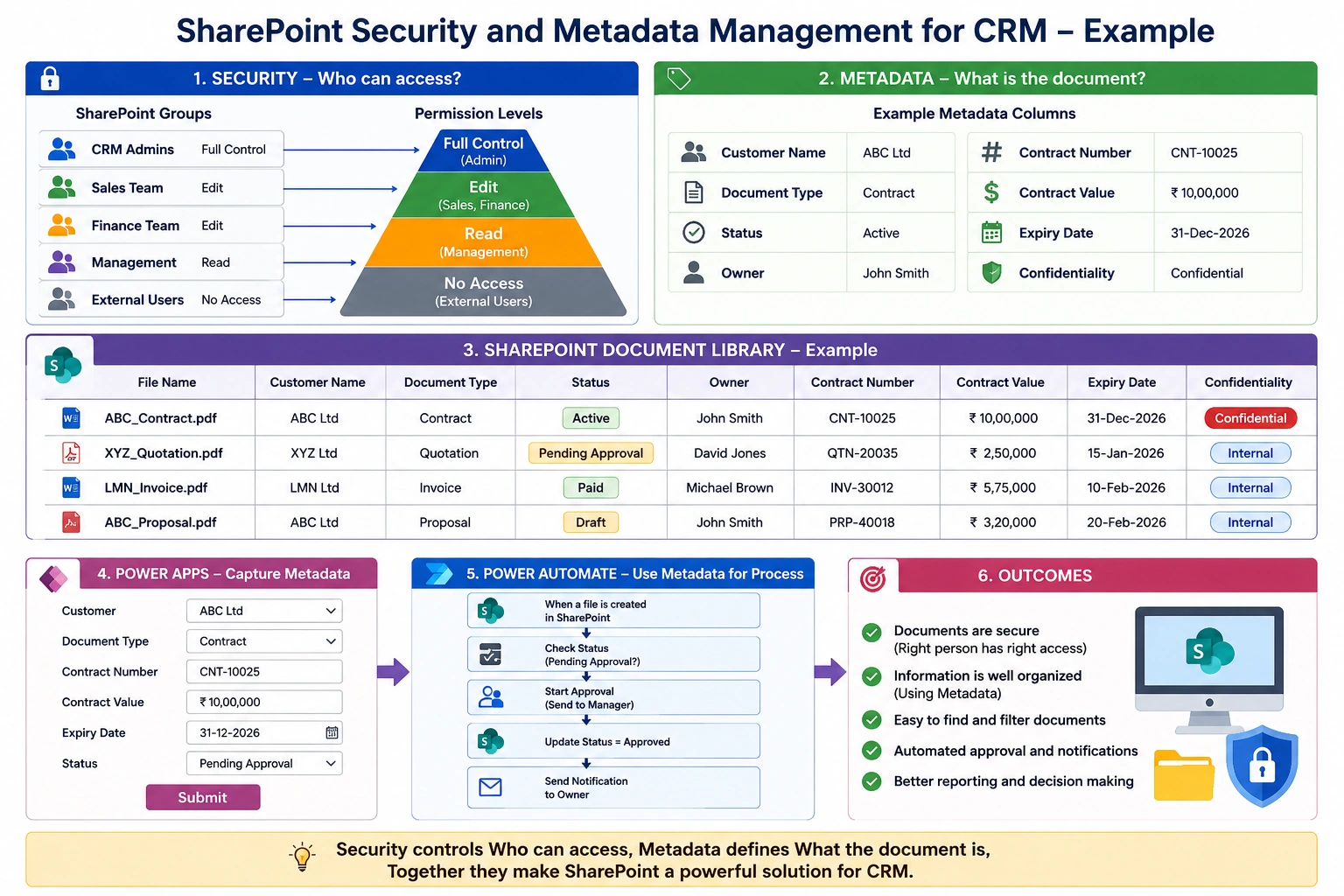
1. What is SharePoint Metadata?
Metadata is information that describes a document.
For example, instead of storing only a file called:
ABC_Contract_2026.pdf
we can add SharePoint columns such as:
| Column | Example |
|---|---|
| Customer Name | ABC Ltd |
| Document Type | Contract |
| Status | Active |
| Contract Number | CNT-10025 |
| Owner | Ketan |
| Expiry Date | 31-Dec-2026 |
| Region | India |
Now SharePoint understands more about the document.
This information can then be used for searching, filtering, reporting, and Power Automate workflows.
2. Why Metadata is Important in CRM
A CRM system can contain thousands of documents. Managing these documents only through folders can become difficult.
For example:
Customer Documents
   ├── ABC Ltd
   │    ├── Contracts
   │    ├── Quotations
   │    └── Invoices
   │
   ├── XYZ Ltd
   │    ├── Contracts
   │    ├── Quotations
   │    └── Invoices
As the number of customers increases, the folder structure becomes harder to maintain.
With metadata, documents can be stored in a common library and filtered by:
Customer
Document Type
Status
Region
Owner
Expiry Date
This makes document management much more flexible.
3. SharePoint Security
Security controls who can access SharePoint information.
For example:
CRM SharePoint Site

Sales Team       → Edit
Finance Team     → Edit
Management       → Read
External Users   → No Access
SharePoint permissions can be managed at different levels:
Site
Library
Folder
File or item
However, it is usually better to keep the security structure simple and use groups instead of creating many individual permissions.
4. Use SharePoint Groups
Instead of giving permissions to individual users:
Ketan   → Edit
Vimal    → Edit
Dhaval   → Read
Mitesh   → Read
create groups:
CRM Sales Team
   ├── Ketan
   └── Vimal

CRM Read Only Team
   ├── Dhaval
   └── Mitesh
Then assign permissions to the groups.
For example:
CRM Sales Team      → Edit
CRM Read Only Team   → Read
If a new employee joins the Sales Team, you only need to add the user to the group.
5. Security and Metadata Work Together
Security and metadata have different purposes.
Security answers:
Who can access this document?
Metadata answers:
What is this document?
For example:
Document
   |
   |-- Customer: ABC Ltd
   |-- Type: Contract
   |-- Status: Active
   |-- Region: India
   |
   └-- Security
        |-- Sales Team → Edit
        |-- Management → Read
        └-- External Users → No Access
This creates a structured and secure document-management solution.
6. Content Types
Content Types are useful when different types of CRM documents require different metadata.
For example:
CRM Document
    |
    ├── Customer Contract
    ├── Customer Quotation
    ├── Customer Invoice
    └── Customer Proposal
A Customer Contract may require:
Customer Name
Contract Number
Contract Value
Start Date
Expiry Date
Contract Status
While an Invoice may require:
Customer Name
Invoice Number
Invoice Amount
Invoice Date
Payment Status
Content Types help maintain a consistent structure for each document type.
7. Example CRM Document Library
A SharePoint CRM document library could contain the following columns:
| Column | Type | Example |
|---|---|---|
| Customer Name | Text/Lookup | ABC Ltd |
| Customer ID | Text | CUST-10025 |
| Document Type | Choice | Contract |
| Status | Choice | Active |
| Owner | Person | Ketan |
| Region | Choice | India |
| Contract Value | Currency | ₹10,00,000 |
| Expiry Date | Date | 31-Dec-2026 |
| Confidentiality | Choice | Confidential |
This provides a standard structure for storing CRM documents.
8. Metadata-Based Views
Once metadata is available, SharePoint views can be created based on business requirements.
Active Contracts
Document Type = Contract
Status = Active
Pending Documents
Status = Pending ApprovalDocuments Owned by Me
Owner = Current UserExpiring Contracts
Document Type = Contract
Expiry Date = Next 30 Days
These views allow users to quickly find the information they need.
9. Power Automate Integration
Metadata becomes even more useful when combined with Power Automate.
For example, consider a contract approval process:
Contract Uploaded
       ↓
Read Metadata
       ↓
Check Contract Value
       ↓
Start Approval
       ↓
Manager Approves
       ↓
Update Status
       ↓
Notify User
Power Automate can use SharePoint columns as conditions.
For example:
If Contract Value > ₹10,00,000
        ↓
Send for Manager Approval
Another example:
If Status = "Pending Approval"
        ↓
Send Approval Request
This removes the need for users to manually manage every step.
10. Power Apps Integration
Power Apps can be used as the front end for the CRM solution.
For example:
Power Apps
     ↓
Select Customer
     ↓
Select Document Type
     ↓
Enter Metadata
     ↓
Upload Document
     ↓
SharePoint Library
A Power Apps form could capture:
Customer
Document Type
Contract Number
Status
Expiry Date
Owner
The document and metadata can then be stored in SharePoint.
11. Example End-to-End CRM Process
Consider a customer contract.
Step 1 – Upload
A user uploads:
ABC_Contract.pdf
Step 2 – Enter Metadata
Customer       = ABC Ltd
Document Type  = Contract
Status         = Pending Approval
Owner          = Ketan
Expiry Date    = 31-Dec-2026
Step 3 – Power Automate
Power Automate detects:
Status = Pending Approvaland starts an approval.
Step 4 – Manager Approval
The manager approves the contract.
Step 5 – Update SharePoint
The flow updates:
Status = ApprovedStep 6 – Notification
The user receives a notification that the contract has been approved.
The complete process becomes:
Power Apps
    ↓
SharePoint
    ↓
Metadata
    ↓
Power Automate
    ↓
Approval
    ↓
Update Status
    ↓
Notification
12. Recommended Security Structure
A simple CRM security model could be:
CRM SharePoint Site
        |
        ├── CRM Admins
        |      └── Full Control
        |
        ├── Sales Team
        |      └── Edit
        |
        ├── Finance Team
        |      └── Edit
        |
        ├── Management
        |      └── Read
        |
        └── Read Only Users
               └── Read
This is generally easier to maintain than assigning permissions to every individual user.
13. Simple Architecture
A practical CRM architecture can look like this:
                    CRM Solution
                         |
              -----------------------
              |                     |
          Power Apps            SharePoint
              |                     |
              |              ----------------
              |              |              |
              |          Documents       Metadata
              |                              |
              |                    Customer / Type /
              |                    Status / Owner
              |                              |
              ----------- Power Automate -----
                              |
                    Approval / Notification
                              |
                         Audit / Updates
Conclusion
SharePoint security and metadata are important parts of a CRM document-management solution.
The basic concept is simple:
Security = Who can access the information?
Metadata = What information describes the document?
When combined with Power Apps and Power Automate, SharePoint can provide a structured solution for storing documents, controlling access, managing approvals, and automating CRM processes.
A good design should focus on simple security groups, consistent metadata, reusable content types, and automation based on metadata rather than relying heavily on folders and manual processes.

Join the conversation! Your thoughts help the community grow.