
In this article I will be talking about Vector2
Vector is the one of the most used struct especially in 2D based games in XNA. First of all lets take a look at its structure:
Add Two Vectors:
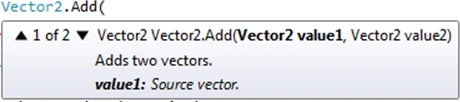
Add Two Reference Vectors:

Using BaryCentric with 3 Vectors and 2 floats:

Using BaryCentric with 3 Reference Vectors and 2 floats:

What is BaryMetric?
In geometry, the barycentric coordinate system is a coordinate system in which the location of a point is specified as the center of mass, or barycenter, of masses placed at the vertices of a simplex (a triangle, tetrahedron, etc). Barycentric coordinates are a form of homogeneous coordinates.
Generalized barycentric coordinates have applications in computer graphics and more specifically in geometric modelling. Often, a three-dimensional model can be approximated by a polyhedron such that the generalized barycentric coordinates with respect to that polyhedron have a geometric meaning. In this way, the processing of the model can be simplified by using these meaningful coordinates.
Using CatmullRom with 4 Vectors and a float:

Using CatmullRom with 4 Reference Vectors,a float and an out result:

What is Catmull-Rom?
A Catmull-Rom spline is obtained, being a special case of a cardinal spline.
The curve is named after Edwin Catmull and Raphael (Raphie) Rom. In computer graphics, Catmull-Rom splines are frequently used to get smooth interpolated motion between key frames. For example, most camera path animations generated from discrete key-frames are handled using Catmull-Rom splines. They are popular mainly for being relatively easy to compute, guaranteeing that each key frame position will be hit exactly, and also guaranteeing that the tangents of the generated curve are continuous over multiple segments.
Using Clamp with 3 Vectors:

Using Clamp with 3 Reference Vectors:

Using Distance with 2 Vectors to calculate distances between them:
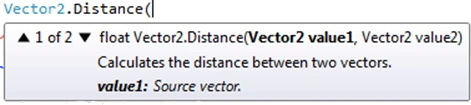
Using Distance with 2 Reference Vectors to calculate distances between them:

Using DistanceSquared to calculate distances between two vectors squared:
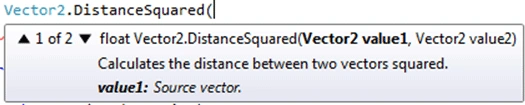
Using DistanceSquared to calculate distances between two vectors squared:

Using Divide to divide a Vector:
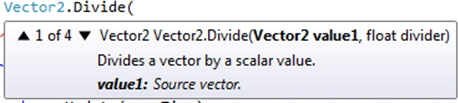
Using Divide to divide 2 vectors:

Using Divide to divide a reference Vector:

Using Divide to divide 2 reference vectors:

Using Dot to calculate dot product with 2 vectors:

Using Dot to calculate dot product with 2 reference vectors:

Using Hermite with 4-Vectors and a float:

Using Hermite with 4- Reference Vectors and a float:

Using Lerp to perform a linear interpolation between 2 vectors using an amount:

Using Lerp to perform a linear interpolation between 2 reference vectors using an amount:

Using Max to get the highest value between 2 vectors:

Using Max to get the highest value between 2 reference vectors:

Using Min to get the lowest value between 2 vectors:

Using Min to get the lowest value between 2 reference vectors:

Using Multiply to multiply a vector with a float:
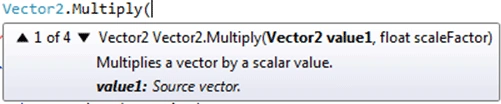
Using Multiply to multiply 2 vectors:
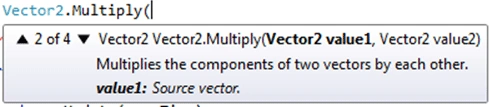
Using Multiply to multiply 1 vector with a float:

Using Multiply to multiply 2 reference vectors:

Using Negate to change the direction of the Vector:
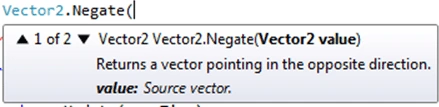
Using Negate to change the direction of the Vector reference:
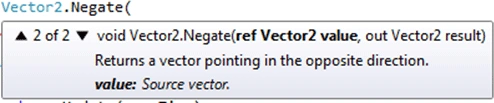
Using Normalize to set a unit vector from the original vector:

Using Normalize to set a unit vector from the original vector reference:

Set both vector components to 1:

Reflect a vector using 2 vectors:
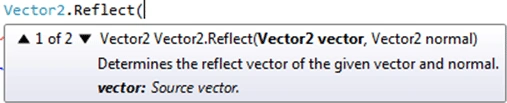
Reflect a vector using 2 vectors reference:

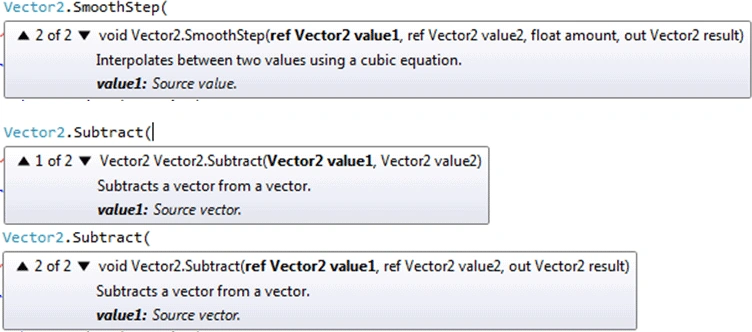
Using SmoothStep to interpolate cubicly between 2 vectors with an amount:

Using SmoothStep to interpolate cubicly between 2 vectors reference with an amount:
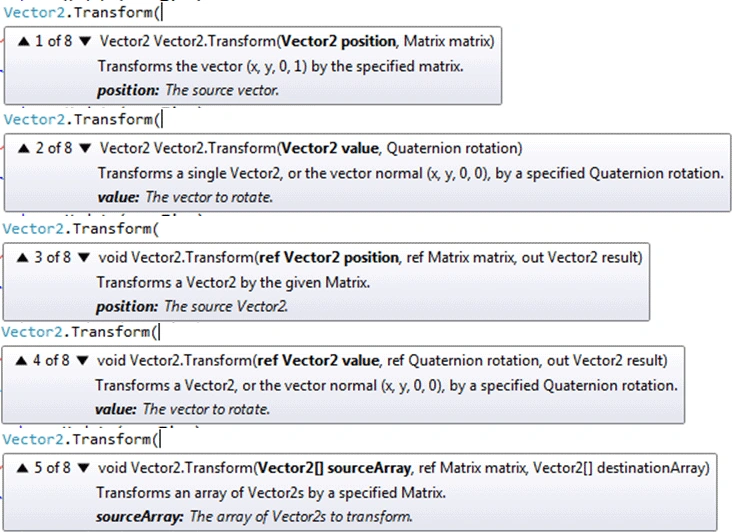

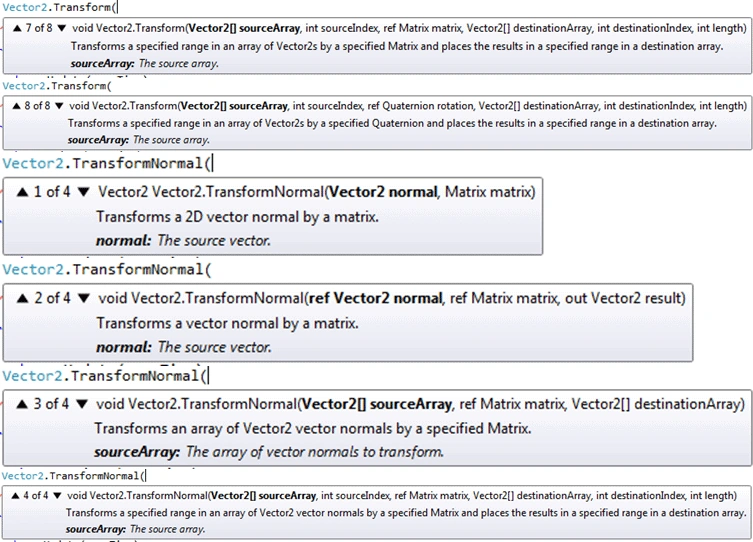
Return X axis of Unit Vector:
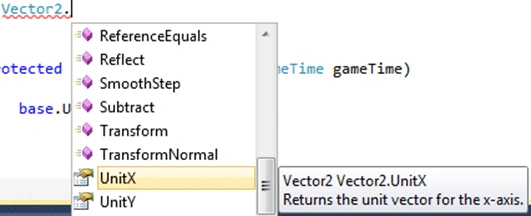
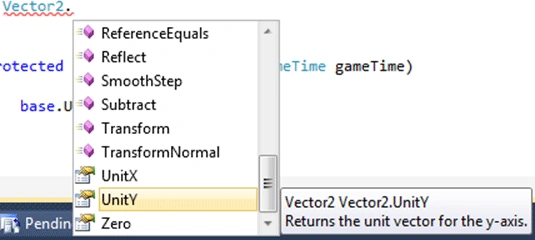
Return Y axis of Unit Vector:
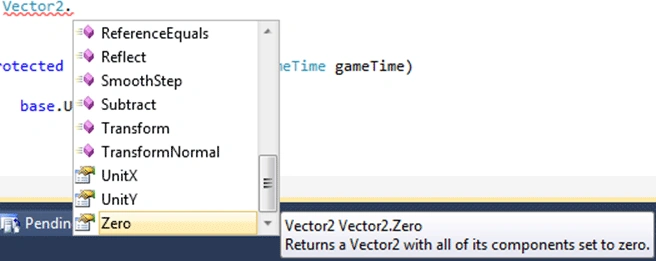
Set all the components in a vector to 0:
Create a new Vector object(null):

Create a new Vector with a given float:
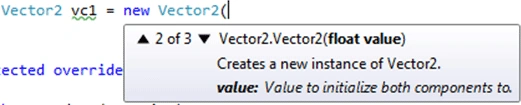
Create a new Vector with 2 float values:

Now that we know the structure we wil be giving code samples how to use them:
//Variables
Vector2 val1 = new Vector2(10.0f,
20.0f);
Vector2 val2 = new Vector2(30.0f,
20.0f);
Vector2 val3=new Vector2(40.0f,20.0f);
Vector2 val4 = new Vector2(60.0f,
60.0f);
Vector2 onevector,
unitxvector, unityvector, zerovector;
Matrix transform=new Matrix(5.0f,2.0f,3.0f,4.0f,4.0f,4.0f,4.0f,1.0f,2.0f,3.0f,1.0f,5.0f,3.0f,4.0f,2.0f,1.0f);
//Using Vector2
Vector2.Add(val1,
val2);Vector2.Barycentric(val1,
val2, val3, 10.0f, 20.0f);
Vector2.CatmullRom(val1,
val2, val3, val4, 10.0f);
Vector2.Clamp(val1,
val2, val4);
Vector2.Distance(val1,
val4);
Vector2.DistanceSquared(val2,
val3);
Vector2.Divide(val4,
val1);
Vector2.Dot(val4,
val1);
Vector2.Hermite(val4,
val1, val2, val3, 1.0f);
Vector2.Lerp(val1,
val4, 5.0f);
Vector2.Max(val1,
val4);
Vector2.Min(val2, val3);
Vector2.Multiply(val1,
val2);
Vector2.Negate(val4);
Vector2.Normalize(val3);
Vector2.Reflect(val4,
val1);
Vector2.SmoothStep(val4,
val3, 3.0f);
Vector2.Subtract(val4,
val2);
Vector2.Transform(val4,
transform);
Vector2.TransformNormal(val1,
transform);
onevector = Vector2.One;
unitxvector = Vector2.UnitX;
unityvector = Vector2.UnitY;
zerovector = Vector2.Zero;
You can use Vector2 for transformations,positions and vector2 processing.

Join the conversation! Your thoughts help the community grow.