
A tile begins as a default tile, which is defined in your application manifest file for a primary tile, and you can send programmatically to display notifications on your tile. A local notification means that the notification is sent from the app’s code, rather than being pushed or pulled from a web server.
Let’s see the steps to send local primary tile notification in Windows 10 universal app using adaptive tile templates.
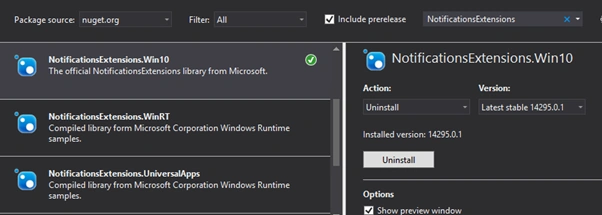
Firstly, we need to install NotificationsExtensions.Win10 NuGet package like the following screen. It will generate tile payloads via objects instead of creating raw XML.
Then add the following namespace to access the notification classes.
- using Windows.UI.Notifications;
- using NotificationsExtensions.Tiles;
- string from = "Suresh";
- string subject = "Tile Notification";
- string body = "Tile notification sample for windows 10";
Here I create one method to create the content.
- public void createContent()
- {
- TileContent conetn = new TileContent()
- {
- Visual = new TileVisual()
- {
- TileSmall = new TileBinding()
- {
- Content = new TileBindingContentAdaptive()
- {
- Children ={
- new TileText()
- {
- Text = from,
- Style=TileTextStyle.CaptionSubtle
- },
- new TileText()
- {
- Text = subject,
- Style = TileTextStyle.Subtitle
- },
- new TileText()
- {
- Text = body,
- Style = TileTextStyle.Body
- }
- }
- }
- },
- TileMedium = new TileBinding()
- {
- Content = new TileBindingContentAdaptive()
- {
- Children ={
- new TileText()
- {
- Text = from
- },
- new TileText()
- {
- Text = subject,
- Style = TileTextStyle.CaptionSubtle
- },
- new TileText()
- {
- Text = body,
- Style = TileTextStyle.CaptionSubtle
- }
- }
- }
- },
- TileWide = new TileBinding()
- {
- Content = new TileBindingContentAdaptive()
- {
- Children =
- {
- new TileText()
- {
- Text = from,
- Style = TileTextStyle.Subtitle
- },
- new TileText()
- {
- Text = subject,
- Style = TileTextStyle.CaptionSubtle
- },
- new TileText()
- {
- Text = body,
- Style = TileTextStyle.CaptionSubtle
- }
- }
- }
- }
- }
- };
- var notification = new TileNotification(conetn.GetXml());
- TileUpdateManager.CreateTileUpdaterForApplication().Update(notification);
- }
Finally you need to send the notification by using TileUpdateManager.
Optional features
- Set an expiration time for tile notification
- Clear tile notifications
Set an expiration time for tile notification
By default local tile notifications do not expire for that we can set time to remove the notification by using the following code.
- notification.ExpirationTime = DateTimeOffset.UtcNow.AddMinutes(5);
When the user interacts with the application we need to clear all the notifications from the tile; for that write the following code.
- TileUpdateManager.CreateTileUpdaterForApplication().Clear();
Read more articles on Windows 10:


Saf SiedPosted Jun 15, 2020, 11:40 AM EDT
In Visual Studio, where in a UWP project are you adding your code?
Delpin Susai RajTOP 100Posted Aug 28, 2016, 2:23 AM EDT
Nice
Liêm NguyễnPosted May 28, 2016, 7:41 PM EDT
Thank you so much!
Amit DavePosted May 3, 2016, 6:35 AM EDT
Keep up the Good work!
Sonu ChaudharyPosted May 2, 2016, 2:05 AM EDT
Thanks for sharing
NitinPosted May 1, 2016, 9:46 AM EDT
Good one
Kuppurasu NagarajTOP 100Posted Apr 30, 2016, 10:20 AM EDT
Nice Sharing..
Rahul Kumar SaxenaTOP 100Posted Apr 29, 2016, 9:40 PM EDT
Good Work
Thiruppathi RPosted Apr 29, 2016, 6:06 PM EDT
Super...