
Here are the steps to implement text to speech in in Visual Studio with Windows Forms:
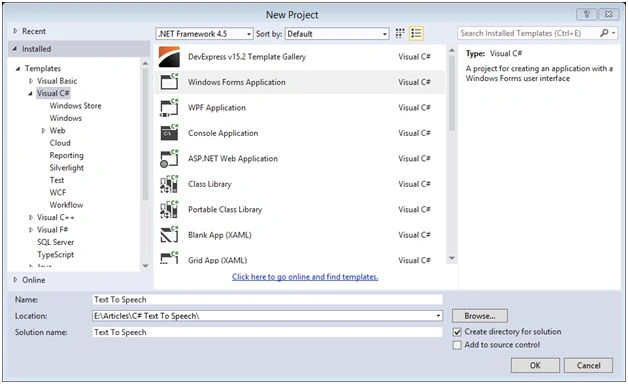
Step 1: Open Visual Studio and choose the Windows Form Project and press OK button
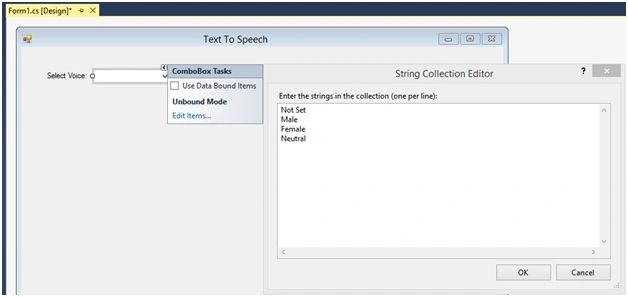
Step 2: Now drag one label and combo box and then click on combo button and go to the Edit Items and type the three Items here.
I have also shown this in the following image as well:
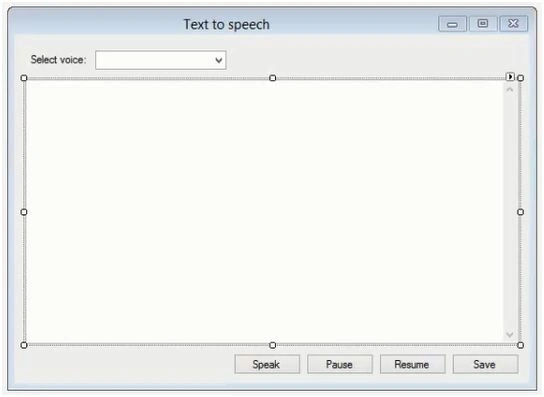
Step 3: Now drag and drop some more buttons and textboxes and set large textbox scroll view on both sides.
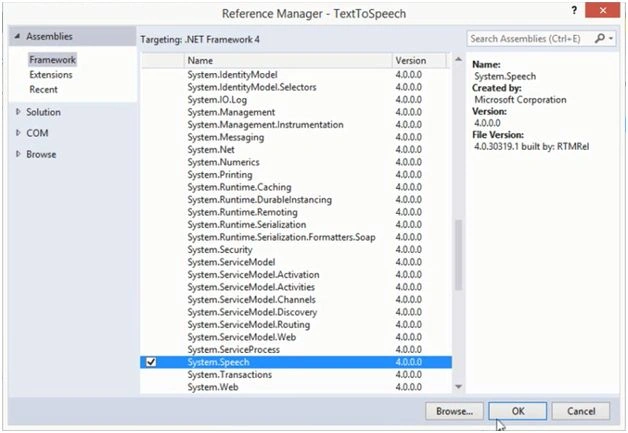
Step 4: Now you see that in main project there is a reference folder now go to this folder add left click on it and press add reference button and then add this DLL in your reference folder by keeping the press OK button.
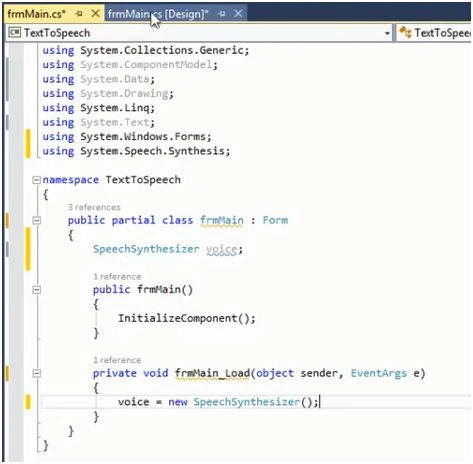
Step 5: Now add the namespace here, and then make an instance, and my form loads event name frmMain, and your form is different by default, it is form1 and then in load event we initialize the class.
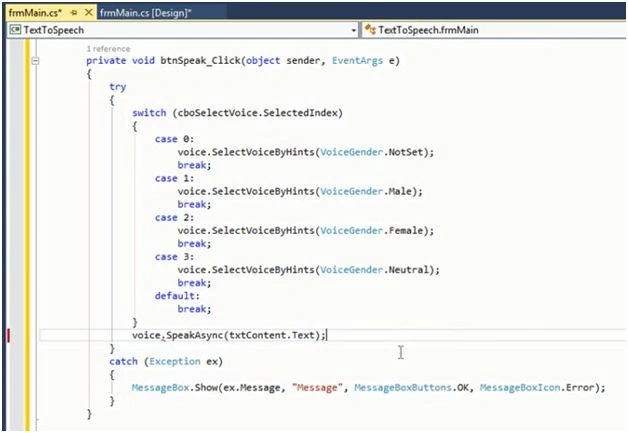
Step 6: Then move to the design form and double click on Speak button and type the code on it and remember that my combo box name is cboSelectVoice, and by default it is combobox1. First we add try catch statement for error catching, and then we add switch statement and add those items which we declared in combo box.
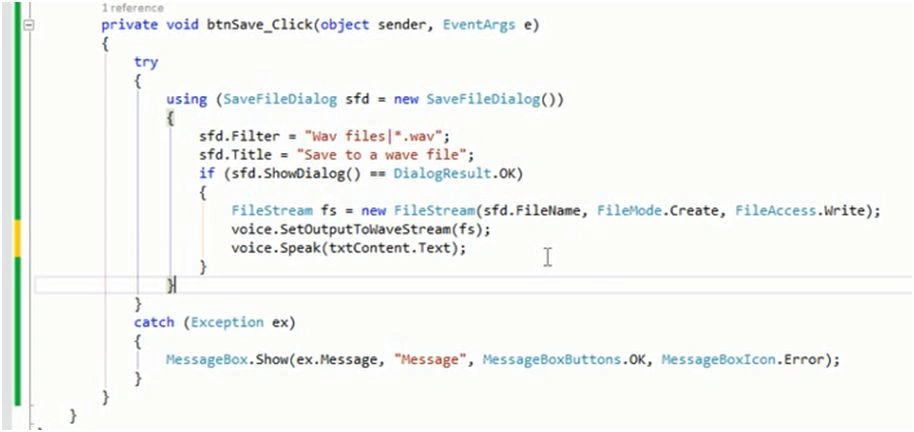
Step 7: Now double click on save button and add this code for saving a voice in which you must add System.IO because in this class we use methods for read or write anything.
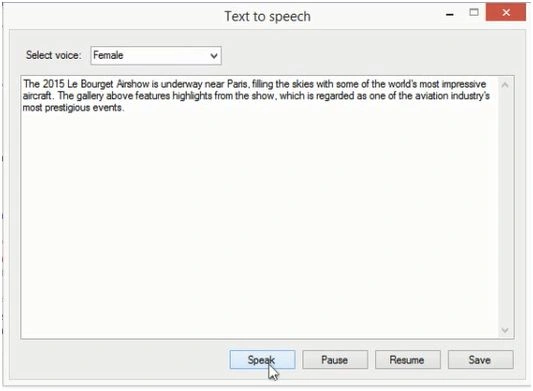
Step 8: Run the project and write some sentence in English and click on the speak button; if it speaks correctly then move to the save button the voice is also saved in audio format
Step 2: Now drag one label and combo box and then click on combo button and go to the Edit Items and type the three Items here.
I have also shown this in the following image as well:
Step 3: Now drag and drop some more buttons and textboxes and set large textbox scroll view on both sides.
Step 4: Now you see that in main project there is a reference folder now go to this folder add left click on it and press add reference button and then add this DLL in your reference folder by keeping the press OK button.
Step 5: Now add the namespace here, and then make an instance, and my form loads event name frmMain, and your form is different by default, it is form1 and then in load event we initialize the class.
Step 6: Then move to the design form and double click on Speak button and type the code on it and remember that my combo box name is cboSelectVoice, and by default it is combobox1. First we add try catch statement for error catching, and then we add switch statement and add those items which we declared in combo box.
Step 7: Now double click on save button and add this code for saving a voice in which you must add System.IO because in this class we use methods for read or write anything.
Step 8: Run the project and write some sentence in English and click on the speak button; if it speaks correctly then move to the save button the voice is also saved in audio format
Read more articles on Windows Form:


SubashPosted Sep 8, 2016, 8:43 PM EDT
Nice one
Shobana JPosted Jul 7, 2016, 3:31 AM EDT
Nice explanation
Debasis SahaTOP 100Posted Mar 25, 2016, 4:50 AM EDT
Good One..
Humayun Kabir MamunPosted Mar 23, 2016, 1:17 AM EDT
Nice...
Ankur MistryTOP 100Posted Mar 22, 2016, 8:00 PM EDT
Good one
Vignesh ManiTOP 100Posted Mar 22, 2016, 5:08 AM EDT
Good one.
Sibeesh VenuTOP 100Posted Mar 22, 2016, 2:39 AM EDT
Nice Share, It would be great if you can give the coding part as codes instead images
Ammar ShaukatPosted Mar 22, 2016, 1:03 AM EDT
what about Urdu Text to speech ?
Ammar ShaukatPosted Mar 22, 2016, 1:02 AM EDT
Good
Praveen KumarPosted Mar 21, 2016, 8:06 PM EDT
Very Nice
Kashif SohailPosted Mar 21, 2016, 6:53 PM EDT
Nice atricle