
Introduction
Prerequisites
- Basic knowledge of React
- Visual Studio Code must be installed
- Node JS must be installed
Create ReactJS project
Step 1
The very first step is to create a new React.js project using the following command:
- npx create-react-app reactmodal
Step 2
Open the newly-created project in Visual Studio code and install React bootstrap in this project using the following command:
- npm install react-bootstrap bootstrap
Step 3
Now, open the index.js file and import Bootstrap.
- import 'bootstrap/dist/css/bootstrap.min.css';
Step 4
Next, open app.js then replace all of the code with the following:
- import React from 'react';
- import './App.css';
- import { Button,Modal} from 'react-bootstrap';
- class App extends React.Component {
- constructor(){
- super();
- this.state={
- show:false
- }
- }
- handleModal(){
- this.setState({show:!this.state.show})
- }
- render(){
- return (
- <div>
- <h2 align='center'>Example of Modal in Reactjs</h2>
- <div className="modalClass">
- <Button onClick={()=>this.handleModal()}>Click To Open Modal</Button>
- </div>
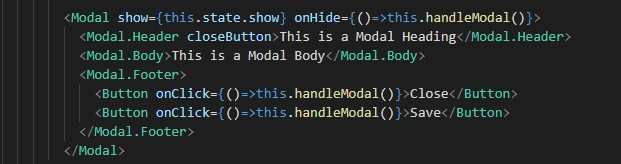
- <Modal show={this.state.show} onHide={()=>this.handleModal()}>
- <Modal.Header closeButton>This is a Modal Heading</Modal.Header>
- <Modal.Body>This is a Modal Body</Modal.Body>
- <Modal.Footer>
- <Button onClick={()=>this.handleModal()}>Close</Button>
- <Button onClick={()=>this.handleModal()}>Save</Button>
- </Modal.Footer>
- </Modal>
- </div>
- )
- }
- }
- export default App;
Step 5
Open App.css file and paste the style.
- .modalClass {
- text-align: center;
- margin-top: 100px;
- }
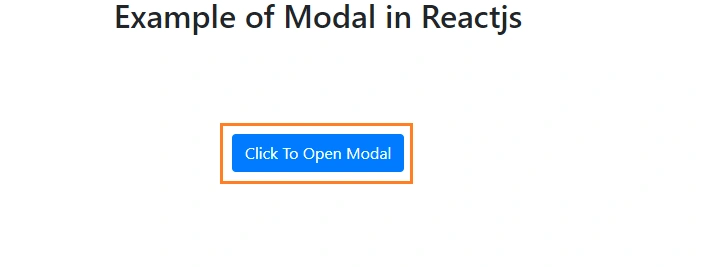
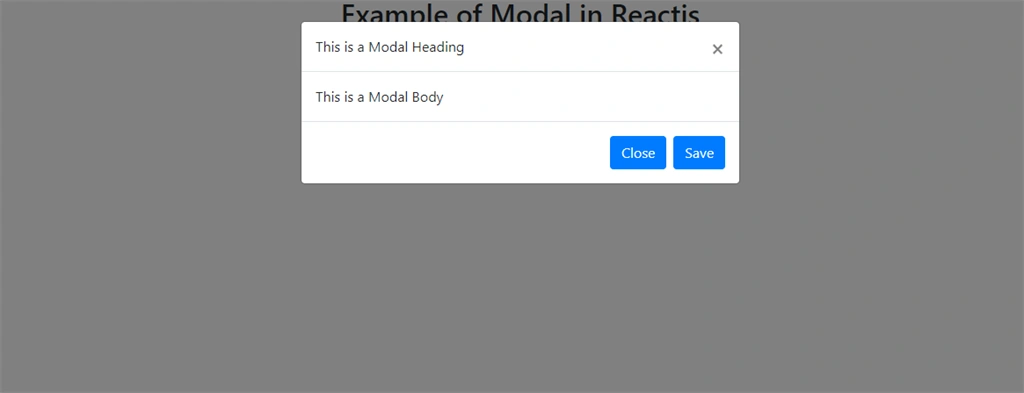
Output
Conclusion
In this article, we have learned how to implement a bootstrap popup in ReactJS.
Please give your valuable feedback/comments/questions about this article.

Join the conversation! Your thoughts help the community grow.