
The following describes the procedure to import data into another server SQL Server Management Studio.
Before beginning, you need to connect both database servers.
Step 1: Connect to the database server that you want to import from.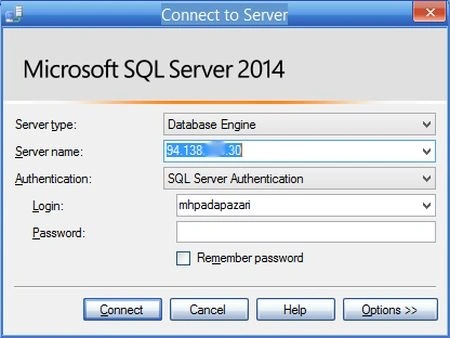
Step 2: Create an empty database.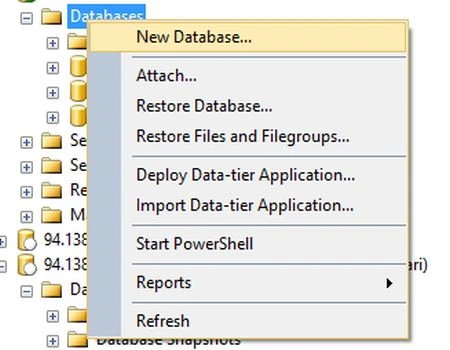
Step 3: Provide a name for the new database and click OK.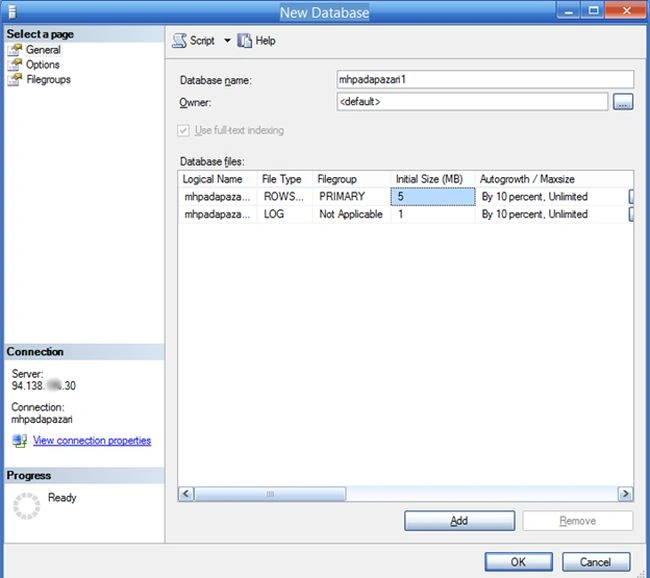
Step 4: Right-click the new database then seelct Tasks > Import Data.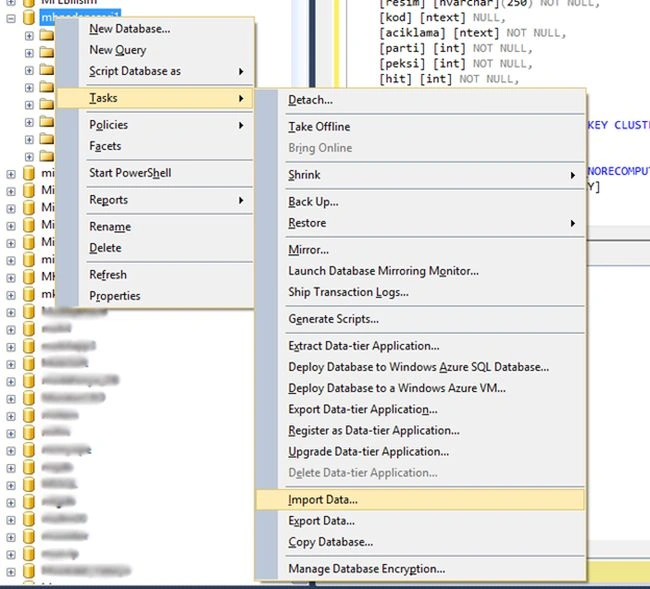
Step 5: Click Next.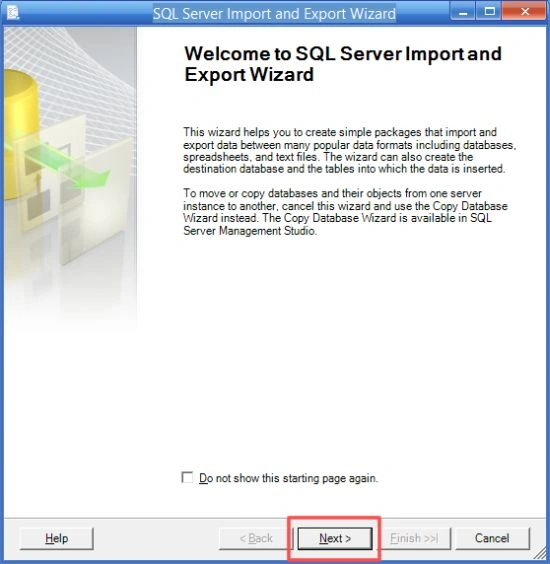
Step 6: Select the source.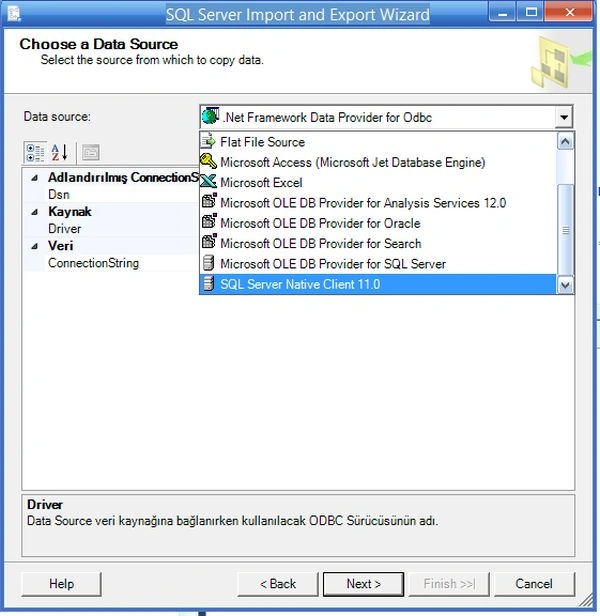
Step 7: Select the source.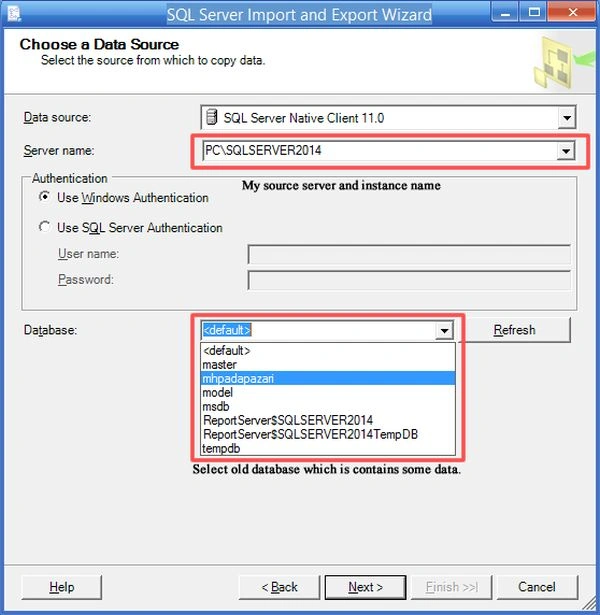
Step 8: Select the destination database part 1.
Step 9: Select the destination database part 2.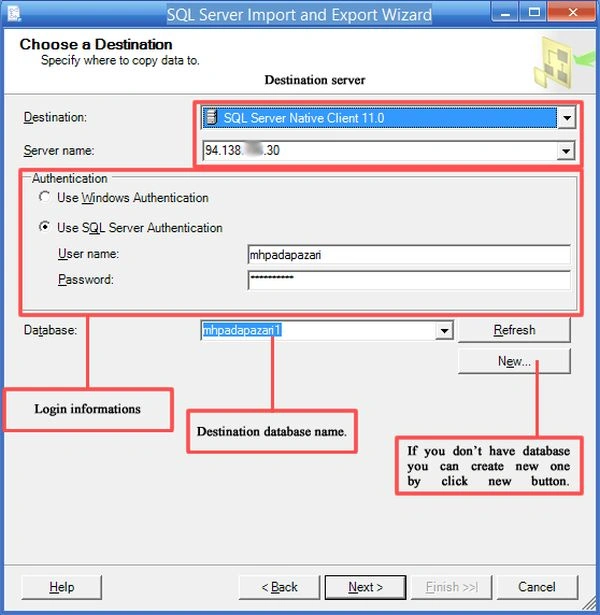
Step 10: Select the first option.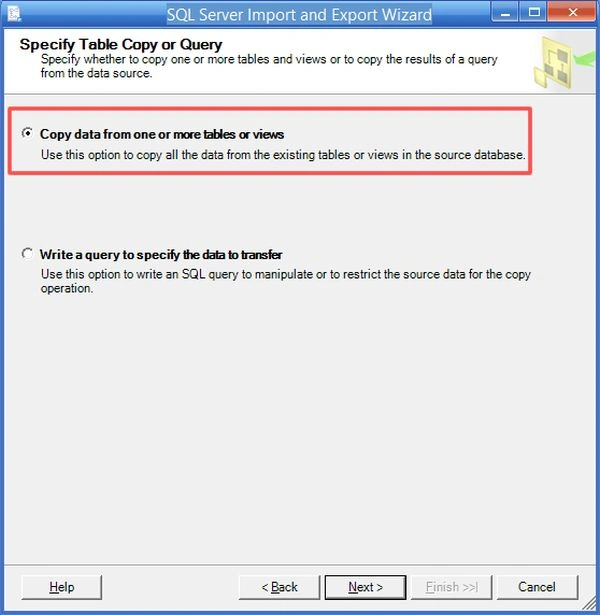
Step 11: Select the objects you want to import.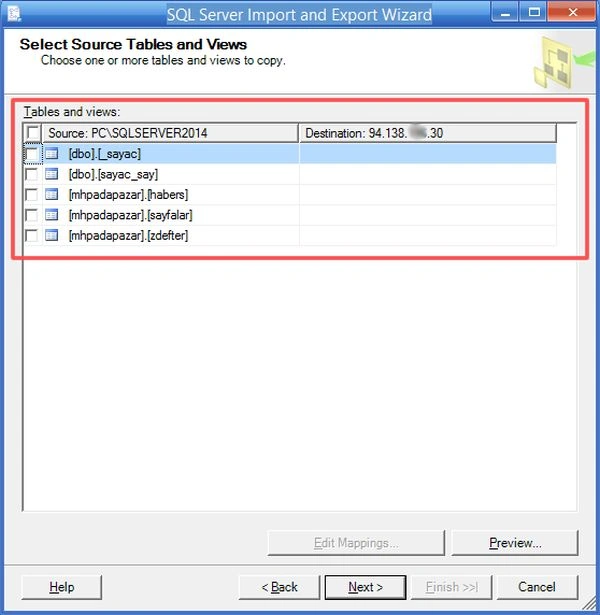
Step 12: Then click Next.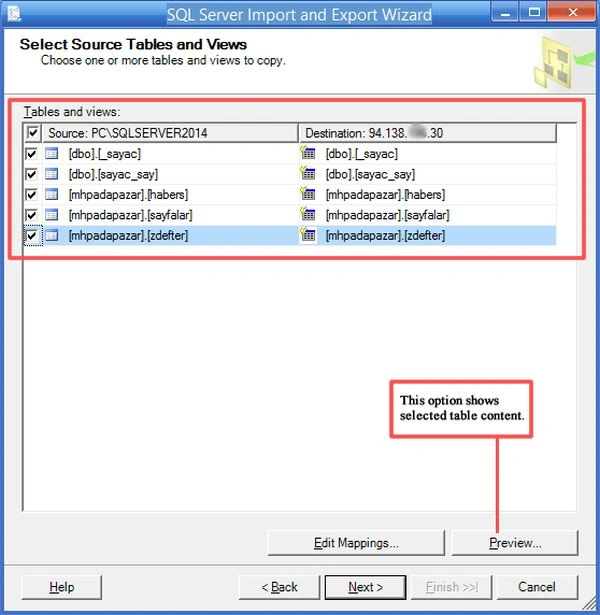
Step 13: Click Run immediately then Next.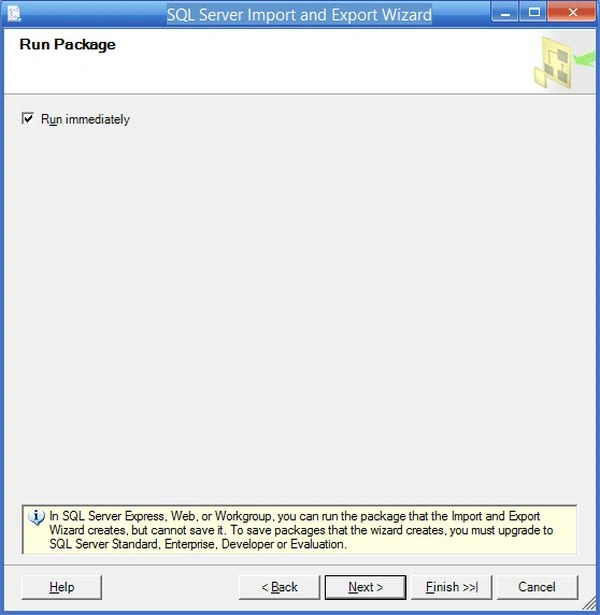
Step 14: Check the summary then click Finish.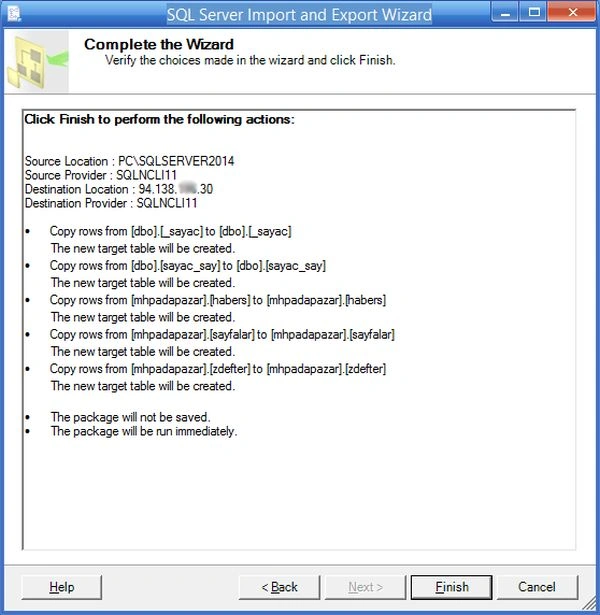
Step 15: Wait until the process completes. Then close.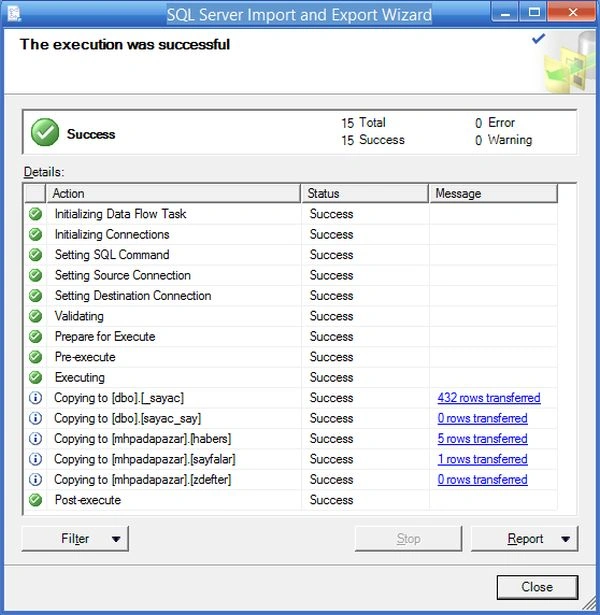
Import Data to Another Server
In this article you will learn how to import data or a database from another server with SQL Server Management Studio.


Guest UserPosted Nov 21, 2014, 3:07 AM EST
Good one. the next article you may want to explore import/export via command prompt.
Manish Kumar ChoudharyPosted Nov 20, 2014, 6:28 PM EST
Nice one @Ismail Hakki Sen
Mahesh ChandTOP 10Posted Nov 20, 2014, 5:20 PM EST
Welcome to C# Corner, Ismail. Nice start.