
Step 1
Open Visual Studio 10 then create an empty website then provide a name such as insert_data_gridview (or whatever you like).
Step 2
Go to your website that will be in your right hand pane, right-click on the project and select "Add New Item". In that you need to select " Web Form". By default the name is "Default.aspx"; change it to "linqgridviewdemo.aspx". Naming is very important in every project, try to keep in the habit, it'll become very helpful in large projects.
Step 3
Again you need to add “SQL Server Database" and "LINQ to SQL classes" from Add New Item and provide a suitable name for both files. They will ask you by prompting whether or not to add a SQL file into the "App_data" folder, make it "Yes". It is good to keep our database inside a secure folder provided by Microsoft, otherwise it can be hacked by SQL Injection or similar attacks.
Step 4
We first design our linqgridviewdemo.aspx page. Open it up and get into the Design section that is showing in the bottom part. Modify the design as in the following: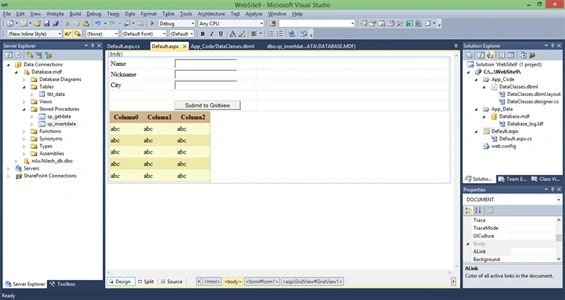
Step 5
In the left pane of your Visual Studio 10 there is a Server Explorer. Since you added a SQL Server Database, VS 10 automatically made a Database.mdf file for you. Right-click on the table and Add a new table, provide the name as "tbl_data".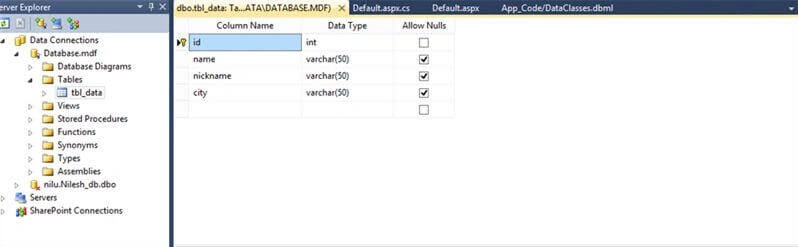
Step 6
In that pane you only need to make 2 Stored Procedures named "sp_getdata" and "sp_insertdata".
The following is the code for sp_getdata: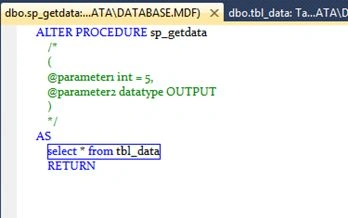
The following is the code for sp_insertdata: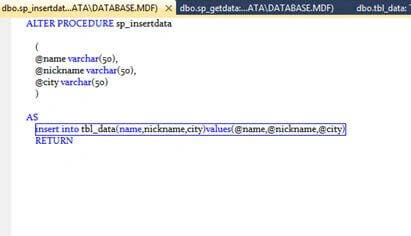
Step 7
We need to add this Stored Procedure to the LINQ file that we added from add new item. Open your LINQ file "DataClasses.dbml". When you open it you see two sections, one is for a relational database and the other is for a simple database, we need to drag all our Stored Procedures into the section of the simple database. Like this: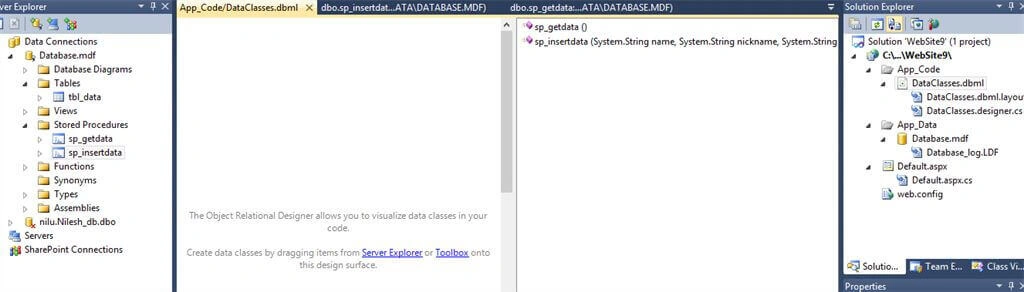
Step 8
Open the "linqgridviewdemo.cs" file. We need to code now for inserting data into textboxes and when you press the button, the data will be set into the GridView. So go ahead, let's do the code, it's really simple.
- public partial class _Default: System.Web.UI.Page
- {
- DataClassesDataContext ddc = new DataClassesDataContext();
- protected void Page_Load(object sender, EventArgs e)
- {
- refreshdata();
- }
- public void refreshdata()
- {
- GridView1.DataSource = ddc.sp_getdata();
- GridView1.DataBind();
- }
- protected void Button1_Click(object sender, EventArgs e)
- {
- ddc.sp_insertdata(TextBox1.Text, TextBox2.Text, TextBox3.Text);
- refreshdata();
- }
- }
Thank you for reading! Happy Day.


Vipul MalhotraPosted May 27, 2016, 5:12 AM EDT
Nice
Sonu ChaudharyPosted May 26, 2016, 6:40 AM EDT
Good one...
Gowtham RajamanickamTOP 100Posted Apr 10, 2016, 10:59 PM EDT
good one...
Arul RPosted Oct 28, 2015, 1:43 AM EDT
Nice share!!!
Rupali ShindePosted Oct 13, 2015, 1:22 AM EDT
nice
Manav PandyaPosted Sep 7, 2015, 8:19 PM EDT
hi brother can u send me asp.net mvc book to my mail pls ... pandya.manav@gmailcom
Vipul MalhotraPosted Jul 5, 2015, 10:28 AM EDT
Nice Article..Thanks for sharing
Gowtham RajamanickamTOP 100Posted May 26, 2015, 4:57 AM EDT
Good one..
wikum wijeysooriyaPosted May 26, 2015, 4:30 AM EDT
Great work mate keep it up
Sibeesh VenuTOP 100Posted May 26, 2015, 3:07 AM EDT
Good one.
Karthik Muthu KaruppanPosted May 4, 2015, 10:26 AM EDT
nice
NitinPosted Apr 30, 2015, 11:37 PM EDT
nice
Nilesh JadavPosted Apr 29, 2015, 11:13 PM EDT
Thank you ! I am trying to make it out more good articles !
Santhakumar MunuswamyPosted Apr 29, 2015, 8:40 PM EDT
Thanks for nice article
Santhakumar MunuswamyPosted Apr 29, 2015, 8:40 PM EDT
Welcome
Santhakumar MunuswamyPosted Apr 29, 2015, 8:39 PM EDT
Good Start