
Introduction
This article describes how to set up Ruby on Rails on the Windows platform.
1. Download the RubyInstaller for Windows from here.
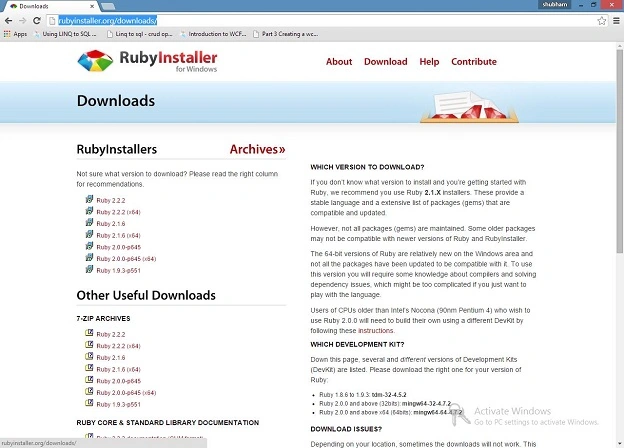
1. Download the RubyInstaller for Windows from here.
Image 1: Ruby Installer Page
2. Now open the Downloads folder and run the Ruby installer.
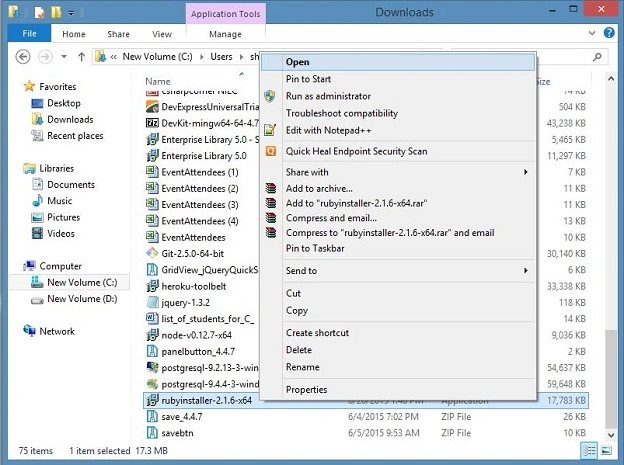
Image 2: Run Ruby .exe File
3. Click “I accept the License” and click on the "Next >" Button.
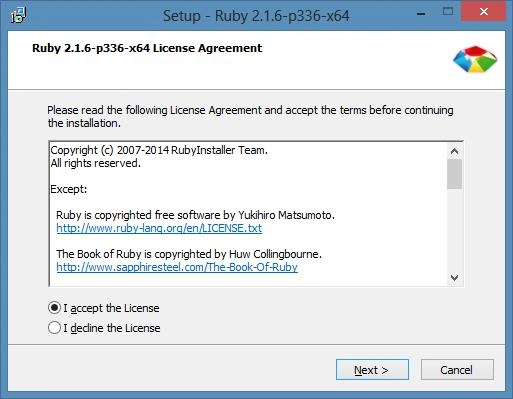
Image 3: Accept License Window
4. Select the following Checkboxes as in Image 4 during Ruby installation and click Install to continue.
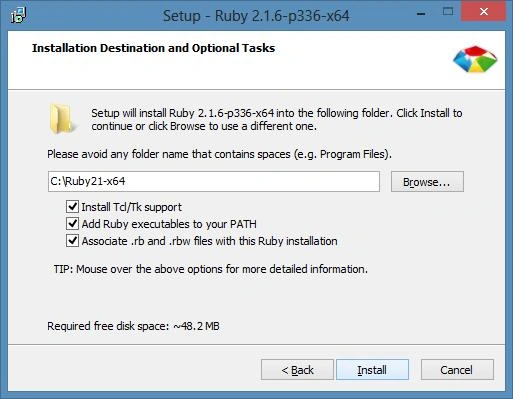
Image 4: Installation Instructions Window
5. Aftre completing the installation process, press the Win + R key from the keyboard to open a command prompt window and create an empty directory (for example C:\RubyRails\Ruby), then navigate to that directory and type “ruby -v” to check the version of Ruby and confirm that Ruby has been installed correctly.
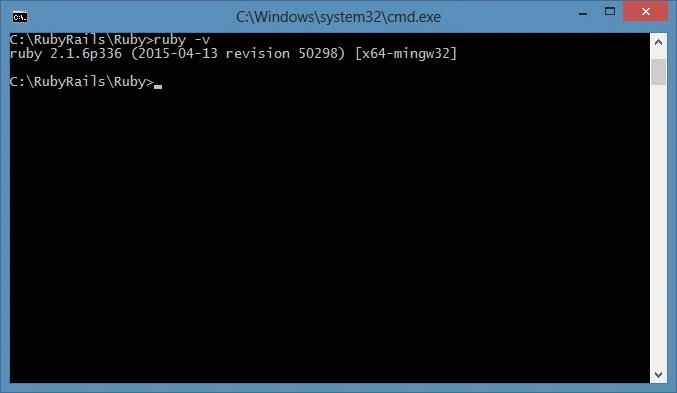
Image 5: Check Ruby Version
6. If you want to execute a line of Ruby code then type the following command as in Image 6.
“ruby –e “puts ‘I am installing Ruby’”
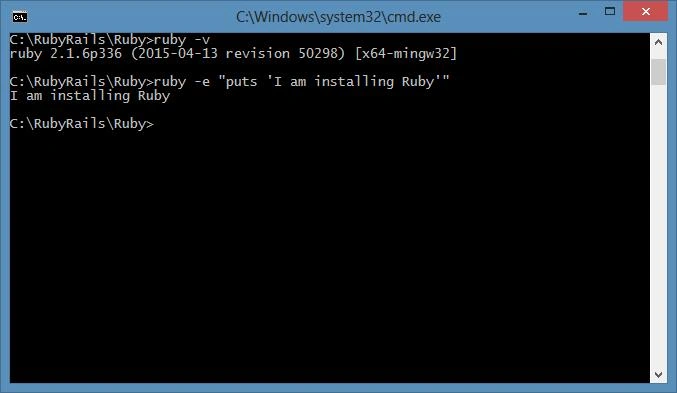
Image 6: Run ruby -e Command
7. Type “ruby -h” command for help regarding Ruby as in Image 7.
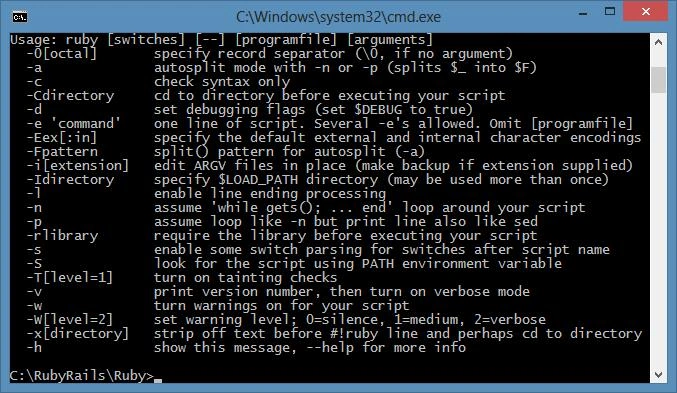
Image 7: Run ruby -h command for Ruby Help
8. Now to start interactive Ruby type “irb” in the command prompt to execute a command as in Image 8.
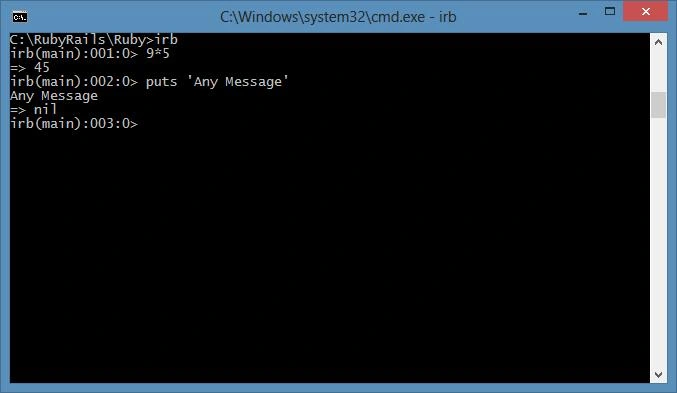
Image 8: Interactive Ruby irb command
9. To exit from irb type “exit”.
Summary
In this article, we saw how to install Ruby in the Windows platform.


Hashim ShafiqPosted Aug 30, 2015, 5:49 PM EDT
nice
Santhakumar MunuswamyPosted Aug 29, 2015, 12:29 AM EDT
Nice article. Thanks for sharing
Gopi ChandPosted Aug 28, 2015, 7:49 PM EDT
Nice one
Pankaj Kumar ChoudharyTOP 100Posted Aug 28, 2015, 9:37 AM EDT
Nice Explain Sir..........
Gowtham KTOP 100Posted Aug 28, 2015, 9:29 AM EDT
Thanks for sharing
Mahesh ChandTOP 10Posted Aug 28, 2015, 5:11 AM EDT
Very nice. I was wondering if you could write Ruby on Windows. Thanks!
Mohammed IbrahimPosted Aug 28, 2015, 1:10 AM EDT
nice
Karthikeyan KPosted Aug 28, 2015, 1:01 AM EDT
Nice share