
What is Hangfire?
Hangfire is an open source that schedules background jobs with simple implementation in .Net core. It is a reliable and persistent system with a monitoring facility.
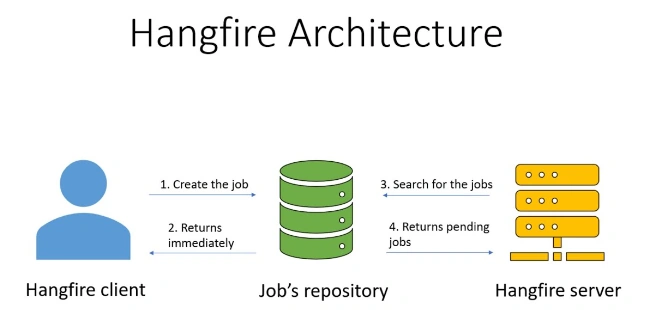
How to use it?
We can download the Hangfire package by running the following command in the Package Manager console,
PM> Install-Package Hangfire2. Add Hangfire into the global configuration,
GlobalConfiguration.Configuration
    .SetDataCompatibilityLevel(CompatibilityLevel.Version_170)
    .UseSimpleAssemblyNameTypeSerializer()
    .UseRecommendedSerializerSettings()
    .UseSqlServerStorage("Database=Hangfire.Sample; Integrated Security=True;", new SqlServerStorageOptions
    {
        CommandBatchMaxTimeout = TimeSpan.FromMinutes(5),
        SlidingInvisibilityTimeout = TimeSpan.FromMinutes(5),
        QueuePollInterval = TimeSpan.Zero,
        UseRecommendedIsolationLevel = true
    })
    .UseBatches()
    .UsePerformanceCounters();
3. We need to provide necessary background task settings and SQL DB (we can use Redis and InMemory as well) connectivity in the program.cs, and it will create its tables in SQL.
using System;
using Hangfire;
using Hangfire.SqlServer;

namespace ConsoleApplication2
{
    class Program
    {
        static void Main()
        {
            GlobalConfiguration.Configuration
                .SetDataCompatibilityLevel(CompatibilityLevel.Version_170)
                .UseColouredConsoleLogProvider()
                .UseSimpleAssemblyNameTypeSerializer()
                .UseRecommendedSerializerSettings()
                .UseSqlServerStorage("Database=Hangfire.Sample; Integrated Security=True;", new SqlServerStorageOptions
                {
                    CommandBatchMaxTimeout = TimeSpan.FromMinutes(5),
                    SlidingInvisibilityTimeout = TimeSpan.FromMinutes(5),
                    QueuePollInterval = TimeSpan.Zero,
                    UseRecommendedIsolationLevel = true
                });


            BackgroundJob.Enqueue(() => Console.WriteLine("Hello, world!"));


            using (var server = new BackgroundJobServer())
            {
                Console.ReadLine();
            }
        }
    }
}
Benefits of Hangfire
We can do bulk sending like notifications, reports, and events.
It supports CRON Expression. ( command-line utility is a job scheduler on Unix-like operating systems)
We can send events in any interval, like minutes, hourly, daily, weekly, or yearly.
Supported Task Scheduling Types in Hangfire
Fire-and-forget
These jobs are executed only once and almost immediately after they are fired.
var jobId = BackgroundJob.Enqueue(

    () => Console.WriteLine("Fire-and-forget!"));
Delayed
Delayed jobs are executed only once too, but not immediately – only after the specified time interval.
var jobId = BackgroundJob.Schedule(
    () => Console.WriteLine("Delayed!"),
    TimeSpan.FromDays(7));
Recurring
Recurring jobs are fired many times on the specified CRON schedule.
RecurringJob.AddOrUpdate(
    "myrecurringjob",
    () => Console.WriteLine("Recurring!"),
    Cron.Daily);
Continuations
Continuations are executed when the parent job has finished.
BackgroundJob.ContinueJobWith(
    jobId,
    () => Console.WriteLine("Continuation!"));
Batches
A batch is a group of background jobs created atomically.
var batchId = Batch.StartNew(x =>
{
    x.Enqueue(() => Console.WriteLine("Job 1"));
    x.Enqueue(() => Console.WriteLine("Job 2"));
});
Batch Continuations
Batch continuation is fired after all background jobs in a parent batch have finished.
Batch.ContinueBatchWith(batchId, x =>
{
    x.Enqueue(() => Console.WriteLine("Last Job"));
});
Background Process
Use them when you need to run background processes continuously throughout the lifetime of your application.
public class CleanTempDirectoryProcess : IBackgroundProcess
{
    public void Execute(BackgroundProcessContext context)
    {
        Directory.CleanUp(Directory.GetTempDirectory());
        context.Wait(TimeSpan.FromHours(1));
    }
}
Reference

Join the conversation! Your thoughts help the community grow.