
Introduction
This article describes how to add an Auto Complete feature to a text box and get the data from a database in ASP.Net using a jQuery UI .
Description
To create this application you need the jQuery files listed below.
- jquery-1.9.1.js
- jquery-ui.js
- jquery-ui.css
You can download them from the source code attached to this page.
Design
Go to the database and design your table or execute the following script:
CREATE TABLE [dbo].[DEPT]
(DEPTNO NUMERIC(2),
DNAME VARCHAR(14),
LOC VARCHAR(13) );
GO
INSERT INTO [dbo].[DEPT] VALUES (10, 'ACCOUNTING', 'NEW YORK');
INSERT INTO [dbo].[DEPT] VALUES (20, 'RESEARCH', 'DALLAS');
INSERT INTO [dbo].[DEPT] VALUES (30, 'SALES', 'CHICAGO');
INSERT INTO [dbo].[DEPT] VALUES (40, 'OPERATIONS', 'BOSTON');
In Visual Studio create a website and add a page.
Add a Text Box to the page for searching.
Now design your screen as in the following screen:
Or you can copy the following source code:
<body>
<form id="form1" runat="server">
Search Department :<asp:TextBox ID="txtSearch" runat="server" ></asp:TextBox>
</form>
</body>
Next add the following JavaScript and CSS style code in the head tag of an aspx file
(this is used to get the data to show the auto complete).
<head id="Head1" runat="server">
<title></title>
<link href="Styles/jquery-ui.css" rel="stylesheet" type="text/css" />
<script src="Scripts/jquery-1.9.1.js" type="text/javascript"></script>
<script src="Scripts/jquery-ui.js" type="text/javascript"></script>
<script type="text/javascript">
$(document).ready(function () {
$("#txtSearch").autocomplete({
source: function (request, response) {
$.ajax({
type: "POST",
contentType: "application/json; charset=utf-8",
url: "WebService.asmx/GetData",
data: "{'DName':'" + document.getElementById('txtSearch').value + "'}",
dataType: "json",
success: function (data) {
response(data.d);
},
error: function (result) {
alert("Error......");
}
});
}
});
});
</script>
</head>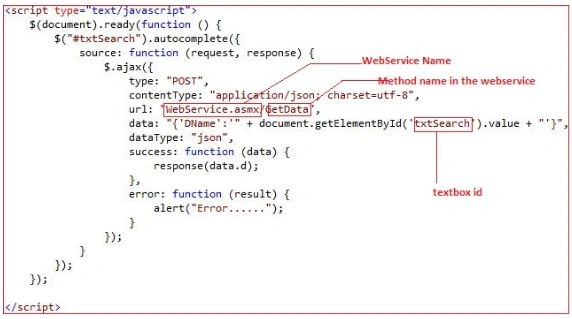
Now go to Solution Explorer and add a Web Service to the project (for example, "WebService.asmx").
Now write the following code in the .cs file of the Web Service:
using System;
using System.Collections.Generic;
using System.Linq;
using System.Web;
using System.Web.Services;
using System.Data.SqlClient;
/// <summary>
/// Summary description for WebService
/// </summary>
[WebService(Namespace = "http://tempuri.org/")]
[WebServiceBinding(ConformsTo = WsiProfiles.BasicProfile1_1)]
// To allow this Web Service to be called from script, using ASP.NET AJAX, uncomment the following line. [System.Web.Script.Services.ScriptService]
public class WebService : System.Web.Services.WebService
{
[WebMethod]
public List<string> GetData(string DName)
{
List<string> result = new List<string>();
using (SqlConnection con = new SqlConnection("Data Source=SYSTEM-30;database=DB_Test_Trainees;user id=test;password=Test"))
{
using (SqlCommand cmd = new SqlCommand("select Dname from DEPTDHII where Dname like '%'+@SearchText+'%'", con))
{
con.Open();
cmd.Parameters.AddWithValue("@SearchText", DName);
SqlDataReader dr = cmd.ExecuteReader();
while (dr.Read())
{
result.Add(dr["DName"].ToString());
}
return result;
}
}
}
}
Now check this line in the code above:
[System.Web.Script.Services.ScriptService]
By default this line is commented. To allow this Web Service to be called from a script using ASP.NET AJAX, uncomment the line.
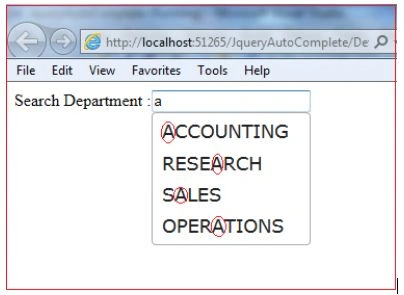
Now build your application. Enter a search query in the TextBox.


Ahmed JewaharPosted Oct 22, 2018, 4:41 AM EDT
Not working . I have a master page
Manish SinghPosted Jun 29, 2018, 3:57 AM EDT
How can we use the same trick on one or more table
Abdullah AlbabelyPosted Jun 25, 2017, 10:07 AM EDT
Can i return two values by using the same function like DName, Company
Pete GibsonPosted Sep 1, 2015, 2:30 PM EDT
terrific example, thanks
Mahdi ZahedPosted Jun 15, 2015, 11:52 PM EDT
Hi , thanks, its great . i need to use result in css overlay or lightbox. can you help me please ?
Rana SunnyPosted Apr 24, 2015, 7:57 AM EDT
nice work
Raj SinghPosted Feb 12, 2015, 7:58 PM EST
thanks. can we implement the same functionality without using a webservice.
deepak mahajanPosted Jan 15, 2015, 8:44 AM EST
thanks it works now
deepak mahajanPosted Jan 15, 2015, 8:22 AM EST
Error 1 Could not create type 'WebService'. D:\Documents and Settings\dev\My Documents\Downloads\Compressed\JqueryAutoComplete\JqueryAutoComplete\WebService.asmx 1
Juhi KesarwaniPosted Oct 26, 2014, 9:09 PM EDT
Its not working...nt calling the webservice at all...
Aung Ko LinPosted Oct 14, 2014, 1:07 AM EDT
thanks million
Abwaank KhaliifPosted Oct 17, 2013, 12:37 AM EDT
Nice Article. Stay the course