
In this article we are going to see some shortcuts that may be useful to you when you work with SQL Server Management Studio. You can always use some custom queries too as query shortcuts in SSMS. Here I am going to show some of the most used query shortcuts. I hope you will like this.
Background
If you are a dot net developer or if you are working with any Microsoft technologies, you must have some experience in working with SQL and SQL Server Management Studio. But as a developer we always try to achieve the things in a simple manner. Don't we? This is where we are going for keyboard shortcuts. We do have an option to set and use the keyboard shortcuts in SSMS too. I will explain those.
Keyboard Query Shortcuts In SSMS
First of all let me tell you an example of where we can use the keyboard shortcuts. We know how to create stored procedures right? There procedures are created in a folder called ‘Stored Procedures’ under Programmability. Now let us assume that I have a stored procedure with name asusp_Get_SalesOrderDetail. Now if you need to see the queries we have written in that stored procedure, what will you do? You have two options,
- Right click on the stored procedure and click on modify
- Use the sp_helptext as sp_helptext usp_Get_SalesOrderDetail
Now my question is, in this scenario, whenever you need to see the stored procedure you need to type sp_helptext right? How can we overcome this situation? Here we can set the keyboard shortcuts.
Setting the keyboard shortcuts
Go to Tools -> Options.
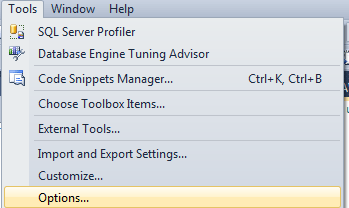
Tools_Options
Go to Environment -> Keyboard -> Query Shortcuts,
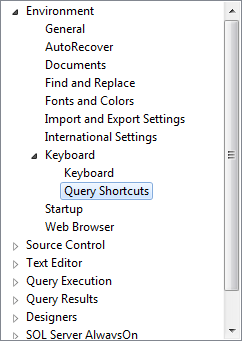
Environment_Keyboard_Query_Shortcuts_
On the right side you can see some shortcuts which are by default in SSMS. Now if you need to add a new one, just click on any column under Stored Procedure column.

Adding_a_new_keyboard_shortcut
Click OK. Now please go to a query window and select the stored procedure then press CTRL+3, it will show the stored procedure.
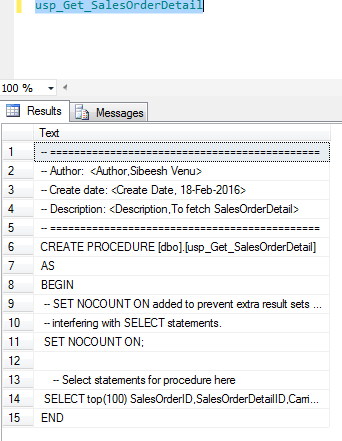
sp_helptext_Results_
No if you need to select all the records from a table when you select the table and press CTRL+5(You can select any key). You can make the shortcut as follows.
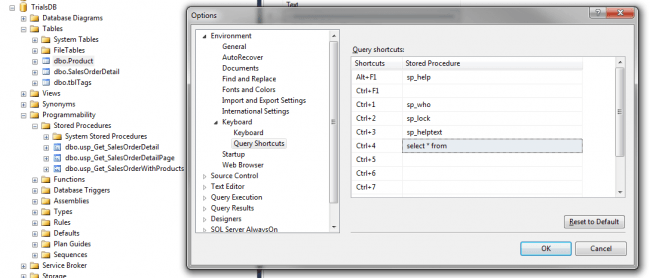
Selct_Query_As_Keyboard_Shortcut
Now please go ahead and select the table name from the query window and press CTRL+4(The key we selected). I hope you got the result as expected. Have a happy coding!.
Conclusion
Did I miss anything that you may think is needed? Did you find this post useful? I hope you liked this article. Please share with me your valuable suggestions and feedback.
Your turn. What do you think?
A blog isn’t a blog without comments, but do try to stay on topic. If you have a question unrelated to this post, you’re better off posting it on C# Corner, Code Project, Stack Overflow, Asp.Net Forum instead of commenting here. Tweet or email me a link to your question there and I’ll definitely try to help if I can.


SubashPosted Jul 29, 2016, 5:01 AM EDT
Useful tip
Sibeesh VenuTOP 100Posted May 7, 2016, 4:08 AM EDT
Sr Karthiga Thanks much :)
Sibeesh VenuTOP 100Posted May 7, 2016, 4:07 AM EDT
Aqib Shehzad Thanks much :)
Sibeesh VenuTOP 100Posted May 7, 2016, 4:07 AM EDT
Upendra Pratap Shahi Thanks much :)
Sibeesh VenuTOP 100Posted May 7, 2016, 4:07 AM EDT
Anbu Mani Thanks much :)
Sibeesh VenuTOP 100Posted May 7, 2016, 4:07 AM EDT
Kuppurasu Nagaraj Thanks much :)
Sibeesh VenuTOP 100Posted May 7, 2016, 4:07 AM EDT
Pankaj Kumar Choudhary Thanks much :)
Sibeesh VenuTOP 100Posted May 7, 2016, 4:07 AM EDT
Ravi Patel Thanks much :)
Sr KarthigaPosted May 6, 2016, 4:59 PM EDT
good one
Muhammad Aqib ShehzadPosted May 6, 2016, 7:35 AM EDT
good info
Upendra Pratap ShahiPosted May 6, 2016, 6:10 AM EDT
nice info sir..thanks for sharing...
Anbu ManiPosted May 6, 2016, 5:19 AM EDT
Nice
Kuppurasu NagarajTOP 100Posted May 6, 2016, 5:08 AM EDT
Nice Sharing..
Pankaj Kumar ChoudharyTOP 100Posted May 6, 2016, 5:00 AM EDT
Nice Information Sir..........
Ravi PatelPosted May 6, 2016, 4:42 AM EDT
nice share