
This article describes Keyspline animation of images in WPF using XAML. Keyspline is used to show how the animation property changes between the previous key-frame and next selected key-frame. Formally it shows a transition among its targeted values over its given duration.
In this article we are using two overlapped images. When we click on an image we will get two images that are separated followed by a curve path.
Step 1
First we create a WPF application using the following procedure:
- Open the Visual Studio.
- Select the C# language and "WPF" application.
- Name the project as "Animation".
- Click on the "OK" button.
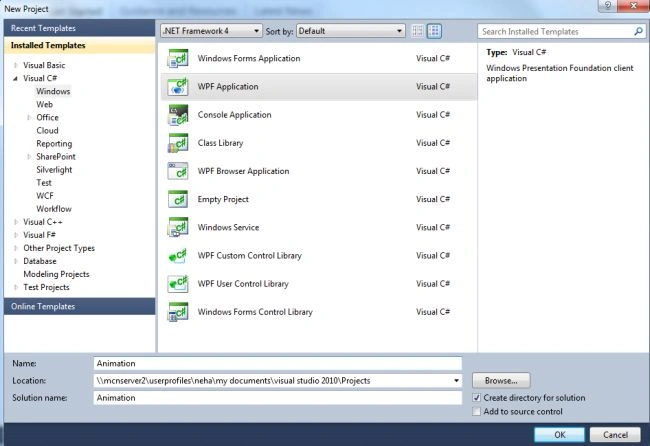
Step 2
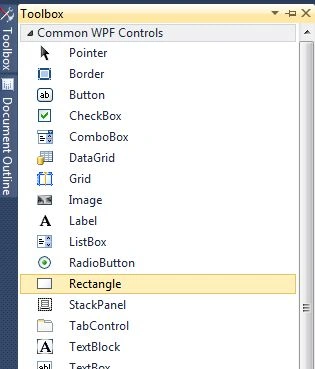
- Go to the "View" -> "Toolbox".
- The toolbox opens in the left corner of the window.
- Then drag and drop a rectangle onto the design view.
- Now go to the MainWindow.xaml and write the following code between the rectangle1 tags:
<Rectangle
Name="SplineElement"
Height="200"
Width="200" Grid.Row="3"
HorizontalAlignment="Left"
>
<Rectangle.Fill>
<ImageBrush ImageSource="C:\Users\Public\Pictures\Sample Pictures\Tulips.jpg"/>
</Rectangle.Fill>
<Rectangle.RenderTransform>
<TranslateTransform x:Name="SplineTrans" X="0" Y="0" />
</Rectangle.RenderTransform>
<Rectangle.Triggers>
<EventTrigger RoutedEvent="Rectangle.MouseLeftButtonDown">
<EventTrigger.Actions>
<BeginStoryboard>
<Storyboard>
<DoubleAnimationUsingKeyFrames
Storyboard.TargetName="SplineTrans"
Storyboard.TargetProperty="X"
Duration="0:0:20">
<SplineDoubleKeyFrame Value="390"
KeyTime="0:0:7"
KeySpline="0.0,1.0, 1.0,0.0" />
<SplineDoubleKeyFrame
Value="0"
KeyTime="0:0:8"
KeySpline="0.25,0.5, 0.5,0.75" />
</DoubleAnimationUsingKeyFrames>
<DoubleAnimationUsingKeyFrames
Storyboard.TargetName="SplineTrans"
Storyboard.TargetProperty="Y"
Duration="0:0:20">
<SplineDoubleKeyFrame
Value="390"
KeyTime="0:0:7"
KeySpline="0.0,1.0, 1.0,0.0" />
<SplineDoubleKeyFrame
Value="0"
KeyTime="0:0:8"
KeySpline="0.25,0.5, 0.5,0.75" />
</DoubleAnimationUsingKeyFrames>
</Storyboard>
</BeginStoryboard>
</EventTrigger.Actions>
</EventTrigger>
</Rectangle.Triggers>
</Rectangle>
Step 3
- Now again go to the View-> "Toolbox" and Drag and Drop the rectangle on the design view.
- Then again go to the MainWindow.xaml and write the following code between the rectangle2 tags:
<Rectangle
Name="SplineElement1"
Height="200"
Width="200" Grid.Row="1"
HorizontalAlignment="Left">
<Rectangle.Fill>
<ImageBrush ImageSource="C:\Users\Public\Pictures\Sample Pictures\index.jpg"/>
</Rectangle.Fill>
<Rectangle.RenderTransform>
<TranslateTransform x:Name="SplineTrans1" X="0" Y="0" />
</Rectangle.RenderTransform>
<Rectangle.Triggers>
<EventTrigger RoutedEvent="Rectangle.MouseLeftButtonDown">
<EventTrigger.Actions>
<BeginStoryboard>
<Storyboard>
<DoubleAnimationUsingKeyFrames
Storyboard.TargetName="SplineTrans1"
Storyboard.TargetProperty="X"
Duration="0:0:20">
<SplineDoubleKeyFrame Value="390"
KeyTime="0:0:7"
KeySpline="0.0,1.0, 1.0,0.0" />
<SplineDoubleKeyFrame
Value="0"
KeyTime="0:0:8"
KeySpline="0.25,0.5, 0.5,0.75" />
</DoubleAnimationUsingKeyFrames>
<DoubleAnimationUsingKeyFrames
Storyboard.TargetName="SplineTrans"
Storyboard.TargetProperty="Y"
Duration="0:0:20">
<SplineDoubleKeyFrame
Value="390"
KeyTime="0:0:7"
KeySpline="0.0,1.0, 1.0,0.0" />
<SplineDoubleKeyFrame
Value="0"
KeyTime="0:0:8"
KeySpline="0.25,0.5, 0.5,0.75" />
</DoubleAnimationUsingKeyFrames>
</Storyboard>
</BeginStoryboard>
</EventTrigger.Actions>
</EventTrigger>
</Rectangle.Triggers>
</Rectangle>
-
Now the final source code of the MainWindow.xaml is:
<Window x:Class="Moving_elements.MainWindow"
xmlns="http://schemas.microsoft.com/winfx/2006/xaml/presentation"
xmlns:x="http://schemas.microsoft.com/winfx/2006/xaml"
Title="MainWindow" Height="390" Width="525">
<Grid Background="#FF807C50">
<Rectangle
Name="SplineElement"
Height="200"
Width="200" Grid.Row="3"
HorizontalAlignment="Left"
>
<Rectangle.Fill>
<ImageBrush ImageSource="C:\Users\Public\Pictures\Sample Pictures\Tulips.jpg"/>
</Rectangle.Fill>
<Rectangle.RenderTransform>
<TranslateTransform x:Name="SplineTrans" X="0" Y="0" />
</Rectangle.RenderTransform>
<Rectangle.Triggers>
<EventTrigger RoutedEvent="Rectangle.MouseLeftButtonDown">
<EventTrigger.Actions>
<BeginStoryboard>
<Storyboard>
<DoubleAnimationUsingKeyFrames
Storyboard.TargetName="SplineTrans"
Storyboard.TargetProperty="X"
Duration="0:0:20">
<SplineDoubleKeyFrame Value="390"
KeyTime="0:0:7"
KeySpline="0.0,1.0, 1.0,0.0" />
<SplineDoubleKeyFrame
Value="0"
KeyTime="0:0:8"
KeySpline="0.25,0.5, 0.5,0.75" />
</DoubleAnimationUsingKeyFrames>
<DoubleAnimationUsingKeyFrames
Storyboard.TargetName="SplineTrans"
Storyboard.TargetProperty="Y"
Duration="0:0:20">
<SplineDoubleKeyFrame
Value="390"
KeyTime="0:0:7"
KeySpline="0.0,1.0, 1.0,0.0" />
<SplineDoubleKeyFrame
Value="0"
KeyTime="0:0:8"
KeySpline="0.25,0.5, 0.5,0.75" />
</DoubleAnimationUsingKeyFrames>
</Storyboard>
</BeginStoryboard>
</EventTrigger.Actions>
</EventTrigger>
</Rectangle.Triggers>
</Rectangle>
<Rectangle
Name="SplineElement1"
Height="200"
Width="200" Grid.Row="1"
HorizontalAlignment="Left">
<Rectangle.Fill>
<ImageBrush ImageSource="C:\Users\Public\Pictures\Sample Pictures\index.jpg"/>
</Rectangle.Fill>
<Rectangle.RenderTransform>
<TranslateTransform x:Name="SplineTrans1" X="0" Y="0" />
</Rectangle.RenderTransform>
<Rectangle.Triggers>
<EventTrigger RoutedEvent="Rectangle.MouseLeftButtonDown">
<EventTrigger.Actions>
<BeginStoryboard>
<Storyboard>
<DoubleAnimationUsingKeyFrames
Storyboard.TargetName="SplineTrans1"
Storyboard.TargetProperty="X"
Duration="0:0:20">
<SplineDoubleKeyFrame Value="390"
KeyTime="0:0:7"
KeySpline="0.0,1.0, 1.0,0.0" />
<SplineDoubleKeyFrame
Value="0"
KeyTime="0:0:8"
KeySpline="0.25,0.5, 0.5,0.75" />
</DoubleAnimationUsingKeyFrames>
<DoubleAnimationUsingKeyFrames
Storyboard.TargetName="SplineTrans"
Storyboard.TargetProperty="Y"
Duration="0:0:20">
<SplineDoubleKeyFrame
Value="390"
KeyTime="0:0:7"
KeySpline="0.0,1.0, 1.0,0.0" />
<SplineDoubleKeyFrame
Value="0"
KeyTime="0:0:8"
KeySpline="0.25,0.5, 0.5,0.75" />
</DoubleAnimationUsingKeyFrames>
</Storyboard>
</BeginStoryboard>
</EventTrigger.Actions>
</EventTrigger>
</Rectangle.Triggers>
</Rectangle>
</Grid>
</Window>
Output
Now press F5.
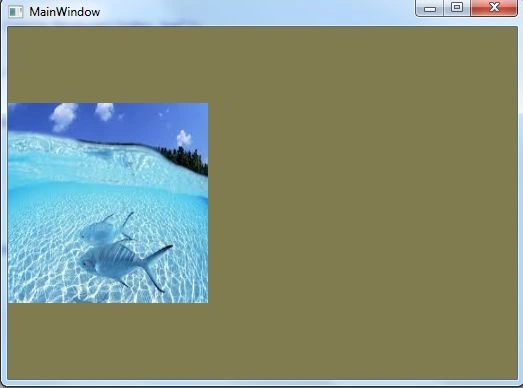
Now click on the image:
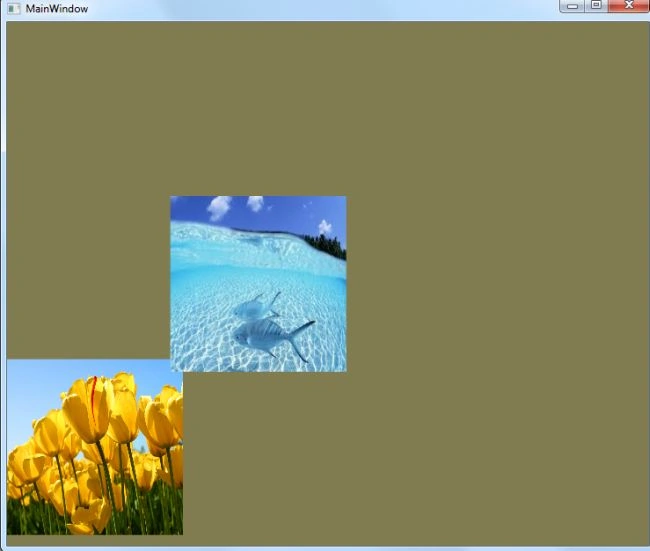
Images move slowly in a curved path at a certain distance: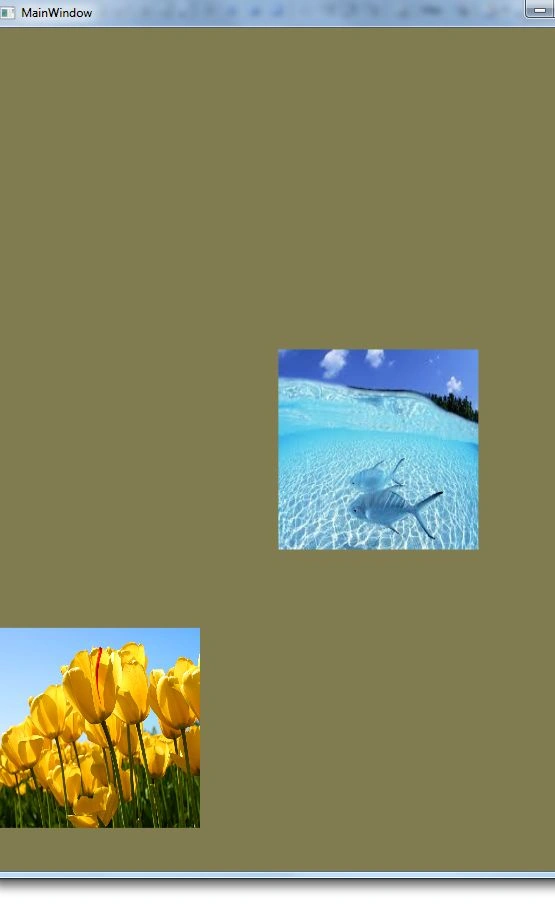


Arjun DhilodPosted Aug 28, 2013, 4:04 AM EDT
Very good i am use here my gf pic and self pic really enjoy this 3d