
Introduction
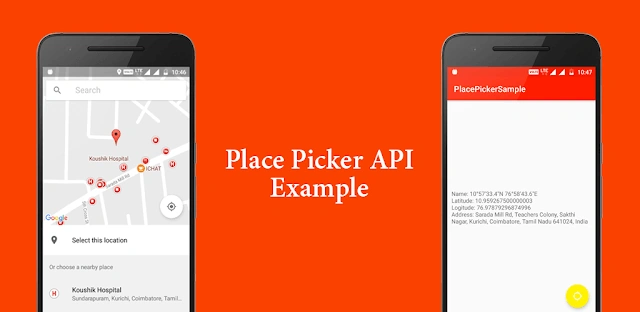
In this article, we will learn about one of the greatest APIs for Android provided by Google, called Place Picker API. This API is used to Pick a Place from Google Maps Application without any Map Integration.
The Place Picker provides a UI dialog that displays an interactive map and a list of nearby places, including places corresponding to geographical addresses and local businesses. Users can choose a place, and your app can then retrieve the details of the selected place.
Place Picker API
The Place Picker provides a UI dialog that displays an interactive map and a list of nearby places, including places corresponding to geographical addresses and local businesses. Users can choose a place, and your app can then retrieve the details of the selected place. To know more, click here.
Steps
I have divided this Implementation into 4 steps as shown in the following.
- Step 1: Creating a New Project with Android Studio
- Step 2: Enabling the API in the Google Console.
- Step 3: Setting up the library and AndroidManifest for the project.
- Step 4: Implementation of the Place Picker API.
Step 1 - Creating a New Project with Android Studio
- Open Android Studio and select "Create new project".
- Name the project as per your wish and select your activity template.
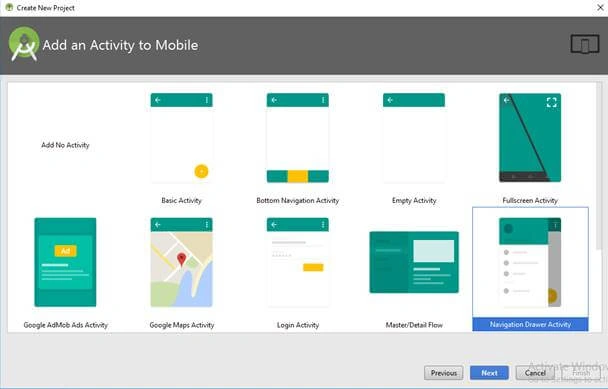
- Click the “Finish” button to create the new project in Android Studio.
Step 2 - Enabling the API in the Google Developer Console
- For using Google Places API, We need to know SHA1 Key, which is used in the Google Developer Console. You can get your SHA1 Key using Command Prompt.
- keytool -list -v -keystore "%USERPROFILE%\.android\debug.keystore" -alias androiddebugkey -storepass android -keypass android
- Open Google Developer Console
- Create a New Project or you can use your Existing Project.
- Go to the Dashboard and click Enable API.
- Click Google Places API for Android and Select Enable
- Create a new API Key, which is used later.
Step 3 - Setting up the library and AndroidManifest for the project
- Add Google Play service library dependency in your app level build.gradle file. Here, I used the following dependency. You can change as per your Android SDK.
- compile 'com.google.android.gms:play-services:9.2.0'
- Then click “Sync Now” to add the library.
- Now open your Manifest File (AndroidManifest.xml) and the following permission.
- <uses-permission android:name="android.permission.ACCESS_COARSE_LOCATION" />
- <uses-permission android:name="android.permission.ACCESS_FINE_LOCATION" />
- <uses-permission android:name="android.permission.INTERNET" />
- Add the following meta data to apply the API KEY.
- <meta-data
- android:name="com.google.android.geo.API_KEY"
- android:value="Your_API_Key"/>
Step 4 - Implementation of Place Picker API
- Add the following to initialize the API.
- //Declaration of Google API Client
- private GoogleApiClient mGoogleApiClient;
- private int PLACE_PICKER_REQUEST = 1;
- In the onCreate method of the Activity initialize the GoogleApiClient.
- mGoogleApiClient = new GoogleApiClient
- .Builder(this)
- .addApi(Places.GEO_DATA_API)
- .addApi(Places.PLACE_DETECTION_API)
- .enableAutoManage(this, this)
- .build();
- Implement the onStart and onStop method and do the client connection task.
- @Override
- protected void onStart() {
- super.onStart();
- mGoogleApiClient.connect();
- }
- @Override
- protected void onStop() {
- mGoogleApiClient.disconnect();
- super.onStop();
- }
- Start Place Picker Intent using the following snippet. After this, you will get Google Maps Screen like below. It has an interactive map and a list of nearby places, including places corresponding to geographical addresses and local businesses. Users can choose a place, and your app can then retrieve the details of the selected place.
- PlacePicker.IntentBuilder builder = new PlacePicker.IntentBuilder();
- try {
- startActivityForResult(builder.build(MainActivity.this), PLACE_PICKER_REQUEST);
- } catch (GooglePlayServicesRepairableException | GooglePlayServicesNotAvailableException e) {
- e.printStackTrace();
- }
- The Details can be retrieved in the onActivityResult method of your Activity.
- @Override
- protected void onActivityResult(int requestCode, int resultCode, Intent data) {
- if (requestCode == PLACE_PICKER_REQUEST) {
- if (resultCode == RESULT_OK) {
- Place place = PlacePicker.getPlace(data, this);
- StringBuilder stBuilder = new StringBuilder();
- String placename = String.format("%s", place.getName());
- String latitude = String.valueOf(place.getLatLng().latitude);
- String longitude = String.valueOf(place.getLatLng().longitude);
- String address = String.format("%s", place.getAddress());
- stBuilder.append("Name: ");
- stBuilder.append(placename);
- stBuilder.append("\n");
- stBuilder.append("Latitude: ");
- stBuilder.append(latitude);
- stBuilder.append("\n");
- stBuilder.append("Logitude: ");
- stBuilder.append(longitude);
- stBuilder.append("\n");
- stBuilder.append("Address: ");
- stBuilder.append(address);
- tvPlaceDetails.setText(stBuilder.toString());
- }
- }
Demo
The following screenshots demonstrate the usage of Place Picker API for Android.
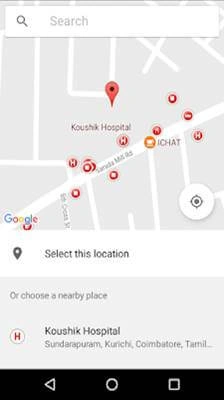 |
Figure 1: Place Picker Intent Builder Output |
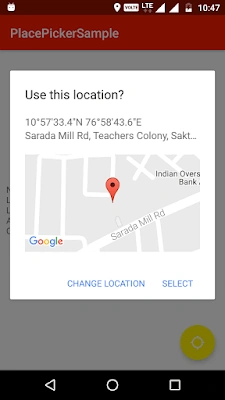 |
Figure 2: Place Picker Dialog (after selecting the place) |
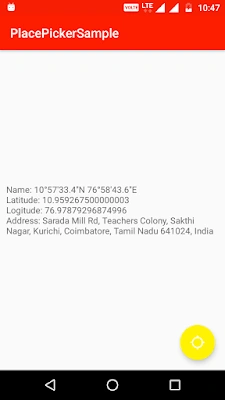 |
Figure 3: Output of the Intent Builder from onActivityResult. |
- public class MainActivity extends AppCompatActivity implements GoogleApiClient.OnConnectionFailedListener {
- private GoogleApiClient mGoogleApiClient;
- private int PLACE_PICKER_REQUEST = 1;
- private TextView tvPlaceDetails;
- private FloatingActionButton fabPickPlace;
- @Override
- protected void onCreate(Bundle savedInstanceState) {
- super.onCreate(savedInstanceState);
- setContentView(R.layout.activity_main);
- initViews();
- mGoogleApiClient = new GoogleApiClient
- .Builder(this)
- .addApi(Places.GEO_DATA_API)
- .addApi(Places.PLACE_DETECTION_API)
- .enableAutoManage(this, this)
- .build();
- fabPickPlace.setOnClickListener(new View.OnClickListener() {
- @Override
- public void onClick(View view) {
- PlacePicker.IntentBuilder builder = new PlacePicker.IntentBuilder();
- try {
- startActivityForResult(builder.build(MainActivity.this), PLACE_PICKER_REQUEST);
- } catch (GooglePlayServicesRepairableException | GooglePlayServicesNotAvailableException e) {
- e.printStackTrace();
- }
- }
- });
- }
- private void initViews() {
- Toolbar toolbar = (Toolbar) findViewById(R.id.toolbar);
- setSupportActionBar(toolbar);
- fabPickPlace = (FloatingActionButton) findViewById(R.id.fab);
- tvPlaceDetails = (TextView) findViewById(R.id.placeDetails);
- }
- @Override
- protected void onStart() {
- super.onStart();
- mGoogleApiClient.connect();
- }
- @Override
- protected void onStop() {
- mGoogleApiClient.disconnect();
- super.onStop();
- }
- @Override
- public void onConnectionFailed(@NonNull ConnectionResult connectionResult) {
- Snackbar.make(fabPickPlace, connectionResult.getErrorMessage() + "", Snackbar.LENGTH_LONG).show();
- }
- @Override
- protected void onActivityResult(int requestCode, int resultCode, Intent data) {
- if (requestCode == PLACE_PICKER_REQUEST) {
- if (resultCode == RESULT_OK) {
- Place place = PlacePicker.getPlace(data, this);
- StringBuilder stBuilder = new StringBuilder();
- String placename = String.format("%s", place.getName());
- String latitude = String.valueOf(place.getLatLng().latitude);
- String longitude = String.valueOf(place.getLatLng().longitude);
- String address = String.format("%s", place.getAddress());
- stBuilder.append("Name: ");
- stBuilder.append(placename);
- stBuilder.append("\n");
- stBuilder.append("Latitude: ");
- stBuilder.append(latitude);
- stBuilder.append("\n");
- stBuilder.append("Logitude: ");
- stBuilder.append(longitude);
- stBuilder.append("\n");
- stBuilder.append("Address: ");
- stBuilder.append(address);
- tvPlaceDetails.setText(stBuilder.toString());
- }
- }
- }
- }
Download Code
You can download the full source code of the article in GitHub. If you like this article, do star the repo in GitHub.


Hadshana KamalanathanTOP 100Posted Jul 22, 2018, 2:29 AM EDT
Thanks for sharing