
I always knew that HTML Helpers are so much easy but most of the times, people confuse about these such as how to use them, what are they? When I did not have enough knowledge about ASP.NET MVC or any web-based framework, literally, I didn’t even care to learn the front-end.
Most of the times, a new guy confuses regarding what approach he has to follow. My personal experience says you should know both the approaches because both are useful. In some scenarios, our plain HTML may not work as it should. At that moment, we can use HTML Helpers with fewer efforts and even don’t care about a lot of HTML attributes. HTML helpers make our work easy. With plain HTML, it takes a huge pile of efforts to bind our model properties with the form elements but with HTML helpers, we take advantage of strongly typed things. We see the IntelliSense in the View, which reduces a lot of our time and efforts.
Let me share the different HTML helpers with you.
| HTML Control | HTML Helper | Strongly Typed HTML Helpers |
| Anchor Link | Html.ActionLink() | |
| Checkbox | Html.CheckBox() | Html.CheckBoxFor() |
| Radio button | Html.RadioButton() | Html.RadioButtonFor() |
| Multi Selected List Box | Html.ListBox() | Html.ListBoxFor() |
| Textbox | Html.TextBox() | Html.TextBoxFor() |
| Hidden field | Html.Hidden() | Html.HiddenFor() |
| Text area | Html.TextArea() | Html.TextAreaFor() |
| Dropdown, Combobox | Html.DropDownList() | Html.DropDownListFor() |
| Label | Html.Label() | Html.LabelFor() |
| Password | Html.Password() | Html.PasswordFor() |
| Html Text | Html.Display() | Html.DisplayFor() |
| It generates the html control based on the datatype of the model property | Html.Editor() | Html.EditorFor() |
These are different HTML Helpers which are used to generate HTML at the back-end. I would always prefer to use the HTML Helpers with “For” because it supports at compiling time, checking your properties. But if you’re using plain HTML helpers in which you pass the model property names in a string, then it will not support compile-time checking and if there is any problem in your HTML Helper properties, you’ll get runtime exceptions. So, always prefer to use the "For" extension HTML helpers e.g. CheckBoxFor, LabelFor, TextAreaFor.
Html.TextBox
Html.TextBox is loosely-typed because model property name is in the string. Here is the syntax for Html.TextBox().
MvcHtmlString Html.TextBox(string name, string value, object htmlAttributes)
And in a different scenario, we need to provide different parameters in HTML Helpers that’s why we should have the knowledge of HTML Helper overloads. Here is the MSDN link.
- @Html.TextBox("Name", null, new { @class = "form-control" })
It generates the HTML result as.
- <input class="form-control"
- id="Name"
- name="Name"
- type="text"
- value="" />
This is how HTML Helper generates the HTML. Automatically, id and name attributes are set to the model property names. And you can see we have used @ razor syntax with the class because a class keyword is a reserved keyword in C#; that’s the way to set it for the HTML attribute. Then, we can again set it with Razor syntax.
Html.TextBoxFor
And if we discuss the Html.TextBoxFor, it is strongly-typed and very easy to use.
MvcHtmlString TextBoxFor(Expression<Func<TModel,TValue>> expression, object htmlAttributes)
- @Html.TextBoxFor(m => m.Name, new { @class = "form-control" })
The HTML result is same as above of Html.TextBox. This technique gives you compile time exception handling. And the view will not run successfully on the server.
Html.TextArea()
Here is the TextArea HTML helper syntax.
MvcHtmlString Html.TextArea(string name, string value, object htmlAttributes)
Obviously, as I’ve already told you that there are many overloaded HTML helper functions, we can also set the number of rows and number of columns of any html.textarea.
- @Html.TextArea("Description", null, new { @class = "form-control" })
And here is the HTML result of this HTML helper.
- <textarea class="form-control"
- id="Description"
- name="Description"
- rows="2"
- cols="20">This is value</textarea>
By default, the number of rows is 2 and number of columns is 20 for any text area.
Html.TextAreaFor()
This is the syntax for Html.TextAreaFor HTML helper.
MvcHtmlString TextAreaFor(<Expression<Func<TModel,TValue>> expression, object htmlAttributes)
So, this is the way we use TextAreaFor HTML helper.
- @Html.TextAreaFor(m => m.Description, new { @class = "form-control" })
And the HTML generated through it looks like the following.
- <textarea class="form-control"
- cols="20"
- id="Description"
- name="Description"
- rows="2"></textarea>
We already know that For extension methods support strongly typed functions; that’s why it supports compile time checking.
Html.Checkbox()
The most interesting HTML element is a checkbox. Here is the checkbox syntax -
MvcHtmlString CheckBox(string name, bool isChecked, Object htmlAttributes)
And you can see the individual HTML elements overloaded function on MSDN docs.
@Html.CheckBox("Married", true)
The HTML generated through this HTML helper is,
- <input checked="checked"
- id="Married"
- name=" Married"
- type="checkbox"
- value="true" />
A true value is for checking the checkbox
Note
All the HTML helpers like DisplayFor, Display, DropDownList, DropDownListFor works the same as above HTML helpers are working. Now you have an idea how the HTML works render and how we use them. Now, I’ll just show you some important things in HTML Helpers.
Html.CheckBoxFor()
About a month ago, I was working on a project. And when I opened the browser with inspect element, I was really surprised to see what was happening under the hood. Literally, so much confused at that moment! Then I studied the things about Checkbox HTML Helper.
This is the Html.CheckBoxFor method signature
MvcHtmlString CheckBoxFor(<Expression<Func<TModel,TValue>> expression, object htmlAttributes)
And here is the code for html.checkboxfor
@Html.CheckBoxFor(m => m.Married)
This is how it renders into the HTML.
- <input data-val="true" data-val-required="The isNewlyEnrolled field is required."
- id="Married"
- name="Married"
- type="checkbox"
- value="true" />
- <input name="Married" type="hidden" value="false" />
@Html.Label()
This HTML helper is used to show the label of the form element in the view.
@Html.Label(“Name”)
And now it renders in the HTML as
<label for=”Name”></label>
@Html.LabelFor()
This HTML helper works the same and renders the same HTML in the browser.
@Html.LabelFor(“Name”)
@Html.Editor
Most of the senior developers even don’t know how @Html.Editor works. It actually generates the HTML dependent upon the data type of the model properties at runtime. We don’t even think about the different HTML helpers. It automatically renders the textbox, text area, drop-down list dependent upon the datatype.
| Property DataType | Html Element |
| String | <input type="text" > |
| Int | <input type="number" > |
| decimal, float | <input type="text" > |
| Boolean | <input type="checkbox" > |
| Enum | <input type="text" > |
| DateTime | <input type="datetime" > |
Let’s see an example,
- @Html.Editor("Id") // renders textbox numeric onlyName:
- @Html.Editor("Name") // renders textboxAge:
- @Html.Editor("Age") // renders textbox numeric onlyPassword:
- @Html.Editor("Password") // renders textbox alphanumericStatus:
- @Html.Editor("Married") Gender:
- @Html.Editor("Gender") // renders dropdown with male & femaleDoB:
- @Html.Editor("DoB") // renders textbox with datetime only And it works the same with Html.EditorFor
Yes if you’re using Html.ValidationMessage() HTML helper in your form and inspect the HTML, you’ll see some strange HTML. And even you don’t decide what is doing there under the hood. If you don’t know why we use Html.ValidationMessage() HTML helper then the answer to this question is if we want to show the validation messages in the form then we use ValidationMessage or ValidationSummary HTML helpers.
Now let’s suppose our HTML Helper is,
- @Html.Editor("Name") <br />
- @Html.ValidationMessage("Name", "", new { @class = "text-danger" })
- <input id="Name"
- name="Name"
- type="text"
- value="" />
- <span class="field-validation-valid text-danger"
- data-valmsg-for="Name"
- data-valmsg-replace="true">
- </span>
Now, we want to show the custom error messages. So to show the custom error messages, we’ve 2 techniques.
- Set the custom error message on a model property with data annotation attribute
- public class Student
- {
- public int Id { get; set; }
- [Required(ErrorMessage="Please enter student name.")]
- public string Name { get; set; }
- public int Age { get; set; }
- }
- Set the custom error message Html.ValidationMessage html helper.
- @Html.TextBox("Name") <br />
- @Html.ValidationMessageFor(m => m. Name, "Please enter person name.", new { @class = "text-danger" })
This is how we use ValidationMessage html helper.
Html.ValidationSummary()
It is used to show all the validation summary messages at a specific place where we use this HTML helper in the form.
Just with placing this HTML helper, this is how it shows the error on the screen.
@Html.ValidationSummary()
What is ModelState.AddModelError()?
We can also add the model state error on a specific condition if all the values are right. Look how does it works,
- if (ModelState.IsValid)
- {
- if (student.Name == "Usama")
- {
- ModelState.AddModelError("", "This Name is already exists");
- return View(student);
- }
- db.Students.Add(student);
- db.SaveChanges();
- return RedirectToAction("Index");
- }
And if student.Name is “Usama” already exists in the table then it shows the error in ValidationSummary() html helper,
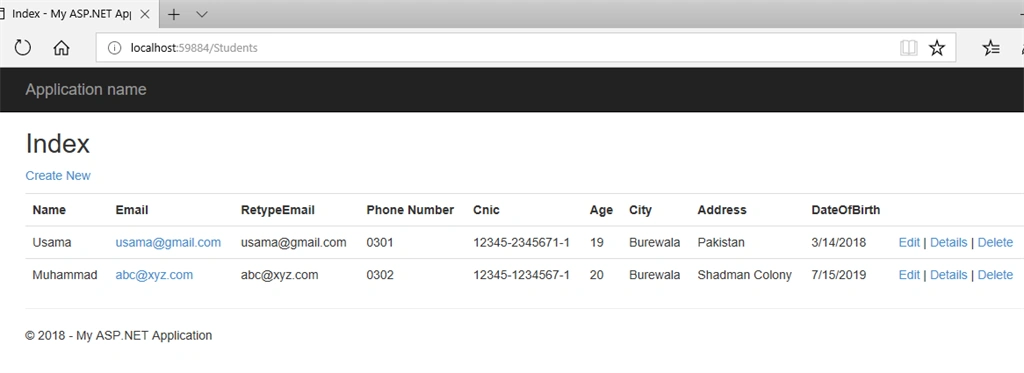
Look these are the records already in database, So the error is showing on the view like below, here we’re using this ValidationSummary statement in the view.
- @Html.ValidationSummary(true, "", new { @class = "text-danger" })
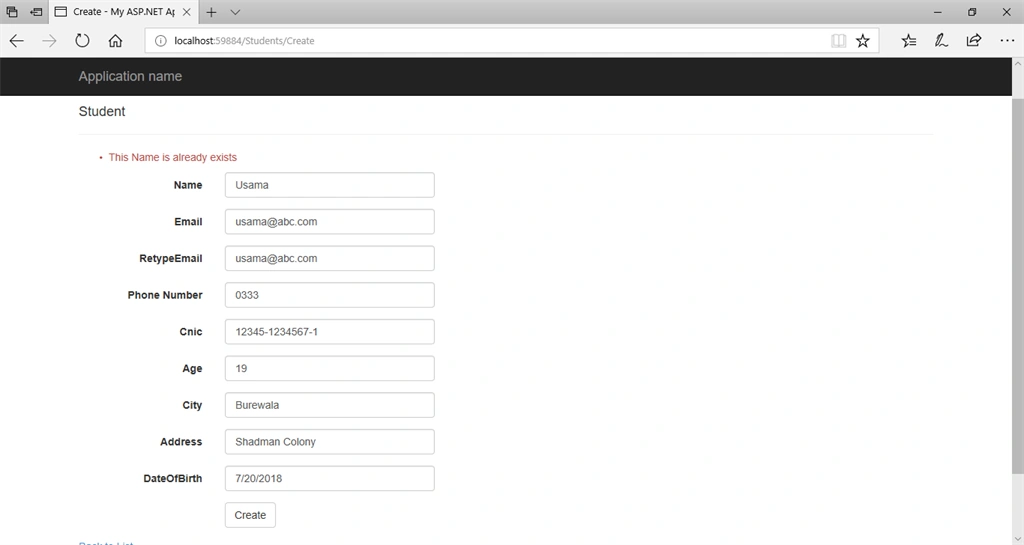
This is how ValidationSummary validations are showing on the form. These are the validation summary messages at one place.
Look here you can see the intelliSense and learn from it everything,
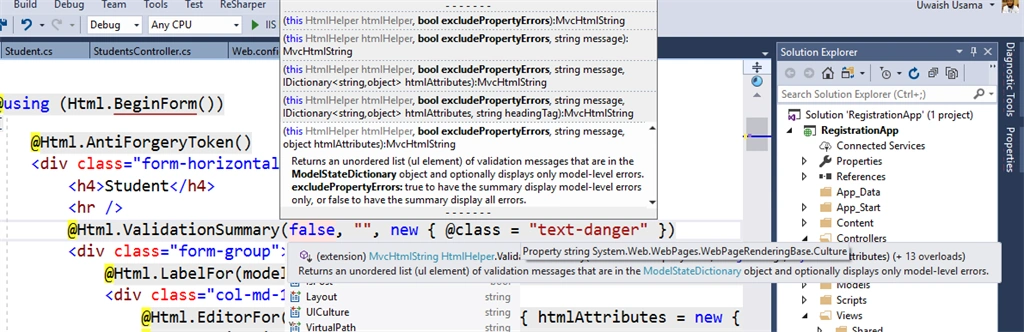
IntelliSense is telling the complete story, how it would behave in a differed scenarios. If you mark the excludePropertyErrors as true, then it will just show the model level errors and if it is ok, then it will show the error here which we’ve added in ModelStateDictionary with this command,
- ModelState.AddModelError("", "This Name is already exists");
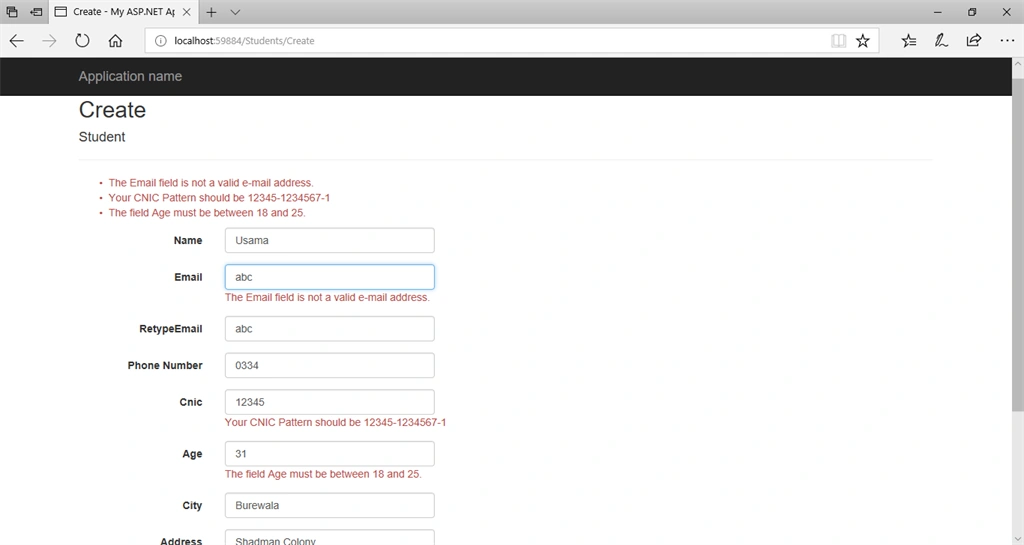
And if we mark it false, then it will show you the model level errors and the summary message errors as well as it is showing here.
Conclusion
Explore the different overloaded functions of HTML Helpers on your own. You can see each and every detail about these functions on MSDN.


Farhan AhmedTOP 100Posted Jul 23, 2018, 8:32 PM EDT
Add little bit about custom helpers
Farhan AhmedTOP 100Posted Jul 23, 2018, 8:32 PM EDT
Nice article