
Microsoft Flow is designed to connect the different services in an easier way by creating automated tasks or workflows. To get started with Microsoft Flow, go through my previous article:
To connect the different services in Microsoft Flow, we should establish the connection to that appropriate service. And the connections can be managed from "My connections page". Below are the steps to manage the connections in Flow.
Create a new ConnectionFollow the below steps to create a new connection,
- Navigate to Microsoft Flow site
- Sign in to Microsoft Flow
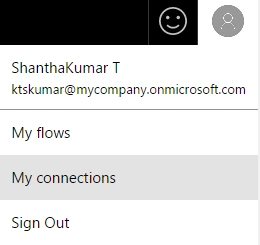
- Click User Info image, My Connections to navigate to My connections page,
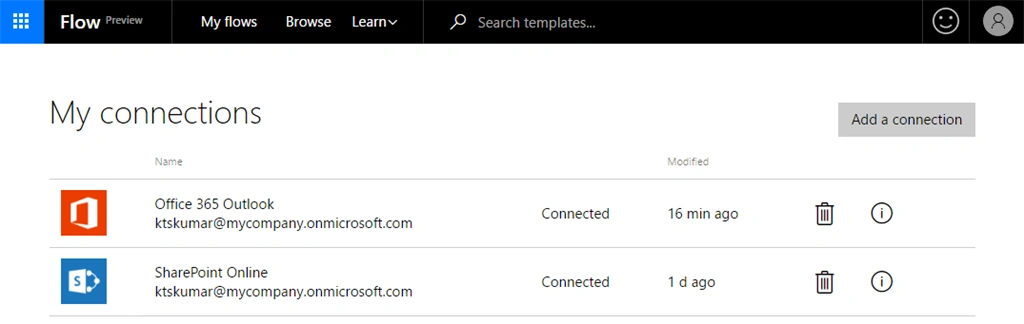
- View all available connections created for the current user in My Connections page.
- Click “Add a connection” button redirect us to “Available Connections” page,
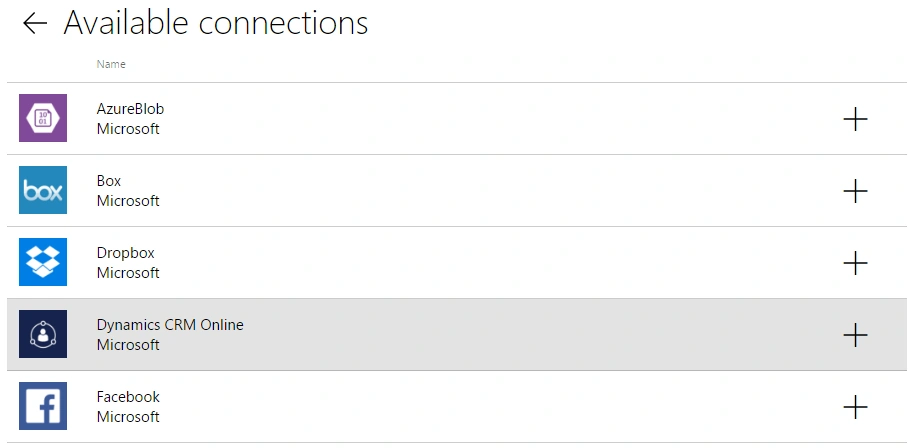
- Clicking any one of the service from available services opens an authenticate page in popup.
- Provide credentials in secured popup page and click Sign in to store the connection in Microsoft Flow.
- If the service is successfully connected the service with “Connected” status is viewable in My Connections page.
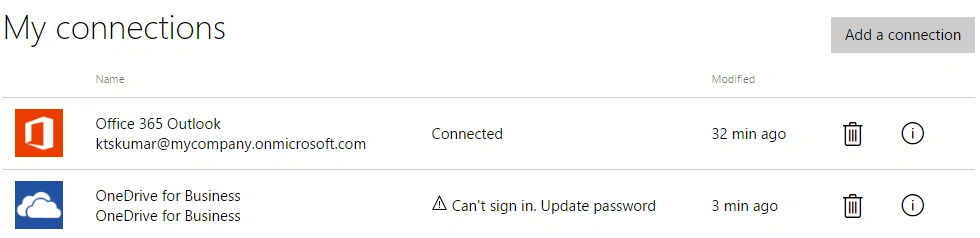
- If the service has some problem with connecting to the service, appropriate status is updated to the service in “My Connections” page.
- In below example screenshot, there is a problem in connecting to the OneDrive for Business. And connection status shows as “Can’t sign in. Update password”.
View Connection details
To View the connection details, follow the below steps,
- Navigate to Microsoft Flow site.
- Sign in to Microsoft Flow.
- Click User Info image, My Connections to navigate to My Connections page.
- Select any connected service or click on
 to view the details about the connection.
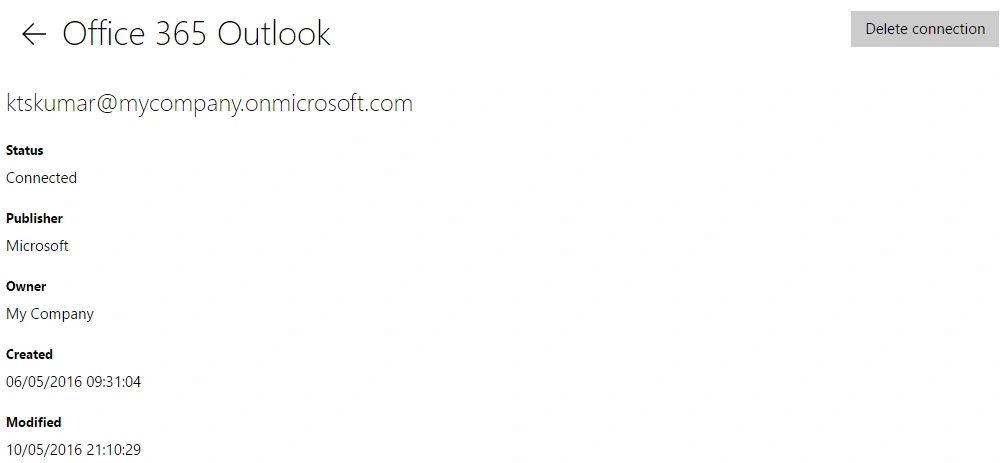
Delete a connection
To delete the any connection created in Microsoft Flow, follow the below steps,
- Navigate to Microsoft Flow site
- Sign in to Microsoft Flow
- Click User Info image, "My Connections" to navigate to My Connections page
- Click
 icon opens a popup and click ok to delete the connection from Flow.
- Alternate method: Navigate the Connection details and click “Delete Connection” and OK in alert message to delete the connection.

- After deletion, connection will be removed from Microsoft Flow and if the connections associated to flows will not work afterwards.
At present, Microsoft Flow provides the connection options to below services. So we can establish the connections to below service for now.
- AzureBlob
- Box
- Dropbox
- Dynamics CRM Online
- FTP
- GitHub
- Google Drive
- MailChimp
- Mandrill
- Microsoft Translator
- Office 365 Outlook
- Office 365 Users
- Office 365 Video
- OneDrive
- OneDrive for Business
- Outlook.com
- Project Online
- RSS
- Salesforce
- SendGrid
- Service Bus
- SFTP
- SharePoint Online
- Slack
- SMTP
- SQL Azure
- Trello
- Twilio
- Wunderlist
- Yammer
In future, we may get additional services available from Microsoft Flow to connect multiple services.


Vignesh ManiTOP 100Posted May 13, 2016, 3:19 AM EDT
Nice
Prasanna MuraliPosted May 12, 2016, 7:36 AM EDT
Nice Article
Sonu ChaudharyPosted May 12, 2016, 7:27 AM EDT
good one
Debasis SahaTOP 100Posted May 12, 2016, 5:54 AM EDT
Good One..
Shantha Kumar TTOP 100Posted May 12, 2016, 12:04 AM EDT
Thanks Thiruppathi
Thiruppathi RPosted May 11, 2016, 7:14 PM EDT
Nice Info...