
Introduction
Are you tired of slow and complex Power Automate flows bogged down by endless loops? The “Filter array” action is your secret weapon! This powerful, yet often underutilized, feature allows you to quickly sift through data, extract exactly what you need, and streamline your automation—no code required. Whether you’re working with SharePoint lists, Excel tables, or any other data source, mastering “Filter array” can take your flows from basic to brilliant.
Why Use the “Filter Array” Action?
The Problem with “Apply to Each”
Many Power Automate beginners reach for the “Apply to each” loop to process collections. While functional, this approach can be inefficient, especially with large datasets. Every item is processed one by one, which can slow down your flow and even hit performance limits.
The “Filter Array” Advantage
Performance Boost: Processes entire arrays at once—no looping required.
Cleaner Flows: Reduces clutter and makes your flows easier to read and maintain.
Flexible Filtering: Supports complex conditions and multiple criteria.
Scalability: Handles large datasets quickly and efficiently.
Direct Integration: Works seamlessly with SharePoint, Excel, Dataverse, and more.
How to Use the “Filter Array” Action
Let’s break down the syntax, setup, and practical examples—especially with SharePoint.
Basic Syntax
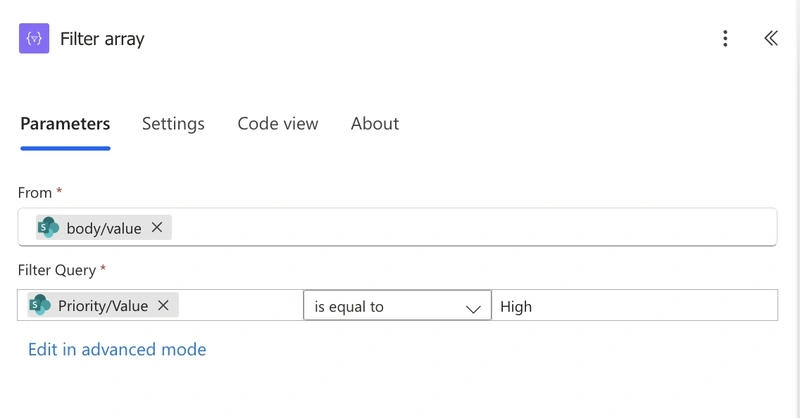
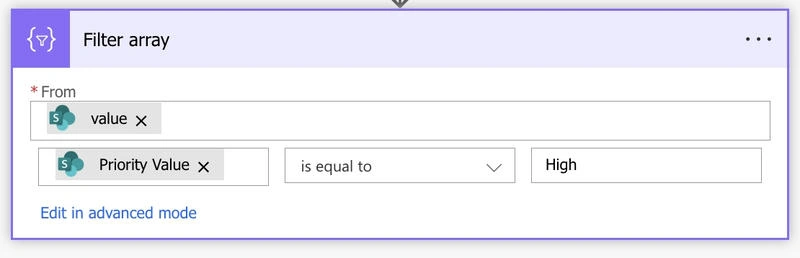
The “Filter array” action takes an array (collection) and a condition, returning only those items that match.
Example Structure
  {
  "from": [your array],
  "where": [your condition]
}
Modern Power Automate View
Older Power Automate View
Step-by-Step: Filtering SharePoint List Items
Scenario: Filter SharePoint Tasks Assigned to “John Doe”
Get Items : Use the “Get items” action to fetch tasks from a SharePoint list.
Add “Filter array” :
From : @body('Get_items')?['value']
Condition : item()?['AssignedTo'] is equal to John DoeUse the Output : The filtered array now contains only tasks assigned to John Doe.
Power Automate Expression
@equals(item()?['AssignedTo']?['DisplayName'], 'John Doe')Example: Filter by Status and Due Date
Suppose you want all “In Progress” tasks due before today:
@and(
  equals(item()?['Status'], 'In Progress'),
  less(item()?['DueDate'], utcNow())
)
Filtering Excel Rows
Get Rows from Excel.
Use “Filter array” to select only rows where, for example, Status is “Approved”.
Advanced: Multiple Conditions
You can combine multiple conditions using and() or or() functions for even more precise filtering.
Real-World Use Cases
SharePoint Approvals: Filter pending approval items for a specific manager.
Email Processing: Extract emails with a particular subject or sender.
Data Cleanup: Remove empty or invalid entries from arrays.
Notifications: Alert users only for high-priority items.
Reporting: Summarize or aggregate filtered data for dashboards.
Key Insights and Conclusion
The “Filter array” action is a game-changer for anyone building Power Automate flows. It’s faster, cleaner, and more scalable than traditional looping. By integrating it into your flows—especially when working with SharePoint, Excel, or other data sources—you can dramatically improve both performance and maintainability.
Pro Tip: Always try to filter data as early as possible in your flow to minimize unnecessary processing and speed up your automations.
Ready to elevate your Power Automate skills? Start using the “Filter array” action today and experience the difference!
Did you find this guide helpful? Share your favorite “Filter array” tips or questions in the comments below!

Join the conversation! Your thoughts help the community grow.