
A Microsoft 365 service disruption can affect email, calendars, meetings, and connected apps.
A widespread Microsoft 365 outage that began on November 12, 2026 disrupted Outlook email, Microsoft Teams, Copilot, and other cloud services for users in multiple regions. Microsoft reported progress during recovery on November 13, but service could return gradually because clients had to reconnect while Microsoft restored server capacity. For most Outlook users, the right response is to confirm the service incident first, avoid risky local fixes such as deletin

g a mailbox profile, and use an approved backup communication channel until service is stable.
Key takeaways
The November 12, 2026 incident affected Outlook alongside other Microsoft 365 services, so it was not simply a problem with one user's laptop or phone.
Microsoft linked the disruption to server availability, traffic management, and authentication or routing configuration work during its recovery updates.
Outlook on the web, desktop Outlook, and mobile mail can all fail during an Exchange Online incident because they depend on the same cloud mailbox service.
Microsoft 365 administrators should use the Service health page in the Microsoft 365 admin center for tenant-specific incident details and notifications.
Do not repeatedly resend important messages or reset passwords unless there is evidence of an account-specific problem.
What happened during the Microsoft Outlook outage?
Reports of trouble started on Thursday, November 12, 2026. Users reported that Outlook inboxes would not load, messages could not be sent or received, and Microsoft 365 applications such as Teams and Copilot also had problems. Reuters reported more than 97,000 Outlook problem reports in the United States at 2:07 p.m. Eastern Time, while the Associated Press later reported that the number approached 130,000 shortly after 1 p.m. Eastern Time.
This was a Microsoft cloud service incident, not a normal Outlook desktop app crash. Microsoft said it had paused deployments, shifted traffic away from affected infrastructure, and restarted servers. Its recovery updates later described work on server stability and an authentication or routing configuration component.
By Friday, November 13, 2026, Microsoft was reporting improving capacity and gradual recovery in affected regions. That wording matters. A gradual recovery means one person may be able to read email while another person in the same organization still sees connection errors. A client that reconnects successfully does not prove the incident is fully over everywhere.
Microsoft had not published a final post-incident report at the time of those recovery updates. So do not treat early reports about a single definitive root cause as confirmed. The best place to monitor Microsoft's current public status is the Microsoft service health status page. Organization administrators can also see tenant-specific details in the Microsoft 365 admin center.
Why an Outlook outage can affect several Microsoft apps
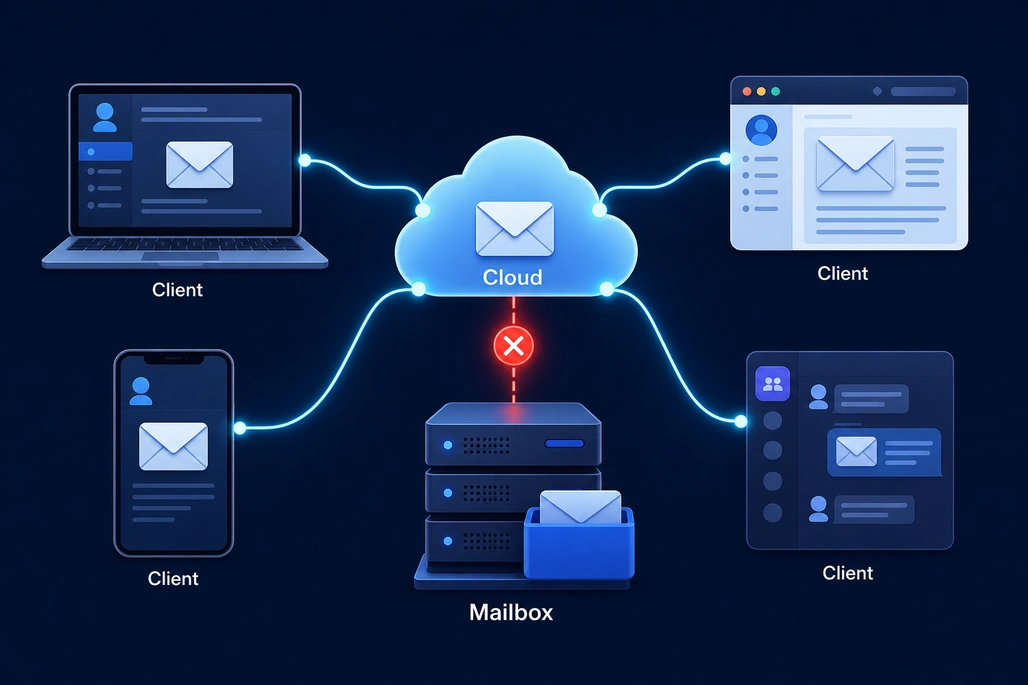
Several Outlook clients can fail together when the cloud mailbox service has an incident.
Outlook is the email client that users see. The cloud service behind a work or school Microsoft 365 mailbox is usually Exchange Online. That service stores email, calendars, contacts, and other mailbox data.
Many applications use mailbox data even when they are not email applications. Teams, for example, can depend on Exchange Online for calendar scheduling. Other Microsoft services and third-party tools may depend on Microsoft 365 connections, identity services, or APIs that reach mailbox data.
What you use | What may be affected | What it can look like |
|---|---|---|
Outlook on the web | Web access to Exchange Online | The inbox does not load, errors appear, or messages are delayed. |
Classic Outlook or new Outlook | Mailbox connection and synchronization | The client shows disconnected status, folders stop updating, or send operations wait. |
Outlook mobile or a phone mail app | Mobile synchronization | New mail does not appear, calendar data does not refresh, or sign-in fails. |
Microsoft Teams | Meetings and calendar features that use Exchange Online | Chat may work while meeting scheduling or calendar access has problems. |
Connected business apps | Microsoft 365 connectors and mailbox-related services | Automated workflows, notifications, or tools that read mail can fail or time out. |
This is why switching from the Outlook desktop app to Outlook on the web is useful as a quick check, but it is not a guaranteed workaround. If Exchange Online itself is impaired, every client can be affected. The device is only one part of the path between you and a cloud mailbox.
How to tell a Microsoft outage from a local Outlook problem
Start with the broadest check. If coworkers, customers, or people outside your organization report the same symptoms at the same time, assume a service incident is possible. Check the Microsoft public status page and, if you have an organization account, ask the Microsoft 365 administrator to review Service health.
Microsoft documents that administrators can review health for services such as Exchange Online and Teams from the Service health page. They can also configure email notifications for incidents affecting their tenant through the Microsoft 365 admin center.
Next, compare connection methods. Try Outlook on the web in a private browser window, then try the Outlook desktop or mobile client. Do not use this test to guess a root cause. Use it to describe the impact clearly: web only, client only, mobile only, or all methods.
Then check your own internet connection. Open another unrelated website, disconnect and reconnect to your network, or try a phone hotspot if your company policy allows it. If only Outlook fails while a public Microsoft incident is active, troubleshooting Wi-Fi or reinstalling Outlook is unlikely to fix the real problem.
A simple decision path for beginners
Check if other people have the same Outlook or Teams problem.
Review Microsoft's public status and the Microsoft 365 Service health information available to your organization.
Try one alternate approved connection method, such as Outlook on the web or the Outlook mobile app.
If the incident is confirmed, stop changing local settings and follow your organization's communication plan.
If Microsoft reports healthy service and only your account is affected, contact your help desk with screenshots, the error text, the time, and the connection method you tried.
What users should do while Outlook is down
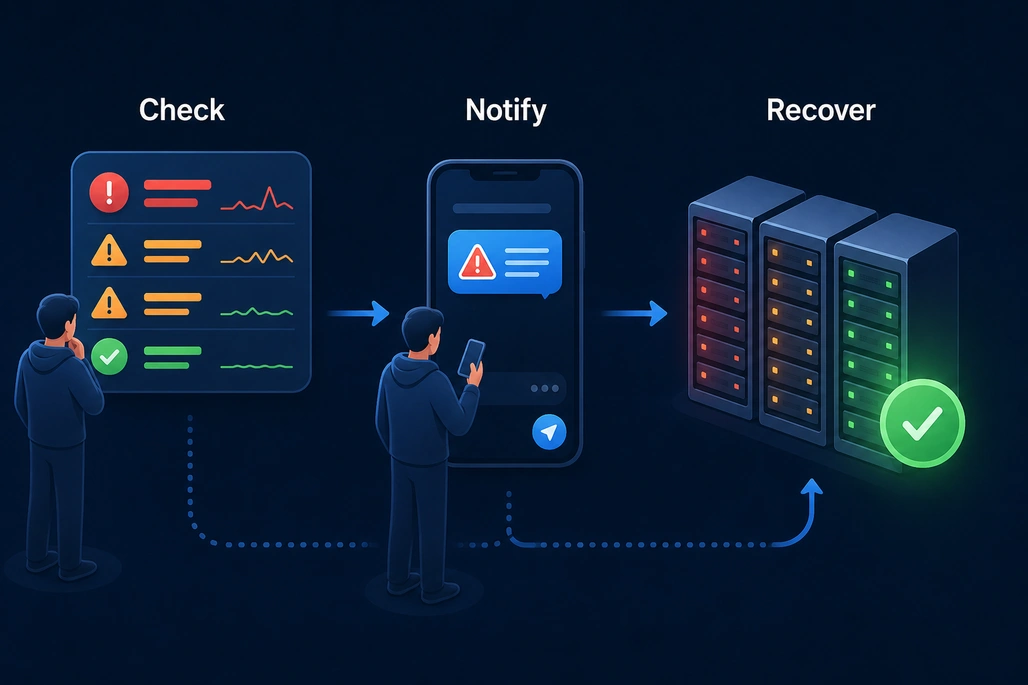
A simple response plan helps users avoid risky troubleshooting during a service incident.
Your first job is to protect your mailbox and avoid creating a second problem. Do not remove and re-add your account, create a new Outlook profile, clear data, reset your password, or uninstall the app just because a broad outage is underway. Those steps can remove useful cached information and make recovery harder after Microsoft restores the service.
Use a communication channel your organization has already approved. That might be a phone call, SMS, an internal incident page, a collaboration platform that is still working, or a temporary email process. Do not send confidential business information through a personal account unless company policy explicitly allows it.
Keep a short record of time-sensitive work. If a customer request, approval, or deadline arrived through another route, note the time, sender, and decision. When Outlook returns, you can reconcile missed messages and show why a reply was delayed.
Be careful with duplicate sends. When an email appears stuck in the Outbox, it may have already reached the server even though the client has not received a confirmation. Repeatedly pressing Send can create duplicate customer emails after the service recovers. If the message is urgent, use the approved alternate channel and say that email delivery is currently unreliable.
What Microsoft 365 administrators should do during an Outlook incident
Administrators should begin with the Microsoft 365 Service health view. It shows incidents and advisories for the services connected to the tenant. A public status page is useful for broad awareness, but Service health is where an administrator can see whether Microsoft has identified impact for that organization.
Record the incident identifier, the first time your organization observed impact, affected locations, affected connection methods, and the business processes that depend on email. This gives support staff one consistent record and helps after service returns. It also prevents every employee from opening separate tickets for the same known incident.
Send clear internal updates. State what is known, what is not known, which services are affected, the next review time, and the approved fallback channel. Avoid saying that email is permanently lost or that Microsoft has confirmed a cause unless the official incident update says that.
During the November 2026 event, service degradation reached beyond Outlook. A good incident message should therefore mention related tools, especially Teams meeting scheduling and any workflow or connector that depends on Microsoft 365 mail data. This gives business teams a chance to pause automations instead of assuming every failed action will automatically retry.
A practical recovery checklist
Confirm that users can send and receive new internal and external messages.
Check whether delayed messages arrive and whether transport queues clear over time.
Review shared mailboxes, room calendars, automated notifications, and applications that use Exchange Online.
Ask users to restart Outlook only after service health is stable and the client remains disconnected.
Document customer impact, workaround decisions, and final Microsoft incident details for the next outage plan.
Why service recovery can take longer than a restart
Cloud recovery is more than turning on one server. Microsoft has to restore enough healthy capacity, direct traffic to that capacity, make sure the repaired systems remain stable under load, and allow huge numbers of clients to reconnect. If too much traffic returns too quickly, a recovered server can become overloaded again.
That is why Microsoft described traffic limiting, server restarts, configuration changes, and staged restoration during this incident. It is also why email may arrive in batches after an outage. The mailbox service, delivery systems, clients, mobile devices, and connected applications can all catch up at different rates.
For a beginner, the useful lesson is simple: a spinning Outlook window does not always mean Outlook is broken on your computer. When the back-end mailbox service is impaired, local changes do little. Verify the scope first, choose a safe fallback, and wait for the service provider's recovery updates.
Build a small outage plan before the next incident
Every team that depends on email should decide in advance how it will communicate during an email outage. The plan does not need to be complicated. It needs named owners, an alternate channel, a customer-facing message, and rules for handling urgent requests.
For individuals, keep contact details for your manager, help desk, and key customers in an approved location that does not require Outlook access. For administrators, configure Service health notifications, keep an incident message template, and maintain a list of mailbox-dependent applications. Microsoft documents email notification options for service health changes, which can reduce the delay between an incident starting and your team learning about it.
Microsoft Outlook outages are disruptive because email is tied to daily work, calendars, approvals, and customer communication. But a calm response works better than random troubleshooting. Check the service health evidence, protect your mailbox settings, communicate through approved alternatives, and validate delayed work after recovery.
Frequently asked questions
Is the November 2026 Outlook issue an Outlook app problem?
No. The incident that began on November 12, 2026 affected Microsoft 365 services including Outlook and Teams, so many users were seeing a cloud service problem rather than a fault in the Outlook app installed on one device.
Should I reinstall Outlook during a Microsoft 365 outage?
Usually no. If Microsoft has confirmed a broad service incident, reinstalling Outlook is unlikely to restore Exchange Online. Wait for service recovery unless your help desk identifies a separate local issue.
Can I use Outlook on the web if the desktop app is down?
You can try it as a diagnostic step, but it may also fail during an Exchange Online incident. Outlook on the web and desktop Outlook can depend on the same cloud mailbox service.
How do Microsoft 365 administrators check Outlook service health?
Administrators can sign in to the Microsoft 365 admin center and open the Service health page. Microsoft says this page provides health information for services including Exchange Online and Microsoft Teams.
Will messages sent during an Outlook outage be lost?
Do not assume messages are lost. Delivery can be delayed while capacity is restored, and messages may arrive after recovery. Avoid repeatedly resending the same email because that can create duplicates.
Based on reporting by Microsoft, Microsoft Learn, Reuters and Associated Press.

Join the conversation! Your thoughts help the community grow.