

Azure Cosmos DB is Microsoft’s globally distributed horizontally partitioned multi model database service. It allows customers to elastically scale throughput and storage across any number of regions.
- SQL API
- MongoDB API
- Gremlin Graph API
- Cassandra API
- Table API
I have already written some articles about Cosmos DB and its usage in C# Corner.
Currently there are lots of other good articles and tutorials about Cosmos DB available on the web.
In this article we will discuss about the Cosmos DB Data Migration Tool. This tool will help us to import data from various sources. I will give you all the details about these data sources.
The source code of this tool is available in Github. This tool still follows the code name of DocumentDB instead of Cosmos DB. So, I have forked this code and changed all name from DocumentDB to Cosmos DB. My source code is available in Github-MyVersionOf-DataMigraionTool
Let's start with Cosmos DB Data Migration Tool.
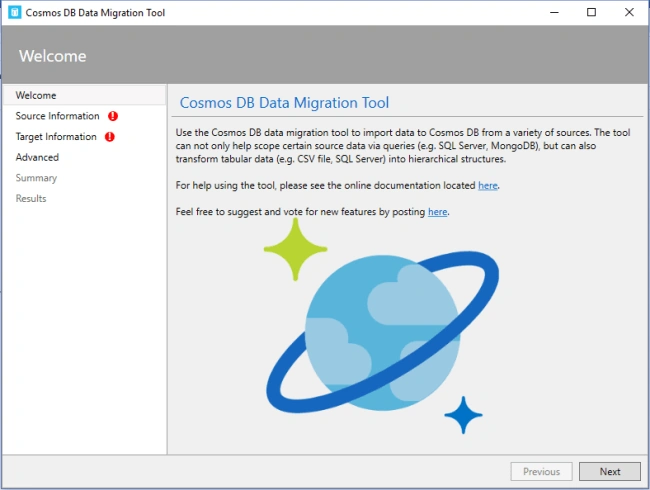
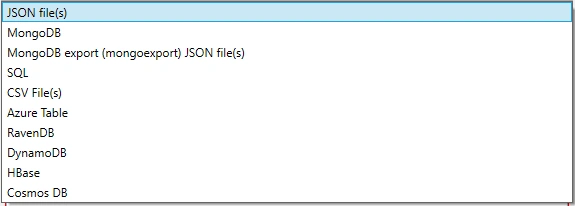
We can import data from JSON, MongoDB, MongoDB exported JSON files, SQL, CSV, Azure Table, RavenDB, DynamoDB, HBase and lastly, we can import data from one Cosmos DB to another Cosmos DB.
Target information currently supports only 3 data types.

We can import data sequentially (partitioned collection) or we can use bulk import (single partition).
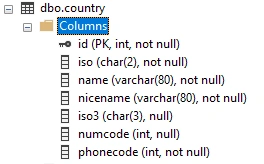
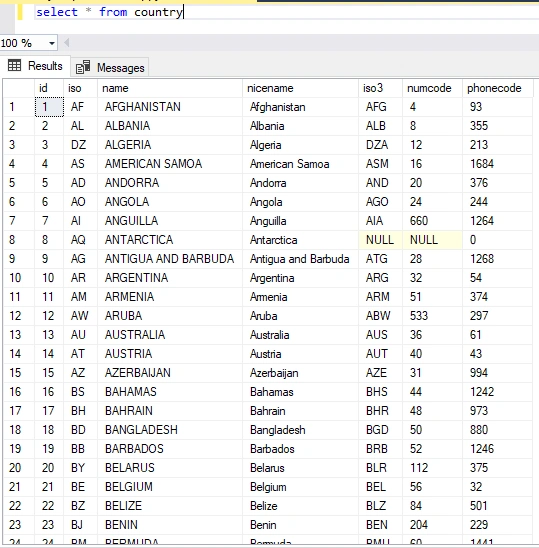
In this article we will see how to export one SQL table to Cosmos DB. I am using a simple country table for this purpose. The structure of the table is shown below.
We can select source information as “SQL” and give the connection string of our SQL database.
Also give the SQL query we execute. We are going to export country table. So, we must give the required query in the corresponding place.
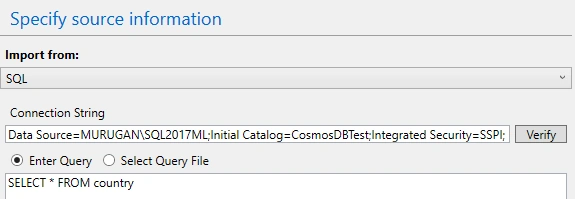
Now we can choose the Target information.
Please note that in this article we will not create actual Azure Cosmos DB account. Instead we will use an Azure Cosmos DB Emulator for testing purposes. Cosmos DB emulator is also a free tool and you can download the installer from this location. Cosmos DB Emulator.
Emulator will be running in our local host.
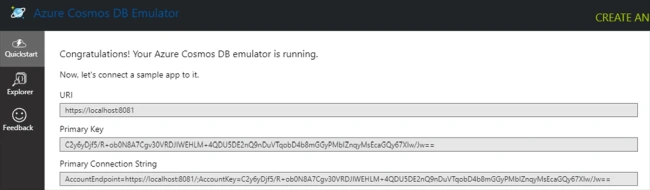
All emulators have same URI location and Primary key information. We need this information to connect our Cosmos DB database to the data migration tool.
Please copy primary connection string from emulator and input to the tool. Please note we must add a database name at the end of this connection string. Currently this tool does not provide a separate field for Database.
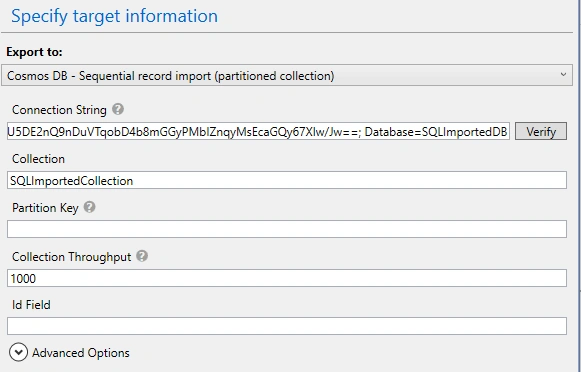
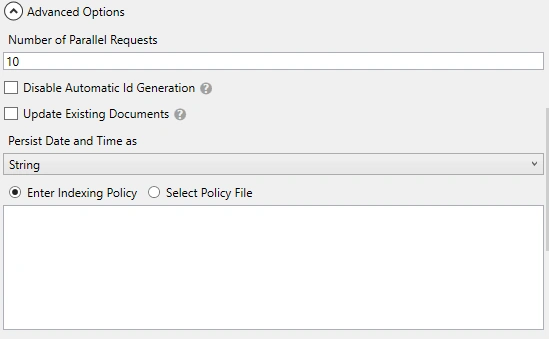
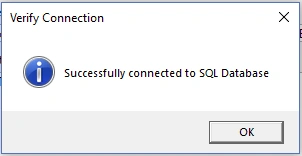
Now we must “Verify” the connection before proceeding further.
After that we can give Error log details. If any error occurred during migration we can easily find out from this file.
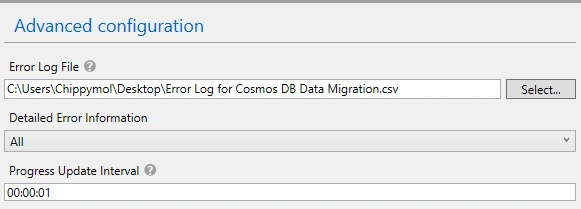
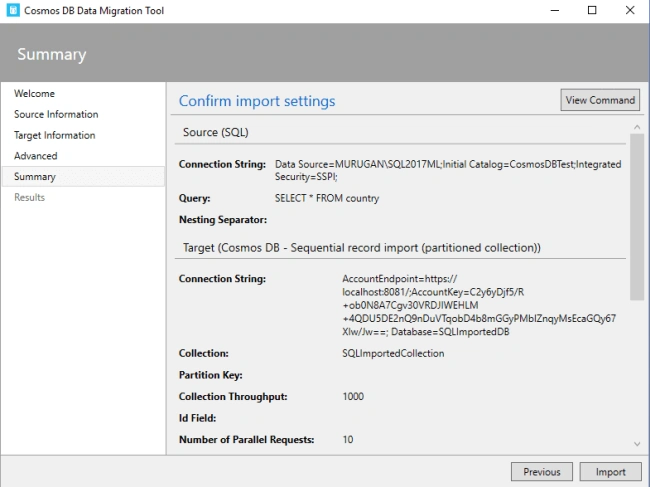
It will take some time to import the data and finally we will get the result.
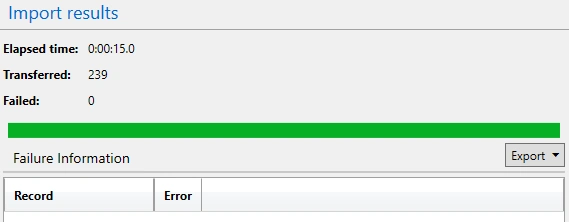
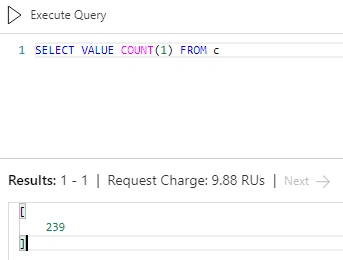
Here we did not get any error logs. All our 239 records are successfully imported from the SQL table.
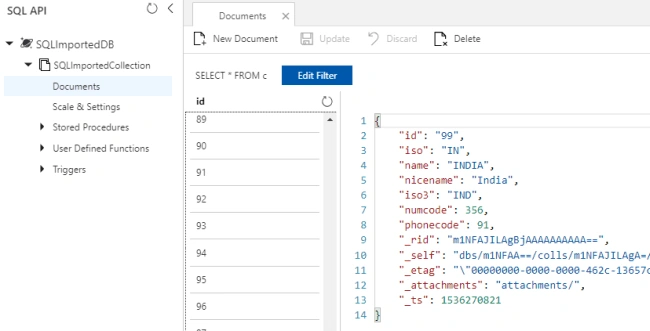
We can now go to Cosmos DB Emulator and query the data easily.

Join the conversation! Your thoughts help the community grow.