
I was debugging a slow tool call in an AI agent on Microsoft Foundry when I opened a trace and saw more than I expected. Next to the latency numbers was the user’s entire message: a name, a date of birth, a health condition, an account number.
It was test data, luckily. But it made something obvious that I hadn’t thought about properly: in a real project, everyone with log access would see exactly that. Developers, support engineers, anyone who can query Application Insights.
This post covers what I learned, how I configured Foundry to keep that content private, and how I tested it end to end.
Why traces are a privacy problem
Tracing an agent doesn’t just record timings and errors. Following the OpenTelemetry GenAI conventions, Foundry captures the actual content of each interaction:
Attribute | What it holds |
gen_ai.input.messages | The prompts and messages sent to the model |
gen_ai.output.messages | The model’s responses |
gen_ai.system_instructions | Your system prompt |
gen_ai.tool.definitions | The tools available to the model |
gen_ai.tool.call.arguments | What the model passed to a tool |
gen_ai.tool.call.result | What the tool returned |
gen_ai.evaluation.explanation | Explanations from evaluations |
Any of these can contain personal data (PII) or health data (PHI). Tool arguments are easy to forget: if your agent calls update_address, the address is in the trace.
How Foundry handles it
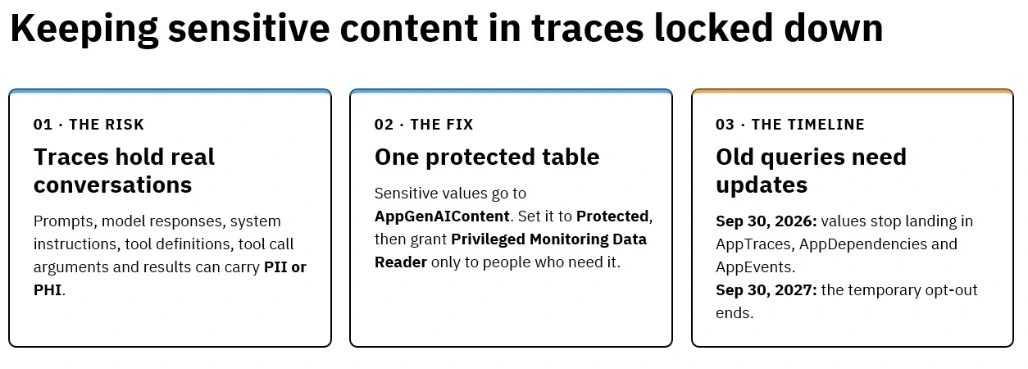
Foundry doesn’t try to detect PII. Instead, it moves the content of all seven attributes into a dedicated Application Insights table, AppGenAIContent, separate from the rest of the trace.
You then:
Mark that table as Protected, which makes it deny-by-default.
Give the Privileged Monitoring Data Reader role to the few people who genuinely need to read conversations.
Everyone else keeps their usual access and can still debug with spans, timings and errors, just without the conversations.
Important: this doesn’t mask or redact anything. It hides the whole content from people without access. If you need actual redaction, that’s a separate step (more on that at the end).
Key dates
September 30, 2026: for newly ingested data, Application Insights stopped writing these values to AppDependencies, AppTraces and AppEvents. The attribute keys are still there, but the values point to AppGenAIContent. Older data stays where it was.
September 30, 2027: the temporary opt-out flag (optOutProtectGenAISensitiveData) ends.
If you have custom queries, alerts, dashboards or workbooks that read prompt or response text from the old tables, they need updating. The built-in Foundry and Application Insights views keep working.
Before you start
A Foundry project with at least one agent, with tracing connected to Application Insights.
Owner on the subscription (or a role with Microsoft.Features/* actions) to register the feature flag.
Owner or Log Analytics Contributor on the workspace to change the table’s protection.
Owner or User Access Administrator to assign roles.
The Azure CLI, signed in with az login.
Two test accounts: demo-reader and demo-privileged.
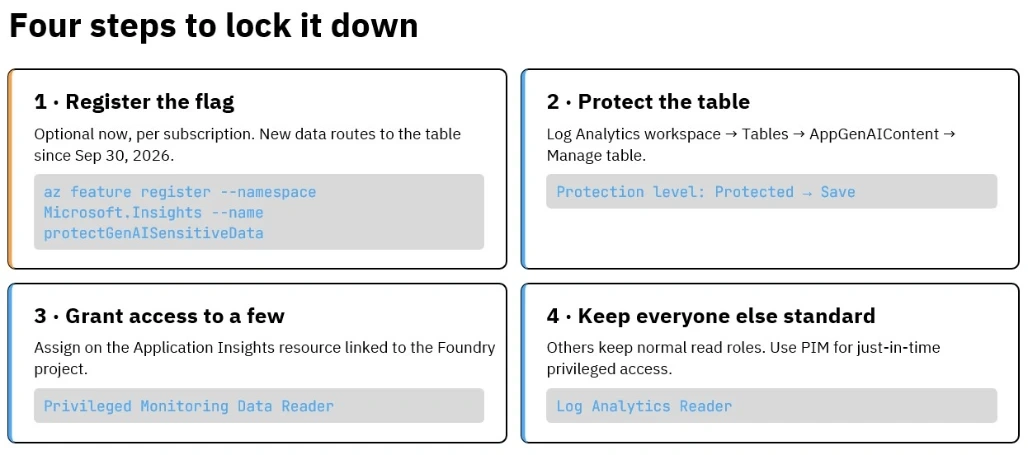
Step 1: Register the feature flag (optional now)
The flag is registered per subscription, not per tenant. Since September 30, 2026 new data is routed to AppGenAIContent anyway, so this step is optional, but harmless.
az account set --subscription "<subscription-id>"
az feature register --namespace Microsoft.Insights --name protectGenAISensitiveData
Check the status until it says Registered:
az feature show --namespace Microsoft.Insights --name protectGenAISensitiveData --output table

Then propagate it:
az provider register --namespace Microsoft.Insights
In the portal, the same is under Subscriptions → your subscription → Settings → Preview features.
Step 2: Protect the AppGenAIContent table
This is the step that actually locks the content down.
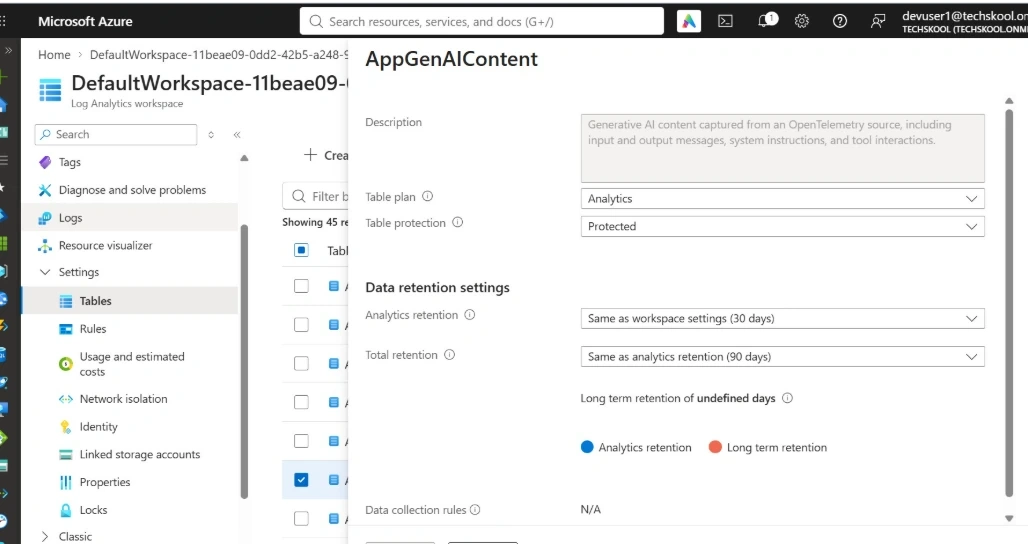
Open Log Analytics workspaces and select the workspace linked to your Application Insights resource.
Go to Settings → Tables and find AppGenAIContent.
Select … → Manage table.
Set Protection level to Protected and select Save.
Prefer the CLI?
It’s a single REST call (PowerShell syntax):
az rest --method patch --url $url --body '{\"properties\":{\"protectionLevel\":\"Protected\"}}'
The effect is immediate: standard read roles and custom roles can no longer read the table.
Don’t see the table? Send your agent a message first. The table appears once content arrives.
Step 3: Grant access to the people who need it
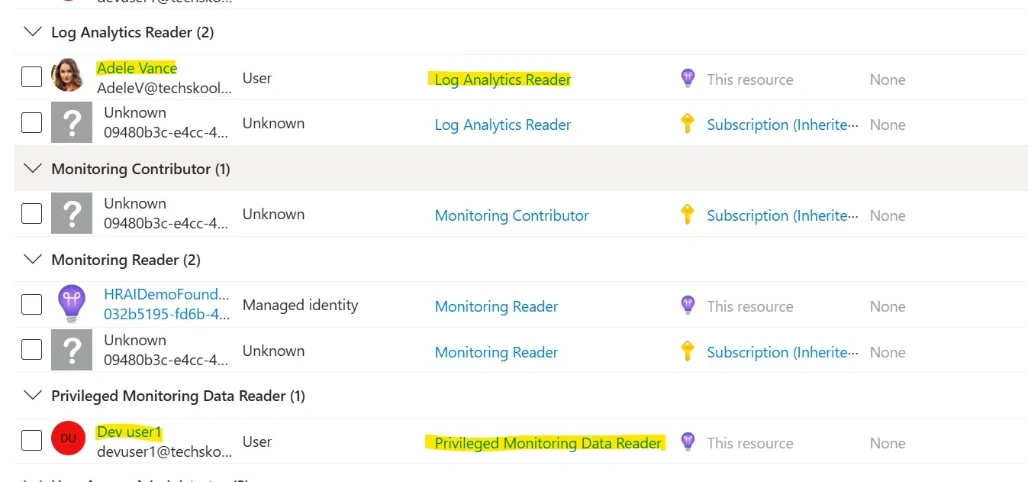
Assign Privileged Monitoring Data Reader on the Application Insights resource linked to your Foundry project. That’s enough to see content in both Foundry and Application Insights.
az role assignment create --assignee "demo-privileged@<your-domain>" --role "Privileged Monitoring Data Reader" --scope "/subscriptions/<subscription-id>/resourceGroups/<resource-group>/providers/Microsoft.Insights/components/<app-insights-name>"
If someone also needs to query the Log Analytics workspace directly, assign the role on the workspace too.
Step 4: Keep everyone else on standard roles
For the comparison, give the other account a normal reader role:
az role assignment create --assignee "demo-reader@<your-domain>" --role "Log Analytics Reader" --scope "/subscriptions/<subscription-id>/resourceGroups/<resource-group>/providers/Microsoft.OperationalInsights/workspaces/<workspace-name>"
Both accounts also need access to the Foundry project to open traces there. Allow 5–10 minutes for role changes to apply, and sign out and back in.
Testing it with fake PII
Generate a trace
Send your agent a prompt that looks sensitive, using only made-up data:
“Hi, I’m Jordan Sample, DOB 01/02/1990, email [email protected], phone +1 555-0142. I was diagnosed with type 2 diabetes and take metformin. Can you update the address on account ACCT-000123 to 123 Demo Street, Springfield?”
Phone numbers in the 555-01xx range are reserved for fiction, and example.com is reserved for documentation, so nothing here belongs to a real person. Wait 2–5 minutes for the trace to arrive.
Test A: the reader account should be blocked
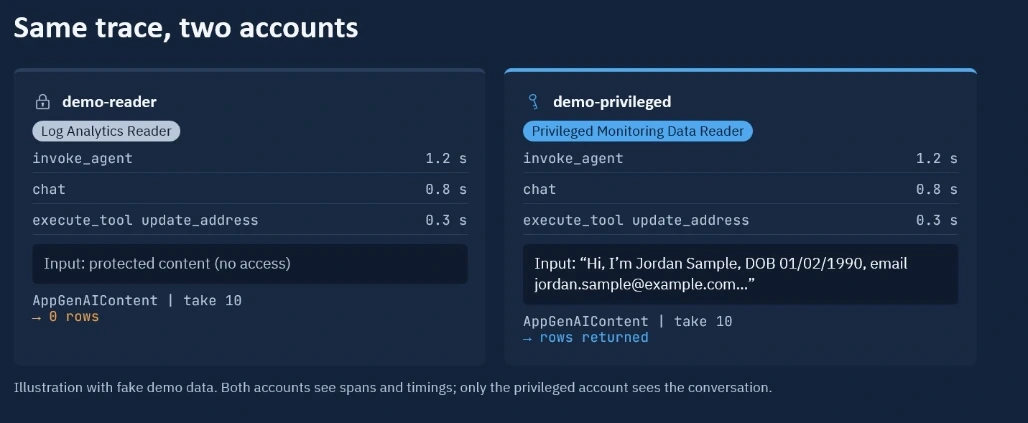
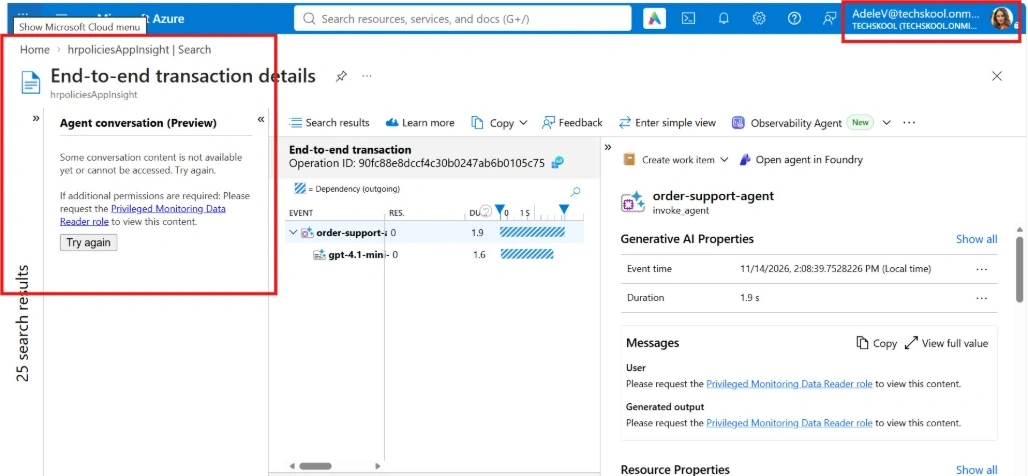
Sign in as demo-reader and open the trace in Foundry → Tracing. You should see the full flow (agent call, model call, tool call, timings), but no prompt, response or tool arguments.
In the workspace’s Logs, run:
AppGenAIContent | take 10
✅ The query succeeds and returns 0 rows.
Test B: the privileged account should see everything
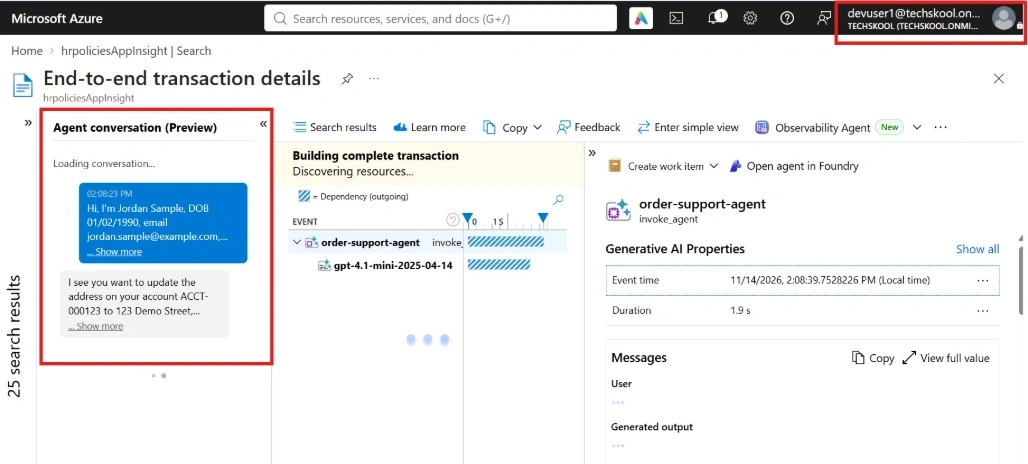
Sign in as demo-privileged and open the same trace. ✅ The full conversation is visible, including “Jordan Sample” and the tool arguments. The same query now returns rows.
Test C: Check the audit trail
In the workspace, open Activity log and filter by the Update Table operation. ✅ Your protection change appears, with who made it and when.
Troubleshooting
What you see | Likely cause |
No AppGenAIContent table | No content traced yet, or content recording is turned off in your tracing setup |
The reader account sees content | The table isn’t Protected, or the account has Owner, Contributor or a custom role with data read permissions |
The privileged account sees nothing | The role hasn’t applied yet, it’s at the wrong scope, or direct KQL needs the role on the workspace too |
What I’d do in production
Keep Owner and Contributor tight. They can change the table’s protection level, which would undo all of this.
Use PIM so the privileged role is granted only when someone requests it.
Alert on “Update Table” in the workspace Activity Log, so you know if the protection changes.
Review custom roles. Some data permissions can still grant access to protected tables.
Add redaction if you need masking. Tools such as Azure AI Language PII detection or Microsoft Presidio can replace names and emails with placeholders before they reach your traces. Combined with the protected table, you get two layers.
Wrapping up
This approach gives you full observability for debugging, with privacy handled by design rather than by everyone promising to be careful. It took me well under an hour to set up and test, and it’s worth doing before your first real user shows up.
One caveat: this is still a preview feature, with no SLA, so check the latest Microsoft Learn documentation before you rely on it in production.
Reference: Restrict access to sensitive content in Microsoft Foundry traces (Microsoft Learn)

Join the conversation! Your thoughts help the community grow.