
Today, I am writing about SharePoint Online Automation script for checking the Site Quota. SharePoint Online or Office 365 Automation provides powerful proficiencies to automate the tasks with SharePoint online so as to reduce human efforts and errors as well.
In this post, I will cover a scenario where you connect to SharePoint Online using SharePoint Online PowerShell Management and display the list of all provisioned site collection URLs and Site Quota for an Office 365 tenant. This post is mainly geared towards getting you started with SharePoint Online or Office 365 Automation. Once prepared with this knowledge, you can repeat the tasks easily and hassle-free.
Prerequisites
First, we need to have an Office 365 subscription and SharePoint Online Management installed on your local system. If you don't already have them, you may want to register for the free trial version of Office 365. I also recommend reading the below articles before you start with this demonstration.
- http://www.c-sharpcorner.com/blogs/overview-for-sharepoint-online-management-shell
- https://docs.microsoft.com/en-us/office365/enterprise/powershell/getting-started-with-office-365-powershell
Given below is the step by step solution with screenshots.
Open SharePoint ISE with Admin account and enter the following script.
- Import - Module Microsoft.Online.SharePoint.Powershell
- $UserName = "Global account"
- $Password = Your Password '
- $UsagePercentagelimit = "1"
- #Hash Table to hold results
- $groups = @ {}
- #Setup Credentials to connect
- $Credentials = New - Object System.Management.Automation.PSCredential($UserName, (ConvertTo - SecureString $Password - AsPlainText - Force))
- # Connect - MsolService - Credential $Credentials
- Connect - SPOService - Url "https://spsolutiontips-admin.sharepoint.com/" - Credential $Credentials
- foreach($spoSite in (Get - SPOSite - Limit all - IncludePersonalSite: $false)) {
- $groups.Add($spoSite.Url, @ {})
- $StorageGB = [System.Math]::Round(($spoSite.StorageUsageCurrent / 1024), 2)
- $QuotaGB = ($spoSite.StorageQuota / 1024)
- $groups[$spoSite.Url].Add("QuotaGB", $QuotaGB)
- $groups[$spoSite.Url].Add("StorageGB", $StorageGB)
- if ($QuotaGB - eq 0) {
- $UsagePercentage = [math]::Round($StorageGB, 2) * 100
- } else {
- $UsagePercentage = [System.Math]::Round(($spoSite.StorageUsageCurrent / $spoSite.StorageQuota) * 100, 2)
- }
- $groups[$spoSite.Url].Add("Size", $spoSite.StorageUsageCurrent)
- $groups[$spoSite.Url].Add("UsagePercentage", $UsagePercentage)
- }
- $exp = @("Url,Storage USed,Storage Limit,Percentage Used %,")
- Foreach($g in $groups.keys) {
- if ($($groups[$g]["UsagePercentage"]) - ge $UsagePercentagelimit) {
- $exp += ("$($g)", "$($groups[$g]["
- StorageGB "])", "$($groups[$g]["
- QuotaGB "])", "$($groups[$g]["
- UsagePercentage "])" - join ",")
- }
- }
- $exp | Out - File "C:\testing\Quota.csv" - Encoding ascii - Force
- $UserName="Global account" Enter your Global Admin Account email address
- $Password =Your Password' Enter Your Account Password, make sure you are keeping this password in the single quote or else it will throw an error.
- $UsagePercentagelimit ="1” Enter the result you want to get Maximum % site usages Result.
- Connect-SPOService -Url "https://spsolutiontips-admin.sharepoint.com/" -Credential $Credentials Enter Your tenant id here to connect with SPO service.
$exp | Out-File "C:\testing\Quota.csv" -Encoding ascii -Force Enter out file path with Force command so it will overwrite existing same named file
Once you are done with the above modification, press f5 and wait for some time to get the result in the given file location.
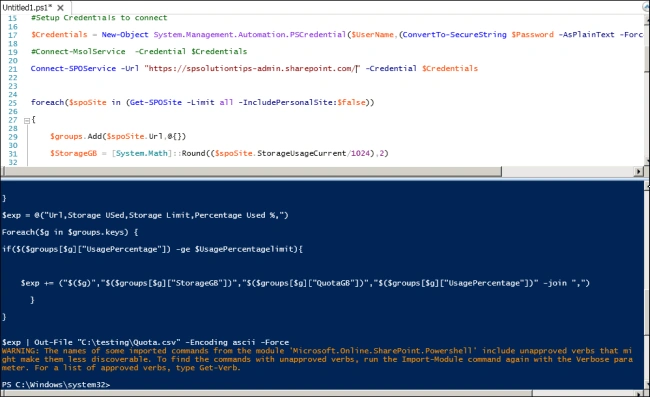
You may see some warning message that you can ignore.
Note - Make sure you have entered correct username and password in order to proceed with the above PowerShell script.
You may see some warning message that you can ignore.
Note - Make sure you have entered correct username and password in order to proceed with the above PowerShell script.
Once the script is completed, navigate to the output file and you can see that the result has been written.

Open the CSV file and see the result format as excepted.
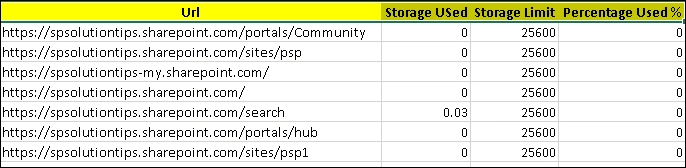
The above result will bring the result of storage used by Site collection only.

Join the conversation! Your thoughts help the community grow.