
Windows OpenFileDiloag dialog box lets users browse files on a computer. The dialog box not only lets you select a file but also allows you to set an initial directory, types of files to browse, and get a selected file name. Figure 1 is an example of an open file dialog.
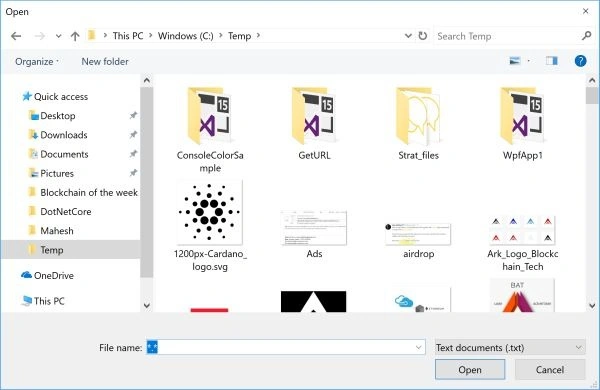
Figure 1
The OpenFileDialog class is defined in Microsoft.Win32.OpenFileDialog namespace represents an OpenFileDialog control in WPF and C#.
In this article, we will see how to create a WPF application that uses an OpenFileDialog to browse a file, and display its name and also its content in a TextBlock. We will also see how to set the initial directory, various filters, and other properties of OpenFileDialog control.
Create a WPF project using Visual Studio and add a TextBox, a Button, and a TextBlock control to the page. The final Window looks like Figure 2.

Figure 2
When you click the Browse button, we will browse text files and set the selected file name as the text of the TextBox. We will also read the text file content and display it in TextBlock.
The final XAML of the window is listed in Listing 1.
<Window x:Class="FileEncryptionApp.MainWindow"
        xmlns="http://schemas.microsoft.com/winfx/2006/xaml/presentation"
        xmlns:x="http://schemas.microsoft.com/winfx/2006/xaml"
        xmlns:d="http://schemas.microsoft.com/expression/blend/2008"
        xmlns:mc="http://schemas.openxmlformats.org/markup-compatibility/2006"
        xmlns:local="clr-namespace:FileEncryptionApp"
        mc:Ignorable="d"
        Title="File Encryption App" Height="450" Width="800">
    <Grid Margin="0,0,0,45.667">
        <TextBox HorizontalAlignment="Left" Height="43" Margin="30,10,0,0" TextWrapping="Wrap"
                 Text="TextBox" VerticalAlignment="Top" Width="436" Name="FileNameTextBox"/>
        <Button x:Name="BrowseButton" Content="Browse a file" HorizontalAlignment="Left"
                Margin="485,13,0,0" VerticalAlignment="Top" Width="121" Click="BrowseButton_Click"
                RenderTransformOrigin="1.047,0.821" Height="40"/>
        <TextBlock HorizontalAlignment="Left" Height="282" Margin="30,96,0,0"
                   TextWrapping="Wrap" Text="TextBlock" VerticalAlignment="Top"
                   Width="703" Name="TextBlock1"/>
    </Grid>
</Window>
Listing 1
ShowDialog
Now, let's write a button click event handler. You can simply double-click on the Button to add its click handler.
On the button click event handler, we will write code to launch the OpenFileDialog and select a text file. The Button click event handler code is listed in Listing 2.
private void BrowseButton_Click(object sender, RoutedEventArgs e)
{
    // Create OpenFileDialog
    Microsoft.Win32.OpenFileDialog openFileDlg = new Microsoft.Win32.OpenFileDialog();

    // Launch OpenFileDialog by calling ShowDialog method
    Nullable<bool> result = openFileDlg.ShowDialog();

    // Get the selected file name and display in a TextBox.
    // Load content of file in a TextBlock
    if (result == true)
    {
        FileNameTextBox.Text = openFileDlg.FileName;
        TextBlock1.Text = System.IO.File.ReadAllText(openFileDlg.FileName);
    }
}
Listing 2
As you can see from Listing 2, the code uses the selected file to read its content and displays it in a TextBlock.
The final application looks like Figure 3 which allows you to browse a file and load its content in a TextBlock.
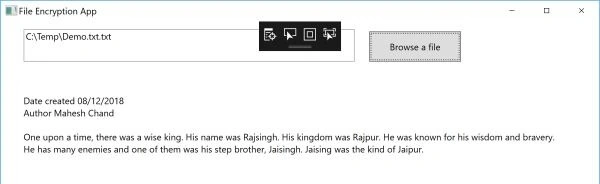
Figure 3
Set Filter
The Filter property of OpenFileDialog is used to set what types of files you want the dialog to browse. You can set multiple file types by using the pipe "|" operator as a file extension separator. The following code snippet sets the dialog to browse text files only.
// Set filter for file extension and default file extension
openFileDlg.DefaultExt = ".txt";
openFileDlg.Filter = "Text documents (.txt)|*.txt";
Set Initial Directory
The InitialDirectory property is used to set the initial directory of the dialog when the dialog is launched.
// Set initial directory
openFileDlg.InitialDirectory = @"C:\Temp\";
Select Multiple Files
You can also select multiple files using the dialog by setting OpenFileDialog's Multiselect property to true.
// Multiple selection with all file types
openFileDlg.Multiselect = true;
openFileDlg.Filter = "All files (*.*)|*.*";
Summary
In this article, we saw how to use Win32 OpenFileDialog in WPF to provide Windows OpenFileDialog functionality.


Kristina OncevaPosted Mar 23, 2024, 2:13 PM EDT
Worthless solution
herb auldPosted Sep 10, 2023, 2:05 PM EDT
Your documented code does not match your "OpenFileDlgSample.zip" code.
Former memberPosted Sep 6, 2022, 9:47 AM EDT
How come this code not compile . ROFL look who wrote it now we no why
sachin chavanPosted Aug 5, 2021, 11:50 AM EDT
Sir, You use Win32 to open file dialog in WPF. I use C# and XAML on .Net Core 3.1 Visual Studio 2019 v16.10 So if i use Microsoft.Win32.OpenFileDialog will it still be managed code?
Sarvesh UpadhyayPosted Sep 30, 2018, 10:41 AM EDT
Sir i want to insert image in sql server and retrive back in wpf sir please help me
Rushi MehtaPosted Aug 27, 2018, 1:51 AM EDT
Nicely Exaplin
Bhairab DuttPosted Aug 26, 2018, 9:58 PM EDT
Nice Article ....
Mahesh ChandTOP 10Posted Aug 26, 2018, 6:50 PM EDT
You're welcome guys. Article is updated with update code and formatting.
Arthur ArapetianPosted Apr 25, 2017, 1:14 PM EDT
Thank you, Mahesh!
Sumit SharmaPosted Mar 20, 2017, 10:31 PM EDT
How to select only folder path?
Ramesh PalaniappanPosted Sep 7, 2016, 7:58 AM EDT
Nice
MoThA MoThAPosted Jan 19, 2014, 2:52 AM EST
Hi, what's the difference between your code and the following one ... private OpenFileDialog openFileDialog = null; public MainWindow() { InitializeComponent(); openFileDialog = new OpenFileDialog(); openFileDialog.DefaultExt = ".txt"; openFileDialog.Filter = "Text documents (.txt |*.txt*"; openFileDialog.FileOk = openFileDialogFileOk; } private void openFileClick(object sender, RoutedEventArgs e) { openFileDialog.ShowDialog(); } }
btPosted Aug 19, 2010, 2:11 AM EDT
Be aware that the Microsoft.Win32.OpenFileDialog shows a different dialog that the System.Windows.Forms.OpenFileDialog.
Stephan MalewschikPosted Oct 5, 2009, 6:36 AM EDT
hi mahesh, thx for the nice description of how to open a file dialog it's simple and easy to use normally my problem is that i cant open a file dialog out of a menu item of a menu, that has an MouseDown event which calls a method that creates an OpenFileDialog-object