
Prerequisites
- Azure account
Now let's get started with the following steps:
Create a new virtual machine
Step 1: Sign in to the online Microsoft Azure Portal.
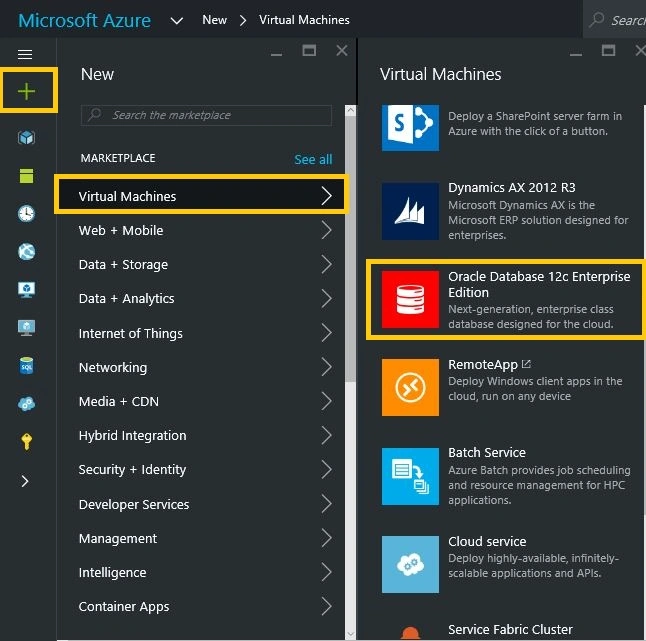
Step 2: In the Jump bar, click New, then click Virtual Machines, and then Oracle Database 12c Enterprise Edition.
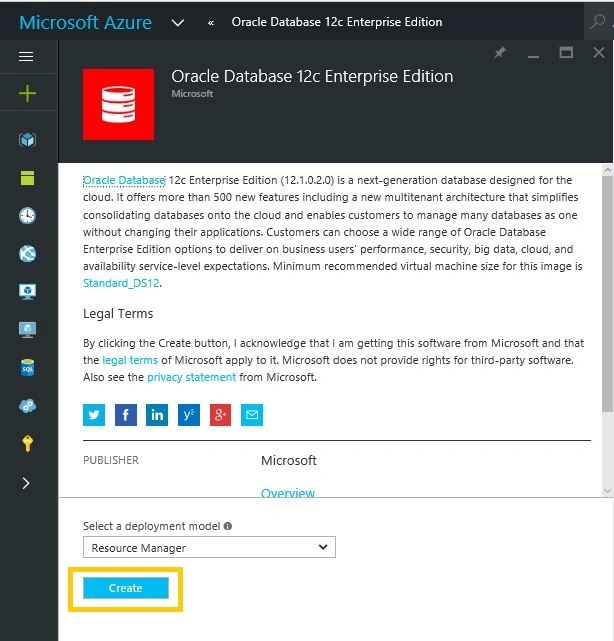
Step 4:
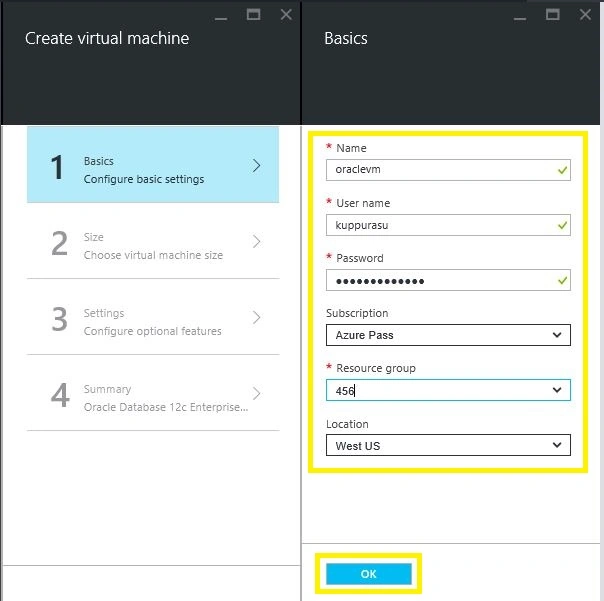
In the Virtual Machine account blade, specify the desired configuration for the VM account (Name, User Name, Password & Resource Group). Click Create button at the bottom of the screen to create the Virtual Machine.
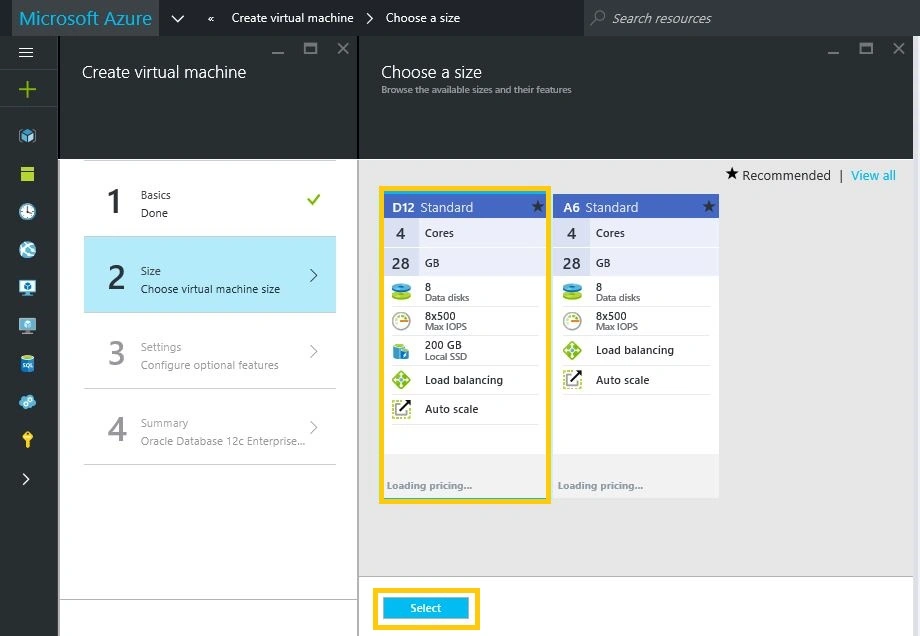
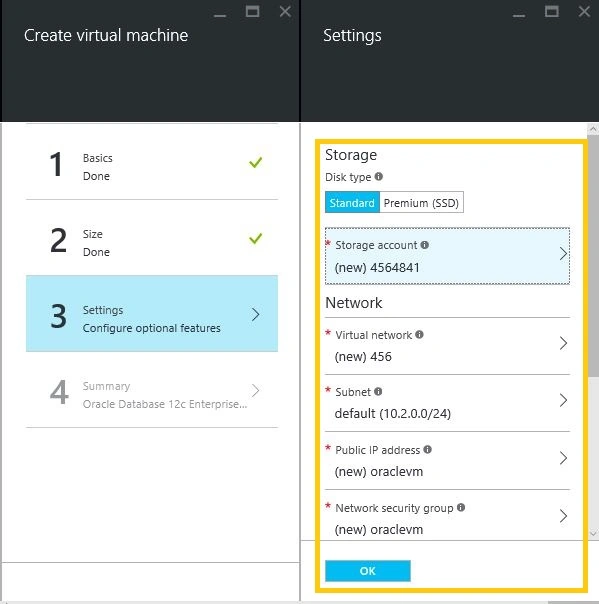
Step 6: Now select Storage Disk type and Click OK Button.
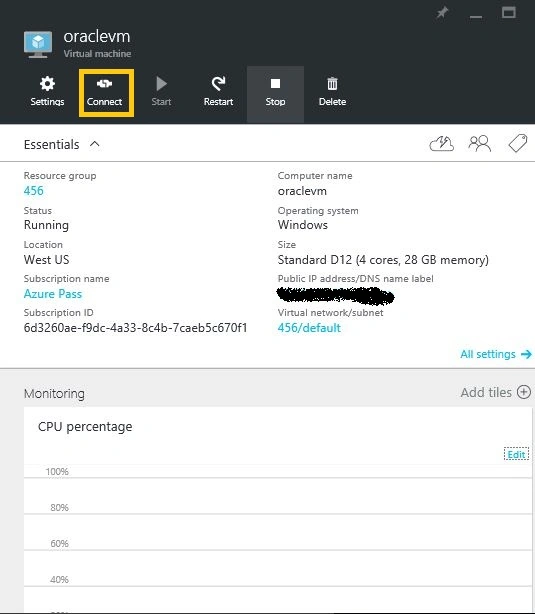
After a few minutes your virtual machine will be configured on the dashboard. Once the virtual machine is running, simply select it and click on the Connect button. Next, enter the username and password. Finally, you will be connected through remote desktop directly into your new virtual machine running the Oracle software you selected.
Read more articles on Azure:


Humayun Kabir MamunPosted Apr 16, 2016, 10:28 PM EDT
Nice...
Vignesh ManiTOP 100Posted Apr 14, 2016, 4:18 AM EDT
Nice One sir
Rahul Kumar SaxenaTOP 100Posted Apr 14, 2016, 2:26 AM EDT
Nice One
Debasis SahaTOP 100Posted Apr 13, 2016, 9:44 AM EDT
Nice one..
Mohammed IbrahimPosted Apr 13, 2016, 9:13 AM EDT
nice
Gowtham RajamanickamTOP 100Posted Apr 13, 2016, 3:23 AM EDT
good article
Shakti Singh DulawatPosted Apr 12, 2016, 11:26 PM EDT
What are you doing man those are same information available on azure website , I saw your last 4-5 article those are like this only simple copy paste from Azure website (Please rethink on it )