
Introduction
This article explains Partial Views in ASP.NET MVC.
In my previous article I explained how to use a WebGrid to show content in grid format using ASP.NET MVC.
This article will use the details of my previous article so you can click on the link provided above to have a look at the previous one.
Partial Views help us to reuse our view that was previously used in an Application. It's extension is "cshtml".
Step 1
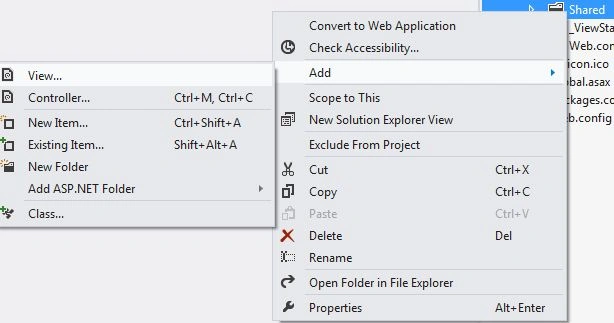
First of all right-click or open your Views Folder and in the folder right-click on the Shared Folder and add a new view to it.
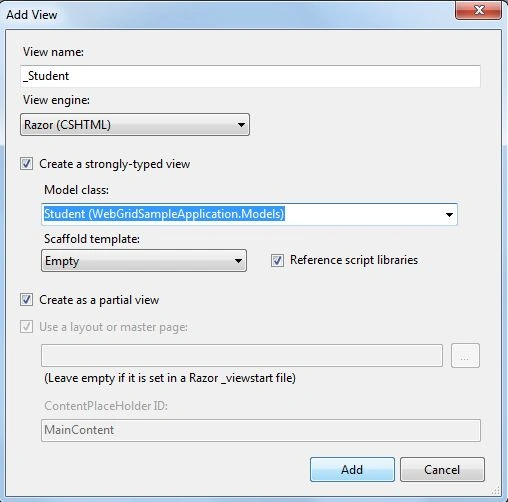
Now in the View Name I provided "_Student" here "_" shows that it is reusable. Check the option for the "Create Strongly-Typed View" and choose the Model class for it. After that check the option for the "Create as Partial View".
Step 2
Through the Partial View I will display the Selected Item in the Text Box Format. In the previous article I displayed the items in grid and HTML format.
Now go to the "_Student.cshtml" page and add this code there:
- @model WebGridSampleApplication.Models.Student
- @{
- Layout = null;
- }
- <!DOCTYPE html>
- <html>
- <head>
- <meta name="viewport" content="width=device-width" />
- <title>Addstudent</title>
- </head>
- <body>
- <div>
- <label>Roll No:</label>
- @Html.TextBox("RollNo", Model.RollNo)
- <label>Name:</label>
- @Html.TextBox("Name", Model.Name)
- <label>Branch:</label>
- @Html.TextBox("Description", Model.Branch)
- <label>Fee Remaining:</label>
- @Html.TextBox("FeeRemaining", Model.FeeRemaining)
- </div>
- </body>
- </html>
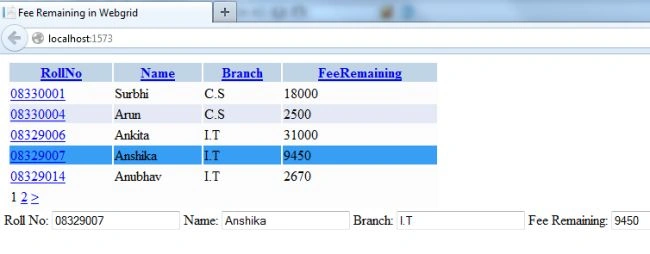
This will show the selected Items Value in the TextBoxes.
Step 3
Now go to the View Page of the previous application that you will find in the Views Folder named "WebGridSample.cshtml" and add the reference for the Partial View page.
- @if (gd.HasSelection)
- {
- Student =(WebGridSampleApplication.Models.Student)gd.Rows[gd.SelectedIndex].Value;
- Html.RenderPartial("~/Views/Shared/_Student.cshtml", Student);
- }
Output
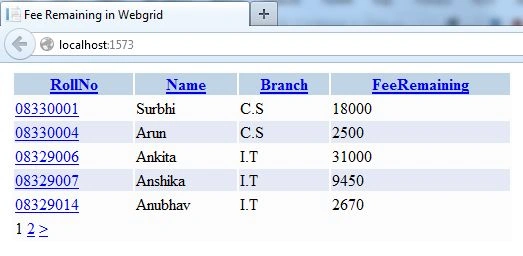
Debug your application to see the output. First you will get an output like this:
Now, when you click on a Roll No then you will see that the details of the student are shown in the TextBoxes.


Maulesh PatelPosted Dec 26, 2017, 6:41 AM EST
Hi can you able to provide source code for this example.
Neeraj KumarPosted May 11, 2016, 2:52 PM EDT
NIce
Sandeep Singh ShekhawatPosted May 11, 2016, 8:17 AM EDT
Thanks all :)
Kuppurasu NagarajTOP 100Posted May 11, 2016, 5:13 AM EDT
Nice Sharing..
NitinPosted May 11, 2016, 3:46 AM EDT
Good one
Raja TPosted May 10, 2016, 8:35 PM EDT
Nice,Thanks for sharing
Sonu ChaudharyPosted May 10, 2016, 3:34 AM EDT
nice one
Bhuvanesh MohankumarPosted May 10, 2016, 3:34 AM EDT
Nice
Sandeep Singh ShekhawatPosted May 9, 2016, 9:31 PM EDT
Thanks to all :)
Debasis SahaTOP 100Posted May 9, 2016, 8:47 PM EDT
Good One..
Bhavik PatelPosted May 9, 2016, 8:41 PM EDT
good
Sthitaprajnya Debasis NayakPosted May 9, 2016, 8:39 PM EDT
Nice One Sir !!!
Hari ShankerPosted May 9, 2016, 8:25 PM EDT
Nice Good Article
Thiruppathi RPosted May 9, 2016, 7:35 PM EDT
Good Info..
Vignesh ManiTOP 100Posted May 9, 2016, 1:58 PM EDT
Nice one