Introduction :
The Policy activity represents a collection of rules. A rule
consists of conditions and resulting actions. We can define a rule as an
IF-THEN-ELSE statement with the condition corresponding to the IF and the action
defining the behavior of THEN and ELSE clause. The System.Workflow.Activities. The PolicyActivity class
is a specialized workflow activity class that encapsulates a RuleSet. During
execution time, the PolicyActivity retrieves the rules from the .rules file and
executes the rules.
An action can do the following:
- Set a field or property on a workflow.
- Call a method on a workflow or objects in a workflow.
- Call static methods on types in referenced assemblies.
- Perform a Halt or an Update statement.
Step 1 : Open Visual Studio 2010.
- Select File->New->Project.
- Select Workflow->Sequential Workflow.
- Click OK.
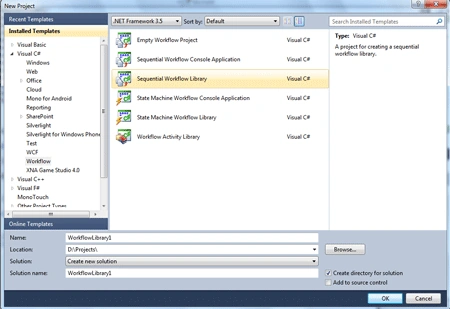
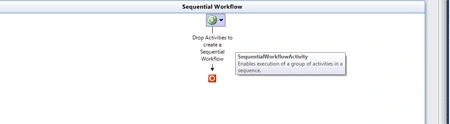
Step 2 : Drag PolicyActivity from Toolbox.
- Right-click on the PolicyActivity.
- Select the RuleSetReference option.
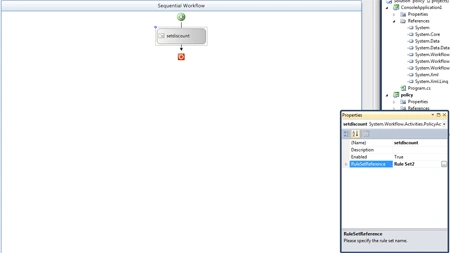
Step 3
: Click the RuleSetReference property and open Rule Editor.
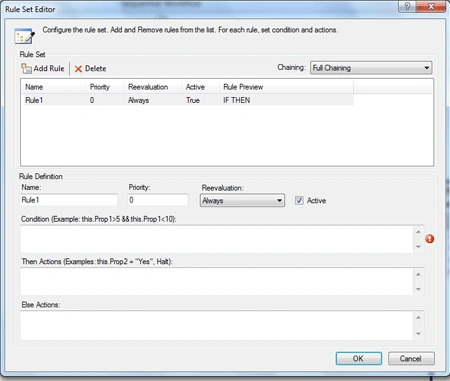
Step 4 : Click New RuleSet.
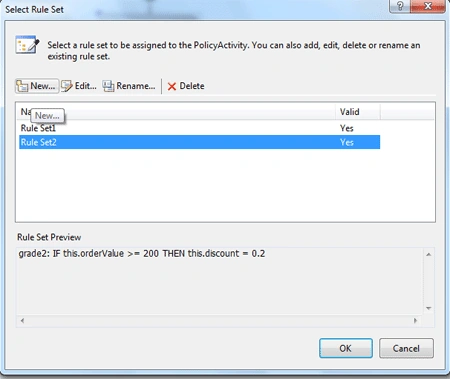
Step 5 : Add condition for PolicyActivity.
- Select New->Add Rule option.
- Write Rule, Condition, Action.
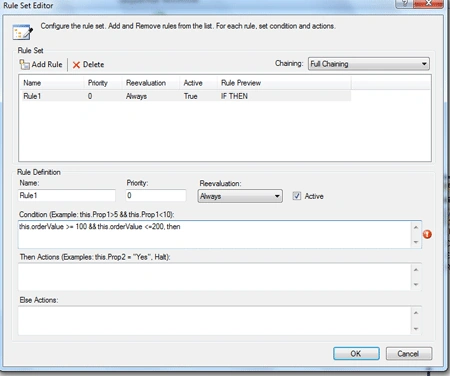
Condition :
this.orderValue >= 100 &&
this.orderValue <=200, then
Action :
this.discount = 0.1 (10%)
Step 6 : Now go to Workflow1.cs file.
-
Write a code for application.
Code :
using System;
using
System.ComponentModel;
using
System.ComponentModel.Design;
using
System.Collections;
using
System.Linq;
using
System.Workflow.ComponentModel.Compiler;
using
System.Workflow.ComponentModel.Serialization;
using
System.Workflow.ComponentModel;
using
System.Workflow.ComponentModel.Design;
using
System.Workflow.Runtime;
using
System.Workflow.Activities;
using
System.Workflow.Activities.Rules;
using
System.Collections.Generic;
using
System.Threading;
namespace policy
{
public sealed
partial class
Workflow1 :
SequentialWorkflowActivity
{
public Workflow1()
{
InitializeComponent();
}
public
void setdiscount_closed(object
sender, ActivityExecutionStatusChangedEventArgs
e)
| {
Console.WriteLine("discount
on orderValue{0}is {1}", orderValue, discount);
}
public double
orderValue { get; set;
}
public double
discount { get; set;
}
}
}
Step 7 : Go to Program.cs
file and add Namespace.
-
Go to Solution Explorer->Right-click.
-
Select Add Reference option.
-
Add System.Workflow.Runtime, System.Workflow.ComponentModal.
-
Write a code.
Code :
using System;
using
System.Collections.Generic;
using
System.Linq;
using
System.Text;
using
System.Workflow.Activities;
using
System.Workflow.Runtime;
using
System.Workflow.ComponentModel;
using
System.Threading;
namespace
ConsoleApplication1
{
class Program
{
static
AutoResetEvent waitHandle = new
AutoResetEvent(false);
static void
Main(string[] args)
{
using (WorkflowRuntime
wr = new
WorkflowRuntime())
{
wr.StartRuntime();
wr.WorkflowCompleted+= new
EventHandler<WorkflowCompletedEventArgs>(wr_WorkflowCompleted);
Dictionary<string, object> param =
new Dictionary<string,
object>();
param.Add("orderValue",
120.5);
WorkflowInstance wi =
wr.CreateWorkflow(typeof(ConsoleApplication1.Program),param);
wi.Start();
waitHandle.WaitOne();
wr.StopRuntime();
}
Console.Read();
}
}
}
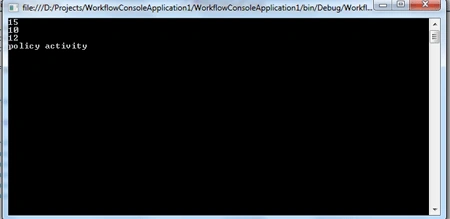
Step 8 : Press F5 to run the
application.

Join the conversation! Your thoughts help the community grow.