
Azure Web App Service supports continuous deployment from source code control and repository tools like GitHub. You can use the GitHub tool to maintain the content and code for your app, and then rapidly and simply push changes to your App Service app.
- GitHub Account
- Azure account
Now let's get started with the following steps:
Step 1: Setting up a GitHub repository
Sign in to the online GitHub Website.

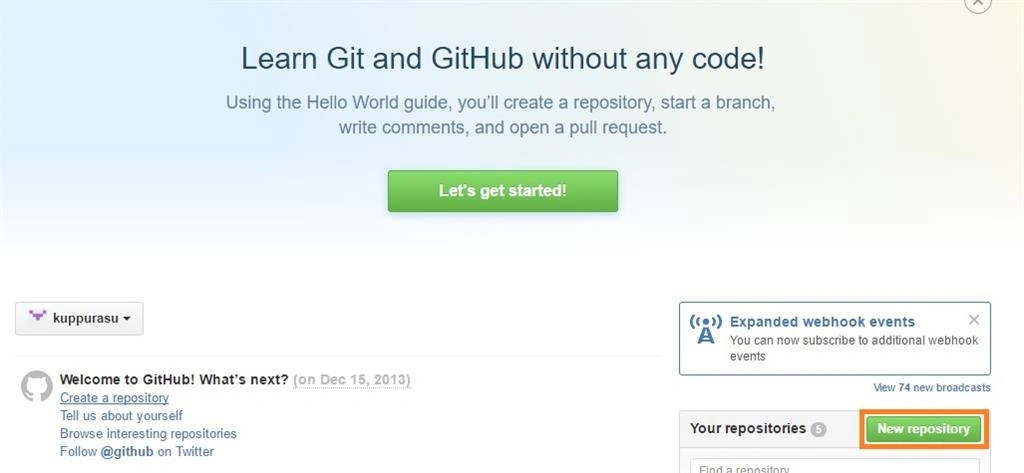
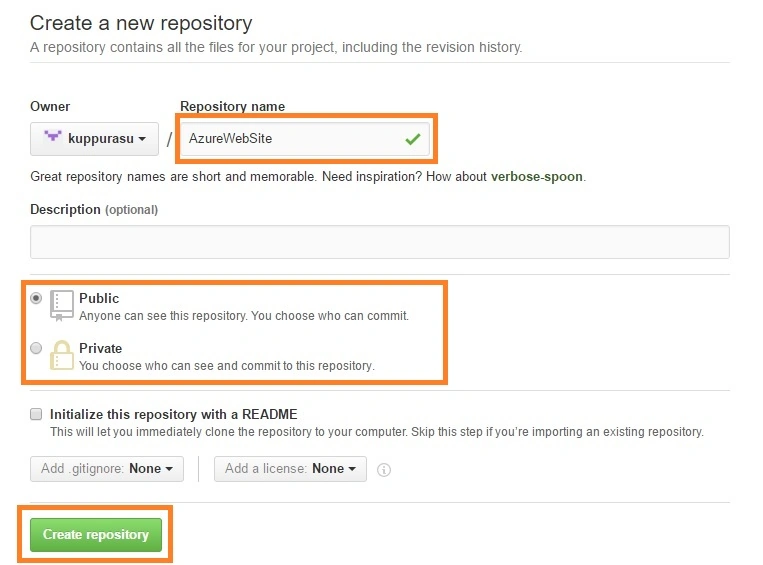
After Clicking + New Repository button, you will get a new screen that allows you to make a new Repository name, description, select either public or private settings, and whether to initialize with a README then click on the Create repository button for creating this new repo with no code in it.
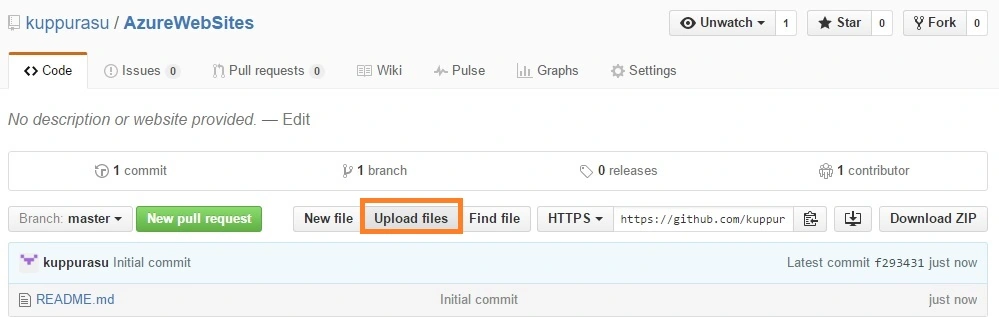
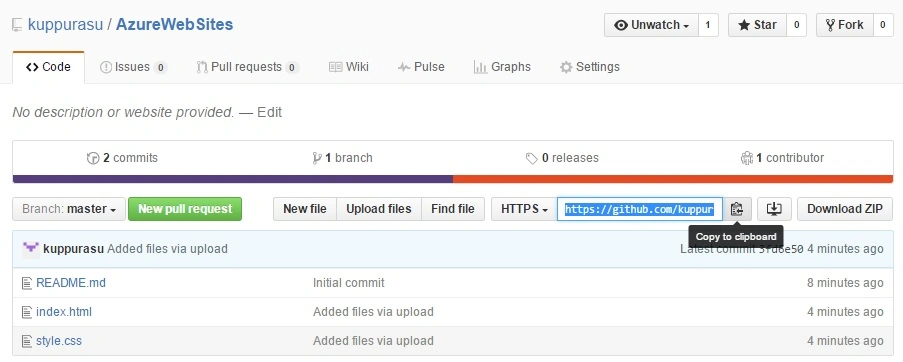
Then click upload files button for uploading our websites files.
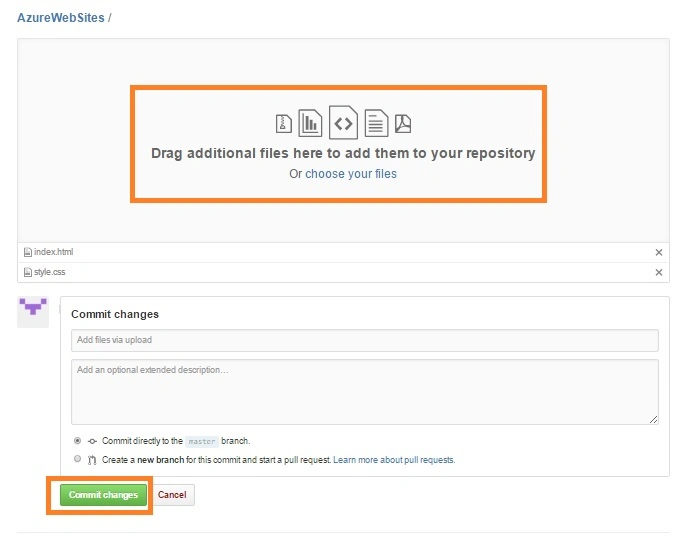
After some time your files will be uploaded in GitHub account.
Step 2: Creating a new Web App in Azure
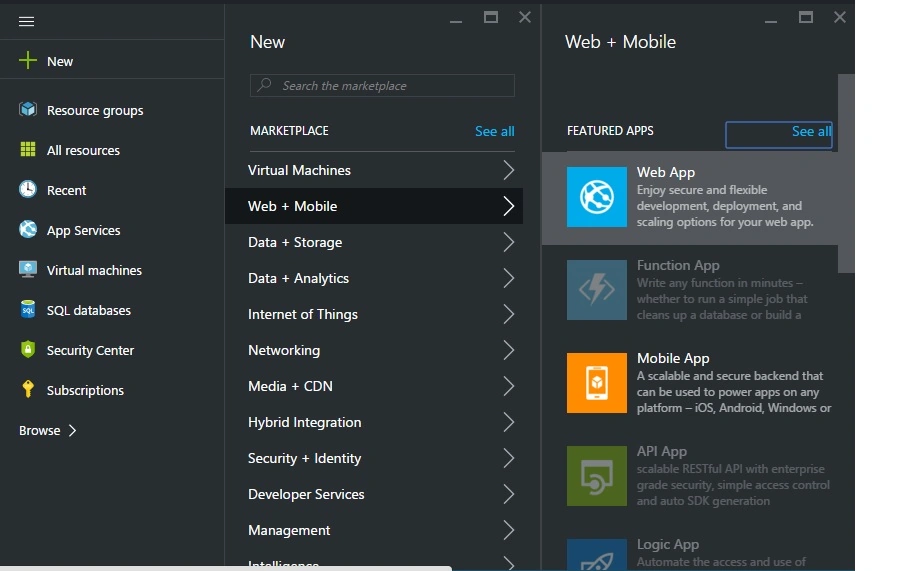
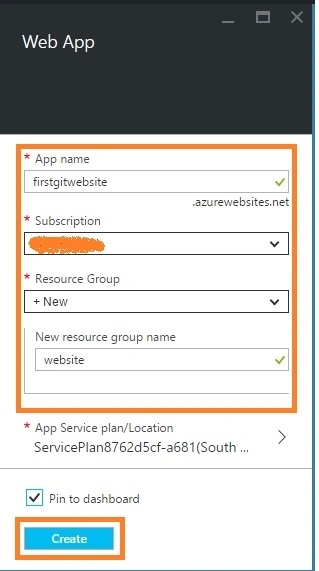
Sign in to the online Microsoft Azure Portal. In the Jumpbar, click New, then click Web + Mobile, and then Web App.
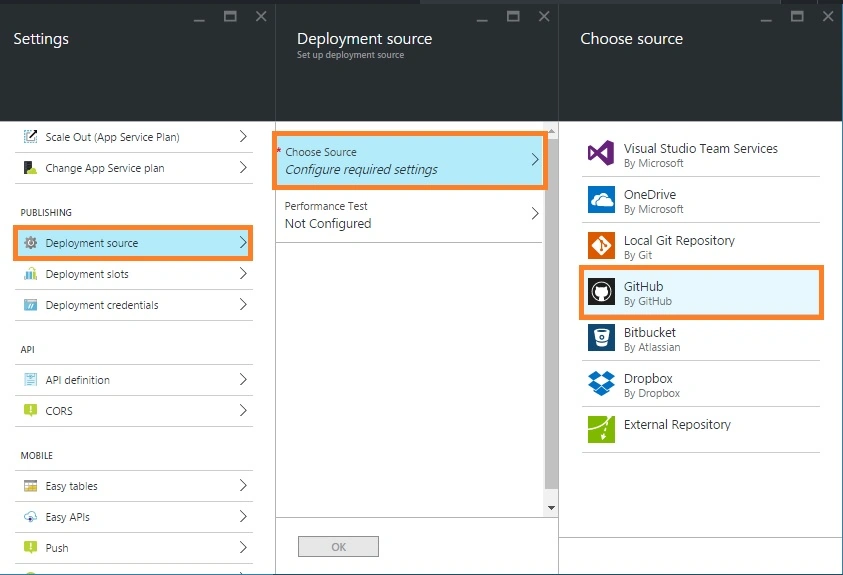
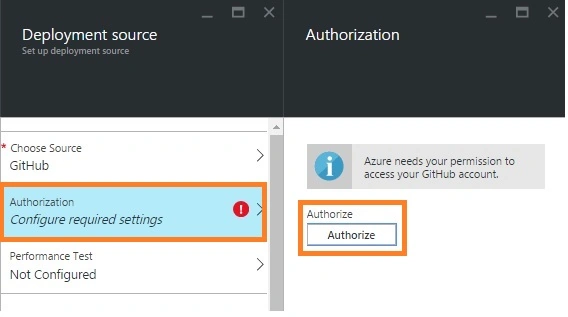
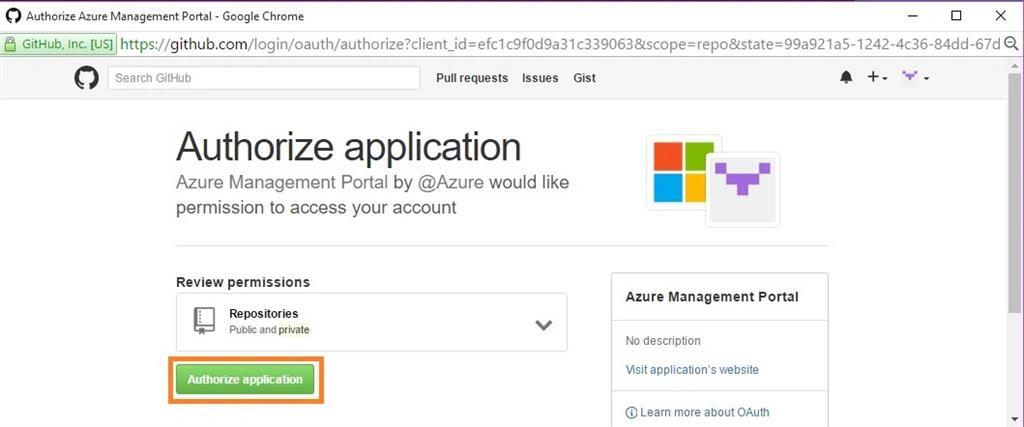
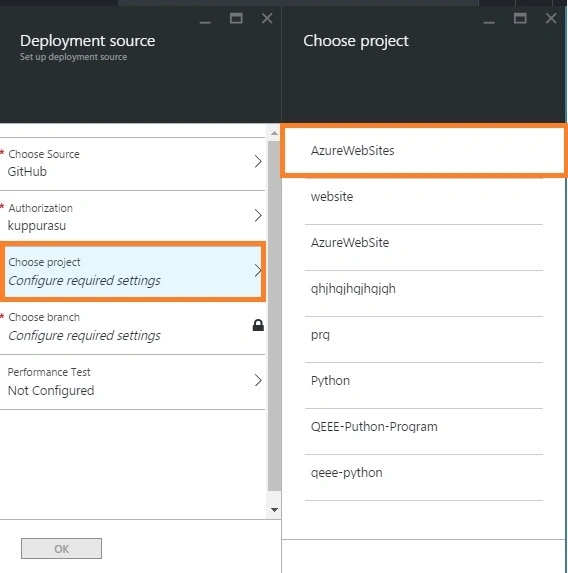
In the Continous Deployment blade, choose the organization, project, and branch you want to deploy from. When you're done, click OK.
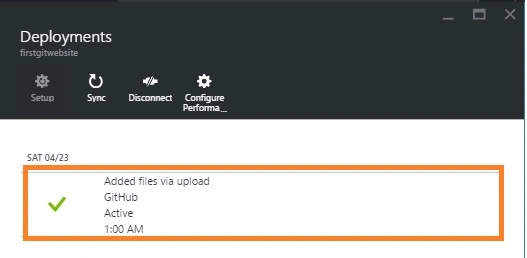
After this process completes, the Deployment section of your web app blade will get an Active Deployment message that indicates deployment has succeeded.


Prasanna MuraliPosted May 10, 2016, 6:31 AM EDT
nice share
Debasis SahaTOP 100Posted Apr 24, 2016, 9:08 AM EDT
Good one..
Rahul Kumar SaxenaTOP 100Posted Apr 24, 2016, 8:16 AM EDT
Good One
Vignesh ManiTOP 100Posted Apr 24, 2016, 5:49 AM EDT
Nice one sir
Tamilan SPosted Apr 23, 2016, 11:25 PM EDT
after deployment, Mange these code in Visual studio is possible?
Manoj KulkarniPosted Apr 23, 2016, 10:55 PM EDT
Nice article. Thank you for sharing
Bhushan GawalePosted Apr 23, 2016, 10:31 PM EDT
Good article, Thanks for sharing!