
Introduction
- Visual Studio 2015 Community Edition
- Visual Studio 2015 Express for Web
- Visual Studio 2015 Express for Desktop
- Visual Studio 2013 Community Edition
- Visual Studio 2013 Express for Web
- Visual Studio 2013 Express for Desktop
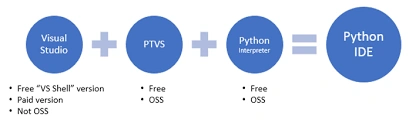
Features
- Python language is a Free and open source.
- Python language is Reliable
- Python language is Flexible.
- Python language has supporting imperatives.
- Python language is object-oriented programming style.
- Python language has profiling tools.
- Python language has testing tools.
Install Process
Step 1 Python Tools
- Download and install Visual Studio 2015 Community and select Custom installation
- Web Installer https://go.microsoft.com/fwlink/?LinkId=532606&clcid=0x409
- ISO Image (Offline Installer) https://go.microsoft.com/fwlink/?LinkId=615448&clcid=0x409
- If you have already installed Visual Studio 2015 Community, just repair Visual Studio 2015 Community
- If you try to install Visual Studio Offline, just repair Visual Studio 2015 Community
- Check if Python Tools is enabled or not; if the Python Tools are not enabled in Visual Studio 2015 Community, check Python Tools
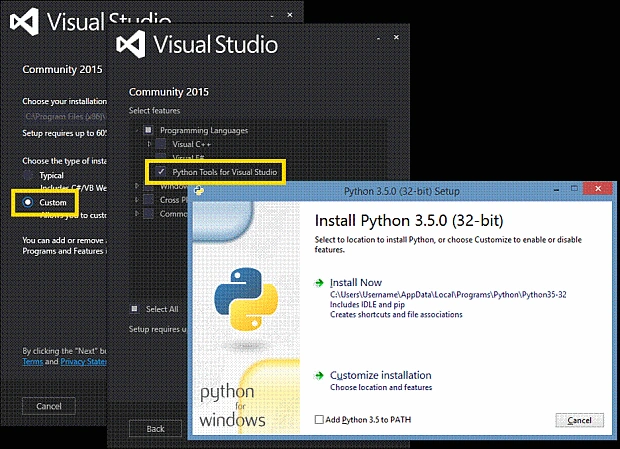
Step 2 Install an interpreter
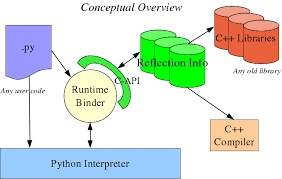 Python has different kinds of interpreters. They are
- CPython
- IronPython
- Anaconda
- Canopy
- CPython
- CPython is a native Python interpreter.
- CPython supports maximum library compatibility
- CPython supports maximum language compatibility
- Path for Install Python 2.7.10 32-bit https://www.python.org/ftp/python/2.7.10/python-2.7.10.msi
- Path for Install Python 3.5.0 32-bit https://www.python.org/ftp/python/3.5.0/python-3.5.0-webinstall.exe
- IronPython
- Interfacing is good with C#.
- The path for Install IronPython https://github.com/IronLanguages/main/releases/tag/ipy-2.7.6.3
- Interfacing is good with C#.
- Anaconda
- The path for installing Anaconda http://www.continuum.io/downloads
- The path for installing Anaconda http://www.continuum.io/downloads
- Canopy
- The path for installing Canopy https://www.enthought.com/downloads/
- The path for installing Canopy https://www.enthought.com/downloads/
All installation processes are over and now we can develop Python applications in our visual studio
Step 3
Create a C# project and write the following code.
Create new project=>Click python application.
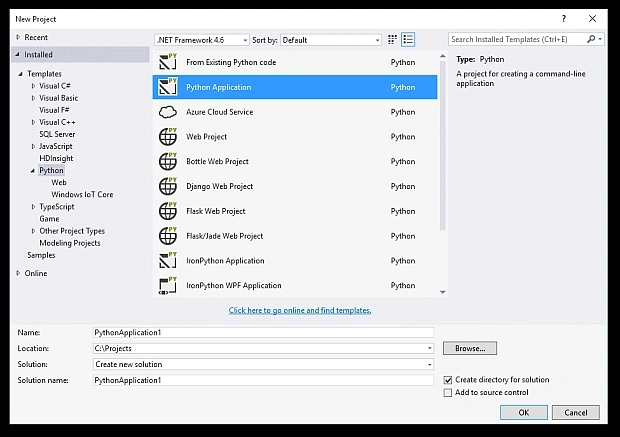 Add the below code to your application.
- namespace WindowsFormsApplication1 {
- public partial class Form1: Form {
- public Form1() {
- InitializeComponent();
- }
- private void button1_Click(object sender, EventArgs e) {
- run_cmd();
- }
- private void run_cmd() {
- string fileName = @ "C:\sample_script.py";
- Process p = new Process();
- p.StartInfo = new ProcessStartInfo(@ "C:\Python27\python.exe", fileName) {
- RedirectStandardOutput = true,
- UseShellExecute = false,
- CreateNoWindow = true
- };
- p.Start();
- string output = p.StandardOutput.ReadToEnd();
- p.WaitForExit();
- Console.WriteLine(output);
- Console.ReadLine();
- }
- }
- }
- print "Python C# Test"

Join the conversation! Your thoughts help the community grow.