
Open a SharePoint team site or a publishing site
Navigate to add an app.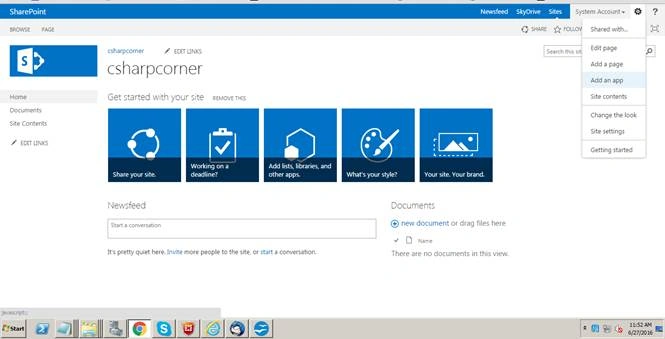
Click “Custom List” to add.
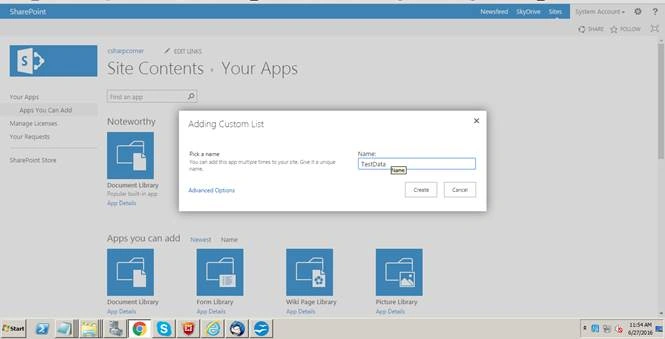
Click Create.
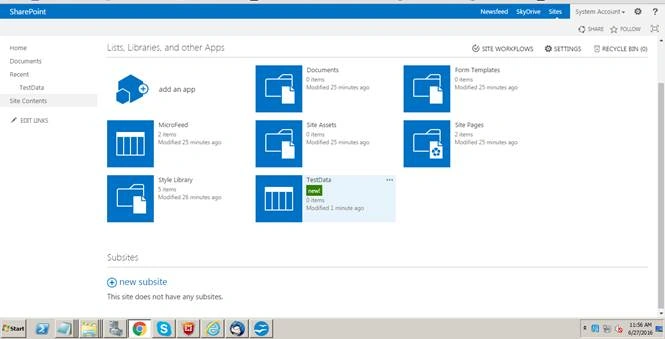
Here, I have added one more column for filling up some data.
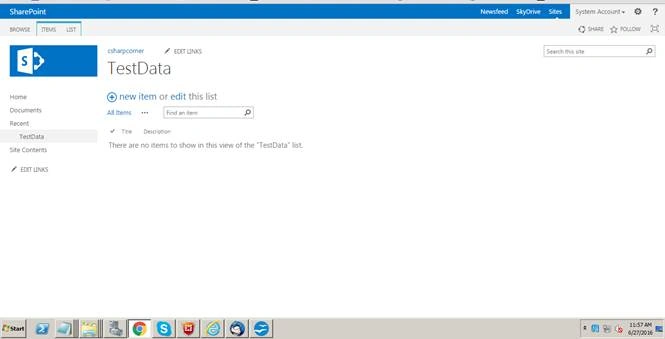
Now, I am going to add some content in this SharePoint list.
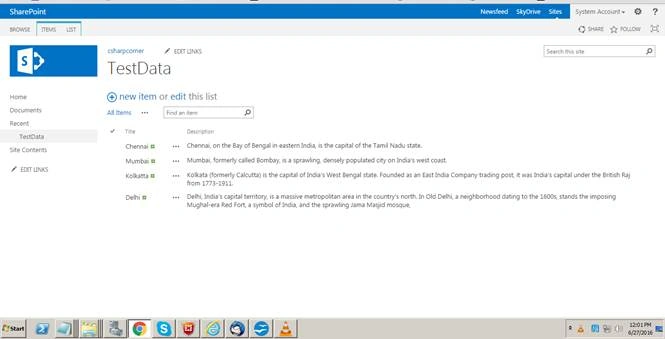
Now, I am going to save the list as a template.
Click the list-> list settings.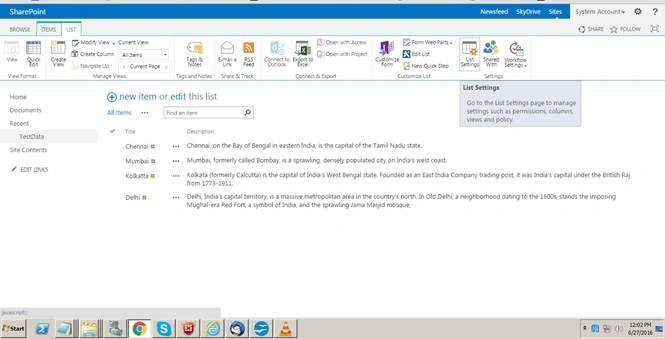
Click save list as a template.
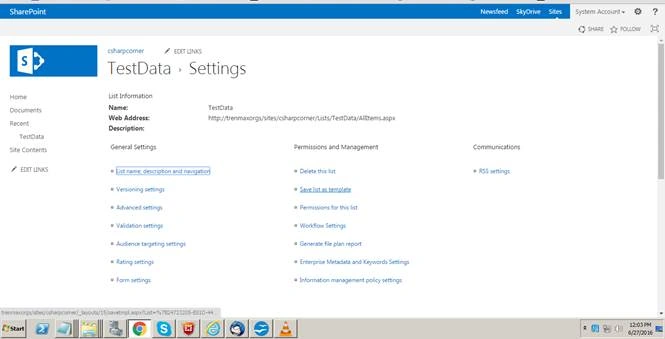
Provide the filename and the template name.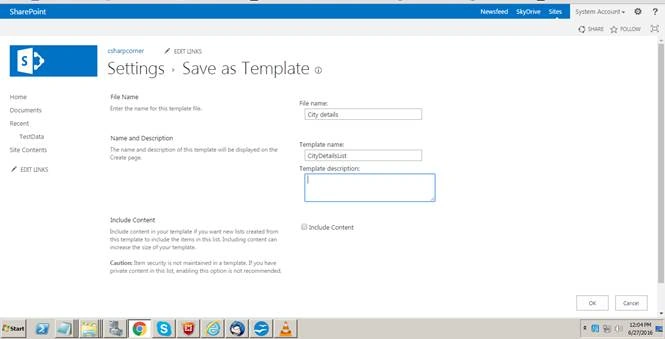
If you need this list with the contents → Check include content.
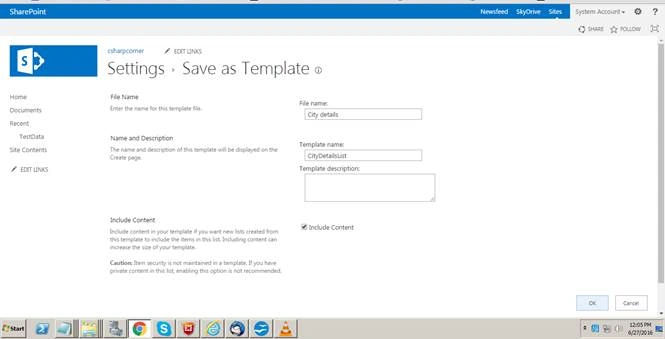
Click OK.
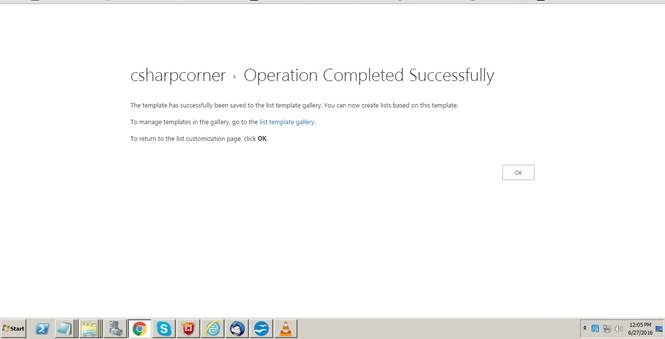
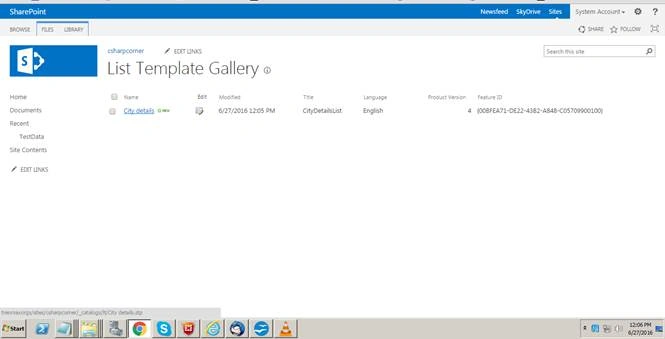
Now, open the list template gallery under the site settings.
Download the .stp file we created as a list template.
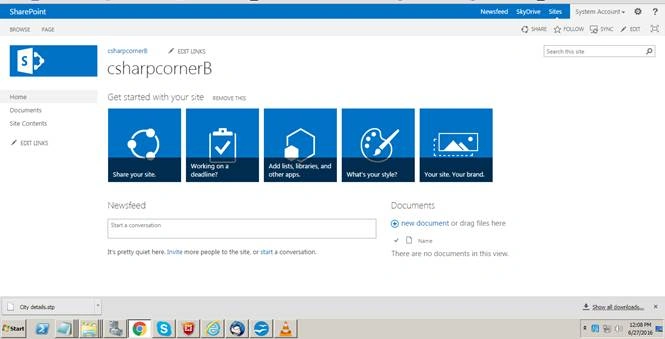
Hence, I have now created one more site collection.
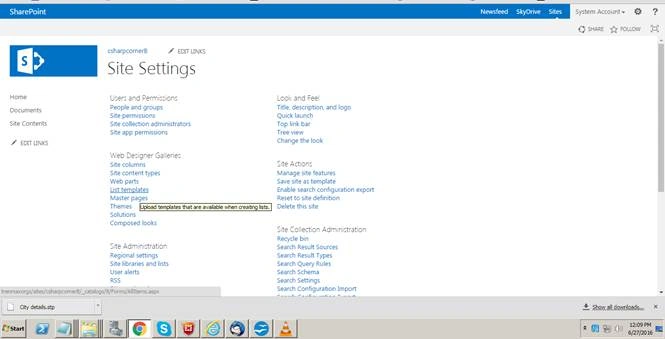
Click the site settings → navigate to the Web Designer Galleries → Click List template.
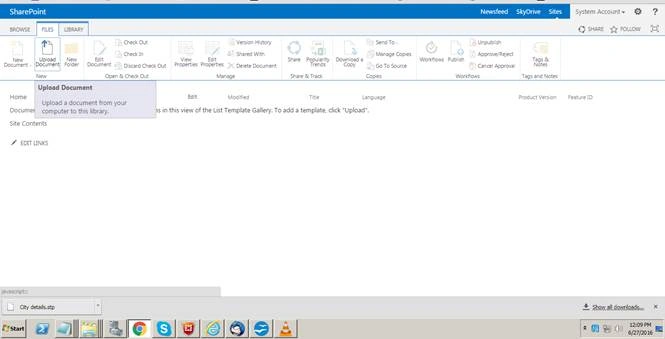
Click Files tab in a top ribbon → Click Upload.
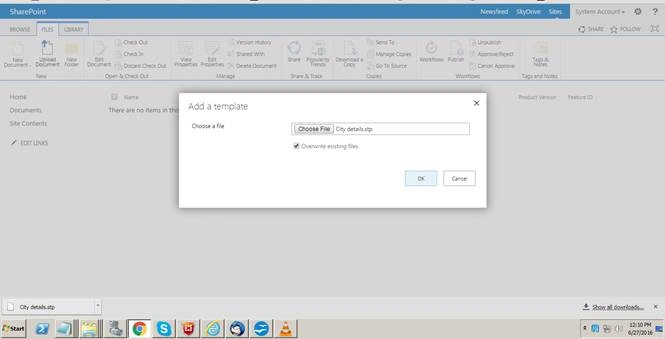
Upload the .stp file that we already downloaded from some other site collection.
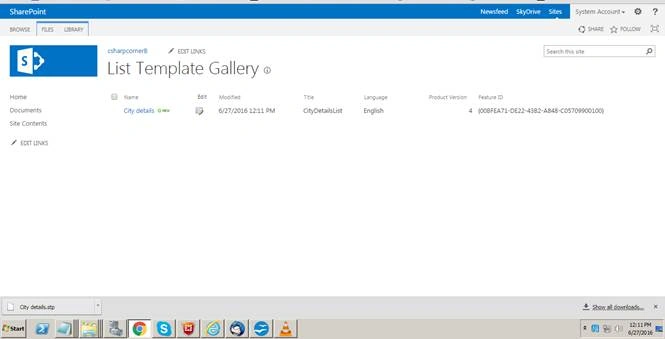
Navigate to add an app → Click CityDetailsList template to create.
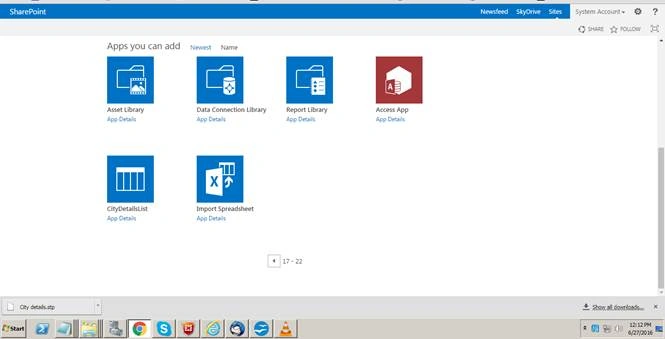
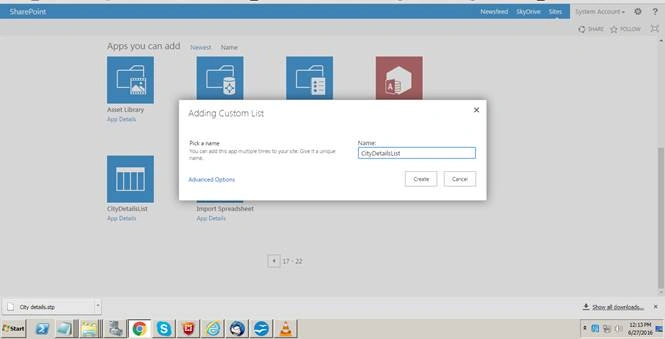
Click create.
Now, the list has been moved from one site collection to the another site collection with the content.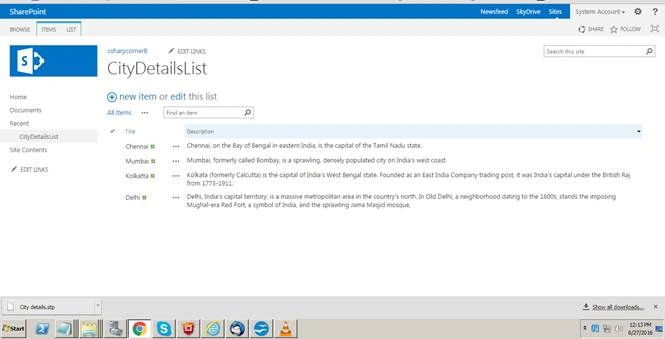
Save List As A Template In Sharepoint 2013
In this article, I have explained how to save a SharePoint list as a template with or with out content to another SharePoint site.


Venkata RamanaPosted Dec 20, 2021, 11:00 AM EST
@vinodh I have list with 2 lookup columns from another lists. When I try to save as template with content it throwing "The URL'_catlog/It/template.stp' is invalid. it may refer to nonexsting file or folder......". But I am able to save as template without content. I need content as well. Can you please help?
Vinodh NarayananPosted Jun 30, 2016, 12:32 AM EDT
Santhakumar Munuswamy Thanks sir
Santhakumar MunuswamyPosted Jun 29, 2016, 9:02 PM EDT
Thank you for nice article
Vinodh NarayananPosted Jun 28, 2016, 4:53 AM EDT
Thanks Vignesh Mani
Vignesh ManiTOP 100Posted Jun 28, 2016, 4:24 AM EDT
NIce
Vinodh NarayananPosted Jun 28, 2016, 12:37 AM EDT
Thanks a ton guys
kalu singh raoPosted Jun 27, 2016, 9:24 PM EDT
Nice...
Prasanna MuraliPosted Jun 27, 2016, 5:27 PM EDT
Nice one...