
This article has been
excerpted from book "Graphics Programming with GDI+".
Sometimes we need to save an image with a different size that it originally had.
As we discussed earlier, the Save method of the Image class is used to save
images. This method also allows us to specify the size of a saved image.
To make our program even more interesting, we will determine the size of the
saved image at runtime. Create a Windows application and add two text boxes, two
tables, and a button control to the form. The text boxes are used to specify the
height and width of the saved images, and the button is used to save the image
with the new size, as shown in Figure 7.42.
First we specify an Image private variable:
Then we create and view the image at the form's paint event handler, as shown in
Listing 7.28.
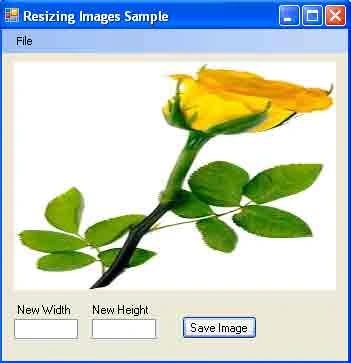
FIGURE 7.42: Saving images with different sizes
LISTING 7.28: Viewing an image
private void
Form1_Paint(object sender,
PaintEventArgs e)
{
curImage = Image.FromFile("roses.jpg");
e.Graphics.DrawImage(curImage, AutoScrollPosition.X,
AutoScrollPosition.Y, curImage.Width, curImage.Height);
}
On the Save Image button click, we ask the user to specify a file name and we
call the Save method of the Image class, which saves an image in the given
format. As Listing 7.29 shows, we also read the size of the new image from
textBox1 and textBox2 and specify the size when we create a new Bitmap object
from the existing image.
LISTING 7.29: Saving an image with the given size.
private void
SaveImageBtn_click(object sender, System.EventArgs
e)
{
if (curImage ==
null)
return;
int height =
Convert.ToInt16(textBox1.Text);
int width =
Convert.ToInt16(textBox1.Text);
SaveFileDialog saveDlg =
new SaveFileDialog();
saveDlg.Title = "save Image As";
saveDlg.OverwritePrompt = true;
saveDlg.CheckPathExists = true;
saveDlg.Filter =
"Bitmap File (*.bmp) | .bmp | Gif File
(.gif) | *.gif | " +
"JPEG File (*.jpg) | *.jpg";
saveDlg.ShowHelp = true;
if (saveDlg.ShowDialog() ==
DialogResult.OK)
{
string fileName =
saveDlg.FileName;
string extn =
fileName.Substring(fileName.Length - 3, 3);
Bitmap newImage =
new Bitmap(curImage,
new
Size(width, height));
if (extn.Equals("bmp"))
newImage.Save(fileName, ImageFormat.Bmp);
else if
(extn.Equals("gif"))
newImage.Save(fileName, ImageFormat.Gif);
else if
(extn.Equals("jpg"))
newImage.Save(fileName, ImageFormat.Jpeg);
}
}
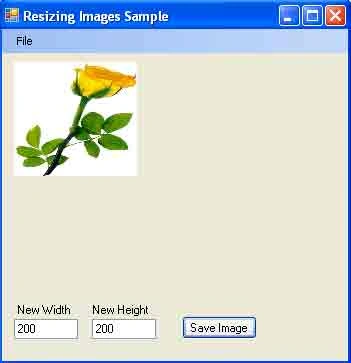
FIGURE 7.43: New image, with width of 200 and height of 200
Now we save an image with a width of 200 and a height of 200. The results are
shown in Figure 7.43.
Conclusion
Hope the article would have helped you in understanding Saving Images with
Different Sizes in GDI+. Read other articles on GDI+ on the website.
 |
This book teaches .NET developers how to work with GDI+ as they develop applications that include graphics, or that interact with monitors or printers. It begins by explaining the difference between GDI and GDI+, and covering the basic concepts of graphics programming in Windows. |

Join the conversation! Your thoughts help the community grow.