
Introduction
A ListView is used to store the data in the form of Scrollable type.Now, in this article, we will discuss how to create a ListView and how to search a particular search item from the list.
Prerequisites
A ListView is used to store the data in the form of Scrollable type.Now, in this article, we will discuss how to create a ListView and how to search a particular search item from the list.
Prerequisites
- Windows10
- Visual Studio 2017 Community Edition
- Xamarin package
Step 1
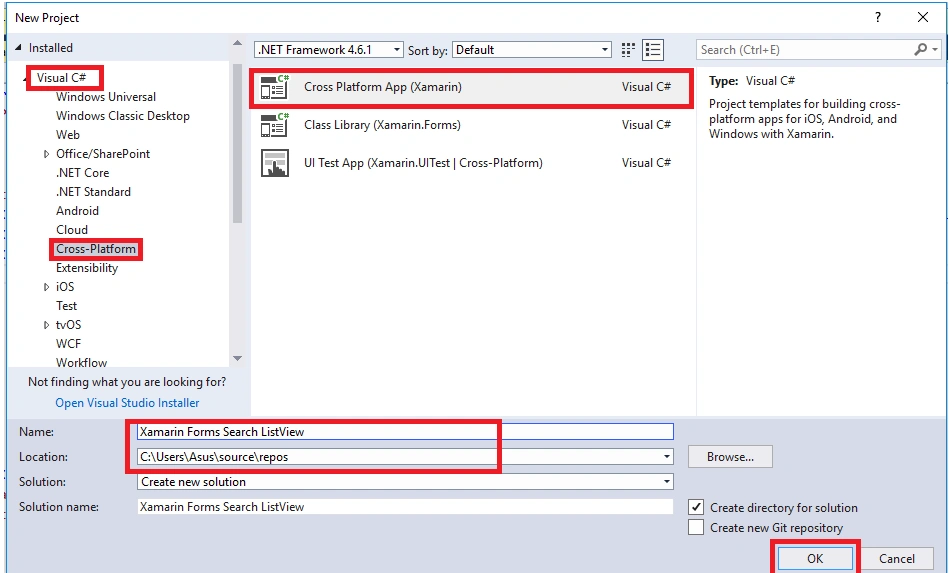
Open Visual Studio 2017 Community Edition then go to File ->New ->Project. Now, select Visual C#->Cross-Platform->Cross Platform App(Xamarin). Now, give the name to the project then, select the destination folder (if needed) then click OK.
Step 2
Open Visual Studio 2017 Community Edition then go to File ->New ->Project. Now, select Visual C#->Cross-Platform->Cross Platform App(Xamarin). Now, give the name to the project then, select the destination folder (if needed) then click OK.
Step 2
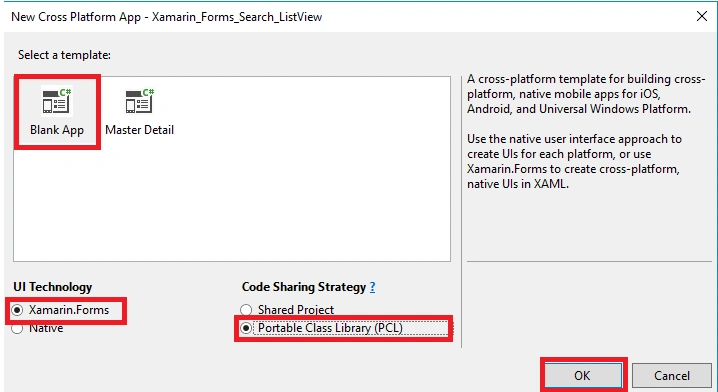
Now a new window will open. Select Blank App template then, select Xamarin.Forms then, Portable Class Library(PCL) and click OK.
Step 3
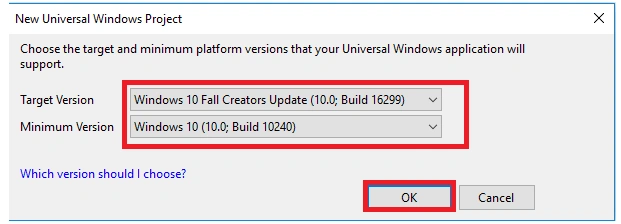
Now, select the Target version and minimum version for UWP and click OK.
 Step 4
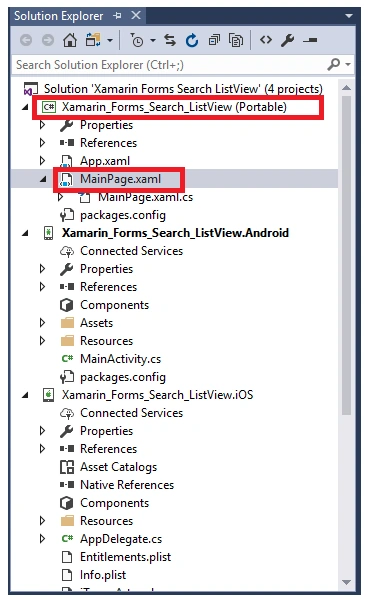
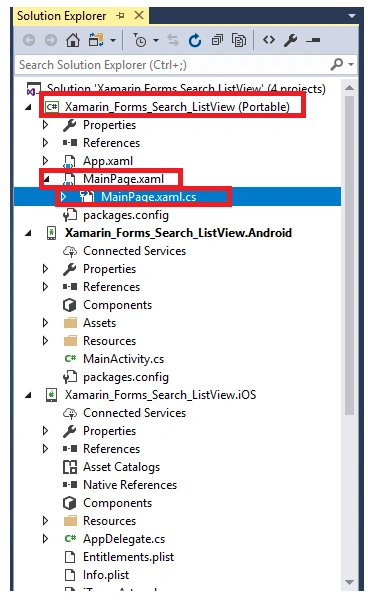
After creating the project open Solution Explorer and under Portable select MainPage.xaml.
Step 5
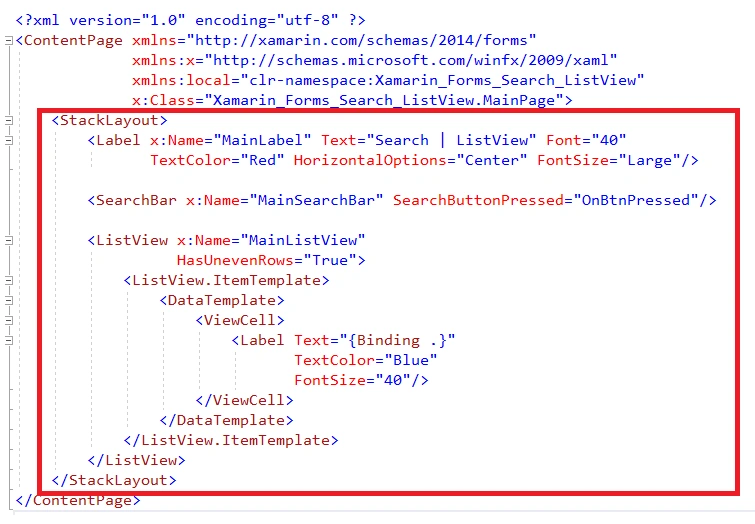
Now write the following code in MainPage.xaml,
Now, select the Target version and minimum version for UWP and click OK.
After creating the project open Solution Explorer and under Portable select MainPage.xaml.
Step 5
Now write the following code in MainPage.xaml,
- <?xml version="1.0" encoding="utf-8" ?>
- <ContentPage xmlns="http://xamarin.com/schemas/2014/forms" xmlns:x="http://schemas.microsoft.com/winfx/2009/xaml" xmlns:local="clr-namespace:Xamarin_Forms_Search_ListView" x:Class="Xamarin_Forms_Search_ListView.MainPage">
- <StackLayout>
- <Label x:Name="MainLabel" Text="Search | ListView" Font="40" TextColor="Red" HorizontalOptions="Center" FontSize="Large" />
- <SearchBar x:Name="MainSearchBar" SearchButtonPressed="OnBtnPressed" />
- <ListView x:Name="MainListView" HasUnevenRows="True">
- <ListView.ItemTemplate>
- <DataTemplate>
- <ViewCell>
- <Label Text="{Binding .}" TextColor="Blue" FontSize="40" /> </ViewCell>
- </DataTemplate>
- </ListView.ItemTemplate>
- </ListView>
- </StackLayout>
- </ContentPage>
Step 6
Now open Solution Explorer and in the Portable Class select MainPage.xaml.cs under MainPage.xaml and write the following:
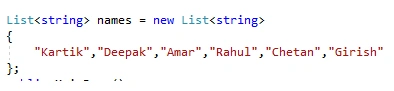
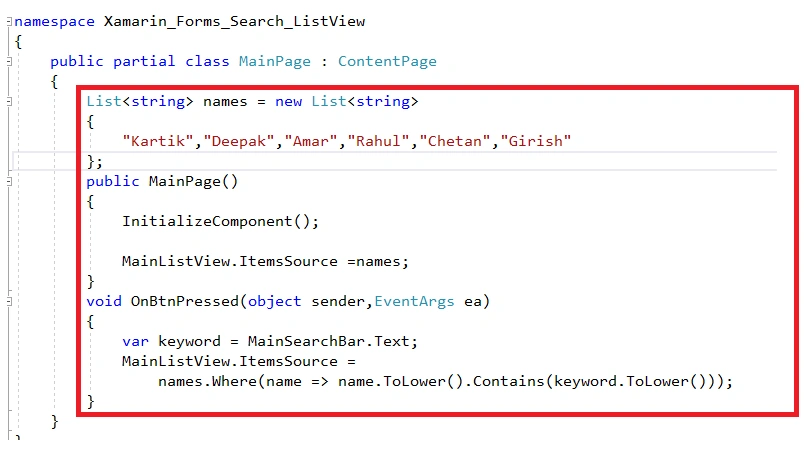
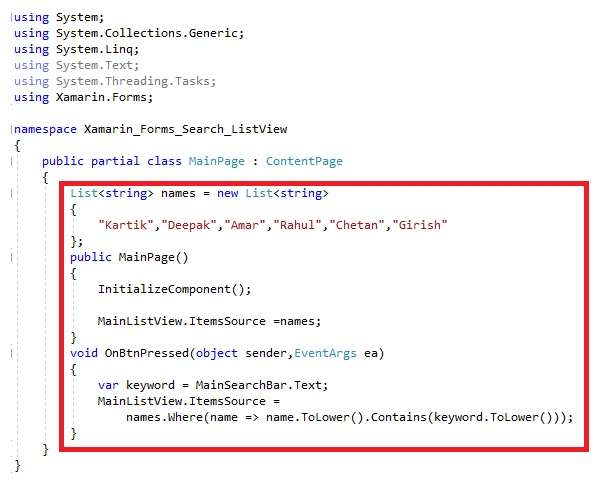
 Now, create a list by writing:
Now open Solution Explorer and in the Portable Class select MainPage.xaml.cs under MainPage.xaml and write the following:
- List<string> names = new List<string>
- {
- "Kartik",
- "Deepak",
- "Amar",
- "Rahul",
- "Chetan",
- "Girish"
- };
Step 7
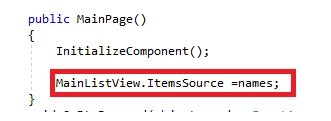
Under Public, MainPage write
MainListView.ItemsSource =names;
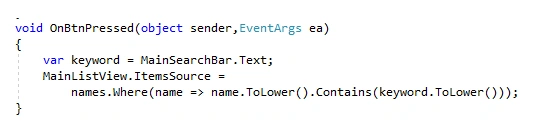
Now create a searching activity so that after the name is being searched it can filter those names. We will create this activity by using LINQ:
- void OnBtnPressed(object sender,EventArgs ea)
- {
- var keyword = MainSearchBar.Text;
- MainListView.ItemsSource =
- names.Where(name => name.ToLower().Contains(keyword.ToLower()));
- }
Step 9
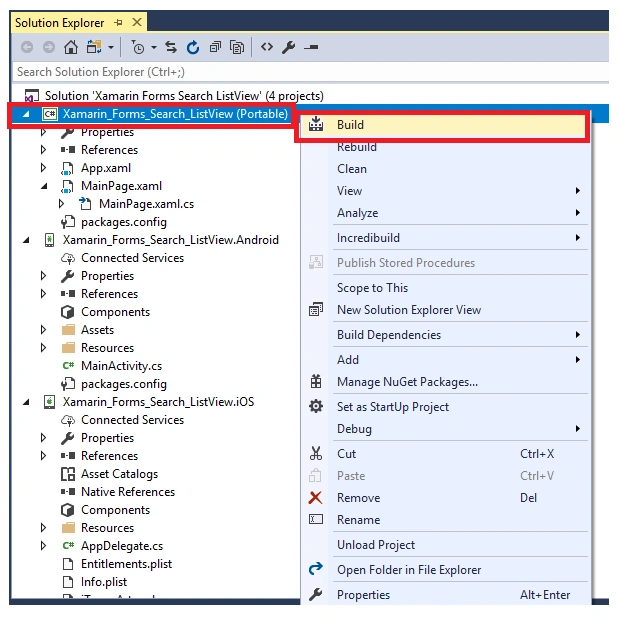
Now build the application by opening Solution Explorer, select Portable, on that right click and select Build.
Now build the application by opening Solution Explorer, select Portable, on that right click and select Build.
Step 10
Now, in the start option select UWP and click to start to run the application.
Now, in the start option select UWP and click to start to run the application.
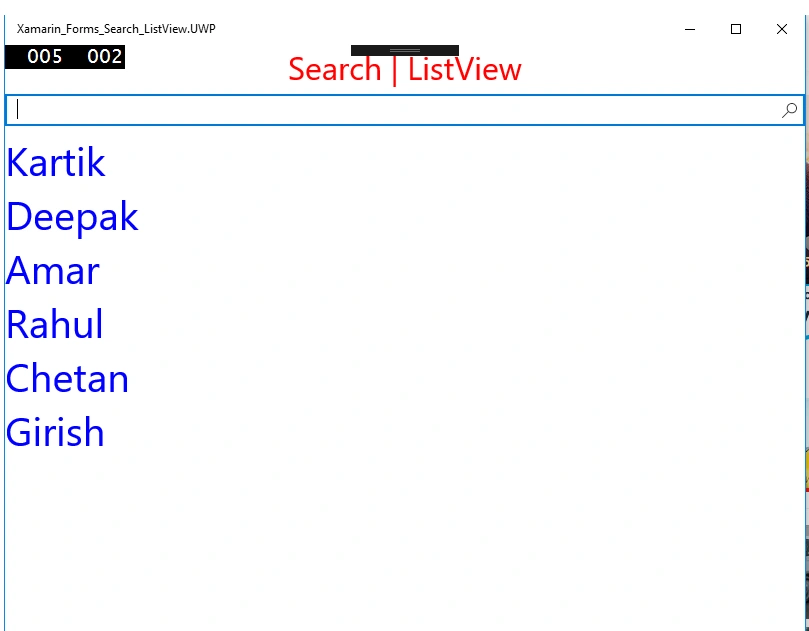
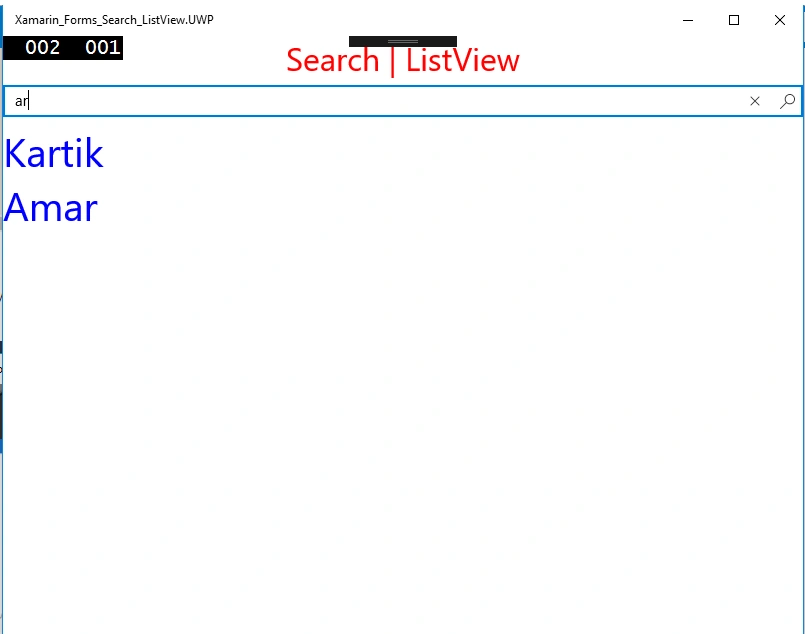
Now, type the name to be searched in the search bar and click the search icon.
Conclusion
Now, we have successfully created a ListView and searched required items from the list.


farith firdousPosted Jun 20, 2019, 8:08 AM EDT
How to add a item from list view to local database using button ?
Vijayaragavan STOP 100Posted Apr 24, 2018, 7:15 PM EDT
Good Start Kartik..... i am very happy to see you article here.... wish you all the best... keep it up....
Ravishankar VelladuraiPosted Apr 24, 2018, 7:52 AM EDT
Nice article Kartik keep sharing......
Hiten PandyaPosted Apr 24, 2018, 6:28 AM EDT
Nice share................