
Introduction
This article demonstrates an interesting and very useful concept in Entity Framework.
Question: What are entity command objects?
In simple terms "It enables use of entity command objects to query based on the Entity Framework".
Step 1: Create a new web application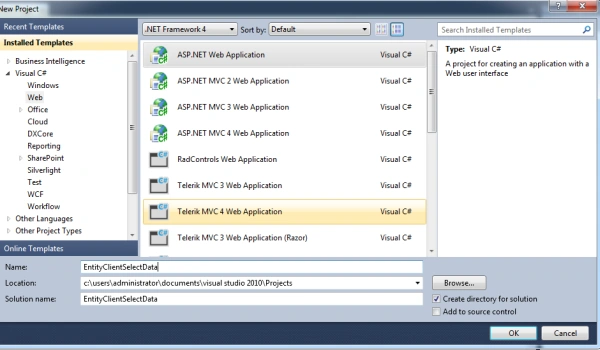
Step 2: Adding a new Entity Data Model Framework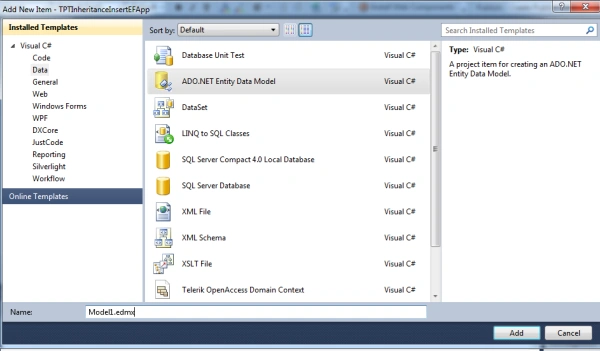
Step 3: The complete code of WebForm1.aspx is as in the following:
<%@ Page Language="C#" AutoEventWireup="true" CodeBehind="WebForm1.aspx.cs" Inherits="EntityClientSelectData.WebForm1" %>
<!DOCTYPE html PUBLIC "-//W3C//DTD XHTML 1.0 Transitional//EN" "http://www.w3.org/TR/xhtml1/DTD/xhtml1-transitional.dtd">
<html xmlns="http://www.w3.org/1999/xhtml">
<head id="Head1" runat="server">
<title></title>
</head>
<body>
<form id="form1" runat="server">
<div>
<center>
<div>
<table>
<tr>
<td colspan="2" align="center">
<asp:Label ID="Label1" runat="server" Text="Select Data - Entity Client" Font-Bold="true" Font-Size="Large" Font-Names="Verdana"
ForeColor="Maroon"></asp:Label></td>
</tr>
<tr>
<td colspan="2" align="center">
<asp:Button ID="Button1" runat="server" Text="Select Data" Font-Names="Verdana" Width="213px" BackColor="Orange" Font-Bold="True"
OnClick="Button1_Click" /></td>
</tr>
<tr>
<td colspan="2" align="center">
<asp:GridView ID="GridView1" runat="server" CssClass="grid" BackColor="LightGoldenrodYellow" BorderColor="Tan" BorderWidth="1px" CellPadding="2"
ForeColor="Black" GridLines="None">
<AlternatingRowStyle BackColor="PaleGoldenrod" />
<FooterStyle BackColor="Tan" />
<HeaderStyle BackColor="Tan" Font-Bold="True" />
<PagerStyle BackColor="PaleGoldenrod" ForeColor="DarkSlateBlue" HorizontalAlign="Center" />
<SelectedRowStyle BackColor="DarkSlateBlue" ForeColor="GhostWhite" />
<SortedAscendingCellStyle BackColor="#FAFAE7" />
<SortedAscendingHeaderStyle BackColor="#DAC09E" />
<SortedDescendingCellStyle BackColor="#E1DB9C" />
<SortedDescendingHeaderStyle BackColor="#C2A47B" />
<EmptyDataTemplate>No Records Found!</EmptyDataTemplate>
</asp:GridView>
</td>
</tr>
</table>
</div>
</center>
</div>
</form>
</body>
</html>
Step 4: The complete code of WebForm1.aspx.cs is as in the following:
using System;
using System.Collections.Generic;
using System.Linq;
using System.Web;
using System.Web.UI;
using System.Web.UI.WebControls;
using System.Data.EntityClient;
using System.Data;
namespace EntityClientSelectData
{
public partial class WebForm1 : System.Web.UI.Page
{
protected void Page_Load(object sender, EventArgs e) { }
protected void Button1_Click(object sender, EventArgs e)
{
using (EntityConnection objConn = new EntityConnection("name=CompanyEntities"))
{
objConn.Open(); using (EntityCommand command = new EntityCommand("SELECT VALUE e FROM
CompanyEntities.tblEmployee AS e", objConn))
{
EntityDataReader objReader = command.ExecuteReader(CommandBehavior.SequentialAccess);
GridView1.DataSource = objReader;
GridView1.DataBind();
}
}
}
}
}
Step 5: The output of the application is as in the following:
Step 6: The select data output of the application is as in the following: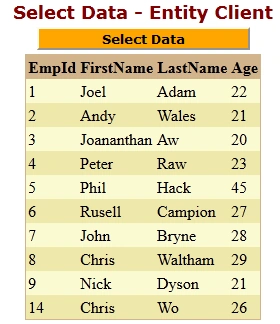
I hope this article was useful for you. I look forward for your comments and feedback. Thanks Vijay.
Select Data Using Entity Objects
Learn how to use EntityConnection and EntityCommand to run an Entity SQL query and display Entity Framework results in an ASP.NET Web Forms GridView.

Join the conversation! Your thoughts help the community grow.