
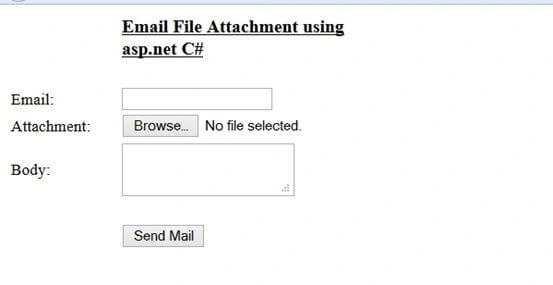
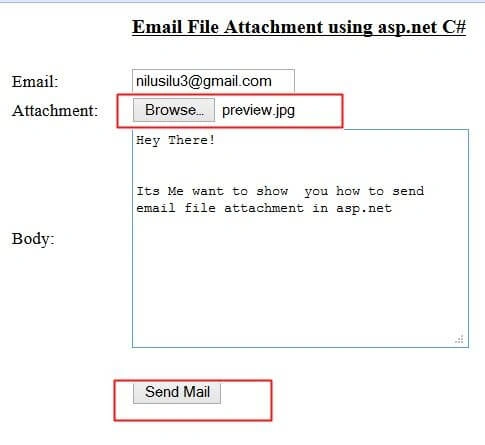
We took one field and one fileupload control and one button. On button click the mail body and the attached file are sent to the respective email.
Initial Chamber
Step 1
Open your Visual Studio 2010 and create an empty website, provide a suitable name [Email_demo].
Step 2
In Solution Explorer you get your empty website, add a web form as in the following.
For Web Form:
Email_demo (your empty website) then right-click then select Add New Item -> Web Form. Name it Email_demo.aspx.
Design Chamber
Next we will create some design for our application where we drag some control from the toolbox. So open your Email.aspx page and write code like the following.
- <%@ Page Language="C#" AutoEventWireup="true" CodeFile="Default.aspx.cs" Inherits="_Default" %>
- <!DOCTYPE html PUBLIC "-//W3C//DTD XHTML 1.0 Transitional//EN" "http://www.w3.org/TR/xhtml1/DTD/xhtml1-transitional.dtd">
- <html xmlns="http://www.w3.org/1999/xhtml">
- <head runat="server">
- <title></title>
- <style type="text/css">
- .style1
- {
- width: 106px;
- }
- .style2
- {
- text-decoration: underline;
- font-size: large;
- width: 257px;
- }
- .style3
- {
- width: 257px;
- }
- </style>
- </head>
- <body>
- <form id="form1" runat="server">
- <div>
- <table style="width:100%;">
- <tr>
- <td class="style1">
- </td>
- <td class="style2">
- <strong>Email File Attachment using ASP.Net C#</strong></td>
- <td>
- </td>
- </tr>
- <tr>
- <td class="style1">
- </td>
- <td class="style3">
- </td>
- <td>
- </td>
- </tr>
- <tr>
- <td class="style1">
- Email:</td>
- <td class="style3">
- <asp:TextBox ID="TextBox1" runat="server"></asp:TextBox>
- </td>
- <td>
- <asp:RequiredFieldValidator ID="RequiredFieldValidator1"
- ControlToValidate="TextBox1" runat="server"
- ErrorMessage="Please Provide Email ID" Font-Bold="True" ForeColor="Red"></asp:RequiredFieldValidator>
- </td>
- </tr>
- <tr>
- <td class="style1">
- Attachment:</td>
- <td class="style3">
- <asp:FileUpload ID="FileUpload1" runat="server" />
- </td>
- <td>
- </td>
- </tr>
- <tr>
- <td class="style1">
- Body:</td>
- <td class="style3">
- <asp:TextBox ID="TextBox2" runat="server" TextMode="MultiLine"></asp:TextBox>
- </td>
- <td>
- </td>
- </tr>
- <tr>
- <td class="style1">
- </td>
- <td class="style3">
- </td>
- <td>
- </td>
- </tr>
- <tr>
- <td class="style1">
- <asp:Label ID="lbmsg" runat="server"></asp:Label>
- </td>
- <td class="style3">
- <asp:Button ID="Button1" runat="server" onclick="Button1_Click"
- Text="Send Mail" />
- </td>
- <td>
- </td>
- </tr>
- </table>
- </div>
- </form>
- </body>
- </html>
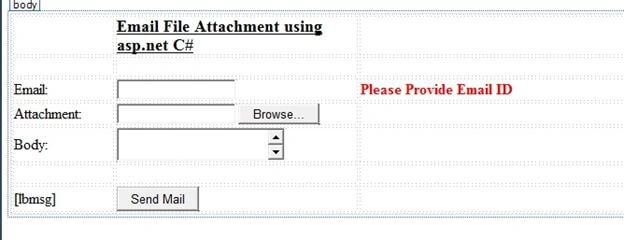
Code Chamber
Finally open your Email_demo.aspx.cs page where we write our server-side code so that the mail is sent to the intended user with the file attachment. But before that look out the namespace that we will include.
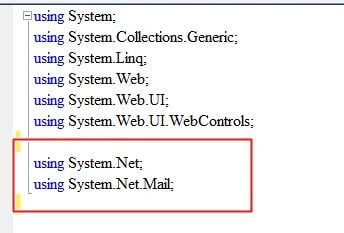
These two namespaces you need to include in your application and anyhow if you can't find these namespaces in the Intellisense then add them from the references.
The following is the code for Email_demo.aspx.cs:
- using System;
- using System.Collections.Generic;
- using System.Linq;
- using System.Web;
- using System.Web.UI;
- using System.Web.UI.WebControls;
- using System.Net;
- using System.Net.Mail;
- public partial class _Default : System.Web.UI.Page
- {
- protected void Page_Load(object sender, EventArgs e)
- {
- }
- protected void Button1_Click(object sender, EventArgs e)
- {
- MailMessage msg = new MailMessage();
- msg.From = new MailAddress("[email protected]");
- msg.To.Add(TextBox1.Text);
- msg.Subject = "Email File attachment";
- msg.Body = TextBox2.Text;
- msg.IsBodyHtml = true;
- if (FileUpload1.HasFile)
- {
- msg.Attachments.Add(new Attachment(FileUpload1.PostedFile.InputStream, FileUpload1.FileName));
- }
- SmtpClient smt = new SmtpClient();
- smt.Host = "smtp.gmail.com";
- System.Net.NetworkCredential ntwd = new NetworkCredential();
- ntwd.UserName = "[email protected]"; //Your Email ID
- ntwd.Password = ""; // Your Password
- smt.UseDefaultCredentials = true;
- smt.Credentials = ntwd;
- smt.Port = 587;
- smt.EnableSsl = true;
- smt.Send(msg);
- lbmsg.Text = "Email Sent Successfully";
- lbmsg.ForeColor = System.Drawing.Color.ForestGreen;
- }
- }
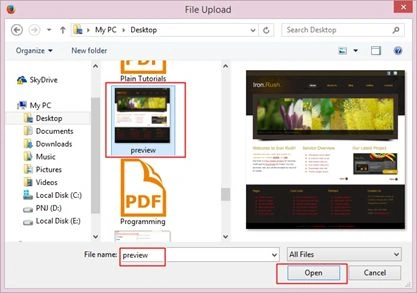
I had selected this image file, I'll attach this file to my email, let's see.
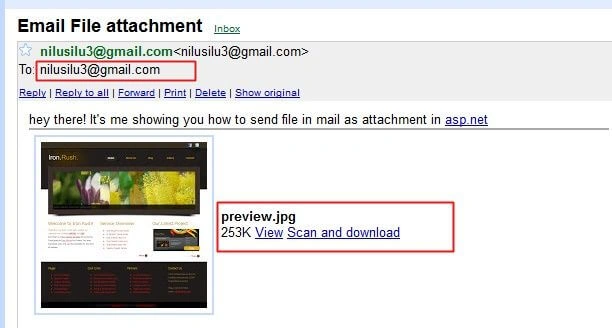
I hope you like this. Thank you for reading. Have a good day!


vishal fondekarPosted Jul 25, 2017, 2:42 AM EDT
Can anyone help..?
vishal fondekarPosted Jul 25, 2017, 2:38 AM EDT
Unable to send attachments above 4 MB any changes need to be made...???
Arul RPosted Oct 28, 2015, 1:37 AM EDT
Good one !!!
Santhakumar MunuswamyPosted Jul 23, 2015, 11:03 AM EDT
Thanks for nice article:)
Gopi ChandPosted Jul 22, 2015, 11:15 AM EDT
Well done
Rajeesh MenothPosted Jul 22, 2015, 4:32 AM EDT
Good One Nilesh Jadav
Raja TPosted Jul 22, 2015, 3:12 AM EDT
very nice dude..
Sibeesh VenuTOP 100Posted Jul 22, 2015, 12:03 AM EDT
Nice Share.
RakeshPosted Jul 21, 2015, 9:38 PM EDT
Good one
Amol JadhaoPosted Jul 21, 2015, 9:35 PM EDT
very useful..
Jaipal ReddyPosted Jul 21, 2015, 9:24 PM EDT
Good one Nilesh.
Upendra Pratap ShahiPosted Jul 21, 2015, 9:09 PM EDT
nice demonstration
Debasis SahaTOP 100Posted Jul 21, 2015, 8:50 PM EDT
Good One..