
In today's section, we will see, how to setup VM with Visual Studio 2015 image in Azure. Azure provides number of options while setting up the VM. You just need to select the ideal one which suits you as shown in the following screenshot.
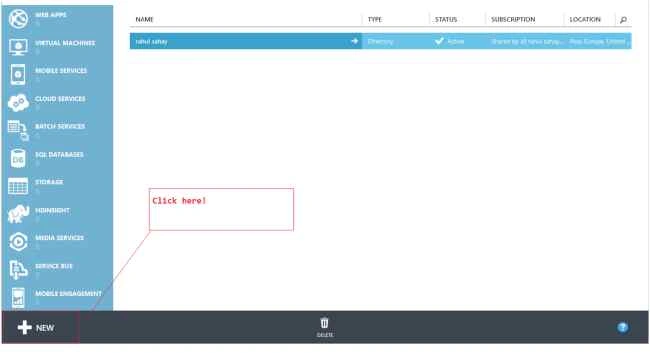

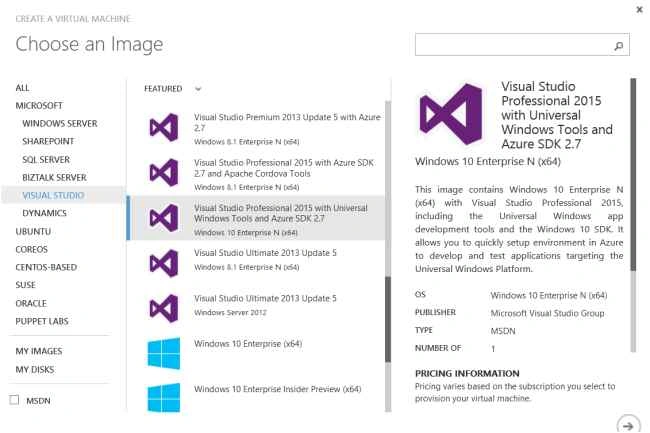


Above shown steps are just VM steps creation. Once, these steps are done, then you will land on your dashboard page, wherein you will see that your VM is getting provisioned like shown below.
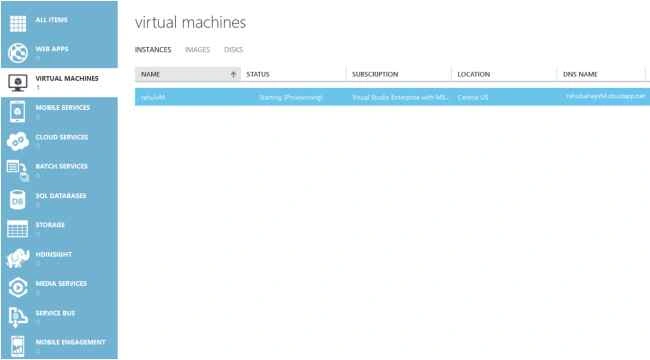

However, provisioning process will take couple of minutes. Once it is done it will display the options to connect to VM.
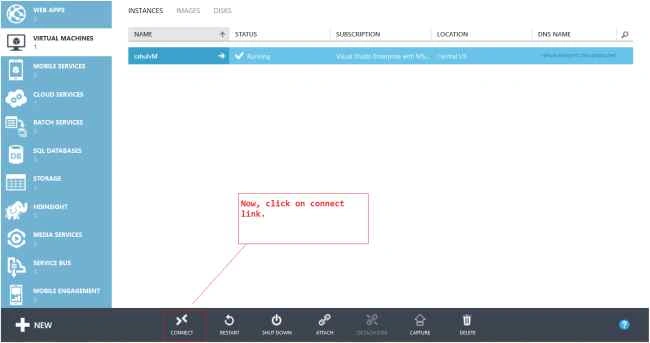
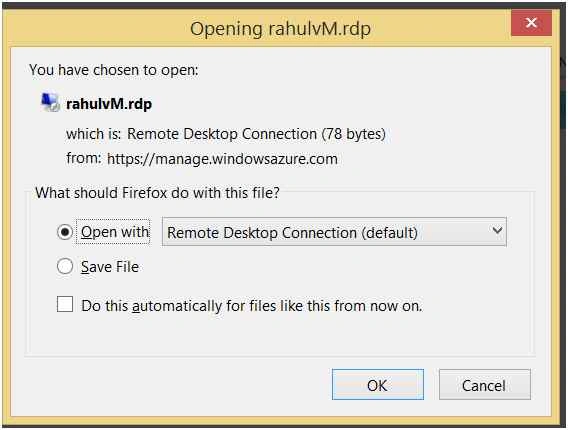
This will also pop-up one window to download the .rdp file.
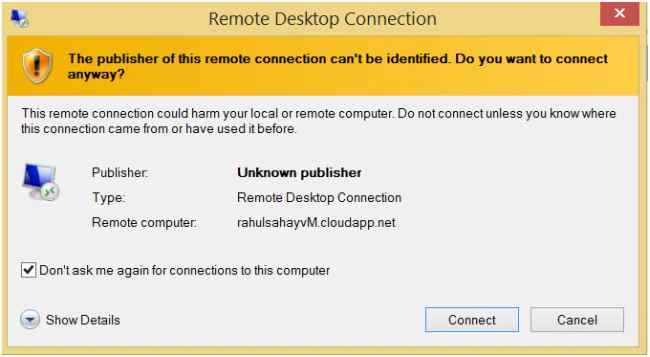
Then, with the credentials which you provided while setting up the same, you can login to your VM as in the following screenshot:
Hence, once you logged in successfully, you will see the following windows 10 environment with Visual Studio 2015 installed on it.

I hope, you would have liked today's discussion. We will delve further on this in coming modules. Till then stay tuned and Happy Coding.
Setting Up Virtual Machine In Azure
In this article you will learn how to setup Virtual Machine with Visual Studio 2015 image in Azure.


Harshad PansuriyaPosted Oct 19, 2015, 11:21 PM EDT
Nice one
Sibeesh VenuTOP 100Posted Oct 19, 2015, 11:07 PM EDT
Nice Share
Nilesh JadavPosted Oct 19, 2015, 9:13 PM EDT
Great Work sir !!
Ramchand RepallePosted Oct 19, 2015, 8:43 PM EDT
Nice..
Humayun Kabir MamunPosted Oct 19, 2015, 8:22 PM EDT
Thanks Rahul...
Mukesh KumarPosted Oct 19, 2015, 7:31 PM EDT
Good one
Mohammed IbrahimPosted Oct 19, 2015, 5:58 PM EDT
nice