
Introduction
In this article I describe snap view in Windows Store Apps. The snap view allows us to create a targeted view of 320px wide. A width of 320px is a common and familiar size that we are already designing for on various platforms.
When we use grid apps or Split Apps than we will get all the code that shows a different view in Snap View.
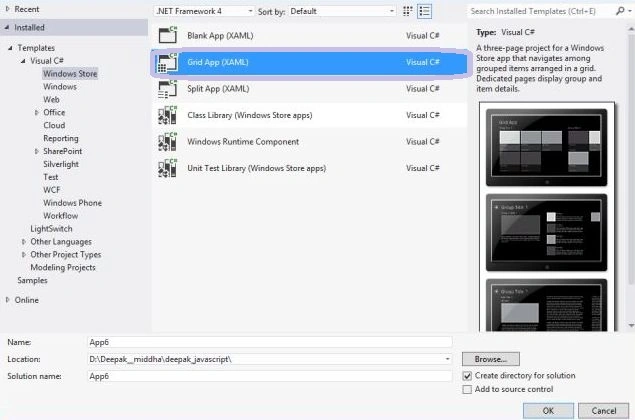

When we use a blank app to create a Windows Store App then we make some changes, first we change the page to a Layoutaware page. For this make the following change:
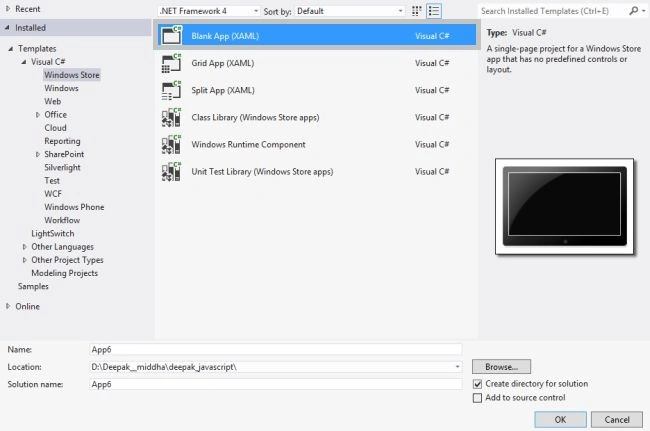
Change in the Blackpage.xaml.cs:
change the following:
public sealed partial class MainPage : Page
to:
public sealed partial class MainPage : LayoutAwarePage
changes in blankpage.xml:
Change the following:
<Page
x:Class="Application1.BlankPage"
xmlns="http://schemas.microsoft.com/winfx/2006/xaml/presentation"
xmlns:x="http://schemas.microsoft.com/winfx/2006/xaml"
xmlns:local="using:Application1"
xmlns:d="http://schemas.microsoft.com/expression/blend/2008"
xmlns:mc="http://schemas.openxmlformats.org/markup-compatibility/2006"
mc:Ignorable="d">
to
<common:LayoutAwarePage
x:Name="pageRoot"
x:Class="Application1.BlankPage"
xmlns="http://schemas.microsoft.com/winfx/2006/xaml/presentation"
xmlns:x="http://schemas.microsoft.com/winfx/2006/xaml"
xmlns:local="using:Application1"
xmlns:common="using:Application1.Common"
xmlns:d="http://schemas.microsoft.com/expression/blend/2008"
xmlns:mc="http://schemas.openxmlformats.org/markup-compatibility/2006"
mc:Ignorable="d">
Adding of visual State manager:
Now we add A visual state manager. The Visual state manager manages the various views in various sizes automatically. The XAML for it is:
<VisualStateManager.VisualStateGroups>
<VisualStateGroup>
<VisualState x:Name="FullScreenLandscape"/>
<VisualState x:Name="Filled"/>
<VisualState x:Name="FullScreenPortrait"/>
<VisualState x:Name="Snapped">
<Storyboard>
<ObjectAnimationUsingKeyFrames Storyboard.TargetName="MyListScroller" Storyboard.TargetProperty="Visibility">
<DiscreteObjectKeyFrame KeyTime="0" Value="Visible"/>
</ObjectAnimationUsingKeyFrames>
<ObjectAnimationUsingKeyFrames Storyboard.TargetName="MyGridScroller" Storyboard.TargetProperty="Visibility">
<DiscreteObjectKeyFrame KeyTime="0" Value="Collapsed"/>
</ObjectAnimationUsingKeyFrames>
</Storyboard>
</VisualState>
</VisualStateGroup>
</VisualStateManager.VisualStateGroups>
Summary
In this article I described how to create a Windows StoreApp for Listview Rating using JavaScript. I hope this article has helped you in understanding this topic. Please share it. If you know more about this, your feedback and constructive contributions are welcome.


JustinPosted Aug 14, 2013, 12:14 PM EDT
One issue I sewe with this article is that you talk about changing the page to inherit from LayoutAwarePage - yet you do not provide any information about that class or what it does.