
Background
In this article we will learn about creating Wizard through Crystal Report and applying grouping and display records.
Step 1: Create table ‘Department’.
- CREATE TABLE [dbo].[Department](
- [DeptId] [int] IDENTITY(1,1) NOT NULL,
- [DeptName] [nvarchar](50) NULL,
- CONSTRAINT [PK_Department] PRIMARY KEY CLUSTERED
- (
- [DeptId] ASC
- )WITH (PAD_INDEX = OFF, STATISTICS_NORECOMPUTE = OFF, IGNORE_DUP_KEY = OFF, ALLOW_ROW_LOCKS = ON, ALLOW_PAGE_LOCKS = ON) ON [PRIMARY]
- ) ON [PRIMARY]
- CREATE TABLE [dbo].[Employee](
- [EmpId] [int] IDENTITY(1,1) NOT NULL,
- [EmpFirstName] [nvarchar](50) NULL,
- [EmpLastName] [nvarchar](50) NULL,
- [DeptId] [int] NULL,
- CONSTRAINT [PK_Employee] PRIMARY KEY CLUSTERED
- (
- [EmpId] ASC
- )WITH (PAD_INDEX = OFF, STATISTICS_NORECOMPUTE = OFF, IGNORE_DUP_KEY = OFF, ALLOW_ROW_LOCKS = ON, ALLOW_PAGE_LOCKS = ON) ON [PRIMARY]
- ) ON [PRIMARY]
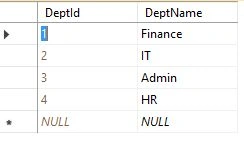
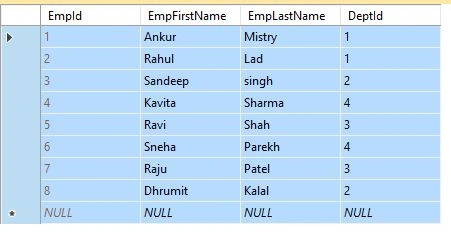
Employee Table
Step 2: Open Visual Studio and create Crystal Report.
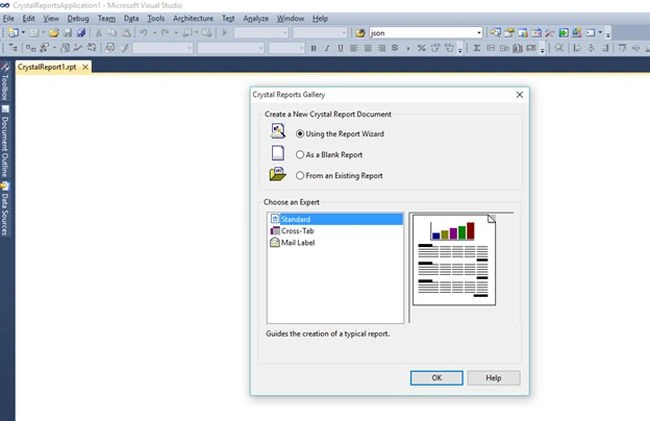
Step 3: Select Report Wizard and select ‘Standard’ Report and click Ok button.
Enter server name, User ID, Password and select database.
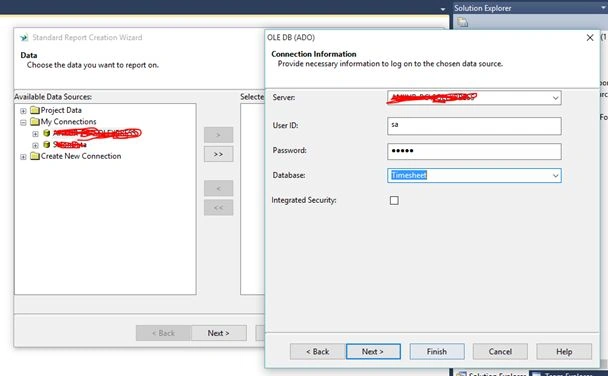
Step 4: Click on Next and select tables ‘Employee’ and ‘Department’ from Standard Report Creation Wizard.
Select both the tables and click ‘>’ button.
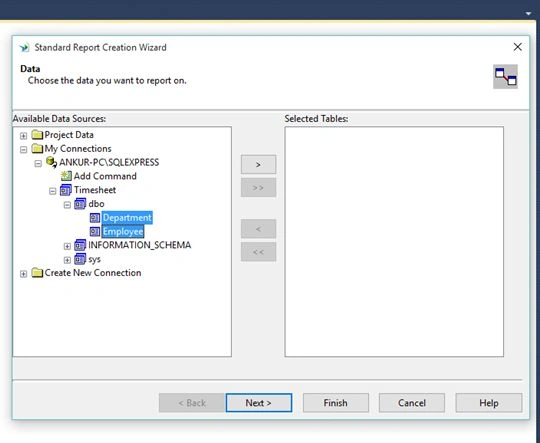
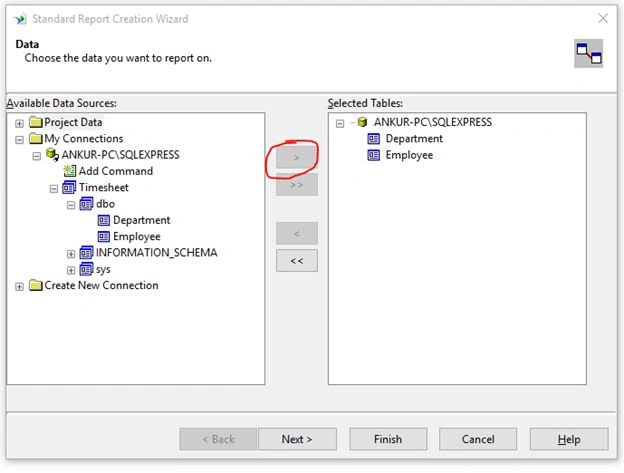
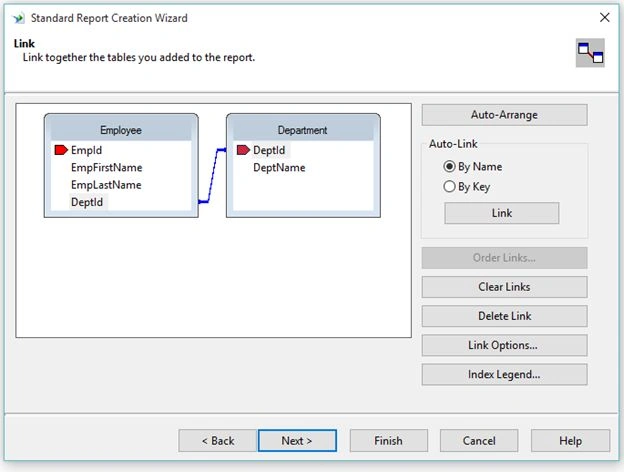
Step 5: Now Map ‘DeptId’ (Foreign key) that is common in both the tables and click next.
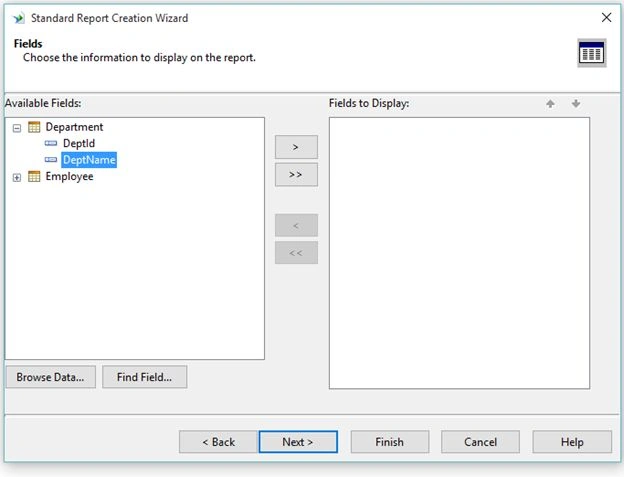
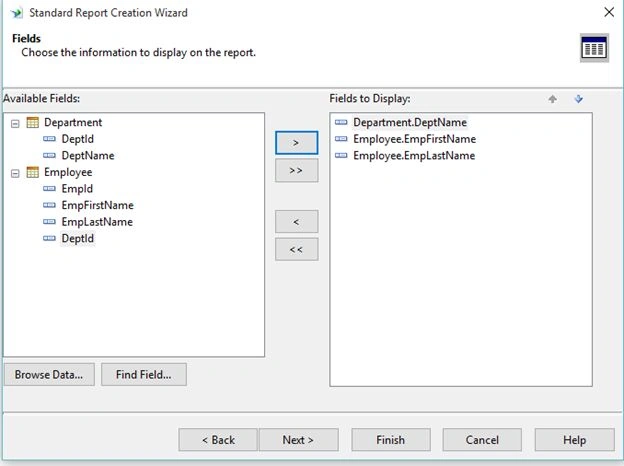
Step 6: Select the fields you want to Display in Reports (Here I have Selected DeptName, EmpFirstName and EmpLastName).
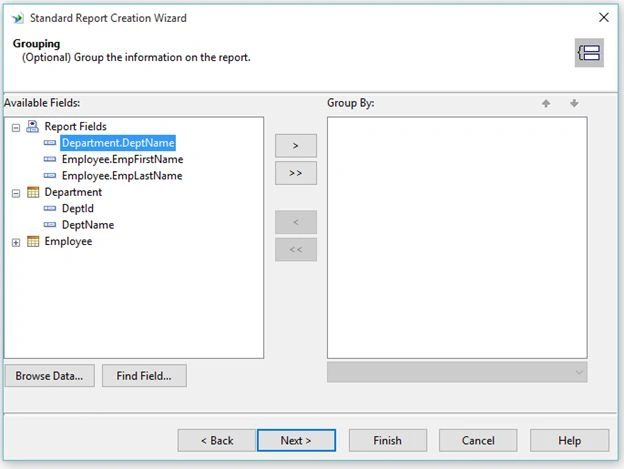
Next I will implement Grouping on Department.
Step 7: Select Department name wise and in ascending order. After that click on ‘Finish’ button.
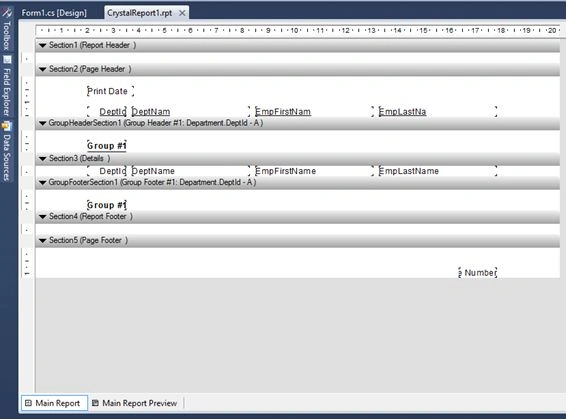
So it will automatically create Crystal Report same as in the following screen.
On clicking on Main Report Preview it will bind data from the DataTable.
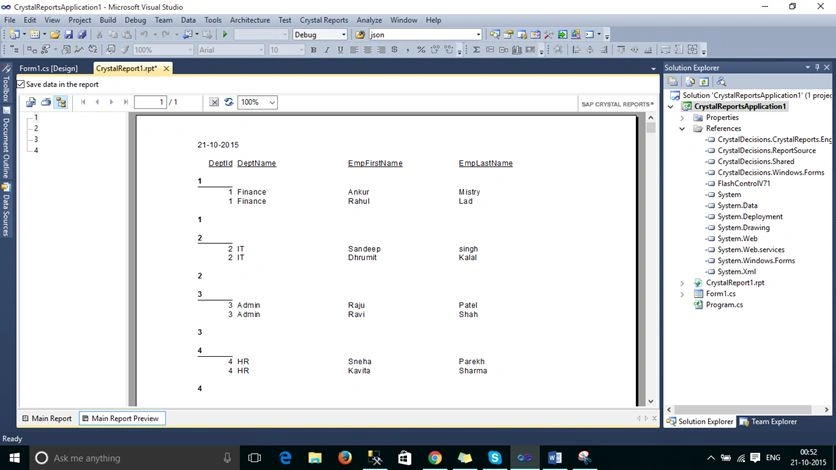
When you bind this report in your project, please remove the check ‘Save data in the report’.
Otherwise it will not refresh the actual data. It will show saved data in reports.
Step 8: Now I will format the reports and combine EmpFirstName and EmpLastName in 1 field.
Just drag and drop DeptName and place it on groupHeader section, so it will display Department name only once.
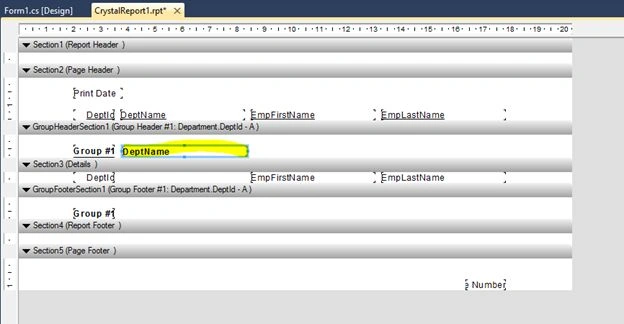
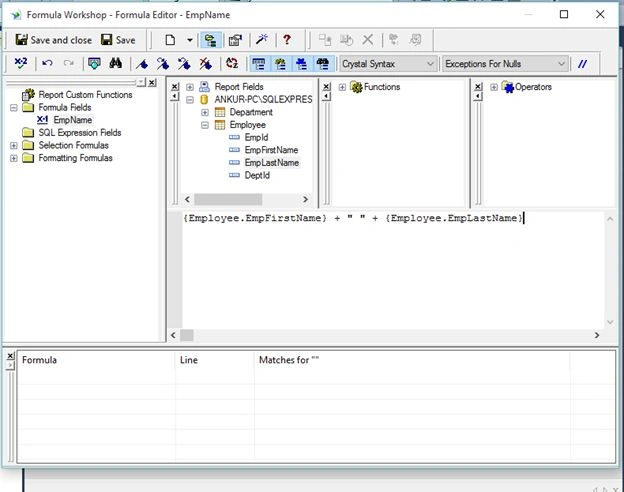
Step 9: Now from the Field Explorer, right click on Formula field and give name ‘EmpName’.
Now from the formula Workshop, select Employee table and select EmpFirstName and EmpLastName field and concat it in a single name ‘EmpName’.
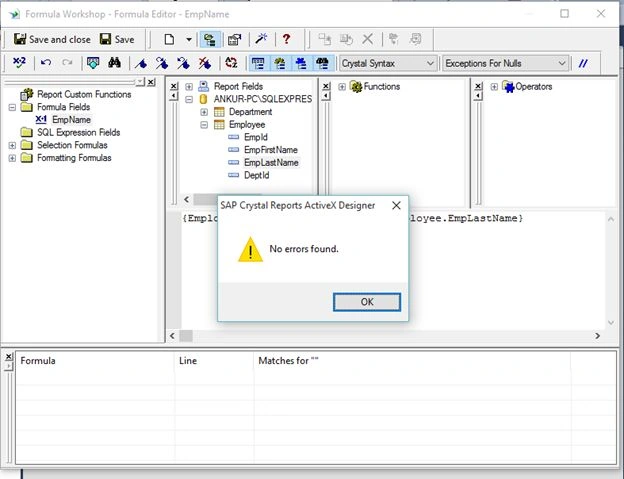
Now click on Alt + C for checking errors like the following screen,

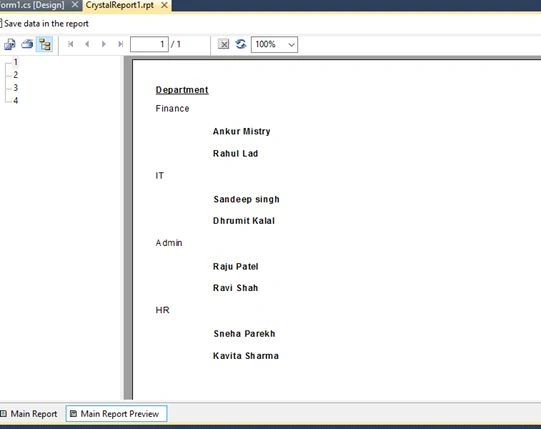
Step 10: Delete EmpFirstName and EmpLastName from the Report and place ‘@empName’.
Right click and suppress unnecessary section, and place @Empname field in Details section.
Just little formatting and your DeptWise employee report is ready.


vamsi krishnaPosted Feb 17, 2021, 6:11 AM EST
Is very useful in visualstudio 2008 tnq sir
Vimal VishwakarmaPosted Nov 8, 2017, 8:24 PM EST
It would have even better if u would have mention version of Crystal Reports as some of the above steps are not available in Crystal report vs 13
Sonu ChaudharyPosted Mar 31, 2016, 8:00 AM EDT
good share
Ankur MistryTOP 100Posted Mar 11, 2016, 2:46 AM EST
you can go with Visual Studio 2010
JoePosted Mar 11, 2016, 2:40 AM EST
What version of Crystal Reports and Visual Studio do I need to follow along with this example? Do I need a full version of Crystal Reports (which version)? I'm just wondering what are the pre-requisites to creating reports and what versions I need to get. Thanks very much.
Asfend YarPosted Feb 26, 2016, 11:04 PM EST
Nice Share
Ankur MistryTOP 100Posted Nov 30, 2015, 3:46 PM EST
Thanks
supriya tarsePosted Nov 25, 2015, 8:49 PM EST
Nice article
Santhakumar MunuswamyPosted Nov 11, 2015, 5:44 AM EST
Good one
Rushabh ParekhPosted Nov 8, 2015, 9:16 PM EST
Helpful article .. Thank you for uploading.
Ankur MistryTOP 100Posted Nov 7, 2015, 12:00 AM EST
Thank you All
Aditya PaniharPosted Nov 6, 2015, 8:17 PM EST
Nice article..... good beginning
Dipak PatelPosted Nov 6, 2015, 4:29 PM EST
Nice artical..Ankur
Ankur MistryTOP 100Posted Nov 6, 2015, 8:16 AM EST
Thank you
Former memberPosted Nov 5, 2015, 7:58 PM EST
Nice Share Sir... we r waiting for more articles from u
KUSHAL KOLEKARPosted Nov 5, 2015, 7:53 PM EST
Awesome... Very helpful information thanks :)
Mayank SharmaPosted Nov 5, 2015, 7:11 PM EST
good one. it will help us :)
sagar nathePosted Nov 5, 2015, 6:58 PM EST
Very Nice Share Sir...
Ankur MistryTOP 100Posted Nov 5, 2015, 2:43 PM EST
Thank you all
Sibeesh VenuTOP 100Posted Nov 4, 2015, 6:20 PM EST
Nice Share
Humayun Kabir MamunPosted Nov 4, 2015, 6:10 PM EST
Nice...
Harshad PansuriyaPosted Nov 4, 2015, 6:06 PM EST
Nice one
Anu VPosted Nov 4, 2015, 6:01 PM EST
nice..
Mahesh ChandTOP 10Posted Nov 4, 2015, 9:20 AM EST
Welcome to C# Corner, Ankur. You may want to put in Intro part something about what tools have you used to create the report. Something like this: In this article we will learn how to create reports using Crystal Reports in Visual Studio and apply grouping and display records.