
Introduction
SharePoint 2013 has introduced a new framework to create Callouts that are displayed only for specific Lists and Libraries. Callouts provide a rich and lightweight detailed experience for the users to displays a limited and important information about an item. Callout was not present in earlier versions of SharePoint. In this article, I will explain how to create custom Callouts in SharePoint 2013.
Pre-Requisites
- Go to SharePoint 2013 Central Administration site.
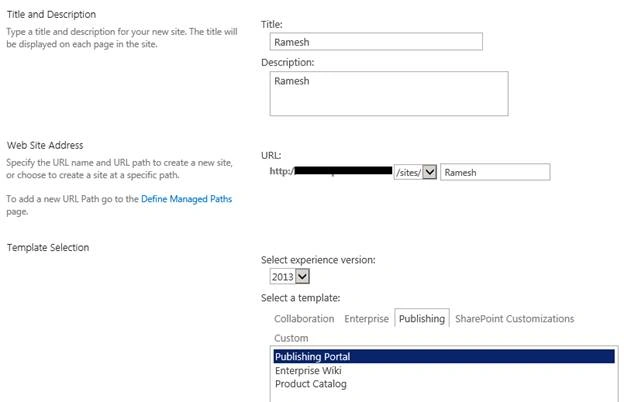
- Create new publishing portal site collection.
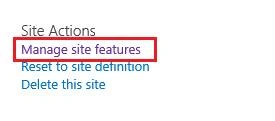
- Go the Site Action -> Site Settings -> “Manage site features” under Site Actions.
- Activate “Team Collaboration Lists” feature.

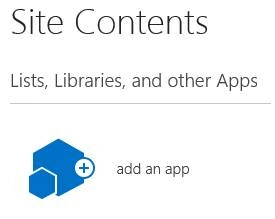
- Go the Site Action -> Site Content -> Add an App.
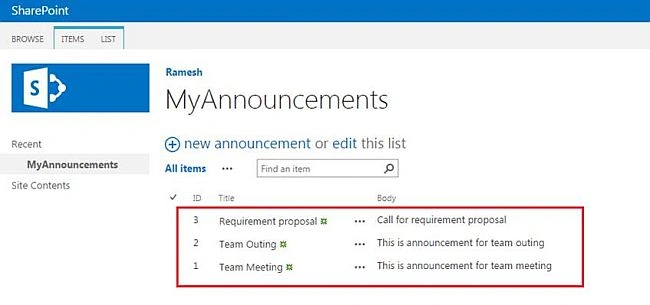
- Add new announcement list named as “MyAnnouncements” and add some announcement in it for adding the Callouts for this list.

- Add items to the announcement list.
Points to remember about CallOut
- JavaScript file named “CallOut.js” was added in 15 hive folder, located in C:\Program Files\Common Files\Microsoft shared\Web Server Extensions\15\TEMPLATE\LAYOUTS.
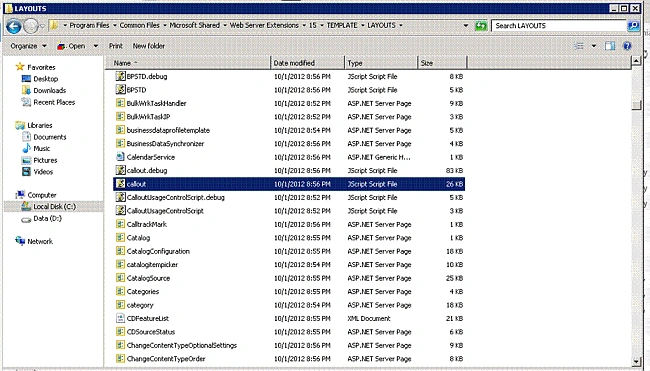
- Callout.js contains all the methods and classes for creating callout popup. Make sure this file is loaded on the page before calling Callout popup.
- SP.SOD.executeFunc(“callout.js”, “CalloutFunction”, function () {
- });
- Callout.js not present in early versions of SharePoint.
- External content will not be displayed in the callout.
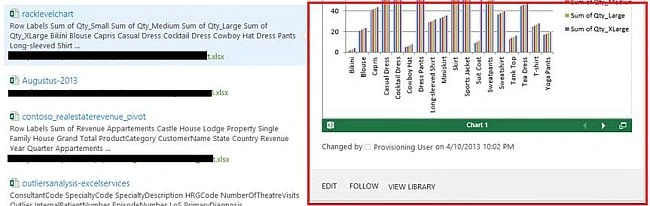
- Callout popups are displayed by default for Lists & Libraries like page library, document library, image library, etc.
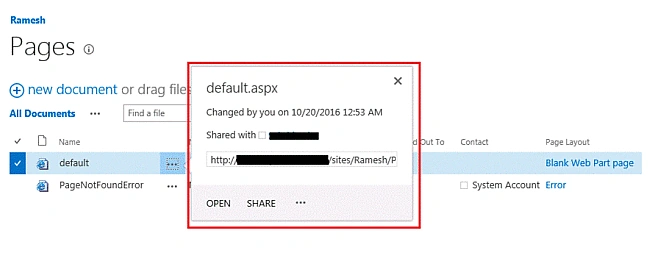
- Calendar, Announcement, Discussion and custom list does not display the callout by default.
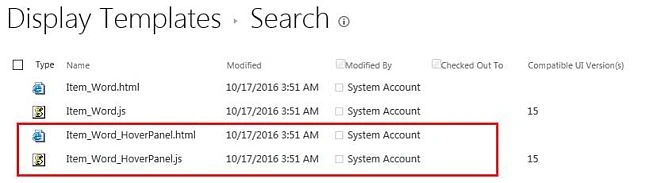
- To change the appearance of the existing callout in lists and library, by changing the respective search callout display template “Item_Word_HoverPanel.html”.
- The property “beakOrientation” needs to be set for callout popups can be displayed in either “Top to Bottom (topBottom)” or “Left to Right (leftRight)” direction.
Create Custom CallOut
- Open SharePoint publishing site that we created.
- Go to page library and create new blank web part page.
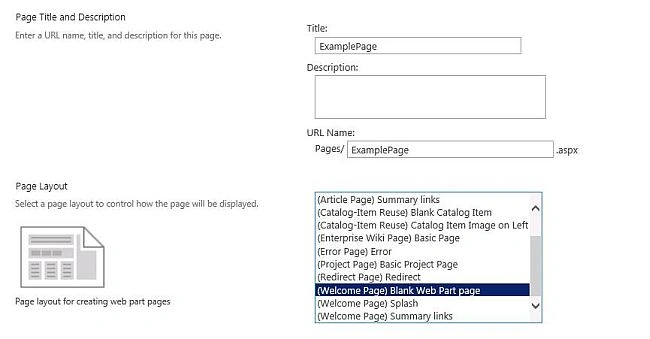
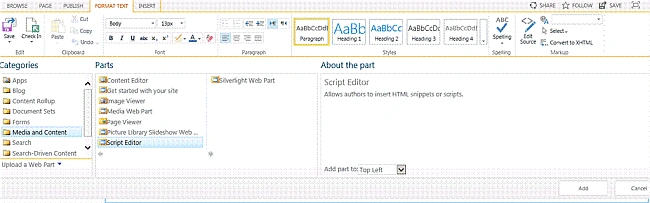
- Edit the newly created page and add the script editor webpart.
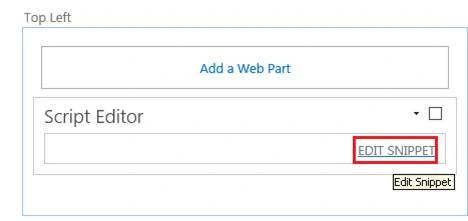
- Click on “Edit Snippet” in the script editor webpart.
- "Embed" popup appears for the script editor webpart.
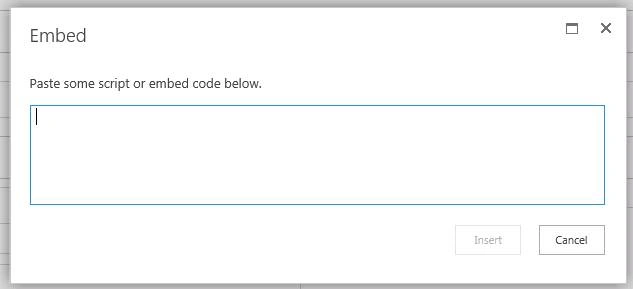
- Add the following code snippet to get the Callout for announcement “MyAnnouncements” list.
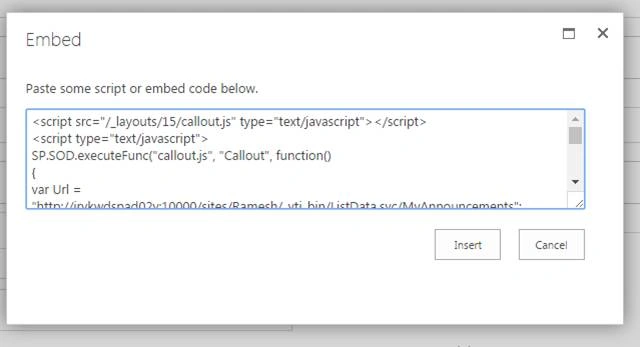
- <script src="/_layouts/15/callout.js" type="text/javascript"></script>
- <script type="text/javascript">
- SP.SOD.executeFunc("callout.js", "Callout", function()
- {
- var Url = "http://siteURL/sites/Ramesh/_vti_bin/ListData.svc/MyAnnouncements";
- var request = new Sys.Net.WebRequest();
- request.set_httpVerb("GET");
- request.set_url(Url);
- request.get_headers()["Accept"] = "application/json";
- request.add_completed(onSuccessFunction);
- request.invoke();
- });
- function onSuccessFunction(response, eventArgs) {
- var announcements = eval("(" + response.get_responseData() + ")");
- var newAnnouncement = document.createElement("div");
- for (var i = 0; i < announcements.d.results.length; i++) {
- announTitle = announcements.d.results[i].Title;
- _announID = announcements.d.results[i].Id;
- _announBody = announcements.d.results[i].Body;
- anniDiv.appendChild(newAnnouncement);
- var calloutLink = document.createElement("div");
- calloutLink.id = _announID;
- calloutLink.onmouseover = function() {
- curListUrl = this.id;
- }
- calloutLink.innerHTML = "<div class=\"ms-commandLink\" style=\"text-align: left;font-size: 14px;\"><b>" + _announTitle + "</b><br/><br/></div>";
- anniDiv.appendChild(calloutLink);
- var listCallout = CalloutManager.createNew({
- launchPoint: calloutLink,
- beakOrientation: "leftRight",
- ID: _announID,
- title: _announTitle,
- content: "<div class=\"ms-soften\" style=\"margin-top:13px;\">"
- +
- "<hr/></div>"
- +
- "<div class=\"callout-section\" style=\"margin-top:13px;\">" + _announBody + "</div>",
- });
- }
- }
- /script>
- <
- div id = "anniDiv" > < /div>
- CalloutManager.createNew function will create the new callout popup.
- Parameter set for the above function, is as follows.
- launchPoint: calloutLink It will set where callout should come.
- beakOrientation: "leftRight" It will set which direction callout should come.
- ID: announID ID of callout popup.
- title: announTitle Title for callout popup.
- Content What content should add to the popup.
- The above script will fetch the “MyAnnouncements” list item and add the page with callout.
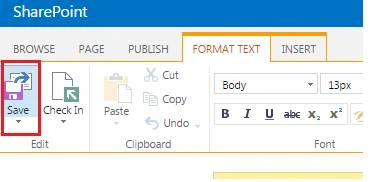
- Save and publish the page.
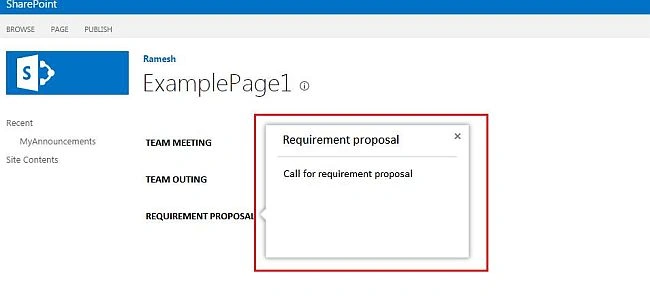
- Callout comes on hovering over the announcement title.
Summary
Thus, you have learned how to create custom Callout in SharePoint 2013.


Md Tahmidul AbedinPosted Mar 13, 2018, 12:20 AM EDT
Nice Article Ramesh Palaniappan. (Y)
tonya reznorPosted Feb 14, 2018, 3:46 AM EST
Will this work on a custom list? I am no javascript pro by no sense of the word but this looks like it could potentially work for me. I have a custom list that I am using called Service catalog that has a description field. I would like to use the callout on mouseover to pull the content from that description field.
Aakash MauryaPosted Oct 25, 2016, 8:56 PM EDT
Great one Ramesh Palaniappan
Prasanna MuraliPosted Oct 22, 2016, 7:44 AM EDT
Nice post...
Anu VPosted Oct 21, 2016, 7:58 PM EDT
Nice..