
Power Apps → Trigger Power Automate → Send email
But this approach is usually slower, more expensive, harder to maintain , and often completely unnecessary.
❌ Why you should stop using Power Automate for in-app emails
1️⃣ It burns your Power Automate quota
Every email = Flow run.
Flow runs cost capacity and can throttle at scale.
If your app sends hundreds or thousands of emails, you’re paying for something you don’t need.
2️⃣ You add latency for no reason
Power Apps → Flow calls are asynchronous , take multiple seconds, and sometimes fail silently.
Direct connectors inside Power Apps are instant.
3️⃣ More moving parts = more failures
With a Flow you now have:
Connection references
Flow environment-level dependencies
Permissions challenges
Errors that never display in the app
The maintenance burden is unnecessary.
4️⃣ Most email scenarios are 100% doable directly inside Power Apps
Microsoft has added new first-party connectors and Graph integration , removing the need for a Flow middleman.
✅ What you should do instead
Option A — Use the “Office365Outlook” connector directly in Power Apps
Perfect for simple emails.
Office365Outlook.SendEmail(
    "[email protected]",
    "Subject goes here",
    "Body goes here"
)
Benefits:
✔ Zero flow runs
✔ Instant
✔ Very stable
Option B — Use Outlook “SendEmailV2” (Modern Connector)
If your environment is using the new connector-privileged model.
fully functional email sender built directly into your app.
1️⃣ 𝗔𝗱𝗱 𝘁𝗵𝗲 𝗖𝗼𝗻𝗻𝗲𝗰𝘁𝗼𝗿: First, add the 'Office365 Outlook' connector to your app.
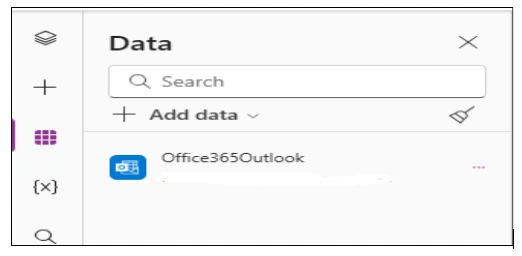
2️⃣ 𝗗𝗲𝘀𝗶𝗴𝗻 𝗙𝗼𝗿𝗺: Create a custom form using:
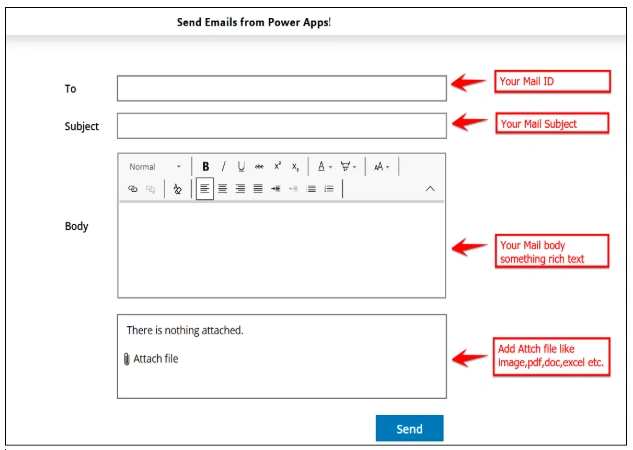
A 𝗧𝗲𝘅𝘁 𝗜𝗻𝗽𝘂𝘁 for the User email.
A 𝗧𝗲𝘅𝘁 𝗜𝗻𝗽𝘂𝘁 for the email subject.
A 𝗥𝗶𝗰𝗵 𝗧𝗲𝘅𝘁 𝗘𝗱𝗶𝘁𝗼𝗿 for the beautiful email body.
An 𝗔𝘁𝘁𝗮𝗰𝗵𝗺𝗲𝗻𝘁 control to allow file uploads.
3️⃣ 𝗧𝗵𝗲 𝗦𝗲𝗻𝗱 𝗕𝘂𝘁𝘁𝗼𝗻: Add a button and paste this expression into its 𝗢𝗻𝗦𝗲𝗹𝗲𝗰𝘁 property:
 Office365Outlook.SendEmailV2(
    TxtSendTo.Text,
    TxtSubject.Text,
    RichTextEditor.HtmlText,
    {
        IsHtml: true,
        Attachments: ForAll(
            EmailAttachment.Attachments,
            {
                Name: ThisRecord.Name,
                ContentBytes: ThisRecord.Value,
                '@odata.type': ""
            }
        )
    }
);
Notify("Email Sent Successfully",NotificationType.Success)
Option C — Use Microsoft Graph (for advanced scenarios)
For apps that need:
Attachments
Rich formatting
Shared/Delegated mailboxes
Org-wide templates
You can call Graph using a Custom Connector or a Graph Federated API (no Flow needed).
🧠 When to choose what
| Scenario | Best Method |
|---|---|
| Simple “notify user” email | Office365Outlook connector |
| Email with dynamic attachments | Graph API |
| Shared mailbox email | Graph API or modern Outlook connector |
| Complex workflows | Power Automate |
| Bulk email (thousands) | Graph API with App Registration |

Join the conversation! Your thoughts help the community grow.