
Scenario
You have a list which has N number of web parts. You need to hide web few parts based on the user role.
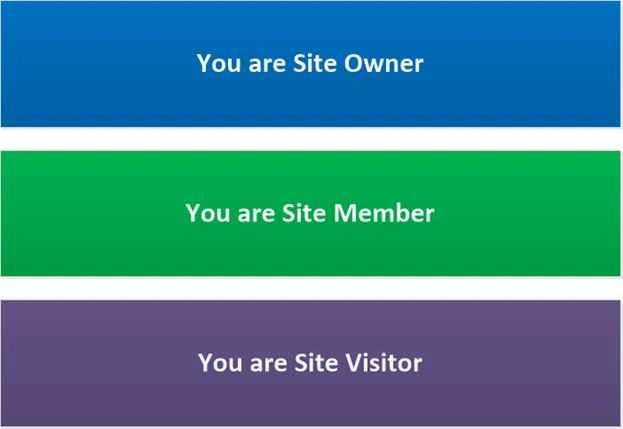
How to achieve this?
Solution
You can use the property Target Audiences of web parts for this.
Steps
Here are the steps to experiment this feature. Create a new page and add 3 Image Viewer web parts into it.
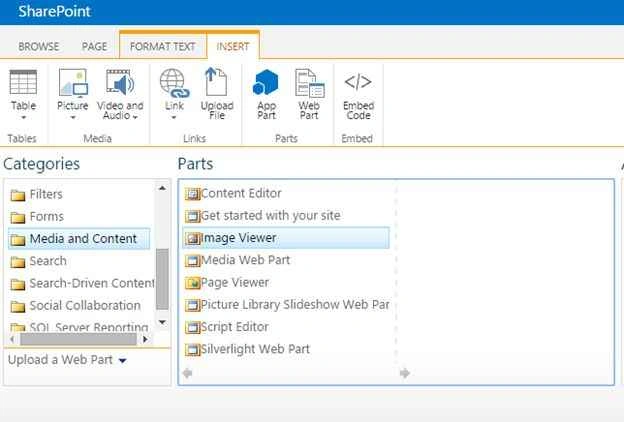
The following are the 3 web parts.
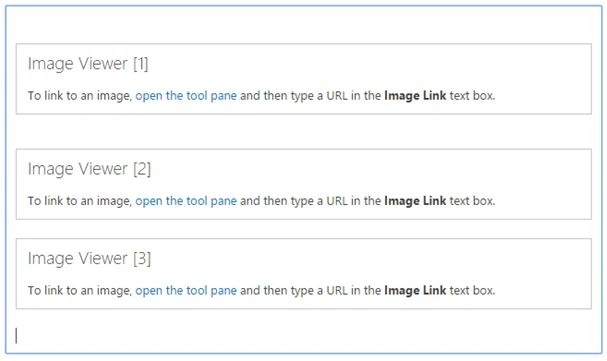
Now add the above 3 images into Site Assets library and link them to the web parts.
Choose the Web Part, Edit Web Part, Advanced, then Target Audiences Property to Site Owners, Site Members, Site Viewers groups respectively.
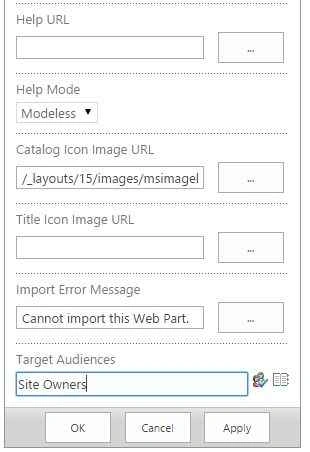
Save changes. Now refresh the page.
Testing
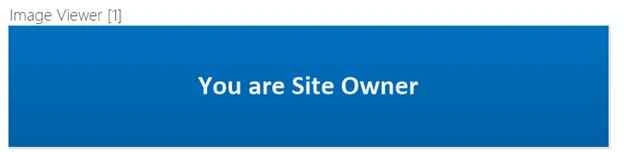
If you are in the Site Owners group, you will see the following web part alone.
If you are in the Site Members group, you will see the following web part alone.

If you are in the Site Visitors group, you will see the following web part alone.

This concludes our example with Target Audiences property.
Note: Power Users can use the Edit Page option to roll back the Web Part property. So preferably this method should not be exposed to them.
Summary
In this article we explored the Target Audiences property.
Target Audiences Of Web Parts In SharePoint
In this article we can explore the target audiences property of web part. This is a less used property.


Santhakumar MunuswamyPosted Sep 26, 2015, 8:32 AM EDT
Nice share
Jean PaulTOP 100Posted Sep 23, 2015, 8:50 AM EDT
Thank You Dear Friends!
Abhay ShankerPosted Sep 23, 2015, 7:00 AM EDT
Thanks for sharing
Ankit BansalPosted Sep 23, 2015, 4:41 AM EDT
thanks for sharing..
Harshad PansuriyaPosted Sep 22, 2015, 11:13 PM EDT
Nice Share
Sibeesh VenuTOP 100Posted Sep 22, 2015, 11:03 PM EDT
Nice Share
Kaviya BalasubramanianPosted Sep 22, 2015, 10:24 PM EDT
useful one jean :)
Vinodh NarayananPosted Sep 22, 2015, 10:05 PM EDT
nice share