
Introduction
This article shows how to transpose or change row values to a column in Excel. I hope you like it.
Background
Today when I was just analysing my grid data in Office, I just copied some of the conditions in the grid. Since all of the values were in a row, it was not very readable. So I thought of changing the values to columns. And I did. Hereby I am sharing it with you.
How to do it
Before seeing how to do that, please have a look at the data that I have before I transpose.
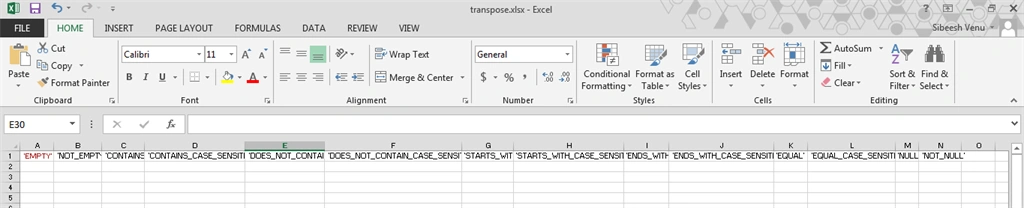
Please download the transpose.xlsx for viewing the data in Excel.
Now what I need to do is to change those values into a column. Right? For that you need to use the following procedure.
Step 1
Copy the entire data (select the row and click Ctrl+C).
Step 2
Now click on a cell where you need the data to be pasted to.
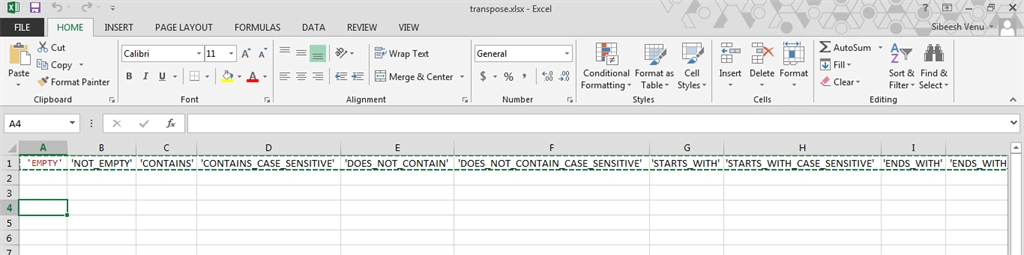
Step 3
Now right-click on the cell and click Paste Special and click Transpose.
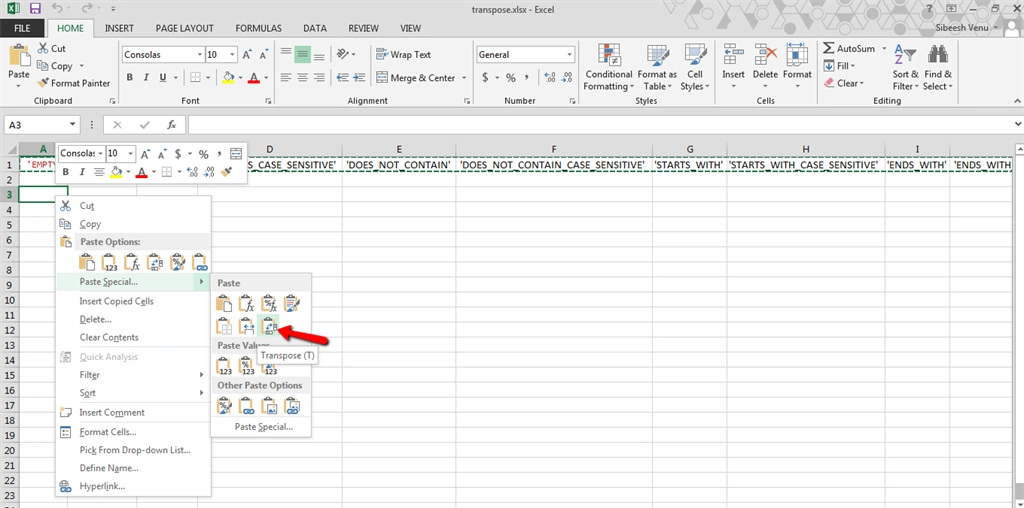
Step 4
Now that is all, we have done it. Now you will see your Excel as in the following.
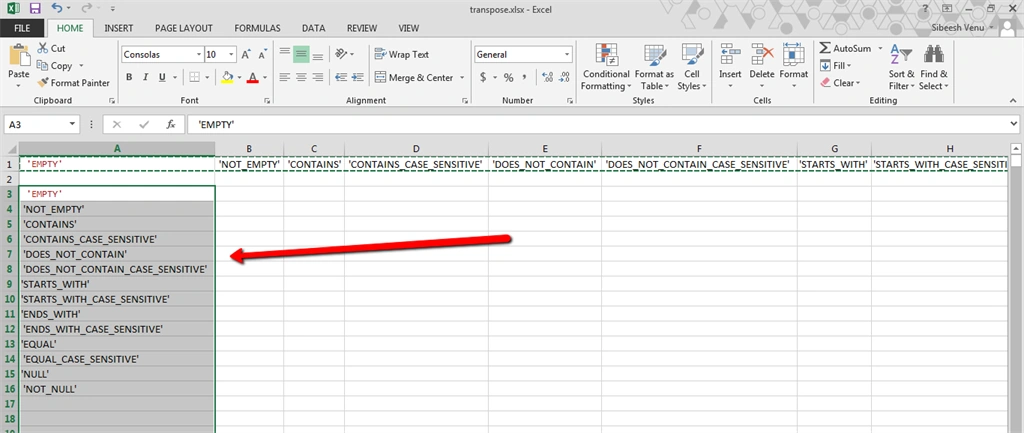
Conclusion
I hope someone found this article useful. Please share with me your valuable thoughts and comments. Your feedback is always welcomed.
Thanks in advance. Happy coding!


Nilesh JadavPosted Jul 7, 2015, 8:26 PM EDT
great work sir
Sibeesh VenuTOP 100Posted Jul 7, 2015, 8:20 PM EDT
Gopi Chand Thank you :)
Sibeesh VenuTOP 100Posted Jul 7, 2015, 8:20 PM EDT
Santhakumar Munuswamy Thank you :)
Gopi ChandPosted Jul 7, 2015, 12:02 PM EDT
Great discovery...learn by doing..good sibeesh
Santhakumar MunuswamyPosted Jul 7, 2015, 10:59 AM EDT
Good Article. Thanks for sharing
Sibeesh VenuTOP 100Posted Jul 7, 2015, 4:41 AM EDT
Rakesh Chavda Thank you :)
Sibeesh VenuTOP 100Posted Jul 7, 2015, 4:41 AM EDT
Gowtham Rajamanickam Sure :)
Sibeesh VenuTOP 100Posted Jul 7, 2015, 4:41 AM EDT
Gowtham Rajamanickam Thank you :)
RakeshPosted Jul 7, 2015, 4:37 AM EDT
Good one bro
Gowtham RajamanickamTOP 100Posted Jul 7, 2015, 2:25 AM EDT
keep it up buddy
Gowtham RajamanickamTOP 100Posted Jul 7, 2015, 2:25 AM EDT
Good one...