
In my previous articles, we implemented CRUD operations using Core Data Framework. In this article, we will implement update operation using an additional attribute; i.e an Id that we did not use till now. In my previous articles, we created an application for inserting,reading, updating and deleting the details entered by the user according to his/her wish. In this article too, we will use the same application and just modify it to perform CRUD operations on the basis of Id.
If you want to have a look at my previous articles regarding CRUD operations, please refer the below links:
- Insert Data Into A Database Using Core Data Framework
- Display The Records Added Into The Database On Tableview
- Update and Delete Operations Using Core Data Framework
So let's modify the application.
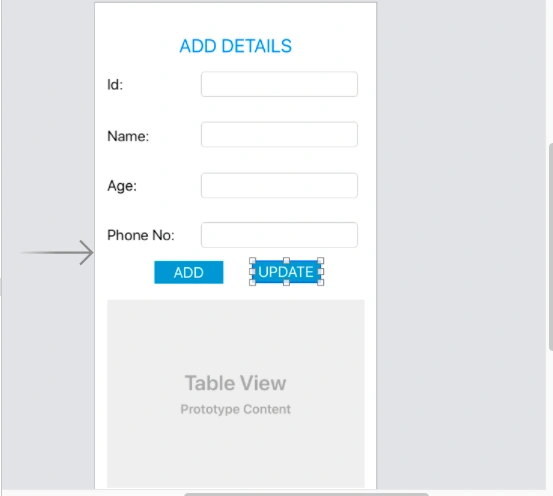
- Open the project in XCode. First, we will make changes in our Main.storyboard. Create a new label, new textfield for Id as shown in the below image. Also, create a new button, 'Update'.
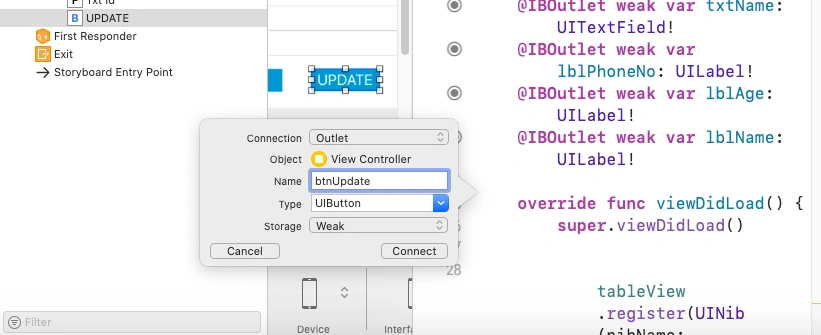
- Connect them to your ViewController.swift file using Assistant.
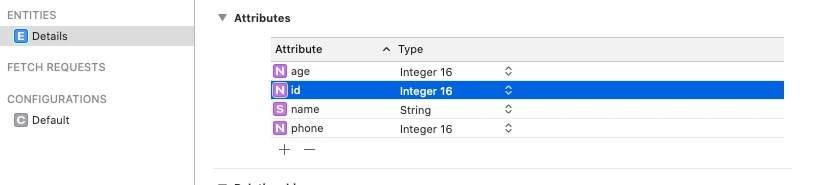
- Next, we need to add a new attribute in our .xcdatamodeld file.
Make sure you delete the existing application from the simulator/ iPhone device after making the changes in your .xcdatamodeld or else your application will crash.
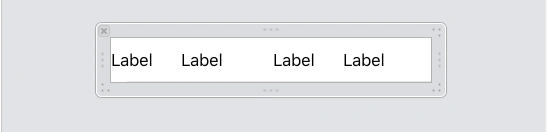
- Next, we will add a Label in our .xib file. Open the xib file and add an extra label in the tableview cell that we had created before.
- Connect the outlet to the TableViewCell.swift file.
- So far, we have successfully added a new field Id in our UI and in the xcdatamodeld file. Now, let's make the changes in our code.
- In the btnAdd function, we had created an NSManagedObject named 'record' which sets the values for Name, Age and Phone Number. Similiarly, add one more line for the Id.
- record.setValue(Int16(txtId.text!), forKey: "id”)
- After adding this line, you will be able to add Id along with your other details into the database.
- Add the below line in the tableview CellForRowAt function. Here, 'tblLblId' is the name that I have assigned to the new label for Id in the xib file.
- cell.tblLblId?.text = String(describing: person.value(forKey: "id")!)
-
This line will display the Id that you have inserted with your record into your database.
-
As we have implemented the sliding method in our application for the Delete operation, we do not need to add any new code for Delete operation.
-
Now, create a new tableview function didSelectRowAt. Just type 'didSelectRowAt' and XCode will display a tableview function containing didSelectRowAt within it. Paste the code inside this function.
- func tableView(_ tableView: UITableView, didSelectRowAt indexPath: IndexPath) {
- let cell = tableView.cellForRow(at: indexPath) as!DetailsTableViewCell
- if let id = cell.tblLblId.text {
- txtId.text = id
- }
- if let name = cell.tblLblName.text {
- txtName.text = name
- }
- if let age = cell.tblLblAge.text {
- txtAge.text = age
- }
- if let phone = cell.tblLblPhoneNo.text {
- txtPhoneNo.text = phone
- }
- }
-
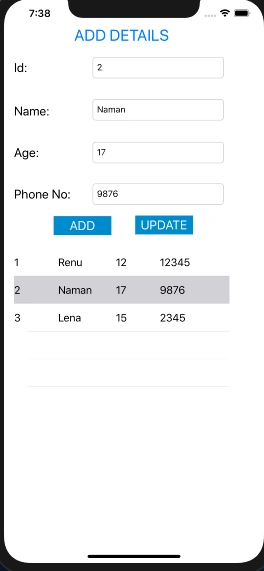
As the name suggests, the above code will display the details of the record that you have selected from the tableview in the text fields.
-
Run the application and check if it works. You must be able to view the data in the textfields of the row that you have selected from the tableview.
-
Create a new function or update the existing function updateData and paste the following code.
- func updateData() {
- guard
- let appDelegate = UIApplication.shared.delegate as ? AppDelegate
- else {
- return
- }
- let managedContext = appDelegate.persistentContainer.viewContext
- let entity = NSEntityDescription.entity(forEntityName: "Details", in : managedContext)
- let request = NSFetchRequest < NSFetchRequestResult > ()
- request.entity = entity
- let predicate = NSPredicate(format: "(id = %@)", txtId.text!)
- request.predicate = predicate
- do {
- let results =
- try managedContext.fetch(request)
- let objectUpdate = results[0] as!NSManagedObject
- objectUpdate.setValue(txtName.text!, forKey: "name")
- objectUpdate.setValue(Int32(txtPhoneNo.text!), forKey: "phone")
- objectUpdate.setValue(Int16(txtAge.text!), forKey: "age")
- do {
- try managedContext.save()
- print("Record Updated!")
- } catch
- let error as NSError {}
- } catch
- let error as NSError {}
- }
-
In the above code, we used NSPredicate which fetches/filters data according to the specified format. As we have assigned Id to it, it will fetch the data on the basis of Id.
-
Call this function inside the btnUpdate function.
- @IBAction func btnUpdate(_ sender: Any) {
- updateData()
- self.tableView.reloadData()
- }
-
Below is the entire ViewController.swift file for your reference.
- import UIKit
- import CoreData
- class ViewController: UIViewController, UITableViewDelegate, UITableViewDataSource {
- var details: [NSManagedObject] = []
- @IBOutlet weak
- var tableView: UITableView!@IBOutlet weak
- var txtId: UITextField!@IBOutlet weak
- var txtPhoneNo: UITextField!@IBOutlet weak
- var txtAge: UITextField!@IBOutlet weak
- var txtName: UITextField!@IBOutlet weak
- var lblPhoneNo: UILabel!@IBOutlet weak
- var lblAge: UILabel!@IBOutlet weak
- var lblName: UILabel!@IBOutlet weak
- var btnUpdate: UIButton!override func viewDidLoad() {
- super.viewDidLoad()
- tableView.register(UINib(nibName: "DetailsTableViewCell", bundle: nil), forCellReuseIdentifier: "details")
- }
- override func viewWillAppear(_ animated: Bool) {
- super.viewWillAppear(animated)
- //1
- guard
- let appDelegate = UIApplication.shared.delegate as ? AppDelegate
- else {
- return
- }
- let managedContext = appDelegate.persistentContainer.viewContext
- //2
- let fetchRequest = NSFetchRequest < NSManagedObject > (entityName: "Details")
- //3
- do {
- details =
- try managedContext.fetch(fetchRequest)
- } catch
- let error as NSError {
- print("Could not fetch. \(error), \(error.userInfo)")
- }
- }
- @IBAction func btnAdd(_ sender: Any) {
- //1
- guard
- let appDelegate = UIApplication.shared.delegate as ? AppDelegate
- else {
- return
- }
- let managedContext = appDelegate.persistentContainer.viewContext
- //2
- let entity = NSEntityDescription.entity(forEntityName: "Details", in : managedContext) !
- //3
- let record = NSManagedObject(entity: entity, insertInto: managedContext)
- //4
- record.setValue(Int16(txtId.text!), forKey: "id")
- record.setValue(txtName.text, forKey: "name")
- record.setValue(Int16(txtAge.text!), forKey: "age")
- record.setValue(Int16(txtPhoneNo.text!), forKey: "phone")
- do {
- try managedContext.save()
- details.append(record)
- print("Record Added!")
- //To display an alert box
- let alertController = UIAlertController(title: "Message", message: "Record Added!", preferredStyle: .alert)
- let OKAction = UIAlertAction(title: "OK", style: .default) {
- (action: UIAlertAction!) in
- }
- alertController.addAction(OKAction)
- self.present(alertController, animated: true, completion: nil)
- } catch
- let error as NSError {
- print("Could not save. \(error),\(error.userInfo)")
- }
- self.tableView.reloadData()
- }
- func tableView(_ tableView: UITableView, numberOfRowsInSection section: Int) - > Int {
- return details.count
- }
- func tableView(_ tableView: UITableView, cellForRowAt indexPath: IndexPath) - > UITableViewCell {
- let person = details[indexPath.row]
- let cell = tableView.dequeueReusableCell(withIdentifier: "details",
- for: indexPath) as!DetailsTableViewCell
- cell.tblLblId?.text = String(describing: person.value(forKey: "id") !)
- cell.tblLblName?.text = (person.value(forKey: "name") ? ? "-") as ? String
- cell.tblLblAge?.text = String(describing: person.value(forKey: "age") ? ? "-")
- cell.tblLblPhoneNo?.text = String(describing: person.value(forKey: "phone") ? ? "-")
- return cell
- }
- func tableView(_ tableView: UITableView, commit editingStyle: UITableViewCell.EditingStyle, forRowAt indexPath: IndexPath) {
- guard
- let appDelegate = UIApplication.shared.delegate as ? AppDelegate
- else {
- return
- }
- let managedContext = appDelegate.persistentContainer.viewContext
- let person = details[indexPath.row]
- if editingStyle == .delete {
- managedContext.delete(person as NSManagedObject)
- details.remove(at: indexPath.row)
- do {
- try managedContext.save()
- } catch
- let error as NSError {
- print("Could not save. \(error),\(error.userInfo)")
- }
- self.tableView.deleteRows(at: [indexPath], with: .fade)
- }
- }
- func tableView(_ tableView: UITableView, didSelectRowAt indexPath: IndexPath) {
- let cell = tableView.cellForRow(at: indexPath) as!DetailsTableViewCell
- if let id = cell.tblLblId.text {
- txtId.text = id
- }
- if let name = cell.tblLblName.text {
- txtName.text = name
- }
- if let age = cell.tblLblAge.text {
- txtAge.text = age
- }
- if let phone = cell.tblLblPhoneNo.text {
- txtPhoneNo.text = phone
- }
- }
- @IBAction func btnUpdate(_ sender: Any) {
- updateData()
- self.tableView.reloadData()
- }
- func updateData() {
- guard
- let appDelegate = UIApplication.shared.delegate as ? AppDelegate
- else {
- return
- }
- let managedContext = appDelegate.persistentContainer.viewContext
- let entity = NSEntityDescription.entity(forEntityName: "Details", in : managedContext)
- let request = NSFetchRequest < NSFetchRequestResult > ()
- request.entity = entity
- let predicate = NSPredicate(format: "(id = %@)", txtId.text!)
- request.predicate = predicate
- do {
- let results =
- try managedContext.fetch(request)
- let objectUpdate = results[0] as!NSManagedObject
- objectUpdate.setValue(txtName.text!, forKey: "name")
- objectUpdate.setValue(Int32(txtPhoneNo.text!), forKey: "phone")
- objectUpdate.setValue(Int16(txtAge.text!), forKey: "age")
- do {
- try managedContext.save()
- print("Record Updated!")
- } catch
- let error as NSError {}
- } catch
- let error as NSError {}
- }
- }
- We have successfully modified the code! Let's run the application and check if it works.
-
Add some records into your database. Select any of the row from your tableview and change its details. Click on Update button. Check if the record gets updated.
-
Note
Avoid updating the Id field. You may update the other fields but if you change the Id, the application will crash.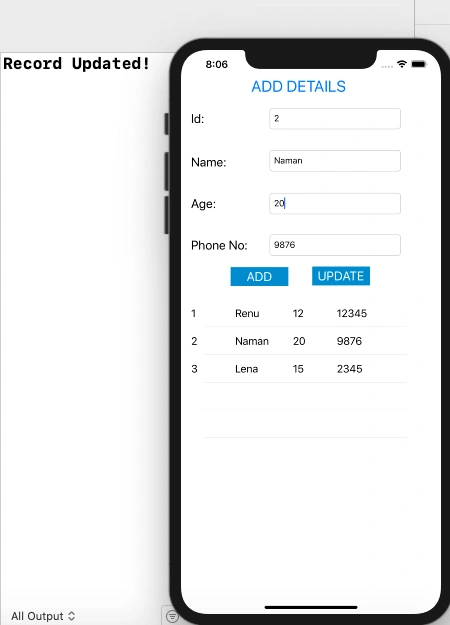
-
In the above image example, I have changed the Age field of my 2nd record from 17 to 20. After clicking on the Update button, the record gets updated as well as I get a message of 'Record Updated!' on my output window.
-
So we have successfully implemented the Update operation along with other operations on the basis of Id.

Join the conversation! Your thoughts help the community grow.