
Background
When a beginner joins a company or if there is a final round of interviews, known as a machine round, then most of the time the team leader gives the Candidate the first assignment to create an application which allows the end user to upload only Excel files and display it in a grid view and download it. When I joined a company the same task was given to me by my team leader; instead I was expecting him to give me the task of inserting, updating and deleting in a grid view.
So by considering the above requirement I decided to write this article specially focusing on beginners and those who want to learn how to upload Excel files and display in a grid view and download files in a gridview selected event which is displayed in the grid view.
Now before creating the application, let us create a table named Excelfiledemo in a database to store the downloaded Excel files in a database table having the following fields (shown in the following image),
Now before creating the application, let us create a table named Excelfiledemo in a database to store the downloaded Excel files in a database table having the following fields (shown in the following image),
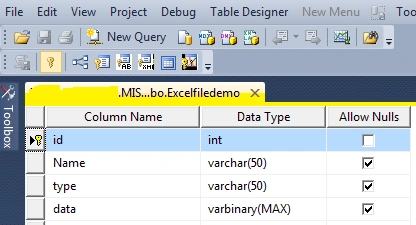
In the above table I have created four columns, they are id for the unique identity, Name for the Excel file name, type for file type and data to store the actual content of the files with binary datatype because the content of the files stored in bytes.
I hope you have created the same type of table.
Now let us start to create an application to upload and download Excel files step-by-step.
Create a web site as,
- Start-All Programs-Microsoft Visual Studio 2010
- File-New Website-C#-Empty website (to avoid adding master page)
- Give the web site name as ExcelFileUploadDownload and specify the location
- Then right-click on Solution Explorer - Add New Item-Default.aspx page
- Open source view and simply drag one File upload control, two Buttons, one label and a grid view
- The source code <body> tag should be as follows,
- <body bgcolor="Silver">
- <form id="form1" runat="server">
- <div>
- <table>
- <tr>
- <td>
- Select File
- </td>
- <td>
- <asp:FileUpload ID="FileUpload1" runat="server" ToolTip="Select Only Excel File" />
- </td>
- <td>
- <asp:Button ID="Button1" runat="server" Text="Upload" onclick="Button1_Click" />
- </td>
- <td>
- <asp:Button ID="Button2" runat="server" Text="View Files"
- onclick="Button2_Click" />
- </td>
- </tr>
- </table>
- <table>
- <tr>
- <td>
- <p>
- <asp:Label ID="Label2" runat="server" Text="label"></asp:Label>
- </p>
- </td>
- </tr>
- </table>
- <asp:GridView ID="GridView1" runat="server" Caption="Excel Files "
- CaptionAlign="Top" HorizontalAlign="Justify"
- DataKeyNames="id" onselectedindexchanged="GridView1_SelectedIndexChanged"
- ToolTip="Excel FIle DownLoad Tool" CellPadding="4" ForeColor="#333333"
- GridLines="None">
- <RowStyle BackColor="#E3EAEB" />
- <Columns>
- <asp:CommandField ShowSelectButton="True" SelectText="Download" ControlStyle-ForeColor="Blue"/>
- </Columns>
- <FooterStyle BackColor="#1C5E55" Font-Bold="True" ForeColor="White" />
- <PagerStyle BackColor="#666666" ForeColor="White" HorizontalAlign="Center" />
- <SelectedRowStyle BackColor="#C5BBAF" Font-Bold="True" ForeColor="#333333" />
- <HeaderStyle BackColor="Gray" Font-Bold="True" ForeColor="White" />
- <EditRowStyle BackColor="#7C6F57" />
- <AlternatingRowStyle BackColor="White" />
- </asp:GridView>
- </div>
- </form>
- </body>
Then run the page which will look as in the following,
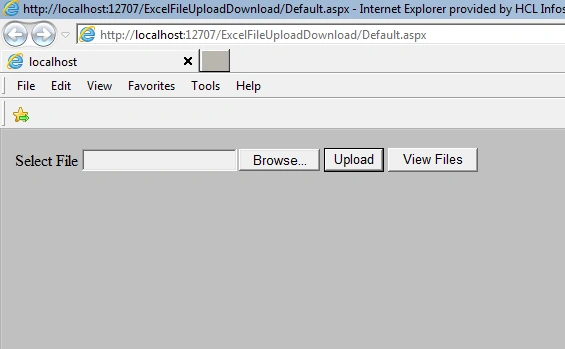
From the above view I am using two buttons to do the upload; one to upload the selected files to the database and view files which shows the files in a grid view which is stored in database table.
Now switch to design mode and double click on upload button and put the following code to validate the Only Excel files to be allowed to upload.
- protected void Button1_Click(object sender, EventArgs e) {
- Label2.Visible = true;
- string filePath = FileUpload1.PostedFile.FileName; // getting the file path of uploaded file
- string filename1 = Path.GetFileName(filePath); // getting the file name of uploaded file
- string ext = Path.GetExtension(filename1); // getting the file extension of uploaded file
- string type = String.Empty;
- if (!FileUpload1.HasFile) {
- Label2.Text = "Please Select File"; //if file uploader has no file selected
- } else
- if (FileUpload1.HasFile) {
- try {
- switch (ext) // this switch code validate the files which allow to upload only excel file you can change it for any file
- {
- case ".xls":
- type = "application/vnd.ms-excel";
- break;
- case ".xlsx":
- type = "application/vnd.ms-excel";
- break;
- }
- if (type != String.Empty) {
- connection();
- Stream fs = FileUpload1.PostedFile.InputStream;
- BinaryReader br = new BinaryReader(fs); //reads the binary files
- Byte[] bytes = br.ReadBytes((Int32) fs.Length); //counting the file length into bytes
- query = "insert into Excelfiledemo(Name,type,data)" + " values (@Name, @type, @Data)"; //insert query
- com = new SqlCommand(query, con);
- com.Parameters.Add("@Name", SqlDbType.VarChar).Value = filename1;
- com.Parameters.Add("@type", SqlDbType.VarChar).Value = type;
- com.Parameters.Add("@Data", SqlDbType.Binary).Value = bytes;
- com.ExecuteNonQuery();
- Label2.ForeColor = System.Drawing.Color.Green;
- Label2.Text = "File Uploaded Successfully";
- } else {
- Label2.ForeColor = System.Drawing.Color.Red;
- Label2.Text = "Select Only Excel File having extension .xlsx or .xls "; // if file is other than speified extension
- }
- } catch (Exception ex) {
- Label2.Text = "Error: " + ex.Message.ToString();
- }
- }
- }
Add the following code in the view file button click,
- protected void Button2_Click(object sender, EventArgs e)
- {
- GridView1.Visible =true;
- connection();
- query = "Select *from Excelfiledemo";
- SqlDataAdapter da = new SqlDataAdapter(query, con);
- DataSet ds = new DataSet();
- da.Fill(ds, "Excelfiledemo");
- GridView1.DataSource = ds.Tables[0];
- GridView1.DataBind();
- con.Close();
- }
Add the following code to the Gridview selected index changed event to download the files,
- protected void GridView1_SelectedIndexChanged(object sender, EventArgs e)
- {
- using(SqlConnection con = new SqlConnection(ConfigurationManager.ConnectionStrings["excelconn"].ToString()))
- {
- con.Open();
- SqlCommand cmd = new SqlCommand("select Name,type,data from Excelfiledemo where id=@id", con);
- cmd.Parameters.AddWithValue("id", GridView1.SelectedRow.Cells[1].Text);
- SqlDataReader dr = cmd.ExecuteReader();
- if (dr.Read())
- {
- Response.Clear();
- Response.Buffer = true;
- Response.ContentType = dr["type"].ToString();
- // to open file prompt Box open or Save file
- Response.AddHeader("content-disposition", "attachment;filename=" + dr["Name"].ToString());
- Response.Charset = "";
- Response.Cache.SetCacheability(HttpCacheability.NoCache);
- Response.BinaryWrite((byte[]) dr["data"]);
- Response.End();
- }
- }
- }
For more code please download the zip file attachment of this article.
After downloading the zip file, extract the files and open it into the Visual Studio and make whatever changes in the connection string to your web.config file as per your server location.
Now run the application and select the file other than Excel which shows the following error as shown in the following,

Now select the Excel file, which shows the following message after Suceessfully Uploaded,
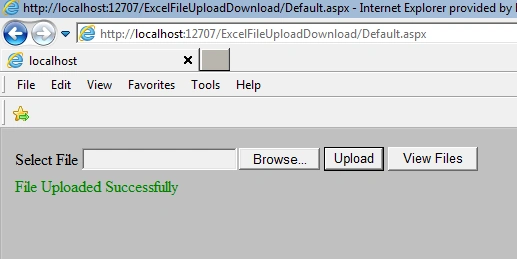
Now click on view files details. The gridview is shows uploaded files with details as shown below.
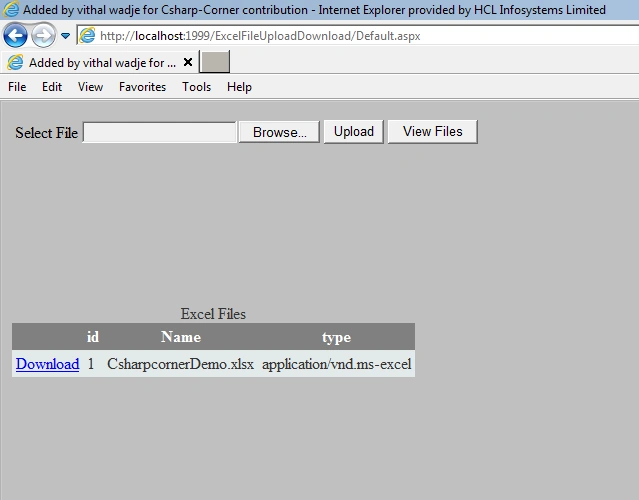
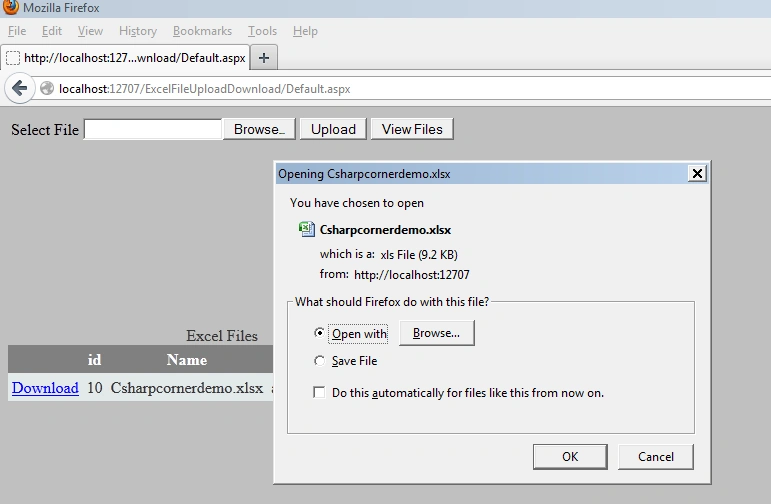
then Click on the download button of gridview, the following prompt message is displayed as shown in below image,
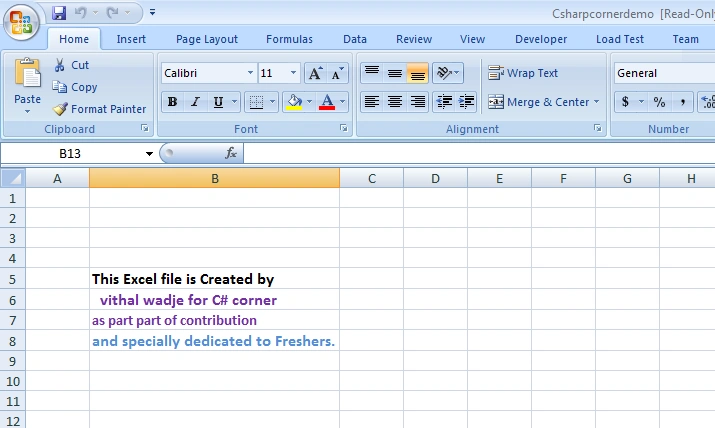
Then choose browse with Excel and click on the ok button. The file will be opened in Excel as follows,
Summary
I hope this article is useful for all readers, if you have any suggestion then please contact me including beginners also.
Note
Download the zip file from the attachment for the full source code of an application.
Download the zip file from the attachment for the full source code of an application.


sagar shindePosted Oct 17, 2023, 7:57 AM EDT
The path is not of a legal form error showing FileUpload control after button click'
indradeo kumarPosted Jul 24, 2019, 9:06 PM EDT
Can you confirm id details which are help to download uploads file
indradeo kumarPosted Jul 24, 2019, 8:14 PM EDT
Sir plz rply tomorrow my project submission date.
indradeo kumarPosted Jul 24, 2019, 8:33 AM EDT
Error: Cannot insert the value NULL into column 'id', table 'Emp.dbo.Excelfiledemo'; column does not allow nulls. INSERT fails. The statement has been terminated. share exl file details
indradeo kumarPosted Jul 24, 2019, 8:32 AM EDT
I have getting mention error.
JATIN NAGPALPosted Jun 10, 2019, 2:16 AM EDT
Sir Please help in providing the concept for Deleting the File from Database
Pranil BhosalePosted May 11, 2018, 5:11 AM EDT
Hello Vithal sir I am getting {"Object reference not set to an instance of an object."} exception Please help
Vithal WadjeTOP 100Posted Oct 30, 2013, 9:01 AM EDT
no problem Louie Ignacio sir,you are welcome n thanks
Louie IgnacioPosted Oct 30, 2013, 5:13 AM EDT
Error: Cannot insert the value NULL into column 'id', table 'NAS.dbo.ExcelFile'; column does not allow nulls. INSERT fails. The statement has been terminated.
Louie IgnacioPosted Oct 30, 2013, 5:12 AM EDT
Hi, im getting this error please help.
Vithal WadjeTOP 100Posted Oct 4, 2013, 11:42 AM EDT
thanks ketan sir
ketan italiyaPosted Sep 10, 2013, 1:39 AM EDT
sir,thanks it is so useful for me.
VIDYUT SINGHANIAPosted Apr 22, 2013, 10:14 PM EDT
Sir, I am extremely thankful to you or making Excel upload and download so easy for noob's like me! :) however, I am facing a small issue - the line : Response.ContentType = dr["type"].ToString(); it gives me an IndexOutOfRangeExpression! Please help me out sir! And thanks once again for all the help you have provided! :)
VIDYUT SINGHANIAPosted Apr 21, 2013, 8:27 AM EDT
Sir, I am extremely thankful to you or making Excel upload and download so easy for noob's like me! :) however, I am facing a small issue - the line : Response.ContentType = dr["type"].ToString(); it gives me an IndexOutOfRangeExpression! Please help me out sir! And thanks once again for all the help you have provided! :)
Vithal WadjeTOP 100editedPosted Mar 5, 2013, 12:45 AM ESTEdited Mar 5, 2013, 12:46 AM EST
no,you can take connection string name same as it is in article but you need to perform some changes in web.config file connection string that is your database name,your server name,password etc
Spencer LinPosted Mar 4, 2013, 4:23 AM EST
the files i downloaded = "unknown file type". please help! :)
Spencer LinPosted Mar 4, 2013, 4:16 AM EST
i see from your codes that you are using "excelconn". So it's just the connection string to connect to the database?
Vithal WadjeTOP 100Posted Mar 4, 2013, 12:38 AM EST
Spencer Lin sir,your connection with sql serevr in not created thats why you got error, check the connection string in web.config file
Spencer LinPosted Mar 3, 2013, 2:36 PM EST
I keep getting this error 'Object reference not set to an instance of an object' when I click on view files. Anyone of you all experience this as well?
Vithal WadjeTOP 100Posted Jan 29, 2013, 7:44 PM EST
anil sir,you can add the extension for this article
Vithal WadjeTOP 100Posted Jan 29, 2013, 7:44 PM EST
thanks Sivuyile Ntushelo sir
Sivuyile NtusheloPosted Jan 29, 2013, 3:53 AM EST
Ok nevermind guys, I got the Zip file. its downloaded fine now. Thanks
Sivuyile NtusheloPosted Jan 29, 2013, 3:36 AM EST
Ok nevermind guys, I got the Zip file. its downloaded fine now. Thanks
Sivuyile NtusheloPosted Jan 29, 2013, 3:33 AM EST
I cant Download the Zip guys. an erros says its been moved Somewhere. And i need this Code. Can you please advise. Thanks
Sivuyile NtusheloPosted Jan 29, 2013, 3:32 AM EST
I cant Download the Zip guys. an erros says its been moved Somewhere. And i need this Code. Can you please advise. Thanks
Anil KumarPosted Jan 29, 2013, 3:00 AM EST
Nothing is wrong in your code. I just added a concern that File upload should be care in terms of content spoof. This is done by altering the extension name of file ex. from filename.html to filename.html.xls. :)
Vithal WadjeTOP 100Posted Jan 28, 2013, 11:41 PM EST
thanks you anil sir,if anything is wrong i will check it
Anil KumarPosted Jan 28, 2013, 8:00 PM EST
Welcome Vithal, but Path.GetExtension Method do not care about double extensions like filename.txt.xls Refer MSDN's point- "The extension of path is obtained by searching path for a period (.), starting with the last character in path and continuing toward the start of path. If a period is found before a DirectorySeparatorChar or AltDirectorySeparatorChar character, the returned string contains the period and the characters after it; otherwise, Empty is returned." http://msdn.microsoft.com/en-us/library/system.io.path.getextension.aspx
Vithal WadjeTOP 100Posted Jan 28, 2013, 7:30 PM EST
thanks anil sir,its works just check it by downloading above zip file
Anil KumarPosted Jan 28, 2013, 2:45 AM EST
file content spoof validation is the vital part of uploading files, that one is missing. It can't be validated using GetExtension. Also, I am not sure if GetExtension take cares of double extension in file name.
Vithal WadjeTOP 100Posted Dec 2, 2012, 9:05 PM EST
yes inba i have idea about it but its very broad concept it can not be explained in comment, so refer the link as mahesh sir suggested below
Mahesh ChandTOP 10Posted Dec 2, 2012, 8:34 PM EST
Yogesh has written many blogs on Arcobject here: http://www.c-sharpcorner.com/1/290/arcobject.aspx
inba KalathyPosted Nov 25, 2012, 3:30 AM EST
hi vital, u know about an Arcobjets developing with c# or any idea
Vithal WadjeTOP 100Posted Nov 21, 2012, 8:32 PM EST
thank you Inba,its my pleasure
inba KalathyPosted Nov 21, 2012, 4:34 AM EST
very usefull for me
Vithal WadjeTOP 100Posted Nov 18, 2012, 11:22 PM EST
thank you anurag sir its my pleasure
Anurag SarkarPosted Nov 18, 2012, 3:32 AM EST
Nice One:)