
Overview
In this article, we will learn how we can embed our Power BI report in HTML Page using JavaScript SDK. I have attached the code to this article. You can directly download the HTML file.
Before we start I prefer you to read my earlier articles:
Now, let’s get started!
Step 1
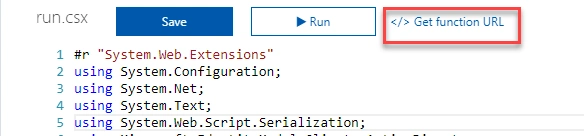
Copy the Azure App function URL.
Step 2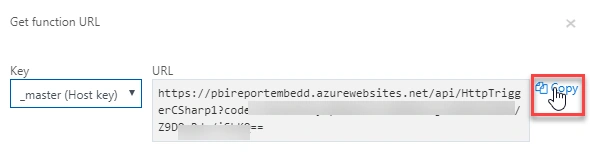
Create one HTML file and paste the following code snippet.
- <html>
- <head>
- <meta http-equiv="Content-type" content="text/html; charset=utf-8">
- <meta name="viewport" content="width=device-width,initial-scale=1">
- <title>Power BI Embedded Demo</title>
- <script type="text/javascript" language="javascript" src="https://code.jquery.com/jquery-1.12.4.js"></script>
- <script type="text/javascript" language="javascript" src="https://rawgit.com/Microsoft/PowerBI-JavaScript/master/dist/powerbi.min.js"></script> </script>
- </head>
- <body>
- <h1>Power BI Embedded Demo</h1>
- <div id="reportContainer" style="width: 80%; height: 800px;"></div>
- </body>
- <script>
- $(document).ready(function () {
- var getEmbedToken = "ADD Your Copied URL";
- $.ajax({
- url: getEmbedToken,
- jsonpCallback: 'callback',
- contentType: 'application/javascript',
- dataType: "jsonp",
- success: function (json) {
- var models = window['powerbi-client'].models;
- var embedConfiguration = {
- type: 'report',
- id: json.ReportId,
- embedUrl: json.EmbedUrl,
- tokenType: models.TokenType.Embed,
- accessToken: json.EmbedToken
- };
- var $reportContainer = $('#reportContainer');
- var report = powerbi.embed($reportContainer.get(0), embedConfiguration);
- },
- error: function () {
- alert("Error");
- }
- });
- });
- </script>
- </html>
Apply your Azure App function URL in the variable “getEmbedToken”.
Step 4
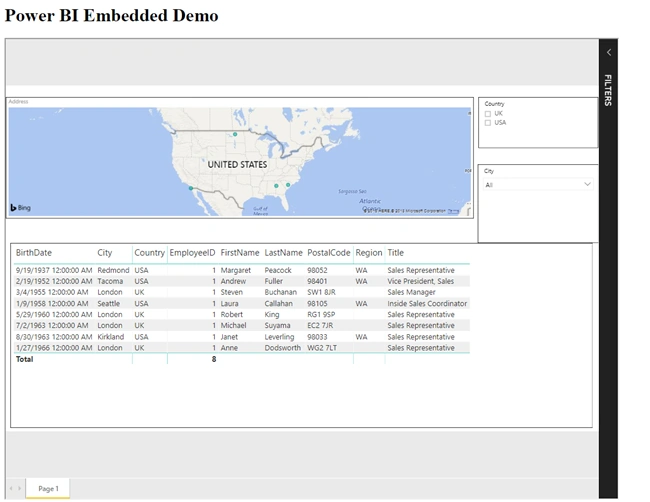
Run the code and check the result.
Conclusion
This is how we can embed our Power BI report in HTML Page. Hope you love this article! Stay connected with me.


Arkadyuti RoyChoudhuryPosted Dec 12, 2019, 1:09 AM EST
Hi Dhruvin,Need your help in Embed Token in azure. I have earlier created embedded token using your code in project.json and run.csx. But now when I am using the same code it is giving error stating 2019-12-12T11:57:59.220 [Error] Exception while executing function: Functions.HttpTriggerCSharp1. Microsoft.Azure.WebJobs.Script: One or more errors occurred. Microsoft.IdentityModel.Clients.ActiveDirectory: parsing_wstrust_response_failed: Parsing WS-Trust response failed. 2019-12-12T11:57:59.267 [Error] Function completed (Failure, Id=9efad37e-f7f9-473e-a36d-19be8591f5a1, Duration=1702ms)
Arkadyuti RoyChoudhuryPosted Dec 12, 2019, 1:08 AM EST
Hi Dhruvin,Need your help in Embed Token in azure. I have earlier created embedded token using your code in project.json and run.csx. But now when I am using the same code it is giving error stating Request your help on it
Arkadyuti RoyChoudhuryPosted Dec 12, 2019, 1:07 AM EST
2019-12-12T11:57:59.220 [Error] Exception while executing function: Functions.HttpTriggerCSharp1. Microsoft.Azure.WebJobs.Script: One or more errors occurred. Microsoft.IdentityModel.Clients.ActiveDirectory: parsing_wstrust_response_failed: Parsing WS-Trust response failed.2019-12-12T11:57:59.267 [Error] Function completed (Failure, Id=9efad37e-f7f9-473e-a36d-19be8591f5a1, Duration=1702ms)
YOSSEF DAVIDPosted Dec 3, 2019, 4:58 AM EST
Hi all, I'm using the Javascript SDK of power bi in order to embbed reports on my Wrodpress website. I went for the "user own data" approch as i want to use RLS . My desiref flow is: - user visit my site - user being asked to log-in with his power bi account - after use is logged in to power bi he can see the embedded report on my website. I am stuck with the stage of signing in the user and getting the access token. i was reffered to this example: https://docs.microsoft.com/en-us/power-bi/developer/get-azuread-access-token but it is being done with C#, I'm a front end developer and dont have .net environment on my server. Does anybody have a sample or can tell me how can i do the same sample with JavaScript?, How can i sign in the user and get an access token with JS, not C#? Thank you all!
YOSSEF DAVIDPosted Nov 16, 2019, 11:05 PM EST
Can you add an example for secured embedding? what if i want user to first sign in into his Microsoft account before he can see the actual report (same way as done with secure embedded i-frames)
sheetalPosted Oct 13, 2019, 10:22 PM EDT
How can you integrate multiple reports from powerbi service to weppage?
sheetalPosted Oct 13, 2019, 10:21 PM EDT
Is there any session timout ?with access token we get a refresh token .what about that ?Can you please answer
David VílloraPosted Jan 28, 2019, 11:16 PM EST
First at all, thanks for these posts. They have been very useful. When I try to load de embedded report into the browser , it fails I get the response "Failed to load resource: the server responded with a status of 401 (Unauthorized)" Any clue?
ashish shuklaPosted Oct 31, 2018, 4:10 AM EDT
When I am trying to embed report with mvc controller method instead of azure function, The ajax call is not calling that specific method and giving error alert.Do I need to do changes in ajax call??.
Ravi ManthojuPosted Aug 17, 2018, 11:20 AM EDT
Excellent Article. thank you