
Using task list can track your daily activities, assign task to team members, track due date for daily activities, etc.
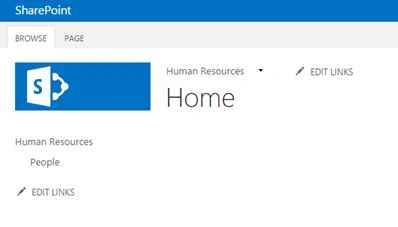
Open SharePoint site.
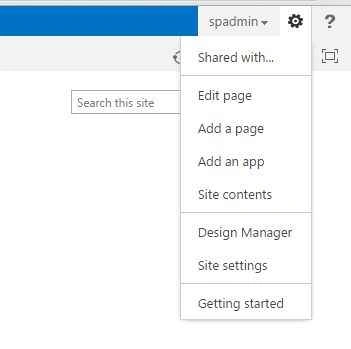
Click Site settings and Add an app.
Click on Task app to create.

Provide the name for the task list.
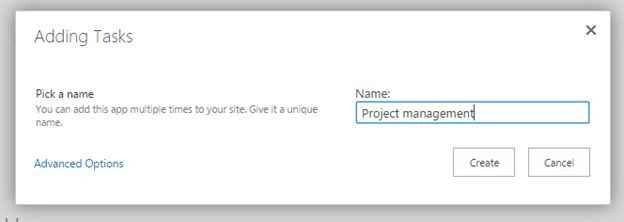
Click Create.
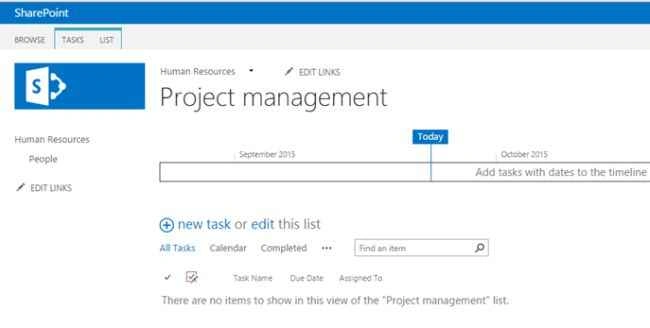
So the new task list has been created successfully.

So here's the task list with timeline. In SharePoint 2013 we have a timeline feature in the task list to track your daily task activities.
Now I am going to assign a task to my team member.
Click on new task.

Provide the name for the task.

Provide the task start date and due date.
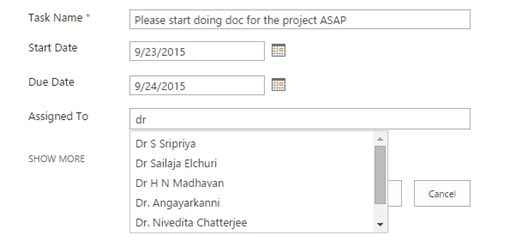
Assigned to ‘Assign the task to any of your team member’.
Percentage completed and the default will be ‘0’ as in the following screenshot:

Set priority to Low, High, Normal.

Update the status of the task.

Click Save.
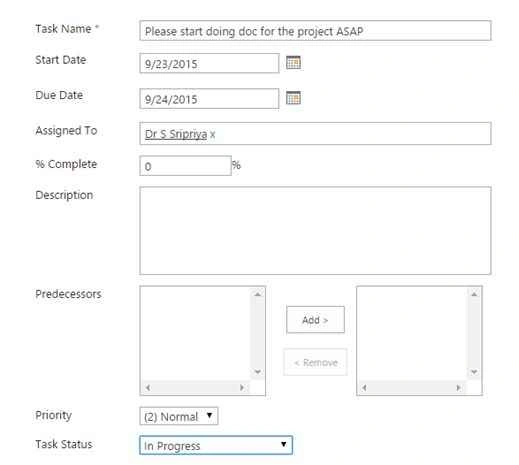
Provide description if u needed and add predecessors.
So the new task has been assigned successfully.

No I will change the view to view my tasks, so it will help you see the task assigned to you.
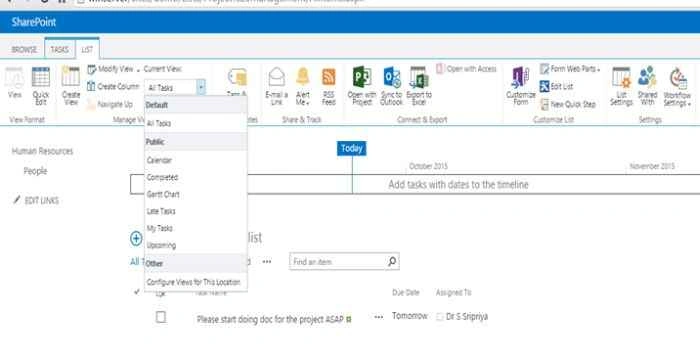
Click on My Tasks.
Now I am logged in as a different user and you are now able to see your task details.
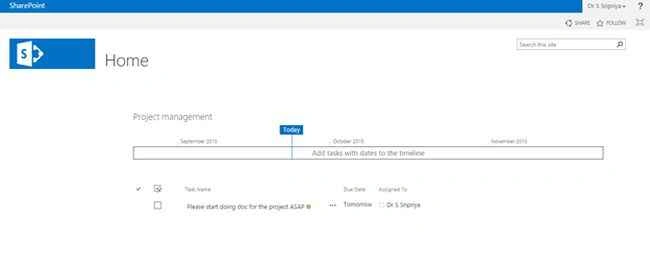
Also view your task details on ‘calendar view’.

Add to timeline.
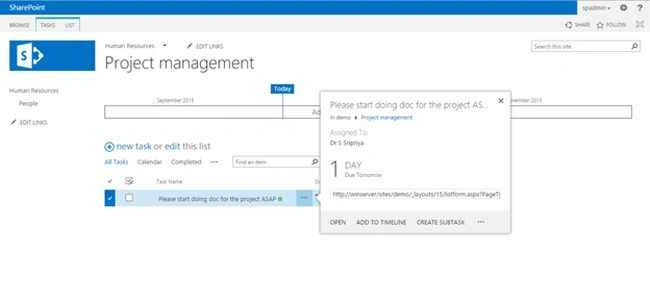
Click on ADD TO TIMELINE.
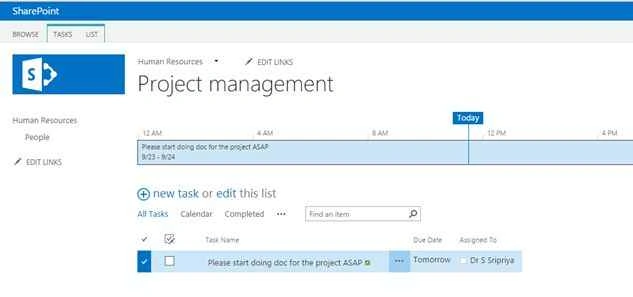
So now the task has been added into the timeline successfully.
Create And Use Task List In SharePoint 2013
In this article I have explain how to create task list and use in SharePoint 2013.


Santhakumar MunuswamyPosted Sep 26, 2015, 8:25 AM EDT
Nice share
Vinodh NarayananPosted Sep 23, 2015, 10:25 PM EDT
Sibeesh Venu Thanks a lot
Sibeesh VenuTOP 100Posted Sep 23, 2015, 10:18 PM EDT
Nice Share
Vinodh NarayananPosted Sep 23, 2015, 4:43 AM EDT
Thanks a lot Ankit Bansal
Ankit BansalPosted Sep 23, 2015, 4:42 AM EDT
thanks for sharing..
Vinodh NarayananPosted Sep 23, 2015, 1:11 AM EDT
Thanks a lotHarshad Pansuriya
Harshad PansuriyaPosted Sep 23, 2015, 12:59 AM EDT
Nice One]