
Introduction
In this article we are going to take a look at a way to use a disconnected DataTable and will also display the records in GridView using this. In the later article, you will learn how to perform CRUD (Create Read Update Delete) operations using a disconnected DataTable. For the very first time a question will arise, what is a disconnected DataTable? Let's define it in few words.
Prerequisite
I am assuming that the article learner is aware of the basics of ADO.NET and fundamental configuration, however I will try to use fundamental steps also so that a beginner learner can also get this.
What is a disconnected DataTable?
A disconnected DataTable can be used to communicate between distributed applications or web services, especially when someone wants to revert back all operations (Create Update Delete) made on data. A disconnected DataTable supports multiple DataTable bindings and it also makes it possible to navigate forward and backward in a DataTable, will talk about this is later articles.
Create Database
First, create the sample database for our demonstration. Here is the screenshot of my SQL Server Express database; you need to create it in your application.
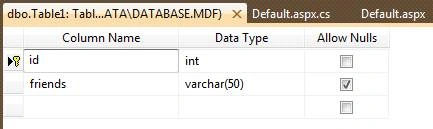
In the above database table definition window I will be using the id column as the primary key and identity specification that will be increased by 1 each time automatically.
Create a ConectionString in Web.Config
In this demonstration we are going to store the connectionString setting in the web.config file. So, let's create the connectionString. Here is the one I am using.
<connectionStrings>
<add
name="DatabaseConnectionString1"
connectionString="Data
Source=.\SQLEXPRESS;AttachDbFilename=|DataDirectory|\Database.mdf;Integrated
Security=True;User Instance=True"
providerName="System.Data.SqlClient"/>
</connectionStrings>
In the above connectionstring setting I have attached its name to "DatabaseConnectionString1".
Default.aspx Page Desing
The scope of this article is to display the data in a GridView using a disconnected DataTable, so we just need a GridView control here. Here is the one I am using.
<asp:GridView
ID="GridView1"
runat="server"
AutoGenerateColumns="False"
Width="229px">
<Columns>
<asp:BoundField
DataField="id"
HeaderText="ID"
/>
<asp:BoundField
DataField="friends"
HeaderText="Friends"
/>
</Columns>
</asp:GridView>
In the above code, I am setting AutoGenerateColumns to false and also added two BoundFields that will point to the id and friends fields from the DataTable.
Now let's move next on to view the main logic of this disconnected DataTable.
Default.aspx.cs Page Code
Here, we are going to talk about each method and event handler one by one.
protected
void Page_Load(object
sender, EventArgs e)
{
if (!IsPostBack)
{
InitializeDataAndGridView();
}
}
Firstly, I am checking it's postback and if it is false then calling a method named InitializeDataAndGridView(), which will perform the next task.
private
void InitializeDataAndGridView()
{
PopulateData();
LoadGridView();
}
In the above code, I am calling two more methods, one for populating the data and another for loading data into a container that is a GridView here for this demonstration.
Let's take a look at the PopulateData() method:
protected
void PopulateData()
{
SqlDataAdapter sqlDA = CreateAdapter();
sqlDA.FillSchema(FriendseDataTable, SchemaType.Source);
sqlDA.Fill(FriendseDataTable);
}
protected
SqlDataAdapter CreateAdapter()
{
String connStr =
ConfigurationManager.ConnectionStrings["DatabaseConnectionString1"].ConnectionString;
SqlConnection conn =
new SqlConnection(connStr);
SqlCommand cmd =
new SqlCommand("SELECT
* FROM Table1", conn);
cmd.CommandType = CommandType.Text;
SqlDataAdapter sqlDA =
new SqlDataAdapter(cmd);
return sqlDA;
}
public
DataTable FriendseDataTable
{
get
{
if (Cache["friendsDataTable"]
== null)
Cache["friendsDataTable"] =
new DataTable("friendsDataTable");
return (DataTable)Cache["friendsDataTable"];
}
}
In the above code, we are using a SqlDataAdapter instance to sqlDA and this code is playing main role in the disconnected model. Why, read on.
What is DataAdapter and all that stuff above?
A DataTable never has a live connection with a DataSource because the DataAdapter connects with the DataSource and executes the query and places the result in a DataTable. We don't need an open connection to use the DataAdapter.
The CreateAdapter method returns all resultant data back to the DataTable and here our DataTable instance is FriendsDataTable.
That's all for the short description on the PopulateData() method, now let's move to the LoadGridView() method that will load our DataTable to GridView. Here is the code:
protected
void LoadGridView()
{
GridView1.DataSource = FriendseDataTable;
GridView1.DataBind();
}
In the above code, I am filling GridView1 with FriendDataTable, which has all records.
Please download the attached file and demonstrate it yourself. I hope you like this post. Please post your comments and feedbacks here. Love you. Thanks.


Deepak VenugopalPosted Feb 15, 2013, 8:44 PM EST
thanks for explaining all methods individually..
Mamta MPosted Oct 12, 2011, 12:56 AM EDT
Quite useful. Thanks for sharing.
karthik vPosted Oct 11, 2011, 5:36 AM EDT
Very nice one abhimanyu.Thank you