
Working with colors in a C# console application can significantly improve readability, highlight important information, and enhance the overall user experience. The .NET framework provides built-in support for changing text color, background color, and resetting the console appearance using the Console class.
1. Introduction to Console Colors
The Console class in C# exposes two primary properties for working with colors:
Console.ForegroundColor – changes the text (font) color
Console.BackgroundColor – changes the background color
These properties accept values from the ConsoleColor enumeration, which includes 16 predefined colors such as Red , Green , Yellow , Blue , Cyan , Magenta , White , and Black .
2. Available Console Colors
The ConsoleColor enum includes the following:
    Black, DarkBlue, DarkGreen, DarkCyan, DarkRed, DarkMagenta,
DarkYellow, Gray, DarkGray, Blue, Green, Cyan,
Red, Magenta, Yellow, White
These colors can be applied to customize output based on context.
3. Changing the Text Colour
To change the text color, set the ForegroundColor :
    Console.ForegroundColor = ConsoleColor.Green;
Console.WriteLine("This is green text");
Console.ResetColor();
It is a good practice to call Console.ResetColor() after writing colored text to revert to default settings.
4. Changing the Background Colour
You can also set a background color:
    Console.BackgroundColor = ConsoleColor.DarkBlue;
Console.ForegroundColor = ConsoleColor.White;

Console.WriteLine("White text on a dark blue background");
Console.ResetColor();
Background color applies to the entire line until reset.
5. Combining Text and Background Colors
Both colors can be mixed to highlight important messages:
    Console.ForegroundColor = ConsoleColor.Yellow;
Console.BackgroundColor = ConsoleColor.Red;

Console.WriteLine("Warning: Action required!");
Console.ResetColor();
6. Creating a Reusable Helper Method
To avoid repeating color logic, you can create a method to print colored text:
    public static void WriteColored(string message, ConsoleColor fg, ConsoleColor bg = ConsoleColor.Black)
{
    Console.ForegroundColor = fg;
    Console.BackgroundColor = bg;

    Console.WriteLine(message);
    Console.ResetColor();
}
Usage
    WriteColored("Success!", ConsoleColor.Green);
WriteColored("Error!", ConsoleColor.White, ConsoleColor.DarkRed);
7. Real-World Use Cases
a. Logging
Different log levels can be color-coded:
Info → Blue
Success → Green
Warning → Yellow
Error → Red
b. Menu Systems
Console menus look cleaner with colored headers and selected options.
c. Debugging
Color output helps track variables, states, and flow.
8. Resetting and Clearing Colours
Console.ResetColor()restores default console settings.Console.Clear()will clear the screen and apply the background color currently set.
Example
    Console.BackgroundColor = ConsoleColor.DarkGray;
Console.Clear();
9. Limitations
Console colors may vary slightly depending on the terminal or OS.
Only 16 predefined colors are supported.
Colors may not appear correctly in certain terminals (older CMD windows).
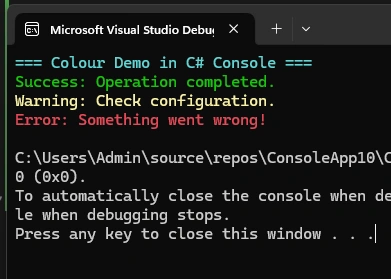
10. Complete Example Program
    using System;

class Program
{
    static void Main()
    {
        Console.ForegroundColor = ConsoleColor.Cyan;
        Console.WriteLine("=== Colour Demo in C# Console ===");
        Console.ResetColor();

        Console.ForegroundColor = ConsoleColor.Green;
        Console.WriteLine("Success: Operation completed.");

        Console.ForegroundColor = ConsoleColor.Yellow;
        Console.WriteLine("Warning: Check configuration.");

        Console.ForegroundColor = ConsoleColor.Red;
        Console.WriteLine("Error: Something went wrong!");

        Console.ResetColor();
    }
}
Conclusion
Using colors in a C# console application is simple yet powerful. It enhances output readability, improves user interaction, and helps categorize or emphasize information. By understanding and applying ConsoleColor , you can create more engaging and professional CLI tools.

Join the conversation! Your thoughts help the community grow.