
Introduction
Amazon EC2 allows you to run virtual machines in the cloud, while Amazon S3 provides a secure and scalable storage solution. Manually uploading files from EC2 to S3 can be time-consuming, especially when dealing with frequent backups or log files.
Automating this process using cron jobs ensures that files are uploaded on schedule without manual intervention. This is useful for,
- Backups: Automatically store critical files in S3 for safekeeping.
- Log Management: Move logs from EC2 to S3 to free up disk space.
- Data Processing: Upload files to S3 for further processing by AWS services.
In this article, we will walk you through setting up an EC2 instance, installing AWS CLI, creating a shell script, and using cron jobs to schedule automatic uploads to S3.
Step 1. Launch an EC2 Instance.
- Log in to your AWS Management Console.
- Navigate to the EC2 service and click Launch Instance.
- Choose Ubuntu or Amazon Linux as the operating system.
- Select an instance type (Free Tier: t2.micro).
- Configure security groups and allow SSH access (port 22).
- Launch the instance and connect via SSH.
Connect to the EC2 Instance
ssh -i your-key.pem ubuntu@your-ec2-ipStep 2. Install AWS CLI on EC2.
Install AWS CLI using the following commands.
sudo apt updatesudo apt install awscli -yIf sudo apt install awscli -y does not work, try this instead.
curl "https://awscli.amazonaws.com/awscli-exe-linux-x86_64.zip" -o "awscliv2.zip"sudo apt install unzip -yunzip awscliv2.zipsudo ./aws/installVerify installation
aws --version
Step 3. Verify AWS CLI Configuration.
Verify access to S3.
aws s3 ls s3://your-bucket-name/
Step 4. Create a Sample File to Upload.
echo "This is a test file" > testfile.txtStep 5. Create a Shell Script for Uploading Files.
Create a new script file.
nano /home/ubuntu/upload_to_s3.shAdd the following script inside the file.
#!/bin/bash
/usr/local/bin/aws s3 cp /home/ubuntu/testfile.txt s3://your-bucket-name/
Save and exit (CTRL + X, then Y, then Enter).
Make the script executable.
chmod +x /home/ubuntu/upload_to_s3.shStep 6. Schedule the Script with Cron Job.
Edit the cron jobs
crontab -eAdd this line at the bottom to run the script every 3 minutes.
*/3 * * * * /home/ubuntu/upload_to_s3.sh >> /home/ubuntu/cron.log 2>&1Save and exit. Restart the cron service.
sudo systemctl restart cronVerify active cron jobs.
crontab -l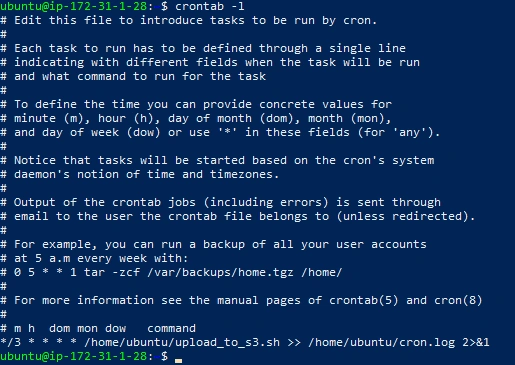
Step 7. Verify File Uploads to S3.
Check if the file has been uploaded to your S3 bucket.
aws s3 ls s3://your-bucket-name/Check cron logs.
cat /home/ubuntu/cron.log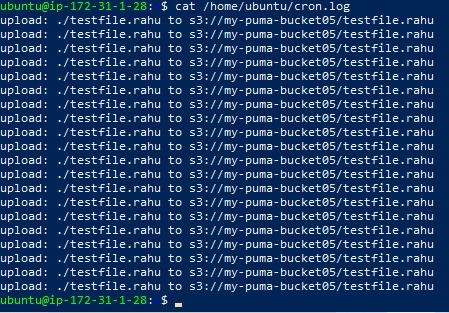
Step 8. Stop or Remove the Cron Job.
To stop the cron job, you can,
- Edit the cron job (
crontab -e) and remove the line. - Or remove all cron jobs.
crontab -r
Conclusion
In this article, we learned how to automate file uploads from an EC2 instance to an S3 bucket using cron jobs. We set up an EC2 instance, installed AWS CLI, created a shell script, and scheduled it with cron to run every 3 minutes.

Join the conversation! Your thoughts help the community grow.