
Visusl Studio 2015 Download Link : https://www.visualstudio.com/?Wt.mc_id=DX_MVP5000564
Account Management is related to the Sign-in feature that was first time introduced with Visual Studio 2013. This feature has been helpful by various means, but Visual Studio 2015 even extends this experience with some enhancements.
Introduction
Account Management turned out to be a very helpful feature, here are some points:
- Associate a profile (for example web development, C# or general) and synchronize your settings with the development environment once you are logged into another workstation.
- Ability to select graphic themes (Light, Dark, Blue) for the appearance of the IDE, code and code editor windows.
- Get direct benefits of the MSDN subscription associated with the ID used to sign into Visual Studio. For example unlocking Visual Studio or manage licenses associated with Visual Studio.
- Automatic login to a TFS Service account if subscribed to one. TFS Service is a Microsoft cloud based version of TFS.
Synchronized Settings
Visual Studio 2013 and 2015 allows the users to choose which settings to synchronize. Let's first understand which Visual Studio settings are a candidate for Synchronization.
- Appearance, in other words Themes, Colors and Fonts.
- Environment Aliases
- Keyboard Shortcuts
- Startup
- Text Editor
Visual Studio 2013 Synchronized Settings will be as shown in Figure 1.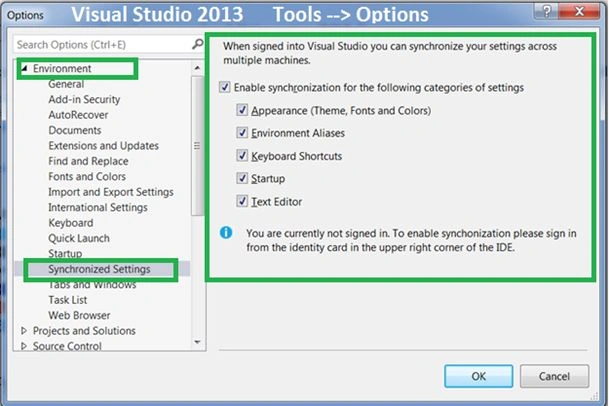
Figure 1: Visual Studio 2013 Synchronized Settings
Visual Studio 2015 Synchronized Settings will be as shown in Figure 2.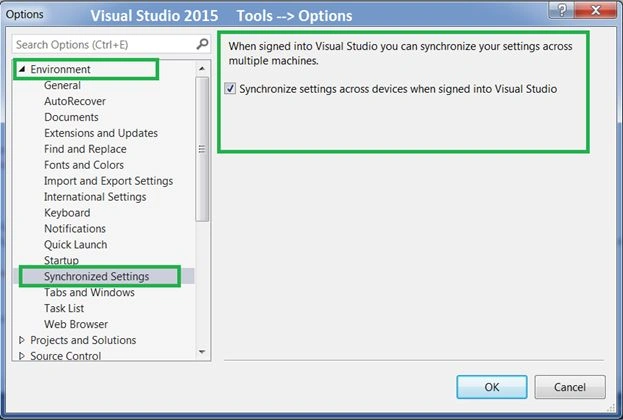
Figure 2: Synchronized Settings
Account Management
In Visual Studio 2013 and 2015 Account Management takes affect as soon as you click on the “Sign In” command in the top-right of your Visual Studio IDE as shown in Figure 3.
Figure 3: Go to Sign In
Or Account Management settings can also be accessed via File -> Account Settings.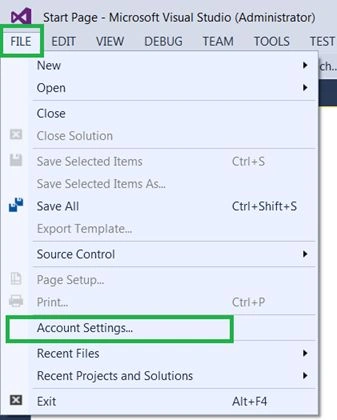
Figure 4: Account Settings
Improved Account Management with Visual Studio 2015
Microsoft has improvised the Account Management experience for developers and made it better. The core change made in Visual Studio 2015 Account Management is the capability to store multiple accounts and have those listed and stored on that Account Setting page.
The immediate benefit for developers is the ability to login into Visual Studio with various associated accounts and work with a different set of settings and projects.
Now the question is, what's new in this? Developers were able to do this even with earlier versions when it was introduced in Visual Studio 2013. Let's see by diving deep into Account Settings.
Account Settings Recap with Visual Studio 2013
When you sign-in with Visual Studio 2013, your Account Settings page will open asking to sign in.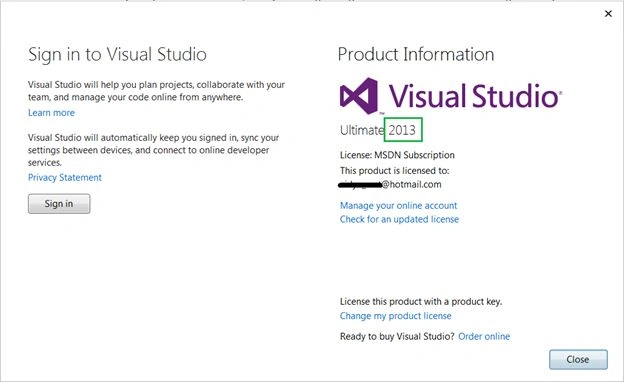
Figure 5: Sign-in with Visual Studio 2013
After successful sign-in the Account Settings page will appear as follows.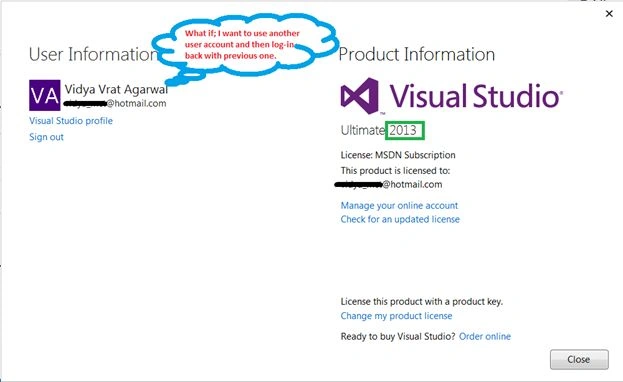
Figure 6: Account Settings page of Visual Studio 2013
The very obvious issue here is related to developer productivity and a developer who switches between accounts that must provide many different sets of credentials repeatedly.
Enhancement to Account Settings in Visual Studio 2015
Visual Studio 2015 comes with an enhanced Account Management feature to enable developers to store multiple sign-in credentials under Account Settings. Ideally, it would be productive to have multiple accounts registered and then switch easily from one account to another without re-entering all the credentials repeatedly.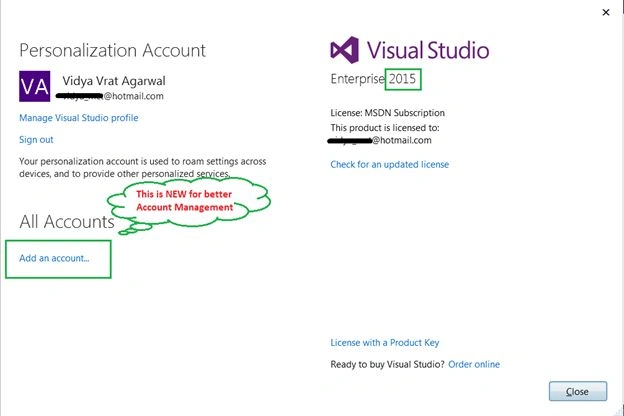
Figure 7: Account Settings in Visual Studio 2015
Adding New Account
Clicking on “Add an account” will take you to the Sign in dialog as shown below.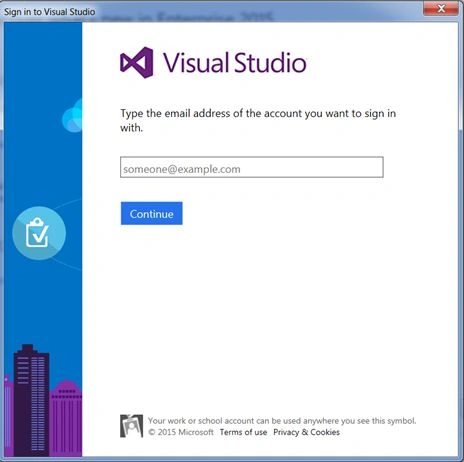
Figure 8: Add an account
After successful credential validation the Account Settings page will display the newly registered account under All Accounts.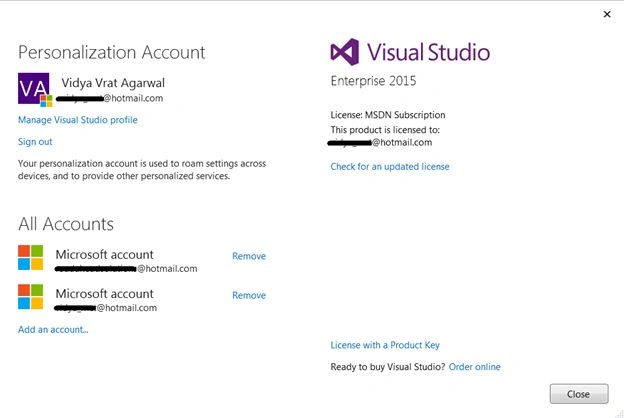
Figure 9: Newly registered account under All Accounts
This feature enables developers to have a centralized place to manage accounts and Synchronize settings across every registered Microsoft account.


Dinesh GabhanePosted Nov 7, 2019, 8:21 PM EST
Thanks for sharing
Sr KarthigaPosted May 6, 2016, 5:09 PM EDT
good one sir
Hari ShankerPosted Feb 4, 2016, 11:51 PM EST
Thanks for sharing
Sumit JoshiPosted Aug 13, 2015, 5:06 AM EDT
Thanks for sharing
Vidya Vrat AgarwalPosted Aug 3, 2015, 12:00 PM EDT
Thanks to all those who has liked and commented here and each reader of my work on C # Corner.
Nitesh KejriwalPosted Jul 29, 2015, 4:12 AM EDT
Great start with this series Vidya Vrat Agarwal :)
Santhakumar MunuswamyPosted Jul 28, 2015, 11:05 AM EDT
Good. Thanks for sharing sir
Shridhar SharmaPosted Jul 28, 2015, 6:49 AM EDT
nice share sir.
Sibeesh VenuTOP 100Posted Jul 28, 2015, 3:53 AM EDT
Nice Share
Nilesh JadavPosted Jul 28, 2015, 2:24 AM EDT
Nice one sir Thank you for sharing
Debasis SahaTOP 100Posted Jul 28, 2015, 12:50 AM EDT
Thanks for sharing..
Gopi ChandPosted Jul 28, 2015, 12:01 AM EDT
Great one sir
Rahul Kumar SaxenaTOP 100Posted Jul 27, 2015, 11:52 PM EDT
Knowledgeable..
Neeraj KumarPosted Jul 27, 2015, 11:44 PM EDT
Nice Article
Jacob RobinsonPosted Jul 27, 2015, 11:30 PM EDT
Thanks for sharing sir..
Vipul MalhotraPosted Jul 27, 2015, 11:26 PM EDT
nice Article Sir
Rajeesh MenothPosted Jul 27, 2015, 11:25 PM EDT
Good One sir..
RakeshPosted Jul 27, 2015, 11:13 PM EDT
Good sharing sir
Mahesh ChandTOP 10Posted Jul 27, 2015, 10:55 PM EDT
Nice Vidya.
Jaipal ReddyPosted Jul 27, 2015, 10:04 PM EDT
Thank you for sharing sir.
Jeetendra GundTOP 100Posted Jul 27, 2015, 9:16 PM EDT
Good one sir
Manoj KulkarniPosted Jul 27, 2015, 8:56 PM EDT
Nice article. Thank you for sharing